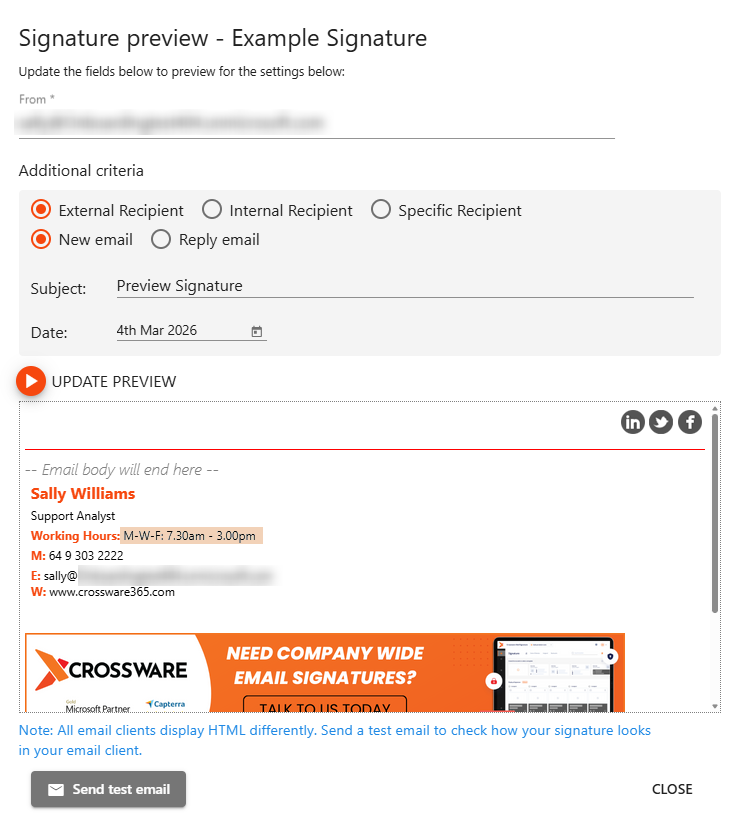
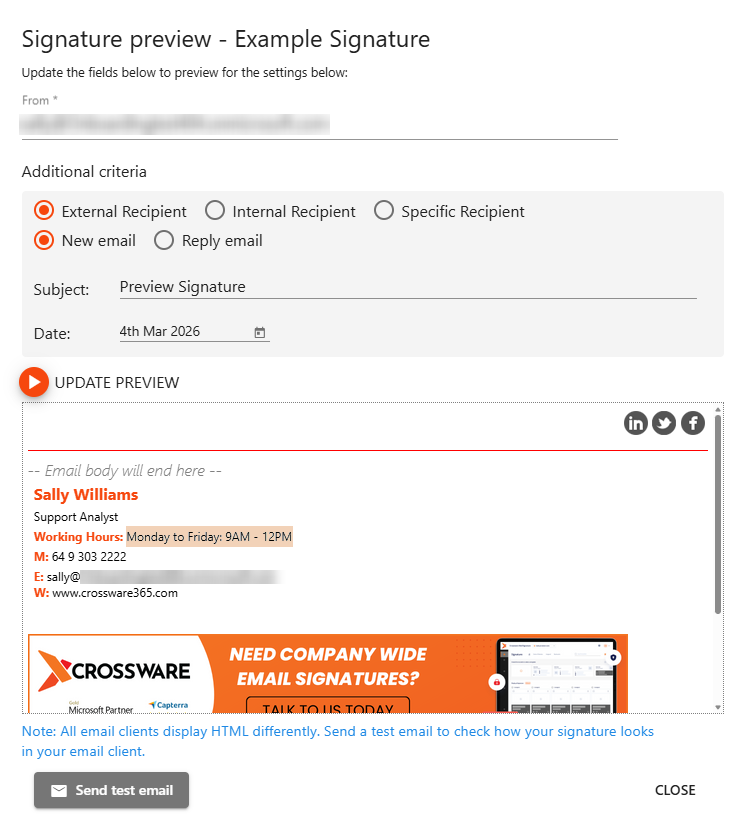
We are standardising email signatures across the organisation. Since staff work different office hours, these need to be displayed in each person’s signature. To achieve this, we will create a custom field in Crossware that returns the correct office hours for each staff member.
This can be set up in two ways:
-
Option 1: Formula field – manually define hours in a C# formula field.
-
Option 2: Directory attribute – pull hours directly from an Active Directory Extension Attribute (recommended for easier ongoing maintenance).
Option 1: Formula Field
Use this method if you prefer to manually configure office hours for each staff member.
-
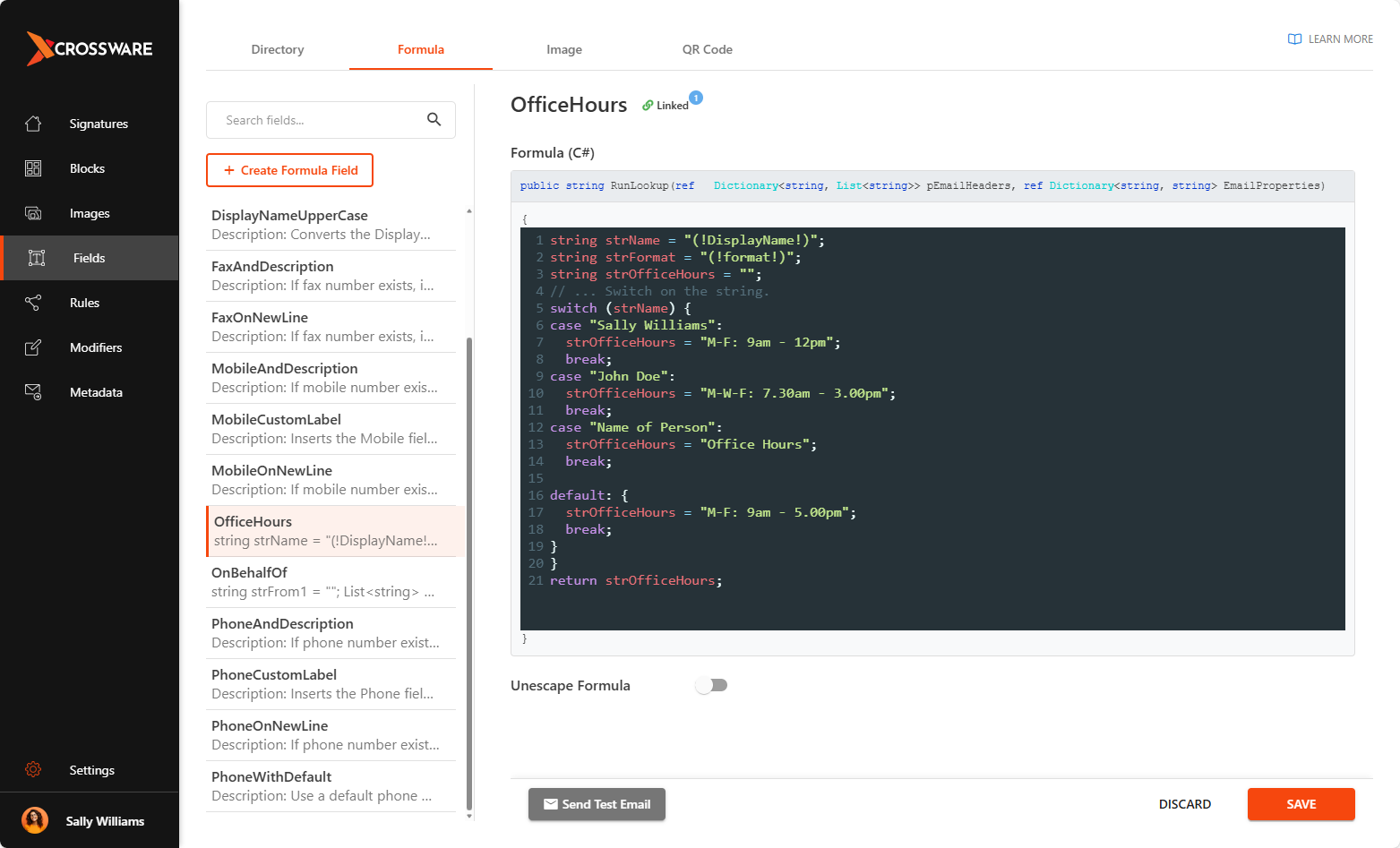
In the Crossware Portal, create a Formula Field named
OfficeHours. -
Enter the following C# code as an example:
Field Name: OfficeHours
string strName = "(!DisplayName!)";
string strFormat = "(!format!)";
string strOfficeHours = "";
// ... Switch on the string.
switch (strName) {
case "Sally Williams":
  strOfficeHours = "M-F: 9am - 12pm";
  break;
case "John Doe":
  strOfficeHours = "M-W-F: 7.30am - 3.00pm";
  break;
case "Name of Person":
  strOfficeHours = "Office Hours";
  break;

default: {
  strOfficeHours = "M-F: 9am - 5.00pm";
  break;
}
}
return strOfficeHours;
-
Update the sample code with the names of your staff and their office hours.
-
Name of Person: must match the user’s Display Name (e.g., Sally Williams).
-
Office Hours: the text that will be displayed in their signature.
-
Default: set a fallback value (e.g., M-F 9am – 12).
Option 2: Use Extension Attribute (recommended)
Instead of hardcoding values, store office hours in an Active Directory extension attribute. This makes updates quick and easy.
-
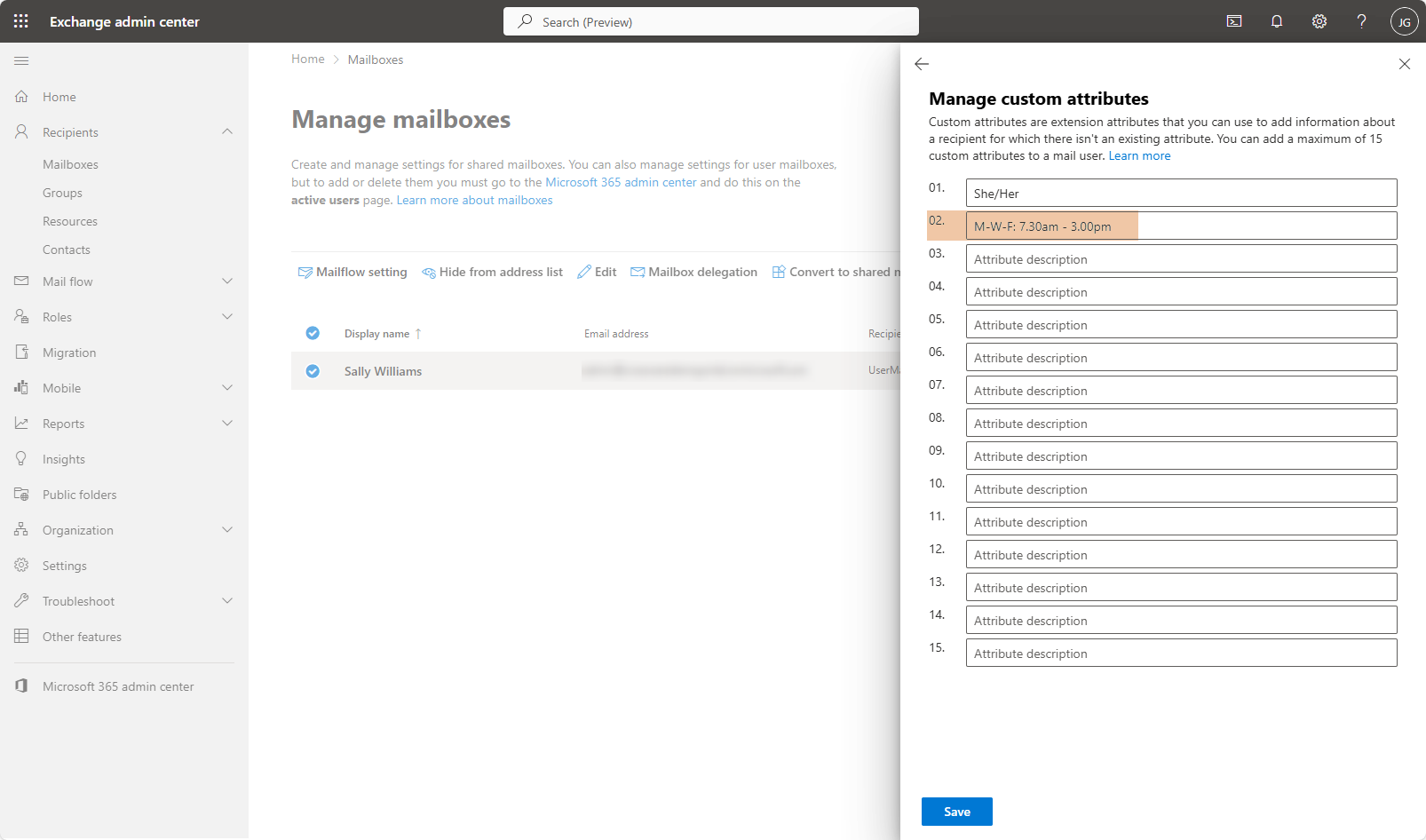
In Active Directory (on-premises or Azure AD), assign office hours to an extension attribute (e.g.,
extensionAttribute1). -
In Crossware, create a Directory Field named
WorkingHours.-
Set the Directory Attribute to the chosen extension attribute.
-
-
Each user’s working hours will automatically be pulled from Active Directory.
Integrate into the Signature
-
Navigate to the Signature.
-
Hover over the relevant signature and click Edit.
-
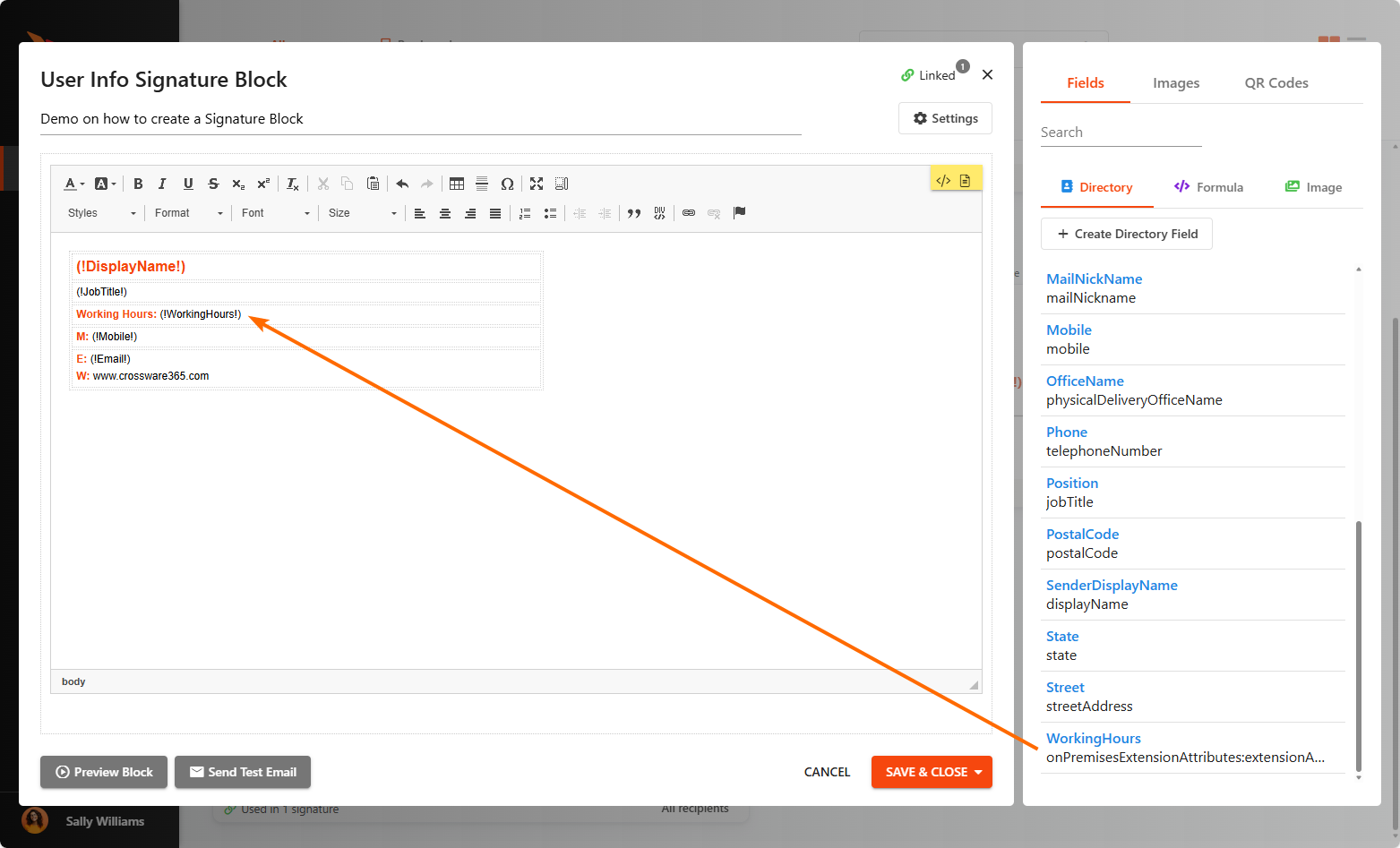
In the right-hand panel, open the Fields tab. Drag the
OfficeHours(Formula) orWorkingHours(Directory field) into the desired spot in your signature layout.
-
Click Save & Close to publish your updated signature.
Output:
Formula:
Extension Attribute: