
You can assign a signature configuration to an entire Microsoft 365 group.
This makes it easy to apply a consistent signature across teams, departments, or any defined group of users in your tenant.
If the signature contains signature blocks with their own rules, those rules will still take effect and may override or supplement the group assignment.
How To Assign a Signature to a Group
-
Sign in to the Crossware Portal and either create a new signature or open an existing one.
-
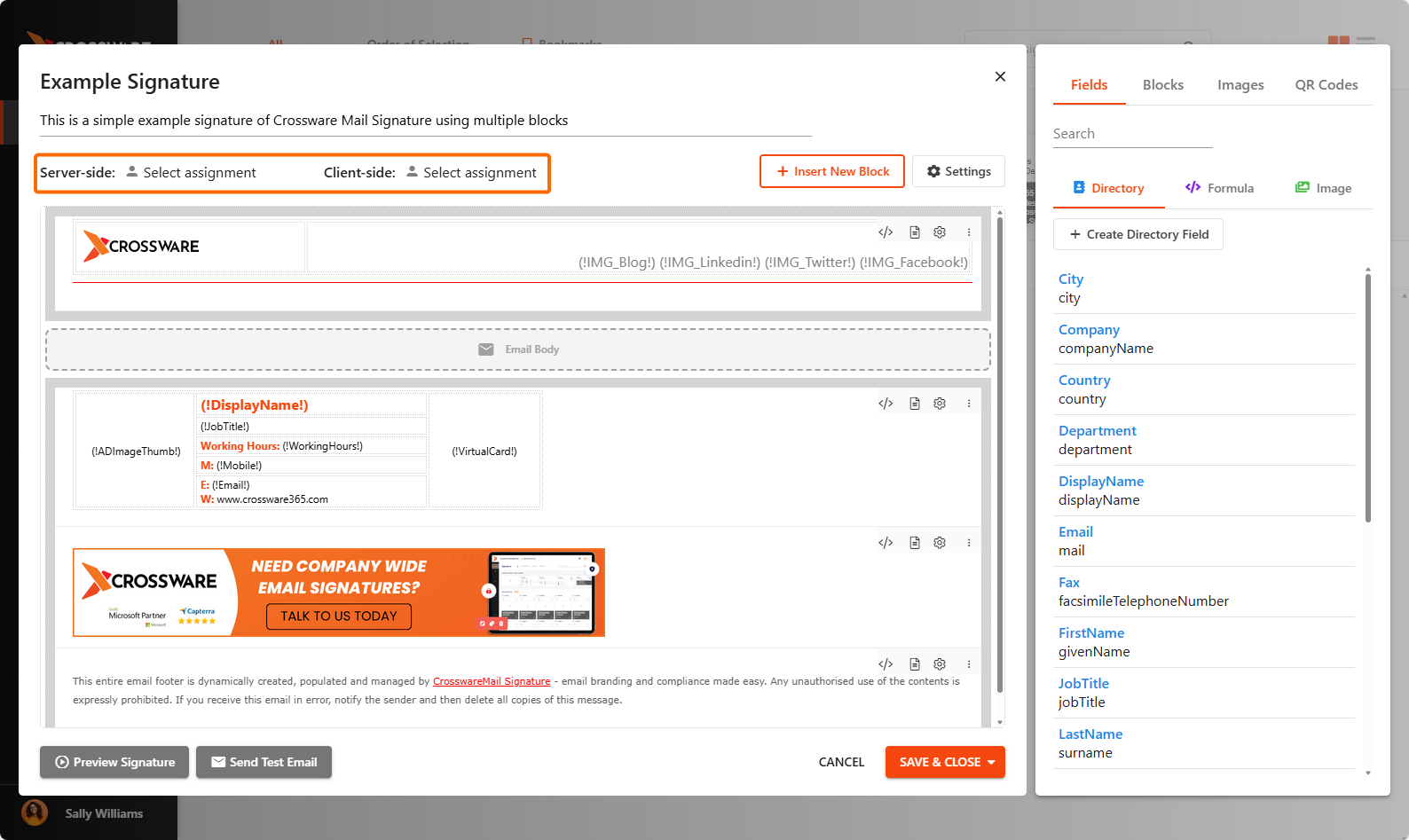
Locate Server-side or Client-side, then click Select Assignment.
Note:
-
Server-side applies the signature after the email is sent.
-
Client-side is used with the Outlook Add-in and allows users to see their signature while composing the email.
-
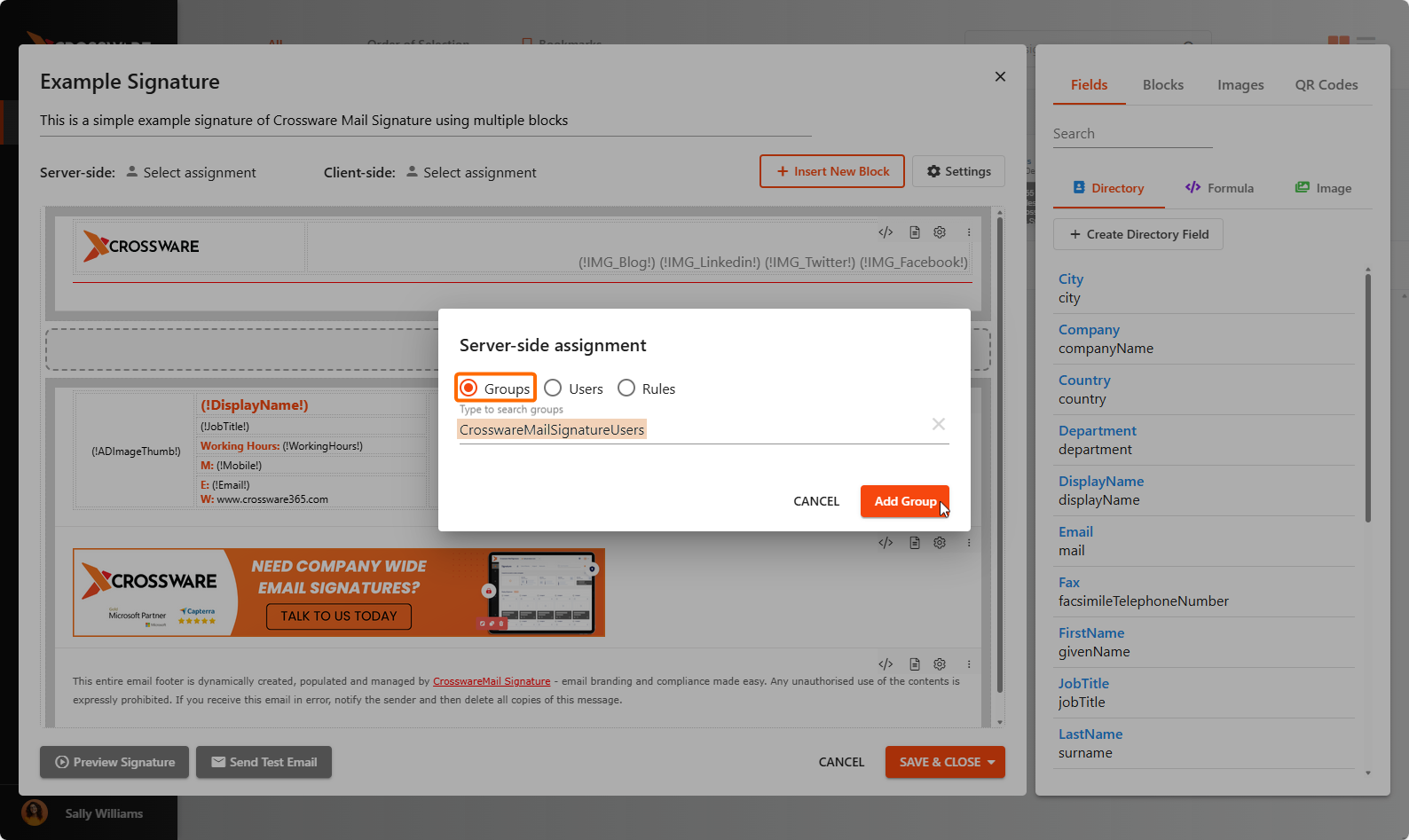
Select Group and in the text box, start typing the name of the Microsoft 365 group you want to assign the signature to. Select the correct group from the search results
-
Click Add Group.
-
Save your changes to apply the signature to all members of the selected group.
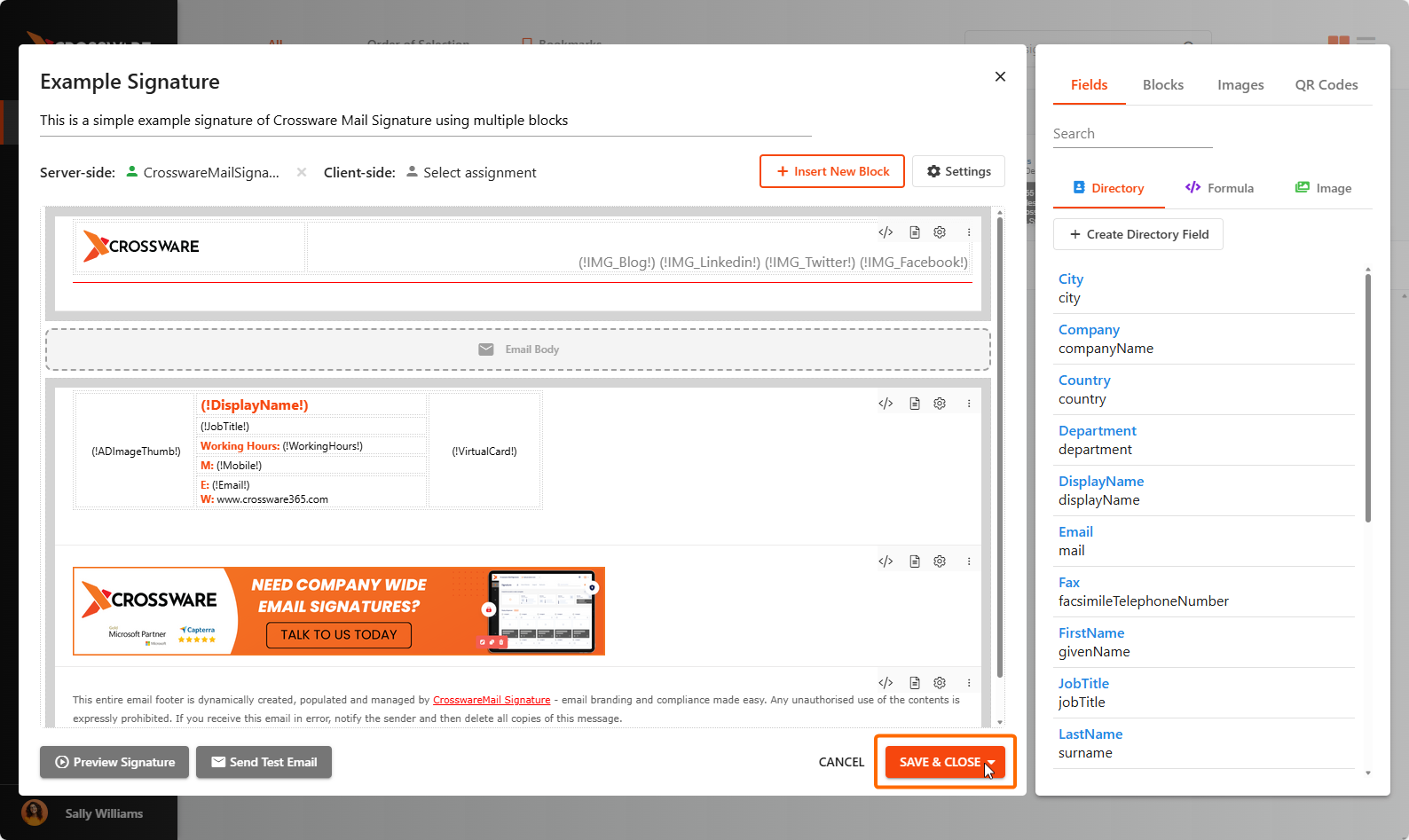
Your signature will now be applied to all users in that group.
If your signature includes Signature Blocks with their own rules, those blocks will also apply based on their conditions.