
The Email Modifiers feature in Crossware allows administrators to search for and replace (or remove) specific text in emails.
This is particularly useful for standardising email content, cleaning up unwanted phrases, or applying consistent formatting across all outgoing messages.
Example:
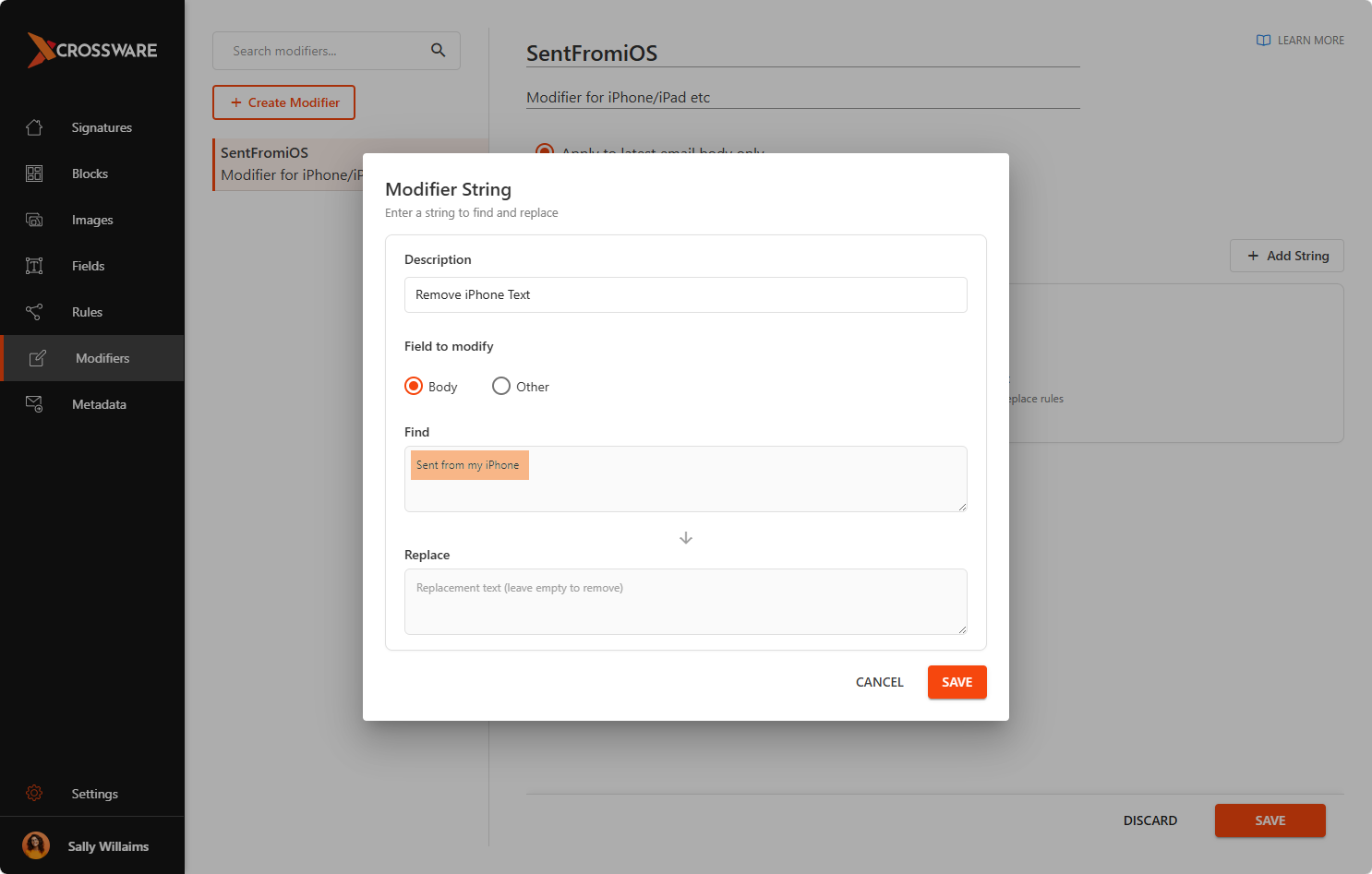
Remove the text Sent from my iPhone from all emails sent by mobile users.
Creating a new Modifier
-
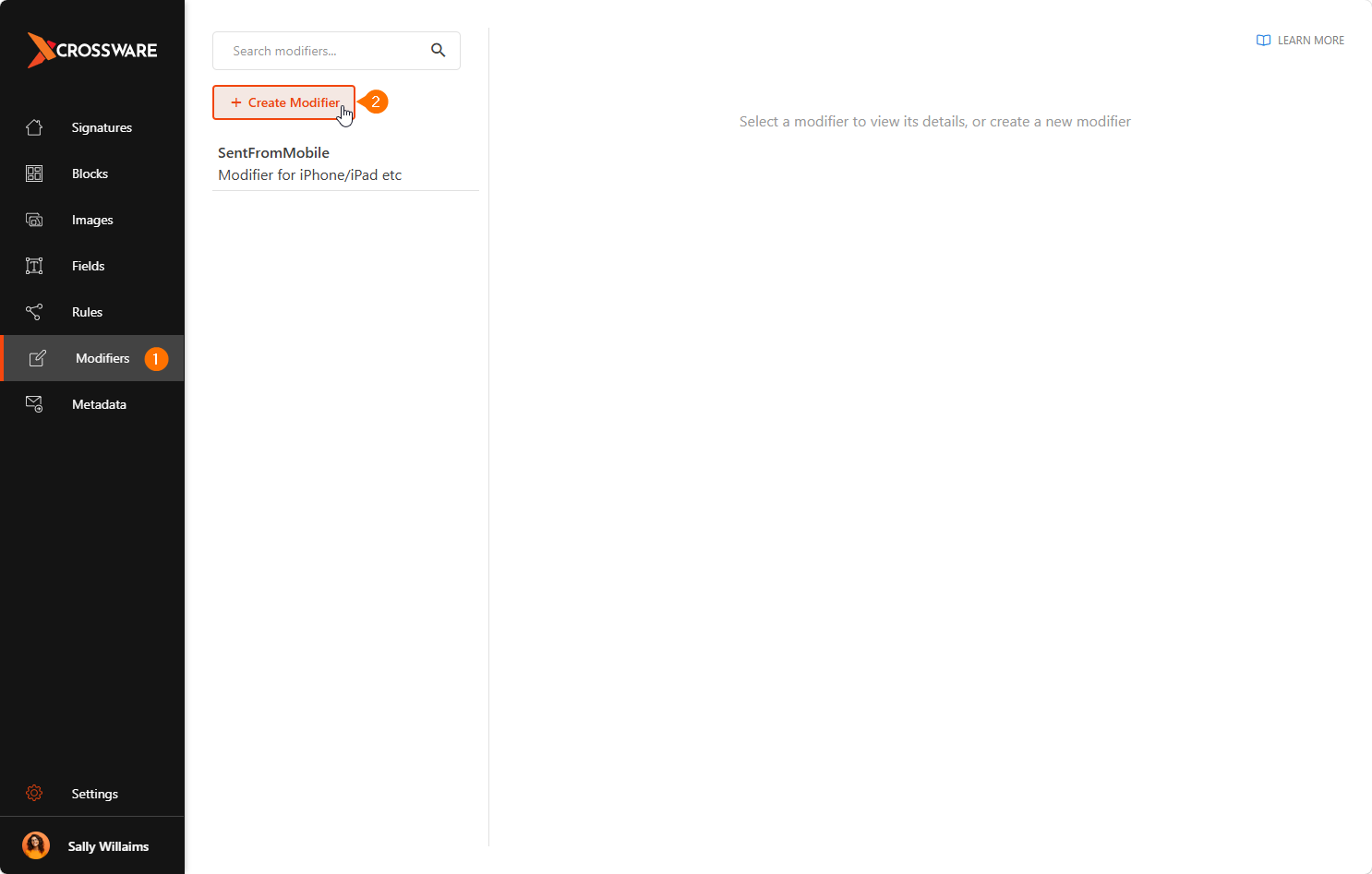
Sign in to the Crossware Portal and navigate to the Modifiers section.
-
Click on Create Modifier.
-
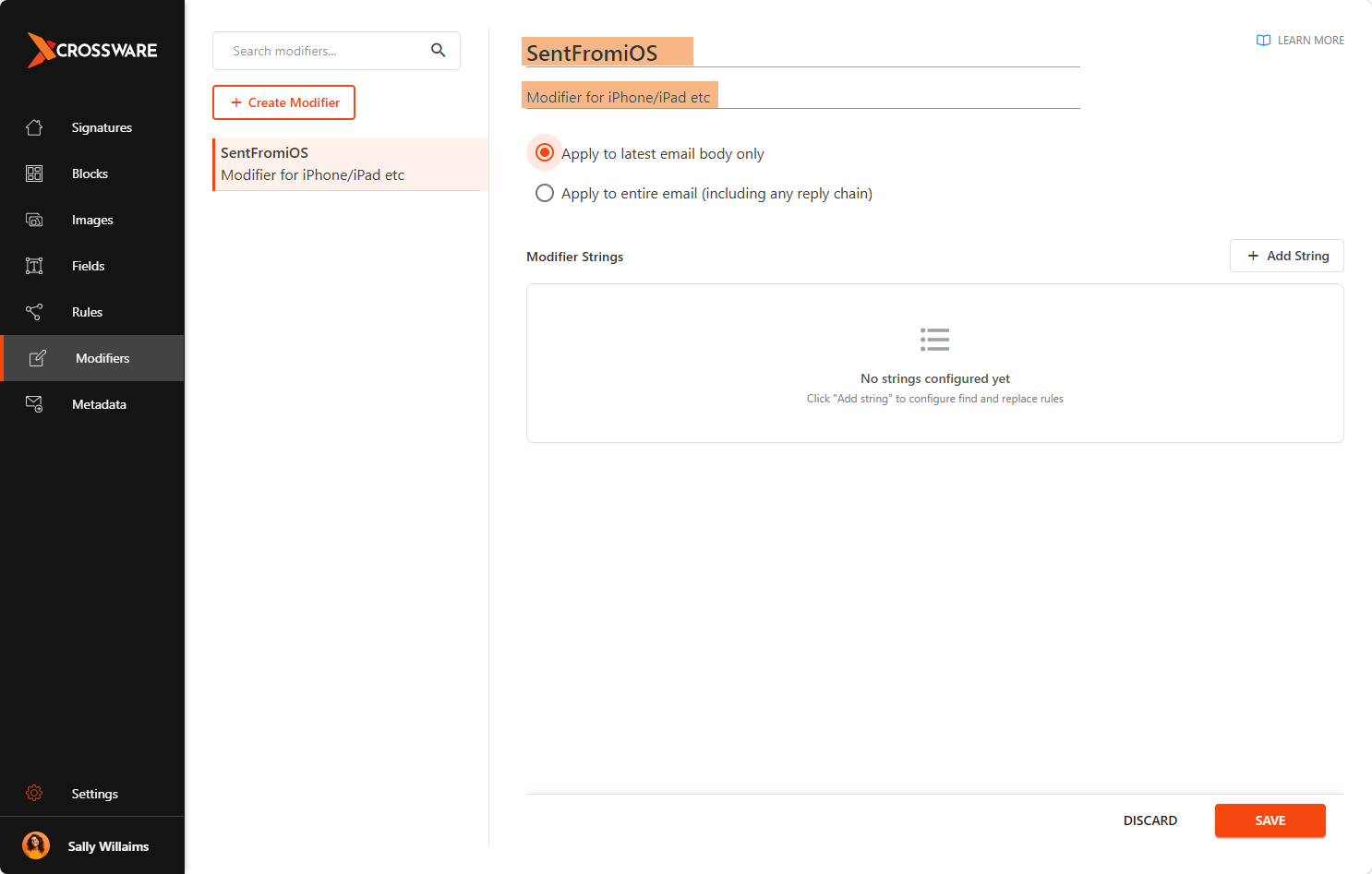
Enter Name and Description to identify its purpose.
-
Click Add String, enter the text to search for in the Find field (e.g., Sent from my iPhone), and leave the Replace field empty to remove the text or enter replacement text if needed.
-
Click Save.
Applying the Modifier to a Signature
-
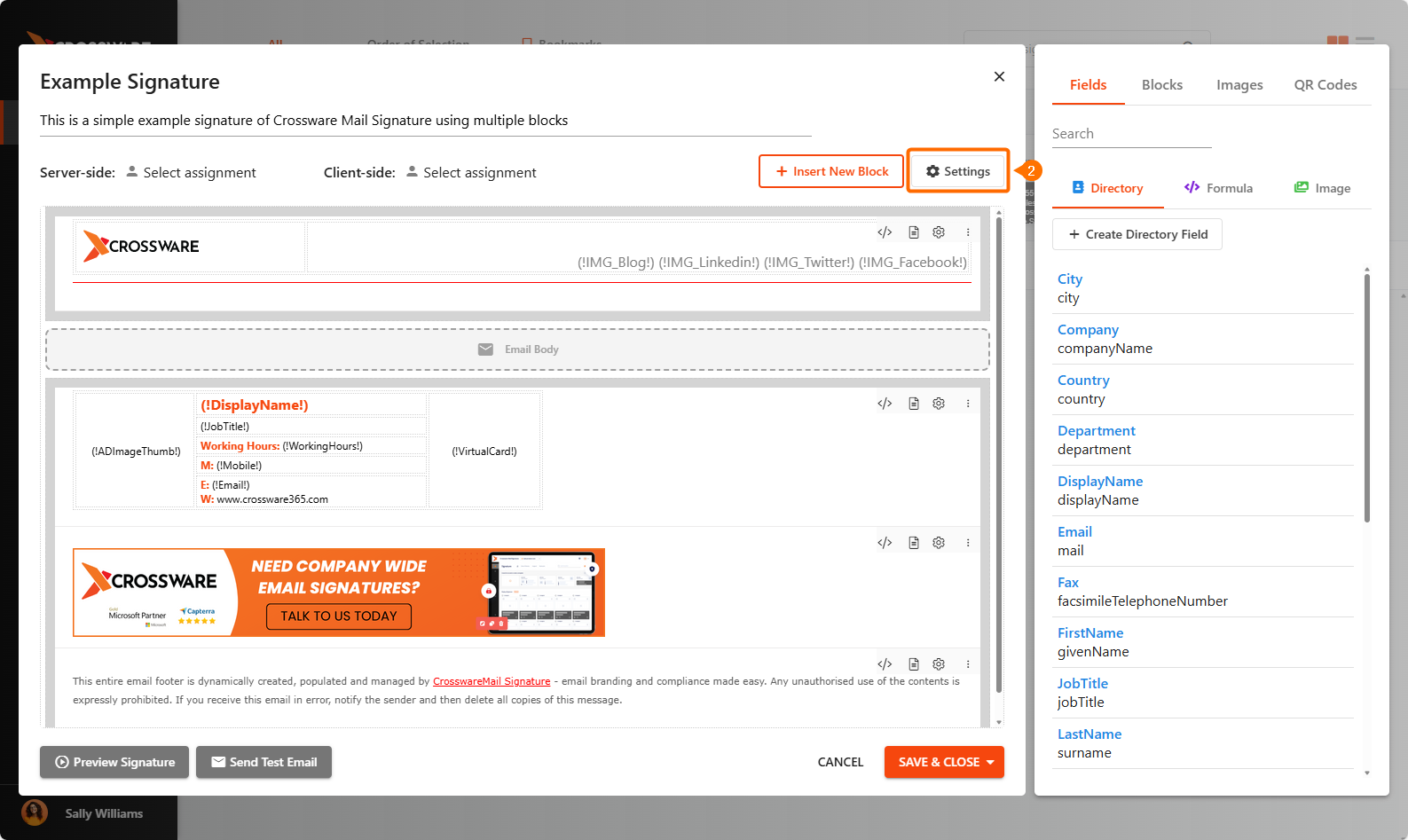
Open an existing signature or create a new one.
-
Click Settings.
-
Under the Modifiers section, select the modifier you created from the list and click Save.
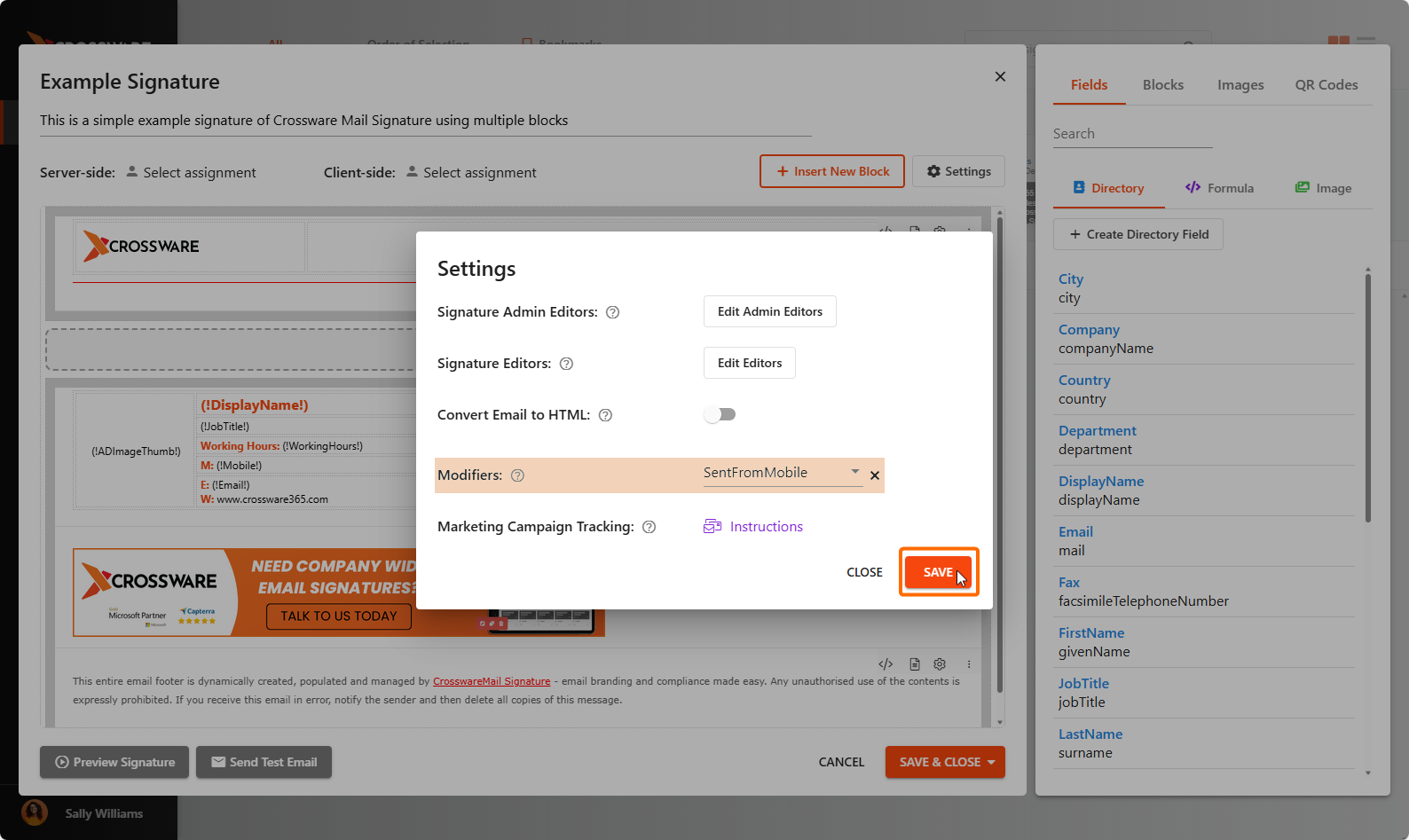
-
Click Save & Close to apply the changes to the signature .