
You can add a clickable social media icon to your email signature that links to each user’s personal social media profile. If a personalised link is not available in Active Directory (AD), the icon will automatically link to a default company social media URL.
Create a Directorty Field
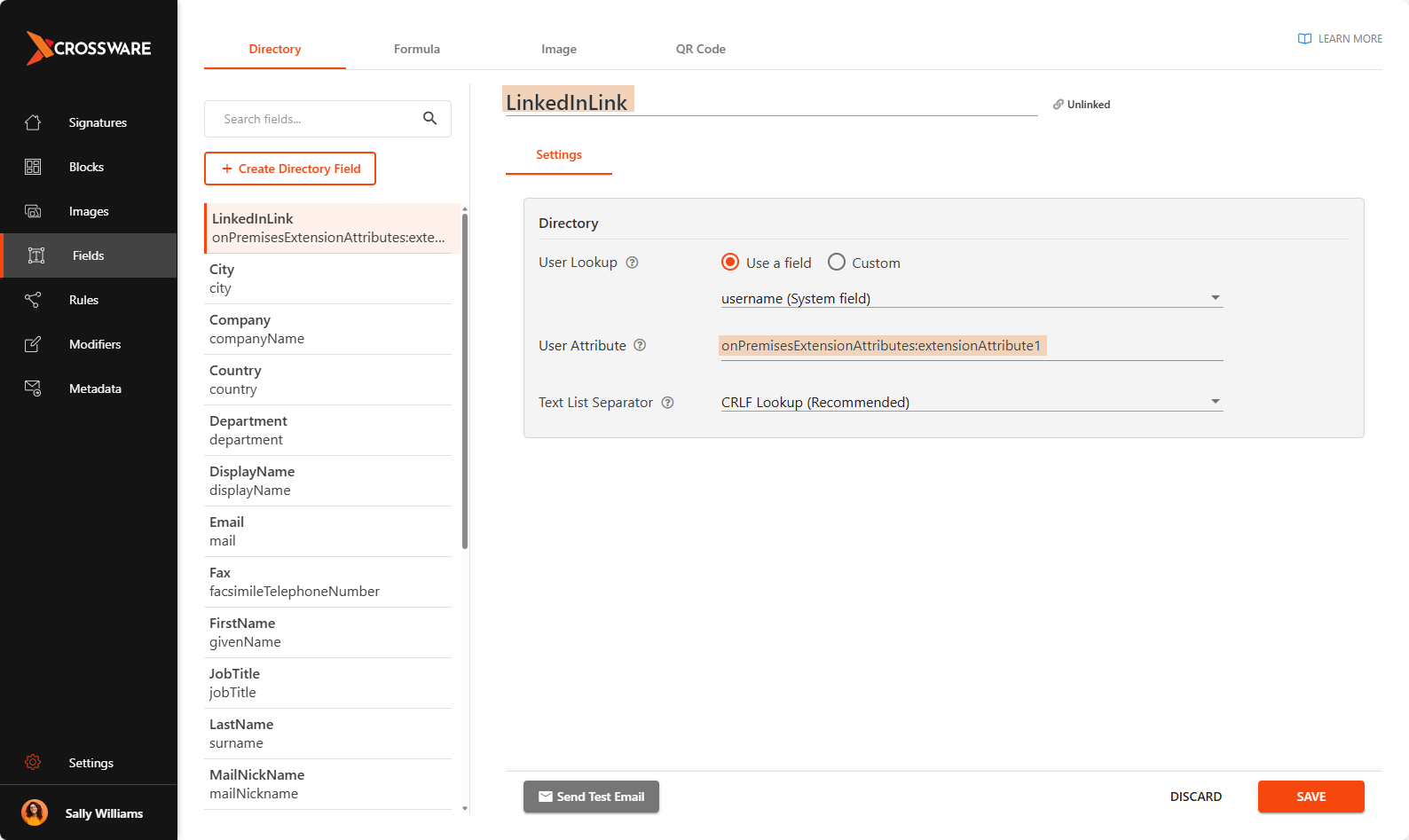
Create a Directory field (e.g., named LinkedInLink) that fetches the user's social media URL from Active Directory.
In this example we are going to use extensionattribute1.
Build a Formula Field
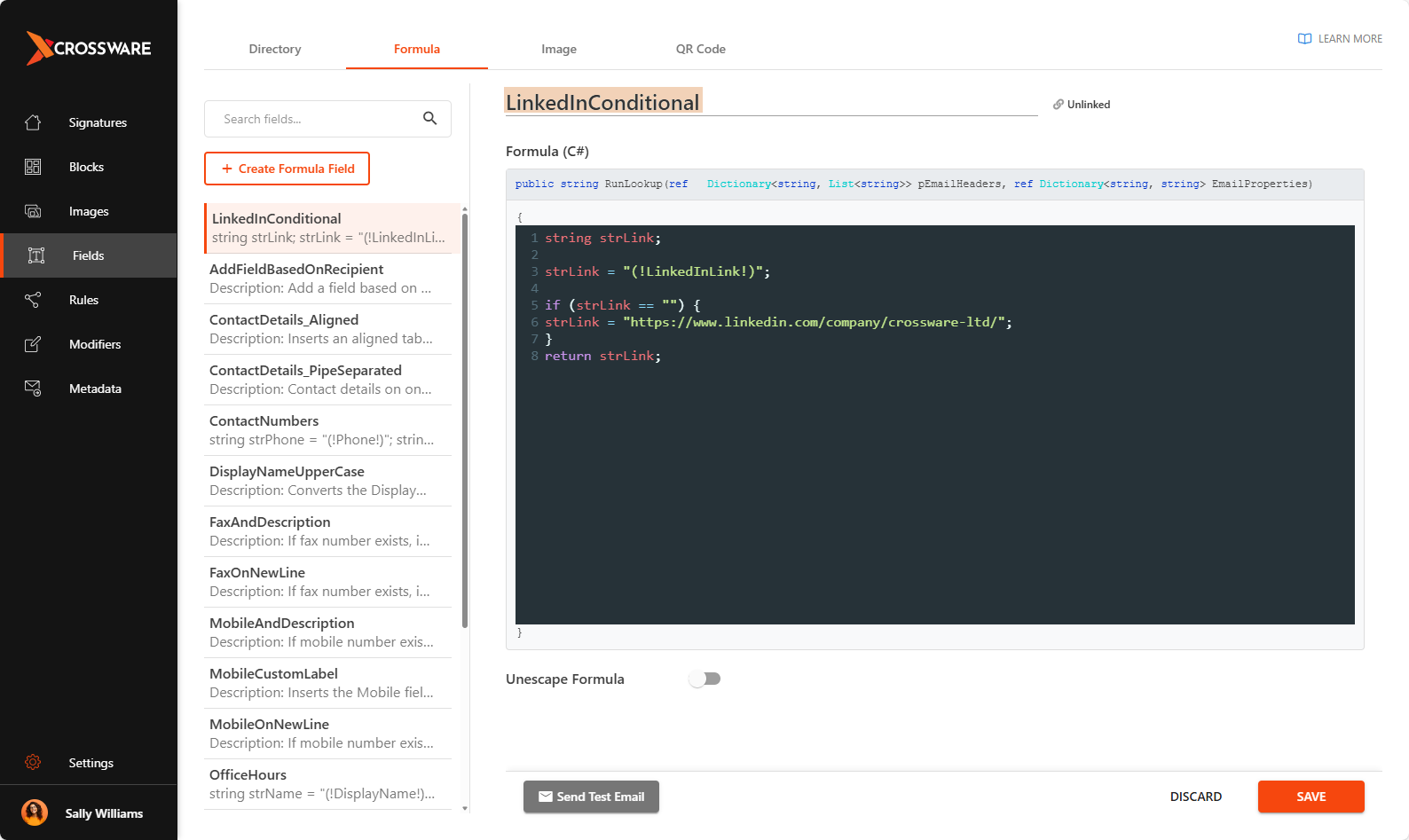
Create a formula field (e.g., named LinkedInConditional) to dynamically decide which URL to use:
-
If the AD field is populated, the formula uses that value.
-
Otherwise, it defaults to a standard company social media URL.
Set Up an Image Field
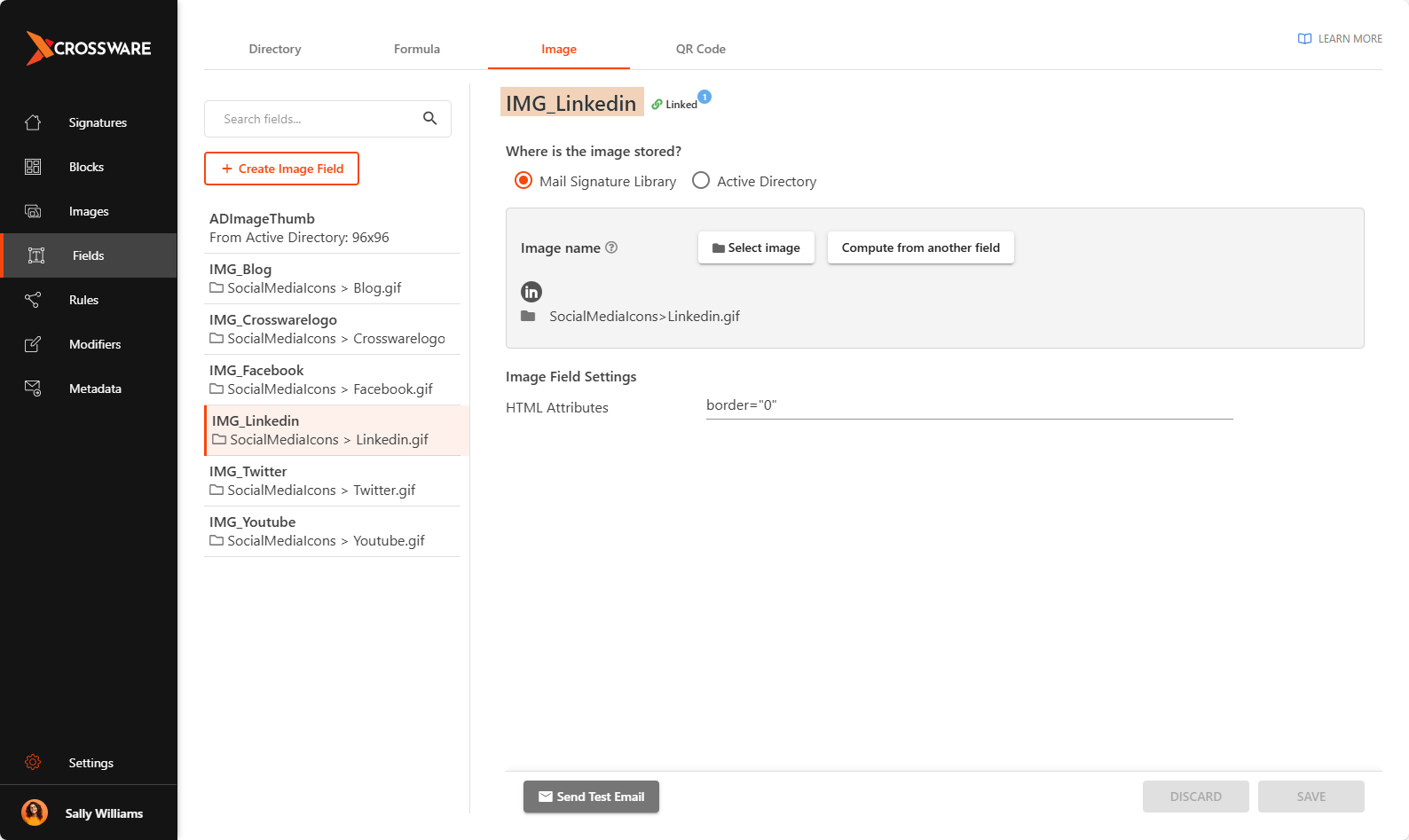
Create an Image field (e.g., IMG_Linkedin). This way, you can update the image once in the library and it will change wherever the field is used in signatures.
Integrate into the Signature
-
Navigate to Signatures in the Crossware Portal.
-
Hover over the relevant signature and click Edit.
-
In the right-hand panel, open the Fields tab.
-
Drag the LinkedInConditional (URL) and IMG_Linkedin (icon) fields to the desired location in your signature layout.
-
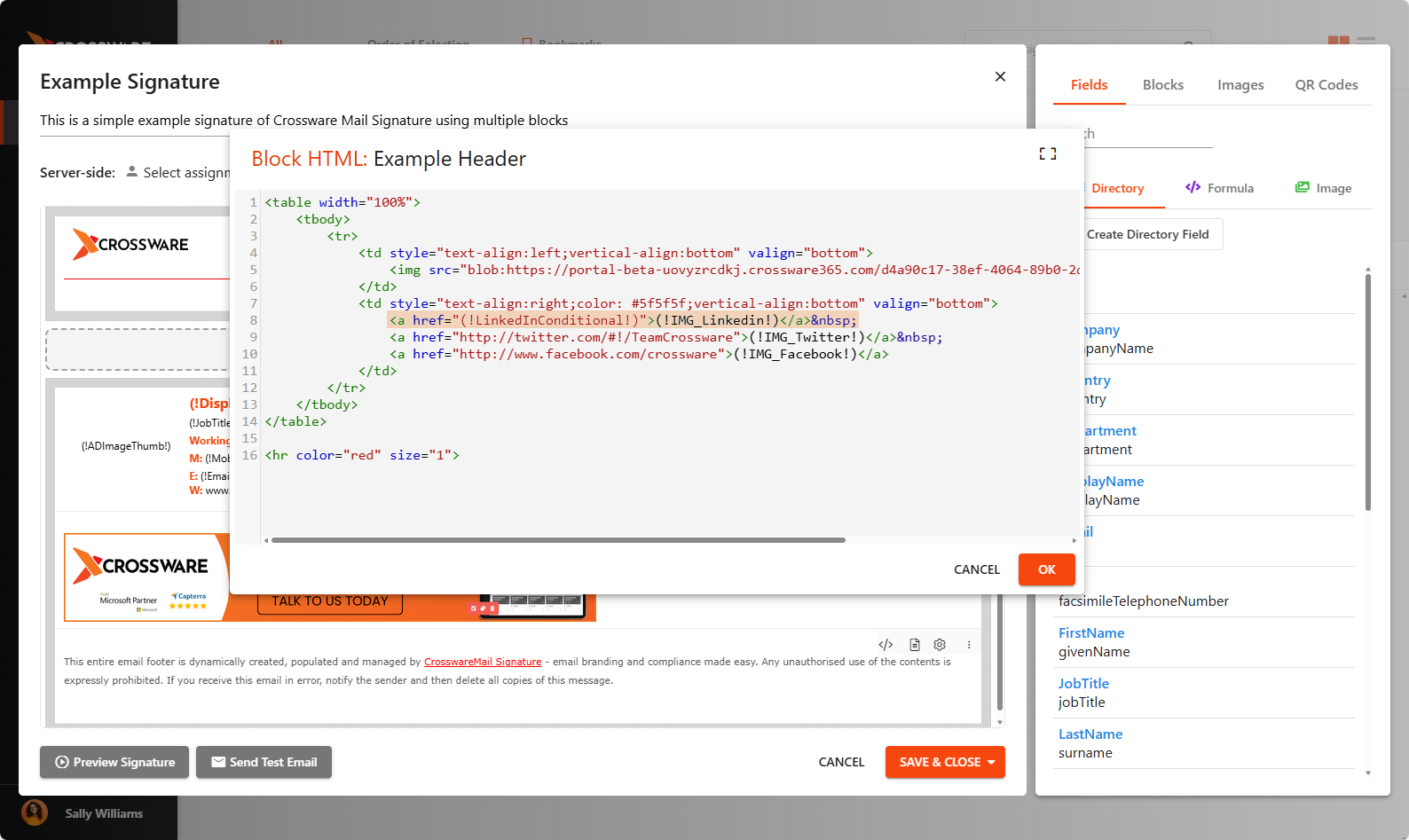
Open the HTML Configuration section and add the following code:
<a href="(!LinkedInConditional!)">(!IMG_Linkedin!)</a>
-
Click Save & Close to publish the updated signature.