
Crossware allows you to assign a signature to a specific user instead of (or in addition to) a group.
This is useful when one person requires a unique signature layout or different details than the rest of their group.
Signature configurations are processed in order, and only one signature is applied per user. If the user is already included in a group configuration that appears earlier in the list, that group configuration will take priority.
How To Assign a Signature to an Individual User
-
Sign in to the Crossware Portal and create or edit a signature configuration.
-
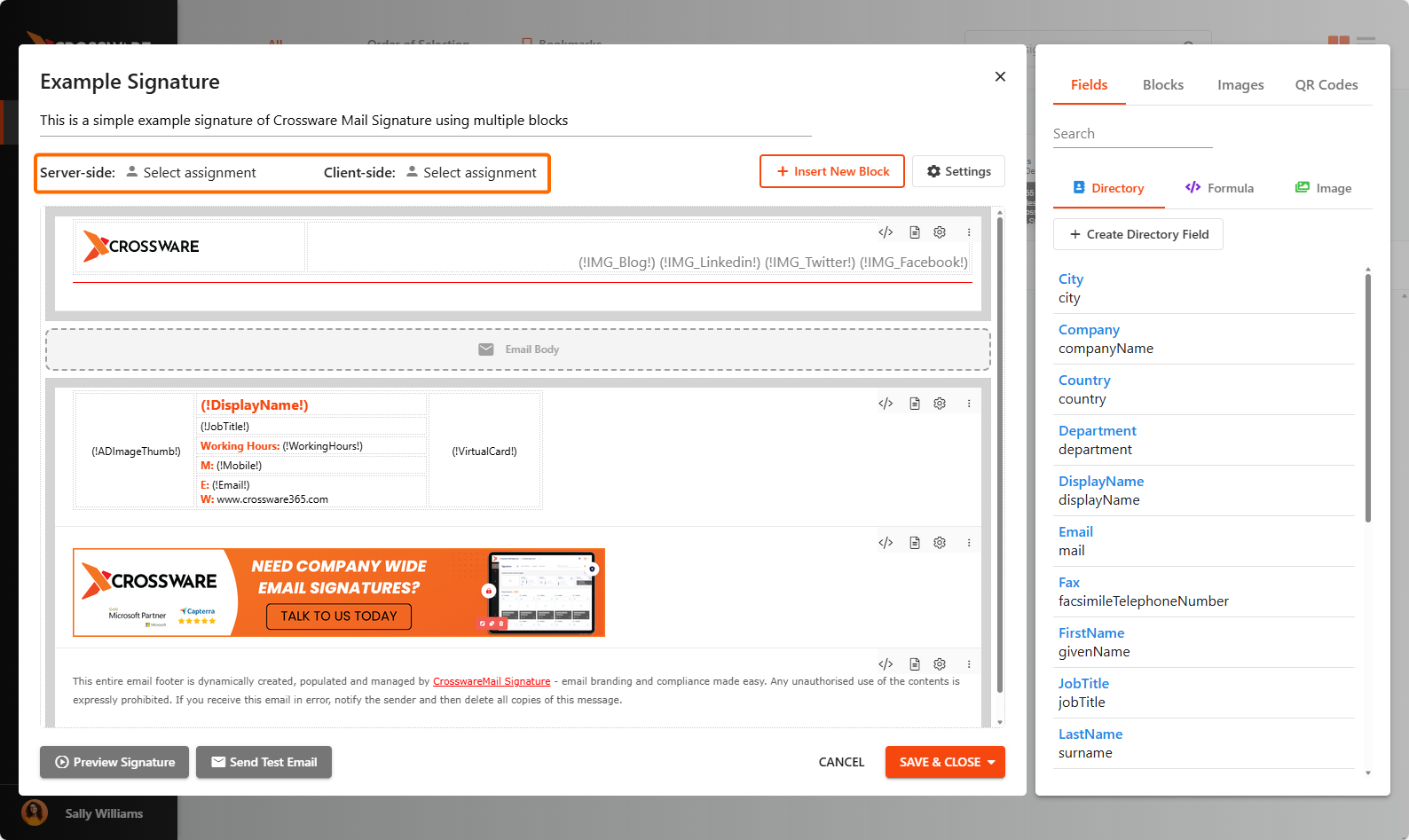
Locate Server-side or Client-side, then click Select Assignment.
Note:
-
Server-side applies the signature after the email is sent.
-
Client-side is used with the Outlook Add-in and allows users to see their signature while composing the email.
-
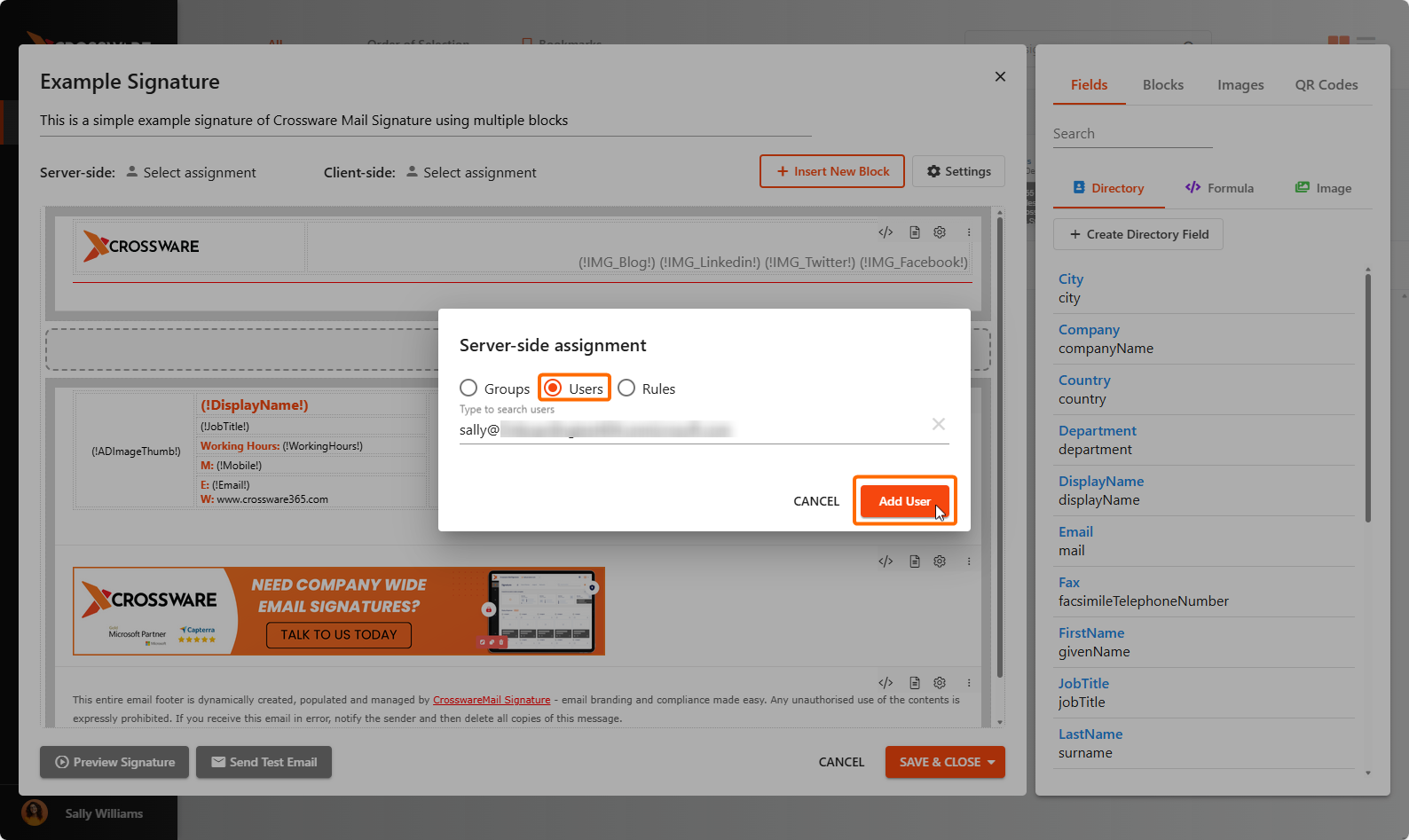
Select Users and in the text box, type the name of the individual user you want to assign the signature to.
-
Click Add User.
-
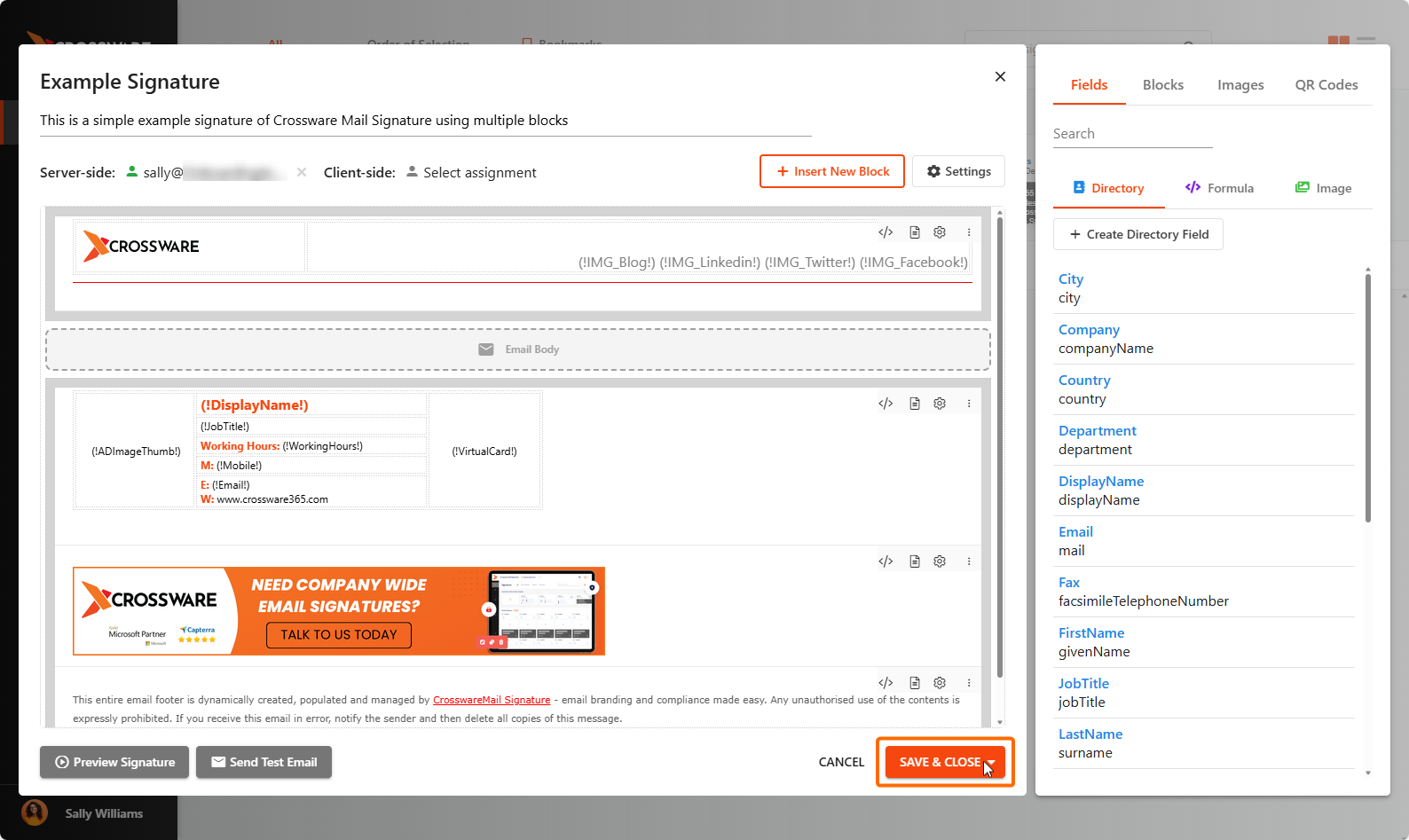
Save your changes to apply the configuration.
Tip: Signature configurations are processed in the order they appear in the list.
If the user is in another group listed before their individual configuration, that group’s signature will be applied instead.