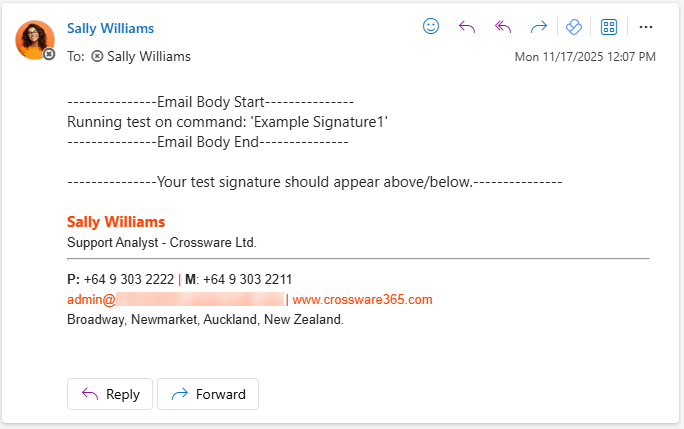
The Send Test Email feature allows administrators and users to preview how a signature will appear in an actual email without making the signature live or affecting other users. This helps ensure everything is displaying correctly before deployment.
-
No impact on live email flow – Safely test without publishing.
-
Quick visual confirmation – Check layout, images, formatting, and spacing.
-
Validate dynamic content – Ensure fields like name, title, phone number, etc., pull correct data.
When to Use This Feature
-
After designing a new email signature
-
When making updates to an existing template
-
Before rolling out changes company-wide
How to Use Send Test Email
-
Open the email signature you want to test.
-
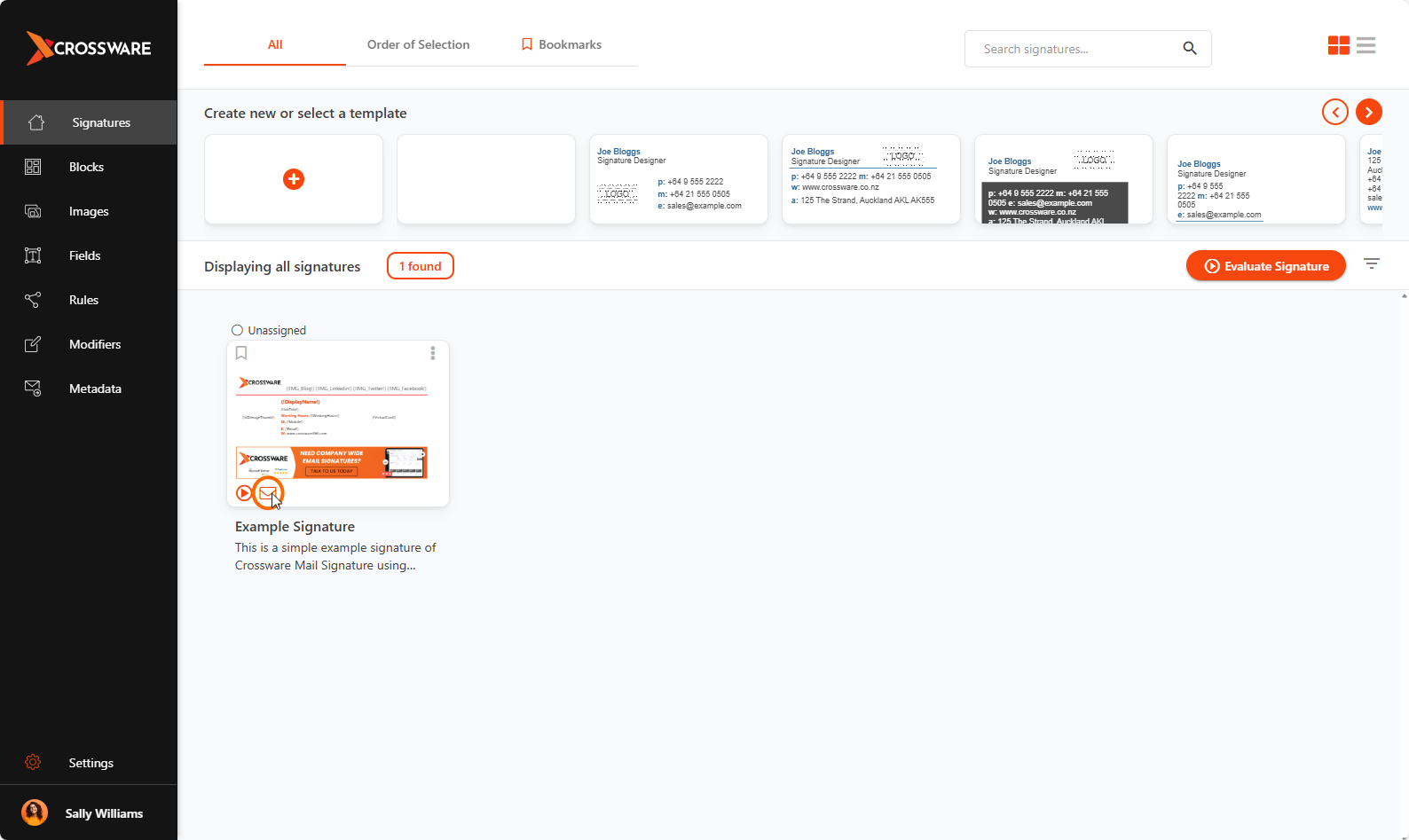
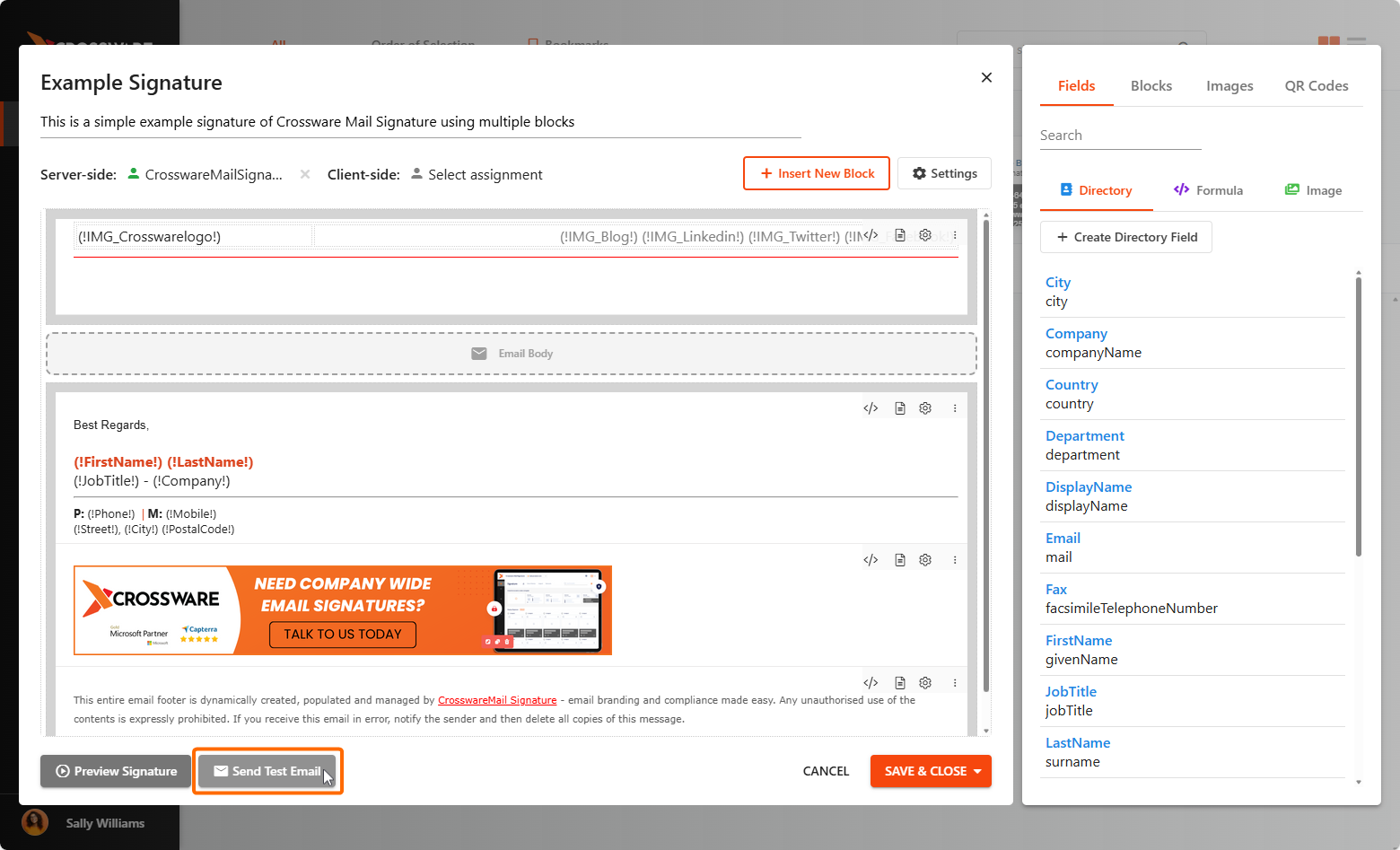
Click on the Send Test Email button.
-
From the Signatures view
-
From the Signature Designer
-
Enter the recipient email address (typically your own).
-
Click Send.
-
Check your inbox to review the signature preview.