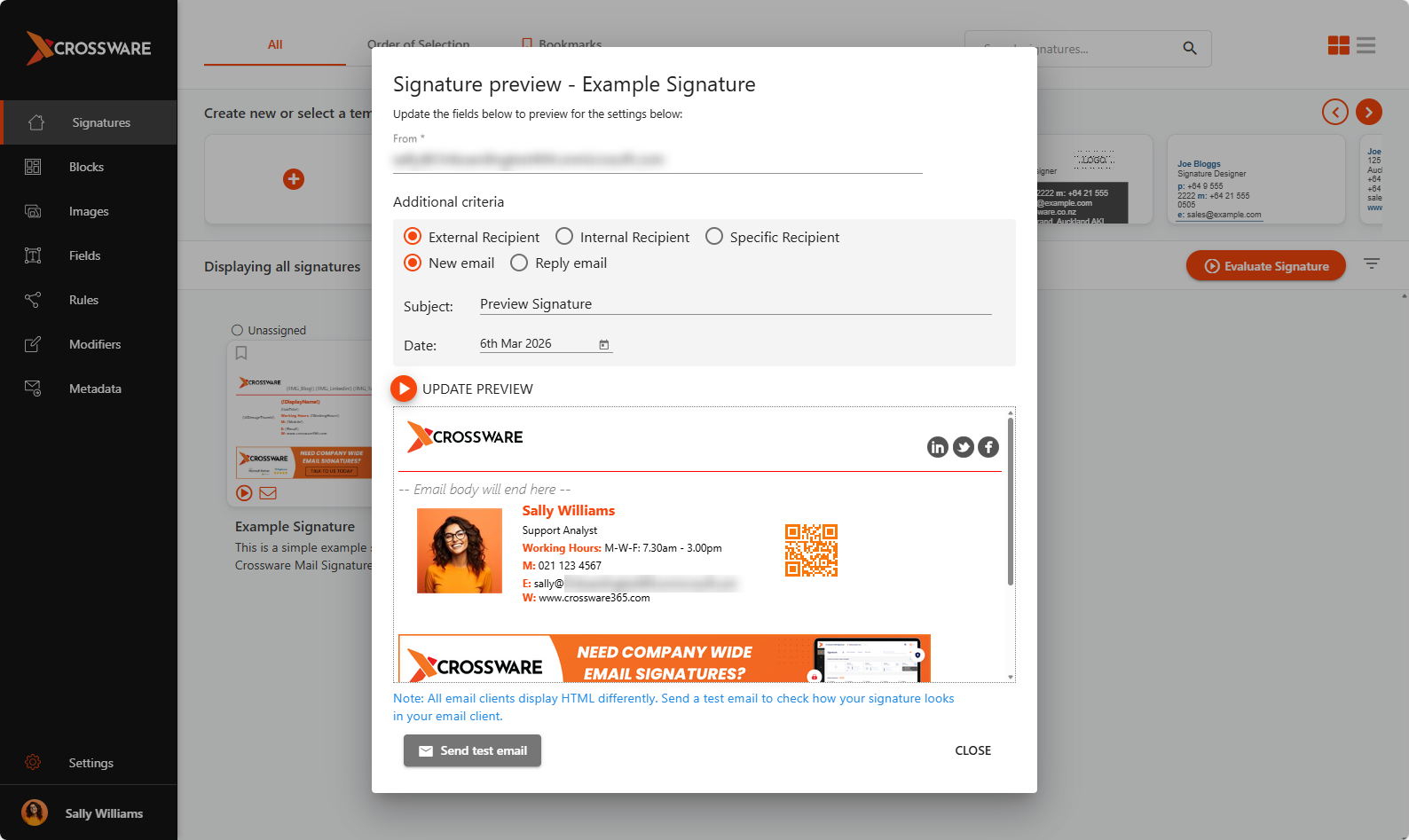
The Preview feature lets you instantly see how your email signature will appear without sending an actual email. It’s perfect for quickly checking design changes, validating dynamic fields, and confirming how signatures display under different scenarios.
Because the preview bypasses the cache, any updates whether to the signature design or user information are reflected immediately.
When to Use This Feature
-
After making quick design changes you want to check immediately.
-
To verify that dynamic fields (e.g., name, title, contact info) are pulling the correct data.
-
To check how the signature looks for external vs. internal emails or a specific recipient.
-
To preview differences between a new email and a reply email.
-
To confirm the signature shown when a date-based rule is applied.
How to Use Signature Preview
-
Open the email signature you wish to preview.
-
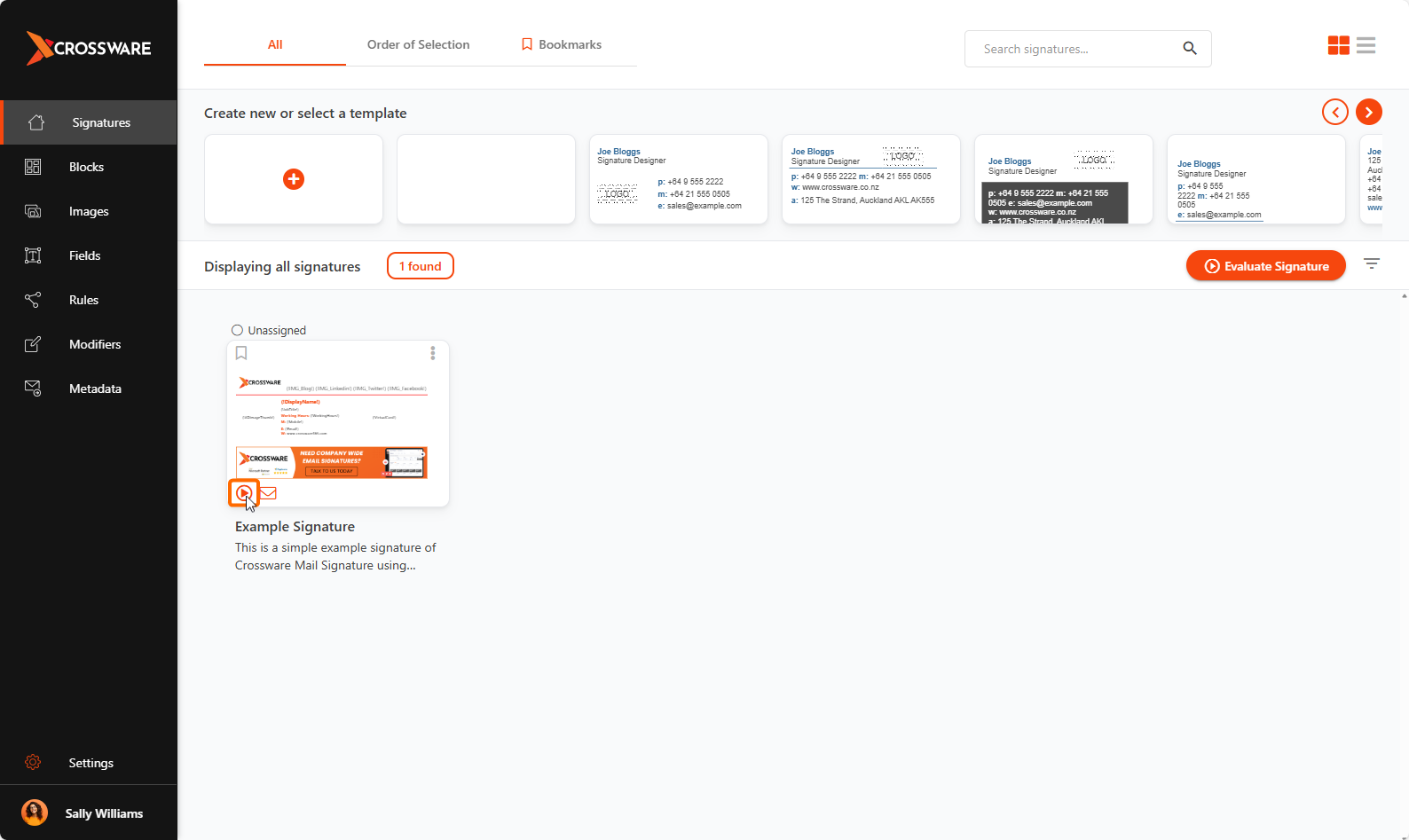
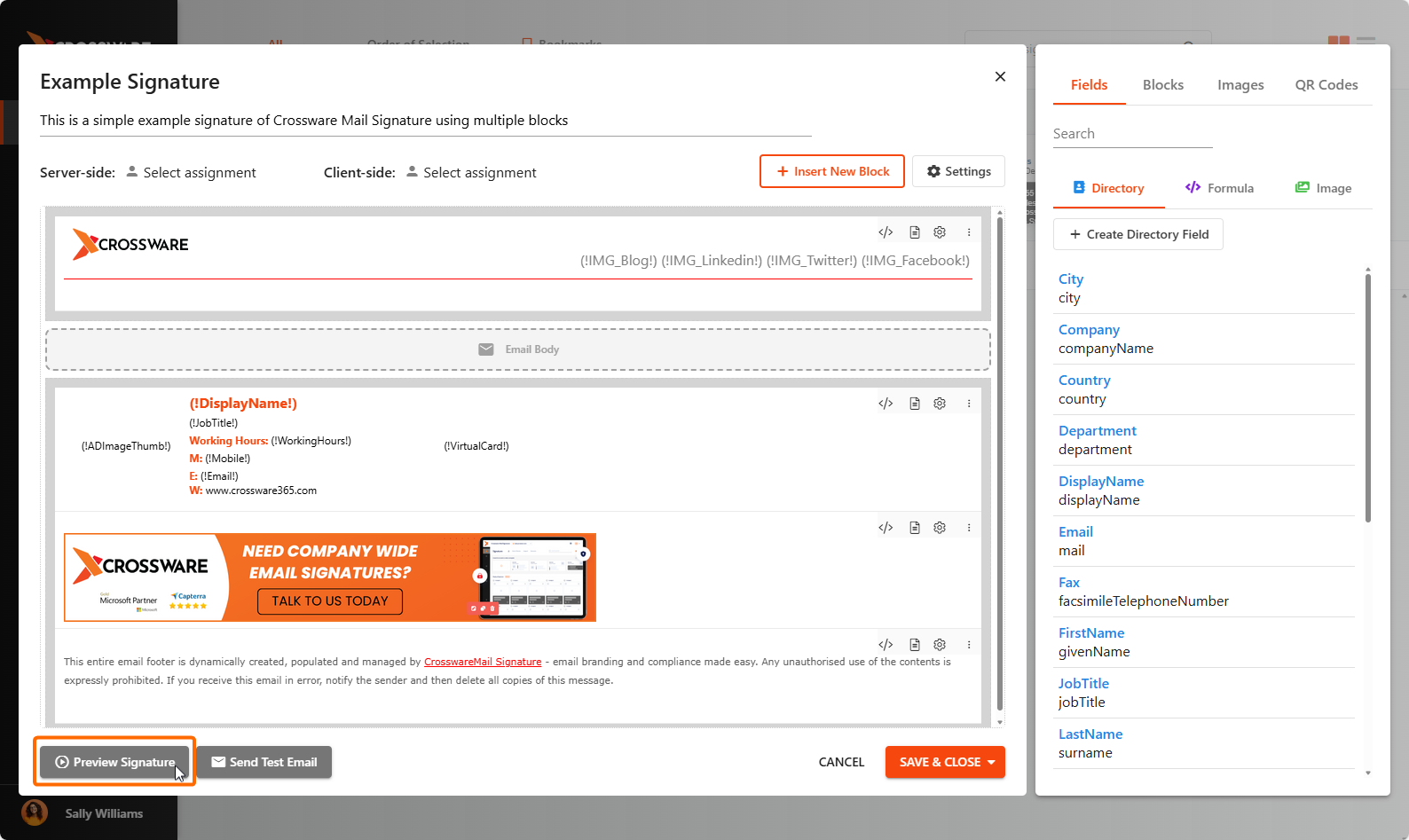
Click the Preview button.
-
From the Signatures view
-
From the Signatures Designer
-
Choose the relevant options (e.g., recipient type, message type, date rule).
-
The signature preview will display exactly as it will appear when applied to an email.