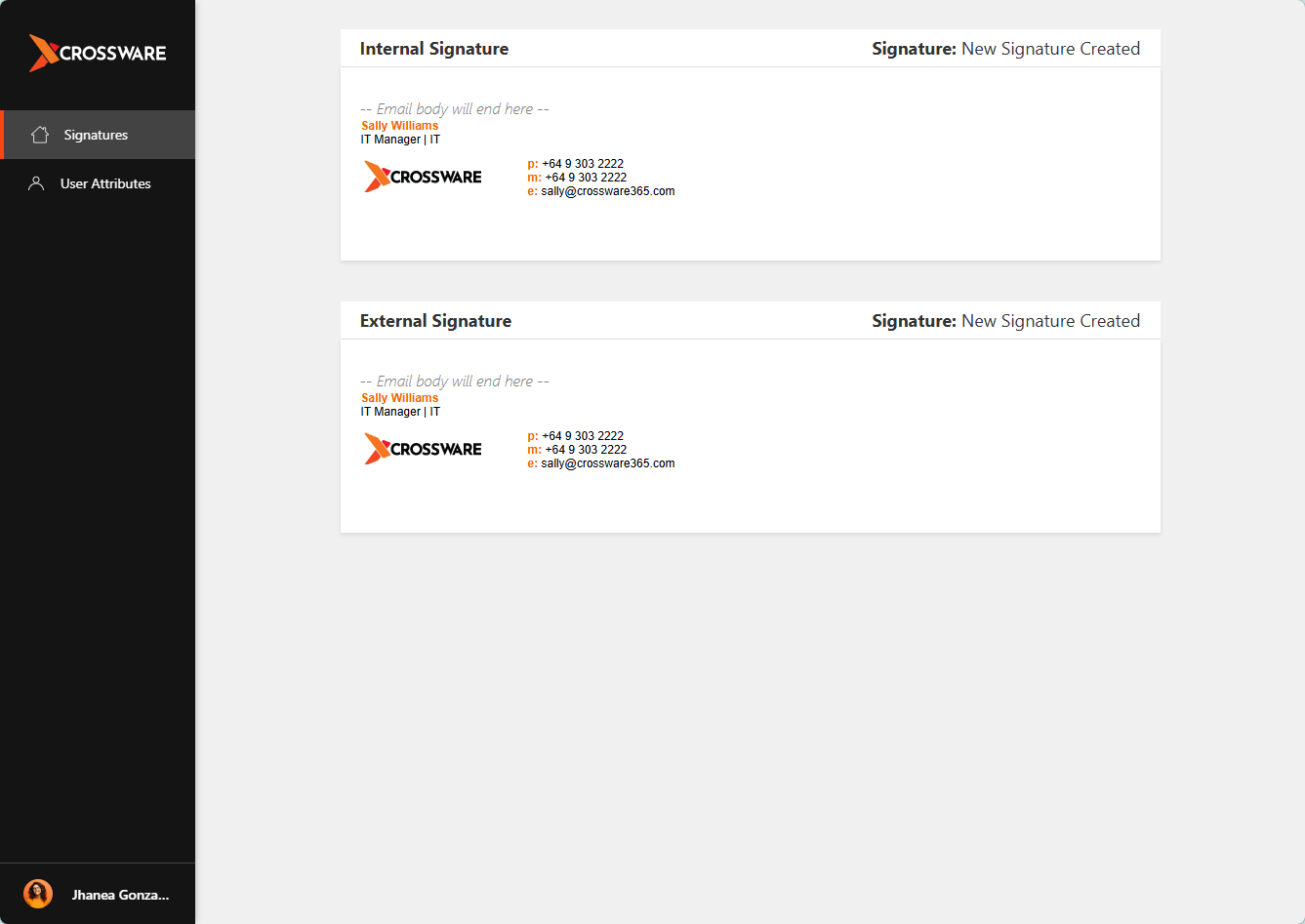
Update Your Signature Information
You can manage the personal information used in your email signature through the Crossware Me portal.
Depending on your organization's settings, you may be able to:
-
Update your personal signature details
-
Override certain directory values used in your signature
-
Restore fields back to their original directory values
Any changes you make will be reflected in your email signature once saved.
Some fields may be disabled by your administrator and cannot be edited.
Edit Your Information
If a field has been configured as editable, you can update the value directly from the page.
Edit a User Attribute
-
Sign in to Crossware Me.
-
Navigate to User Attributes.
-
Locate the field you want to update.
-
Enter a new value or select a value from the available options.
-
Click Save to apply your changes.
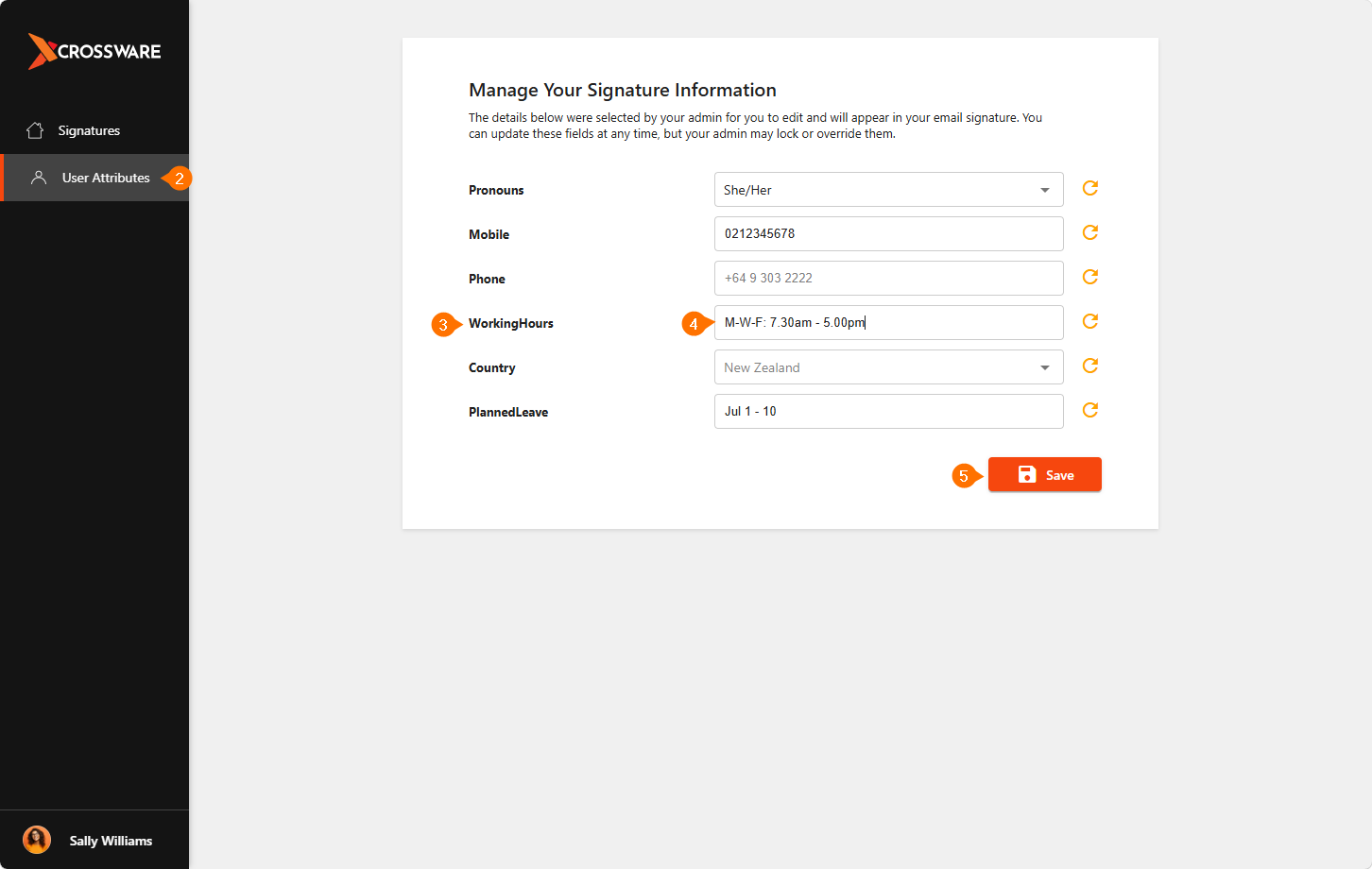
Your updated value will be used in place of the directory value when your signature is generated.
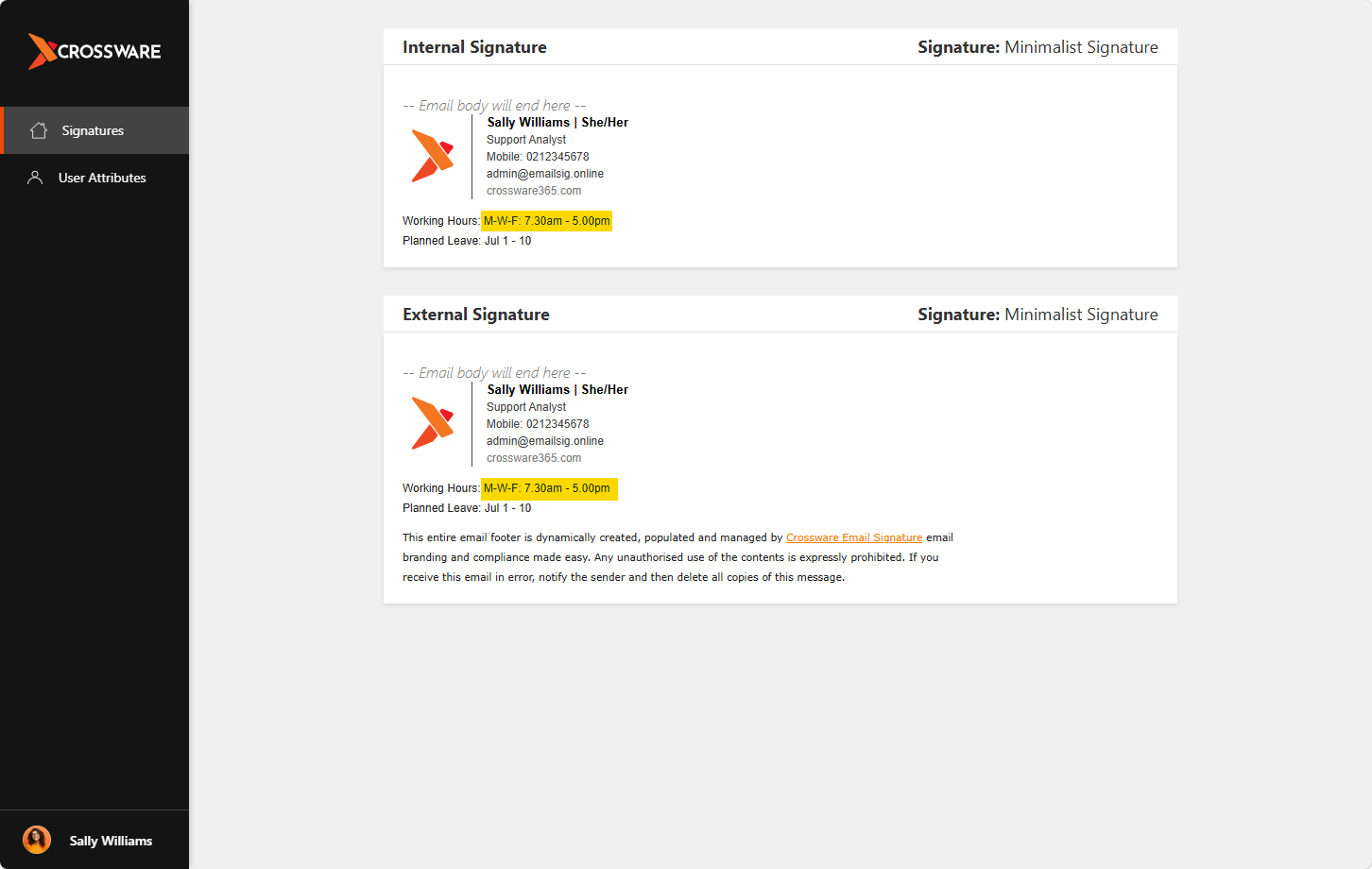
Restore Original Directory Information
You can remove your custom value and revert back to the value stored in your organization’s directory.
To restore the original value
-
Navigate to User Attributes
-
Locate the field you want to reset and click the Restore icon beside the field
-
Click Save
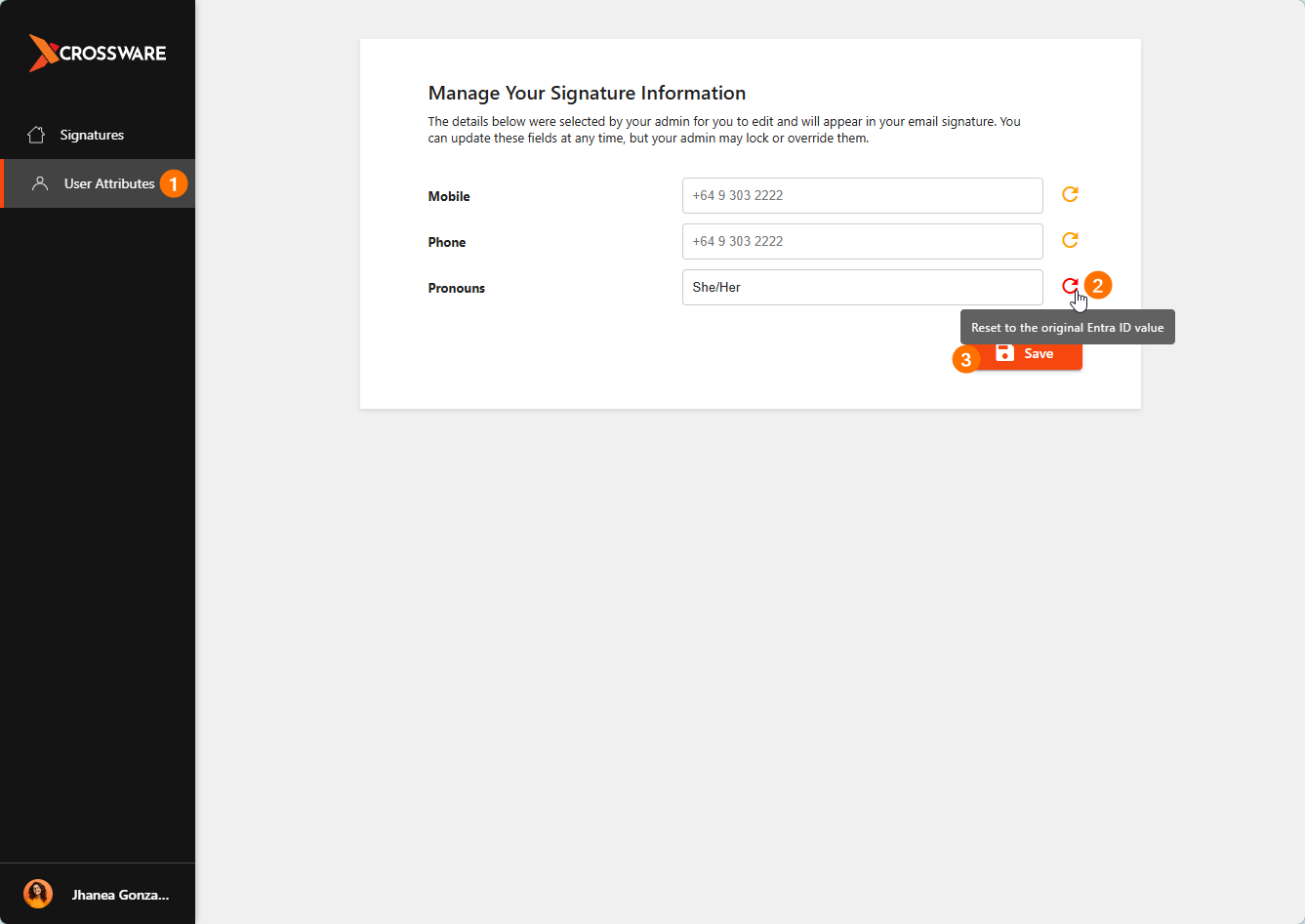
Once restored, the original directory value will be used in your email signature.