
Directory fields pull data directly from your organisation's directory services, such as Microsoft 365 or Active Directory. Common examples include user display name, job title, phone number, or department. Using directory fields ensures your email signatures stay accurate and up to date as user information changes.
Creating and Configuring Directory Fields
-
Log in to the Crossware Portal.
-
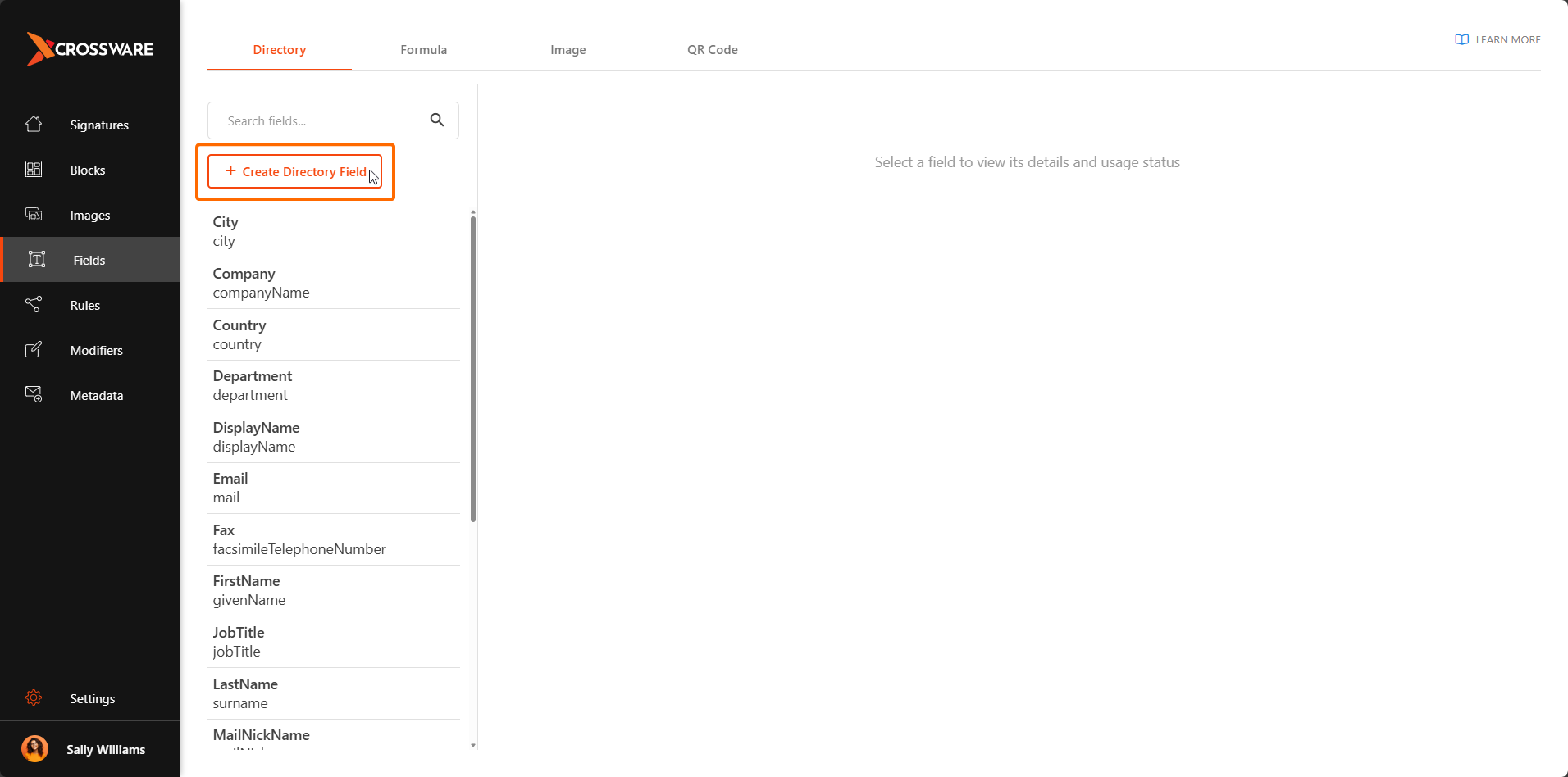
Go to Fields and click Create Directory Field.
-
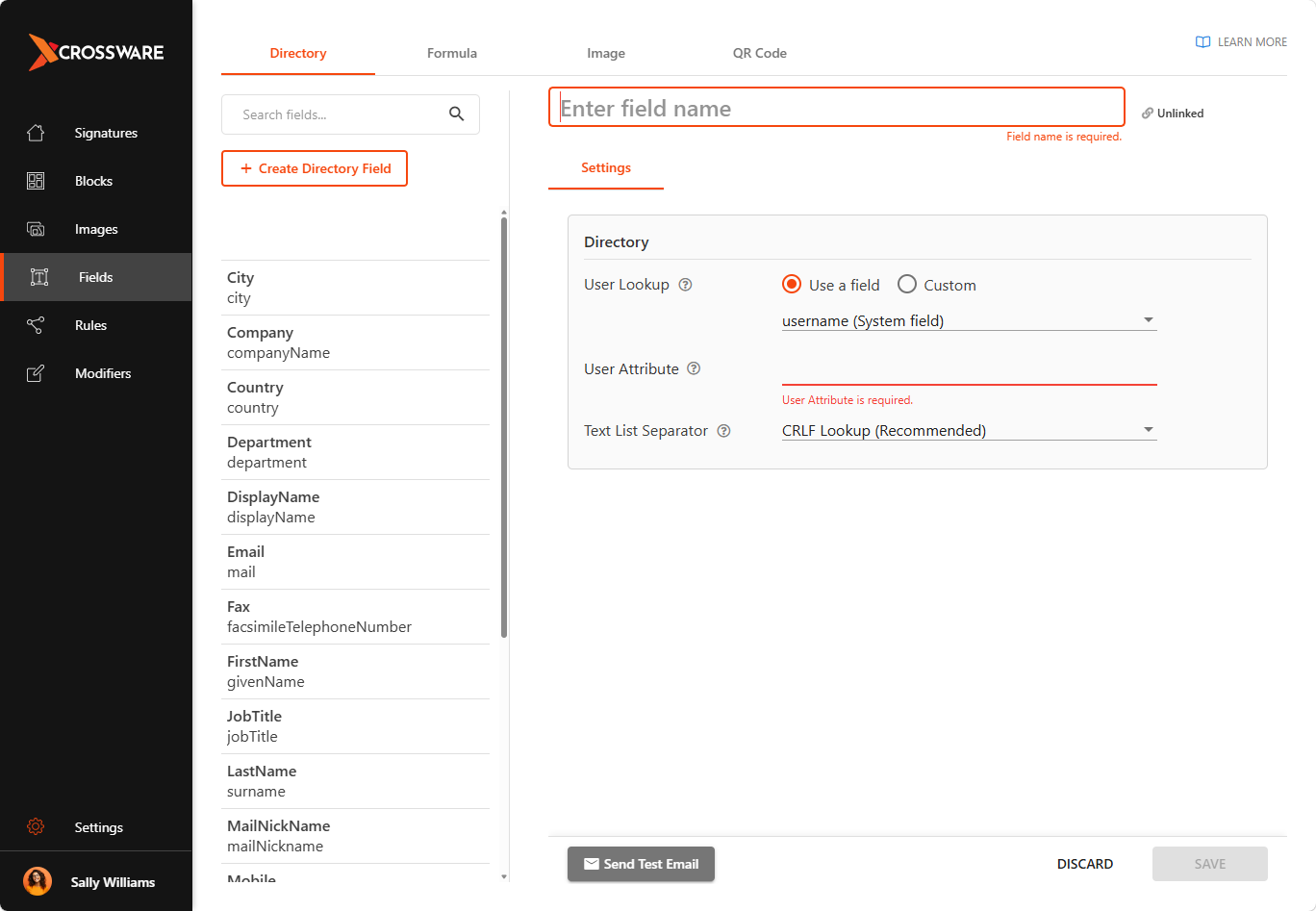
Fill in the field details.
Field Settings
User Attribute
Enter the name of the directory attribute that corresponds to the user information you want to display (e.g., displayName, jobTitle, telephoneNumber).
User Lookup Key Type
Determine how the system identifies which record to use:
-
Use a field: Select an existing field from the drop-down list.
-
Custom: Enter a custom value manually. This disables the drop-down and allows you to specify a static key.
Text List Separator
Controls how multi-value text lists are displayed in the email signature. By default, each value appears on a separate line.
-
Click Save.
You can now add the Directory field to your signature or signature block.
The user’s details will be filled in automatically when emails are sent.
Use of Directory Fields