
Custom Fields enable administrators and end-users to override Directory Fields with values that are not present in their organisation’s directory. These fields may include information such as pronouns, booking links, professional certifications, working hours, and similar data. Administrators can add and remove these values for specific fields, and make them available for end-users to input their own values via Crossware Me. This functionality facilitates an efficient and straightforward method to extend Directory Fields with data absent from the Entra ID directory
How Custom Fields Work
A Directory Field can use either the directory value or a custom value.
When a Custom Field is enabled, signatures will start using the values saved for the user if they have any saved. The value used depends on what has been configured:
|
Scenario |
Value Used in Signature |
|---|---|
|
User has a custom value |
Custom value |
|
User has no custom value, but a default value exists |
Default value |
|
User has no custom or default value |
Directory value |
|
Custom Field is disabled |
Directory value |
Enable Custom Fields
To enable the Custom Fields functionality for your tenant:
-
Sign in to the Designer Portal.
-
Navigate to Settings.
-
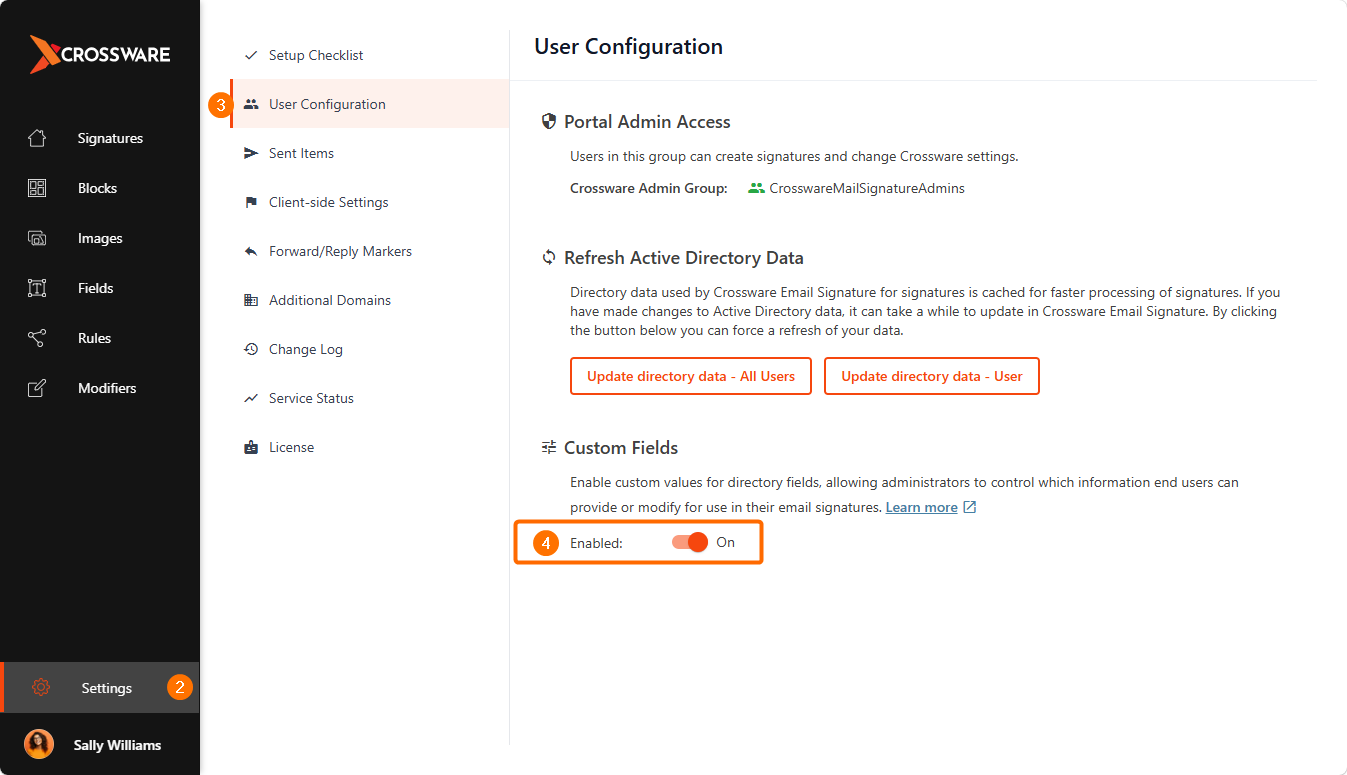
Select User Configuration.
-
Under Custom Fields, switch the Enabled toggle on.
Configure a Custom Field
Use the Fields page to configure how a field is used in signatures and how it appears to users in Crossware Me.
-
Sign in to the Designer Portal.
-
Go to Fields.
-
Select the field you want to configure.
-
Configure the required options:
-
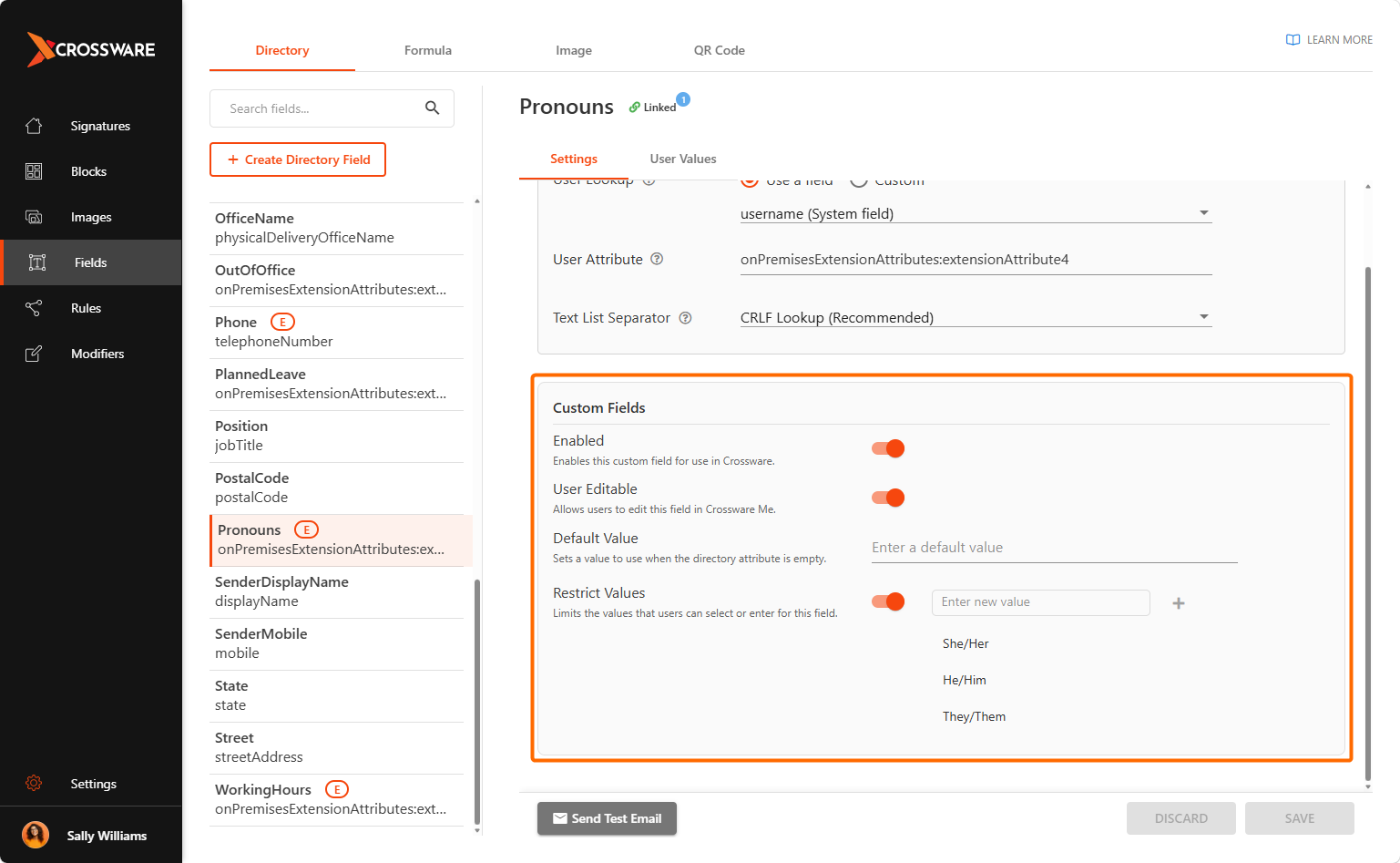
Enabled - Allows the signatures to start using the custom values. If disabled, the directory value is used instead. This allows administrators to quickly enable or disable the use of custom values for signatures organization wide.
-
User Editable - Controls whether end-users can add their own values to the field. Turning this on makes the field available in Crossware Me.
-
Default Value - Provides a fallback value when no user-specific value is available. This value is given preference over the directory value, so leave this blank if you would like that to be used as the fallback instead.
-
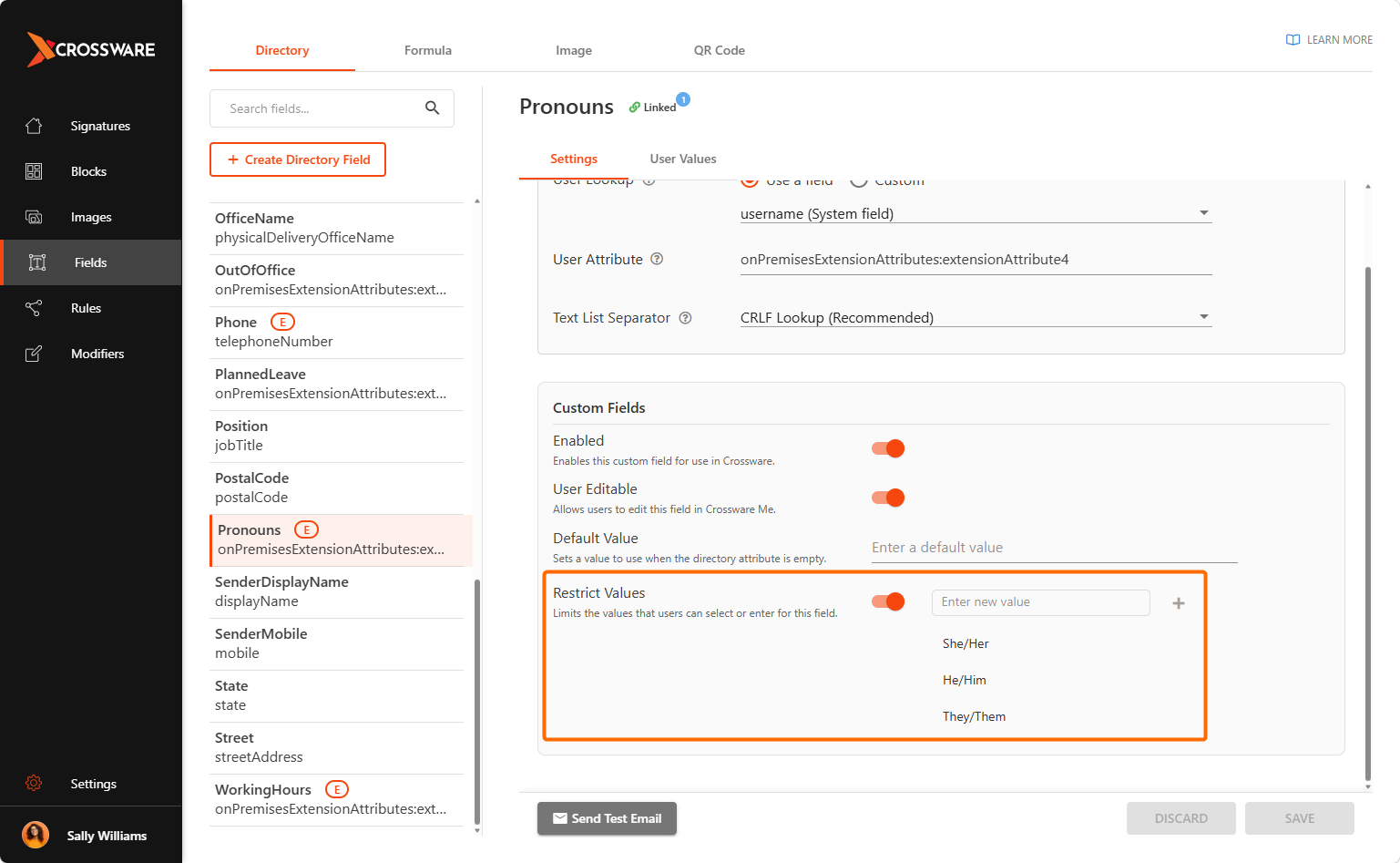
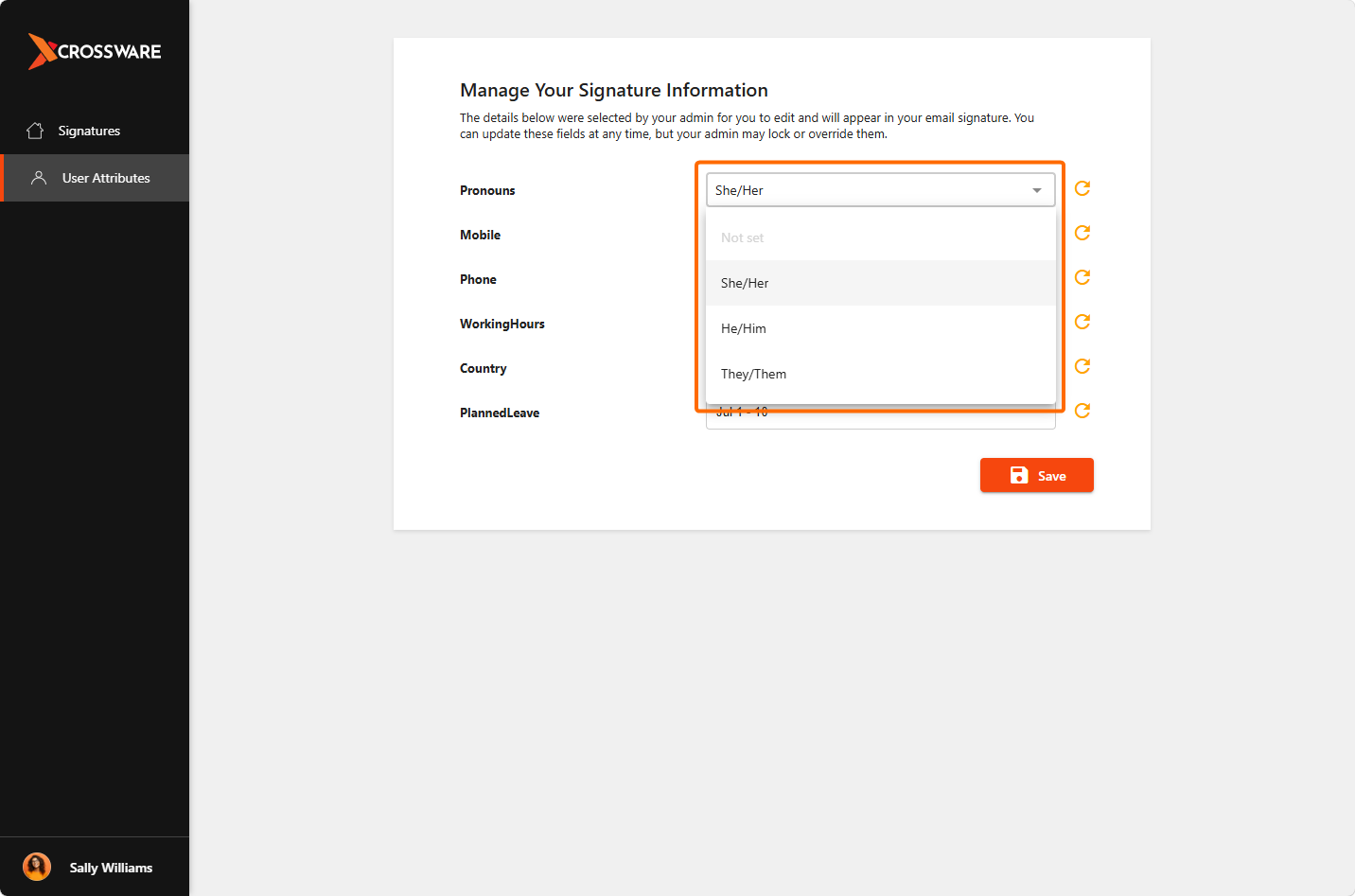
Restricted Values - Restricts the allowed values for the field to only a specific set. This changes the input field on Crossware Me into a dropdown so user can only select from a predefined list of values.
-
-
Save your changes.
Existing custom values are not deleted when a field is disabled. If the field is enabled again, saved custom values can be used again.
How Portal Settings affect Crossware Me
How a field appears in Crossware Me depends on how it is configured in the Designer Portal.
Use the examples below to understand what users will see when different field settings are applied.
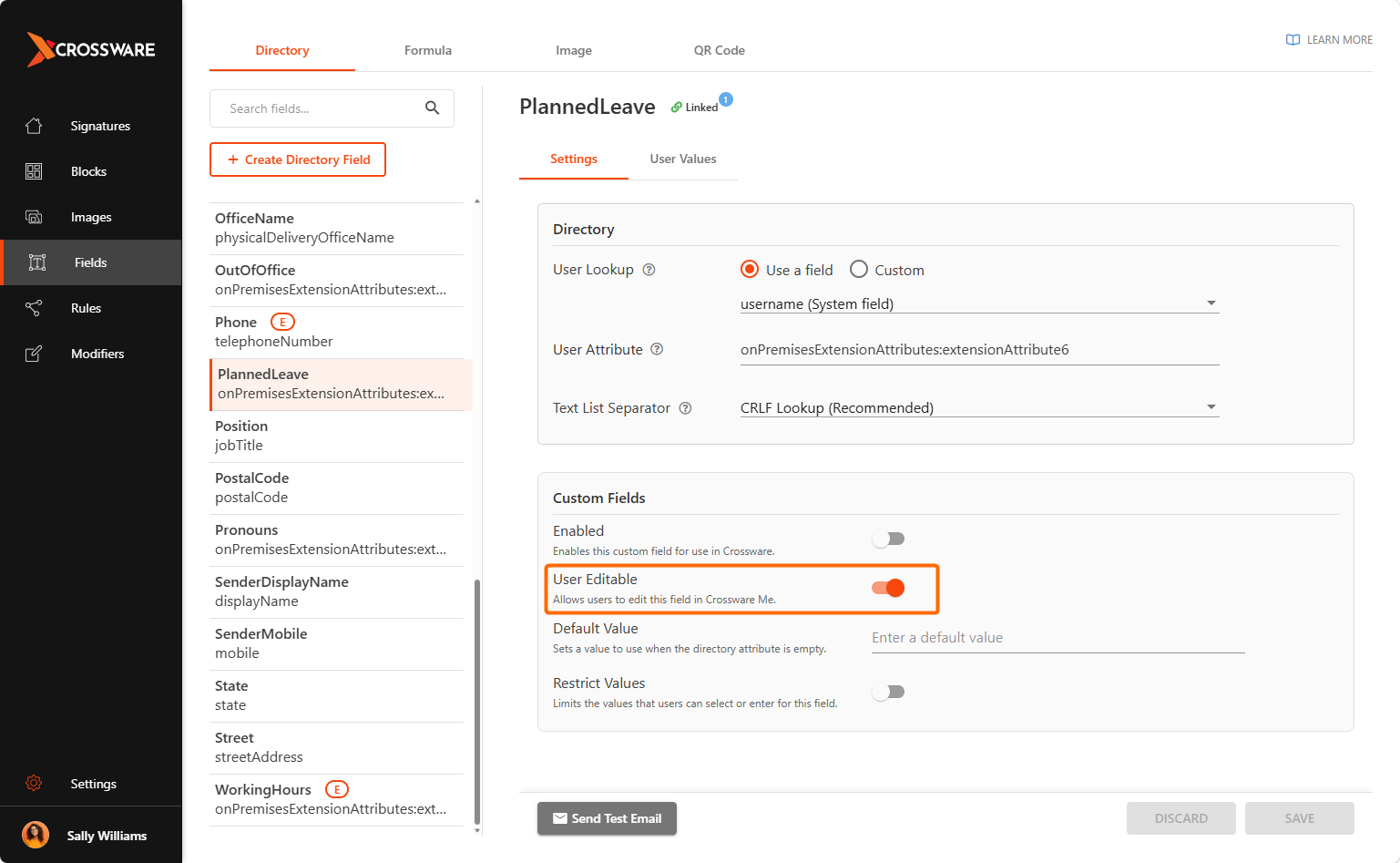
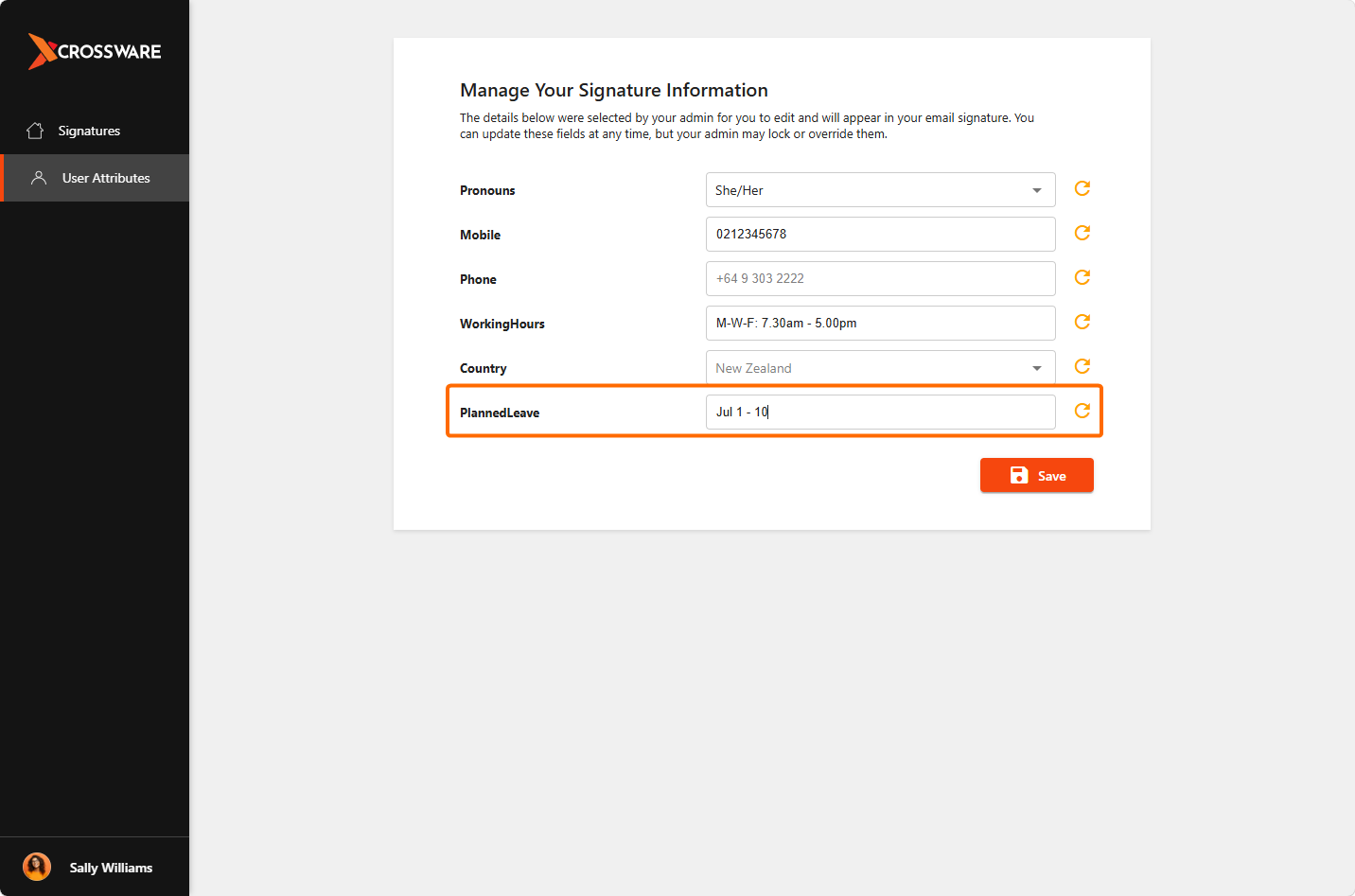
Field is Enabled and User Editable
When User Editable is turned on in the Designer Portal, users can update the field in Crossware Me > User Attributes.
|
|
Restricted Values are Configured
When Restricted Values are configured, users must select from the approved list.
Users cannot enter free-text values outside the configured options.
|
|
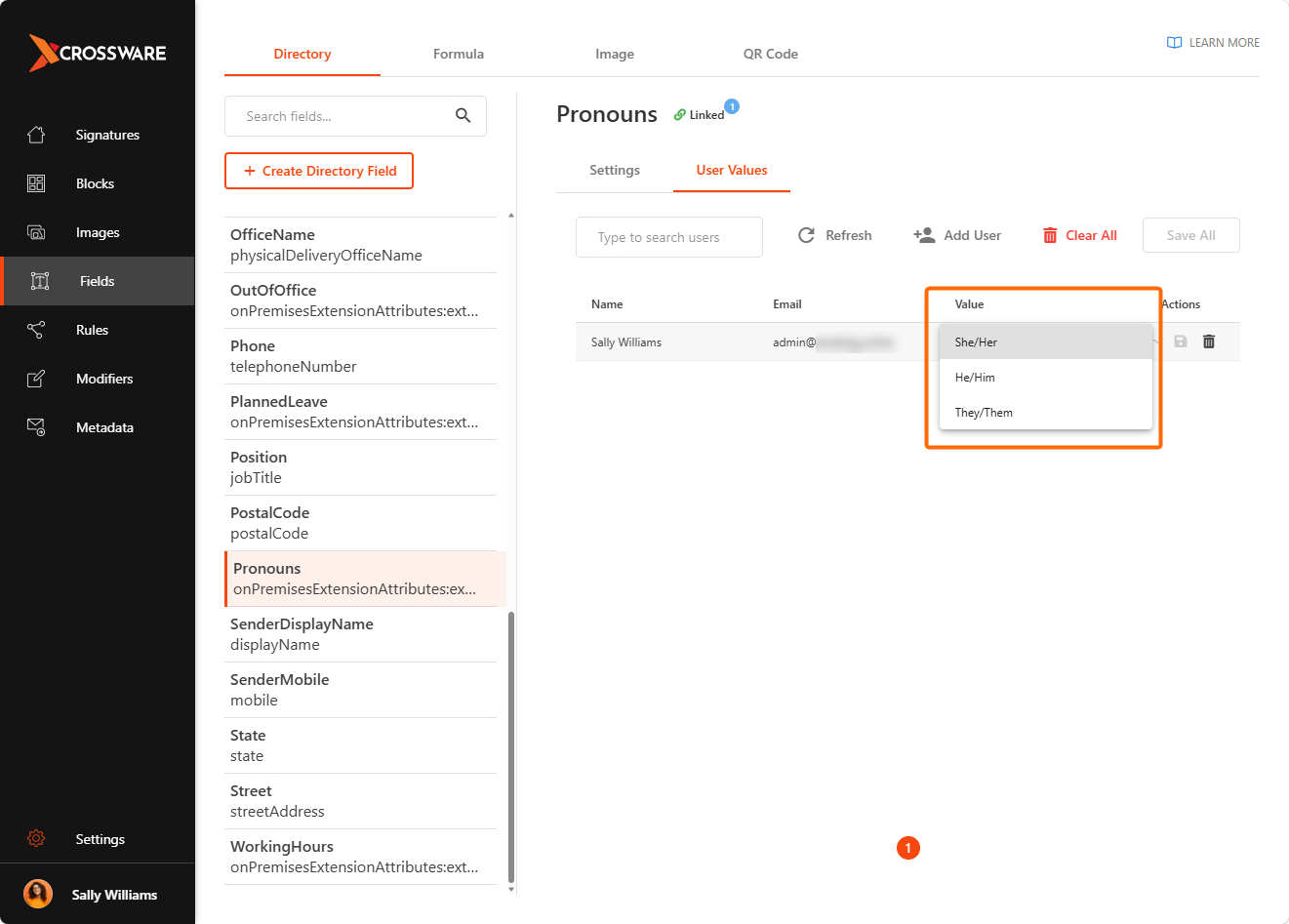
Managing User Values
The User Values section displays users who currently have a custom value configured for the selected field.
The list includes:
-
User name
-
Email address
-
Assigned value
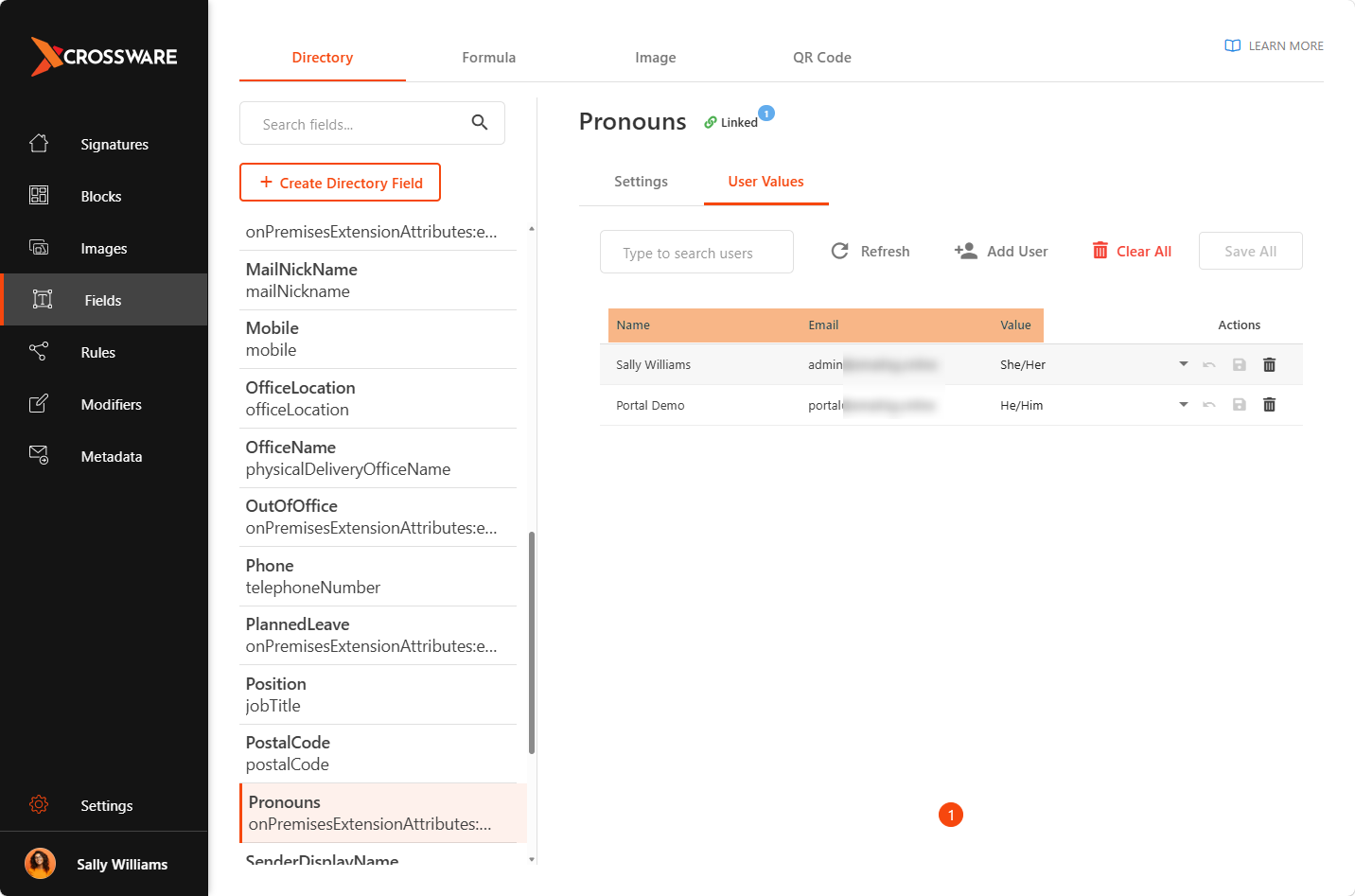
Administrators can use this section to:
-
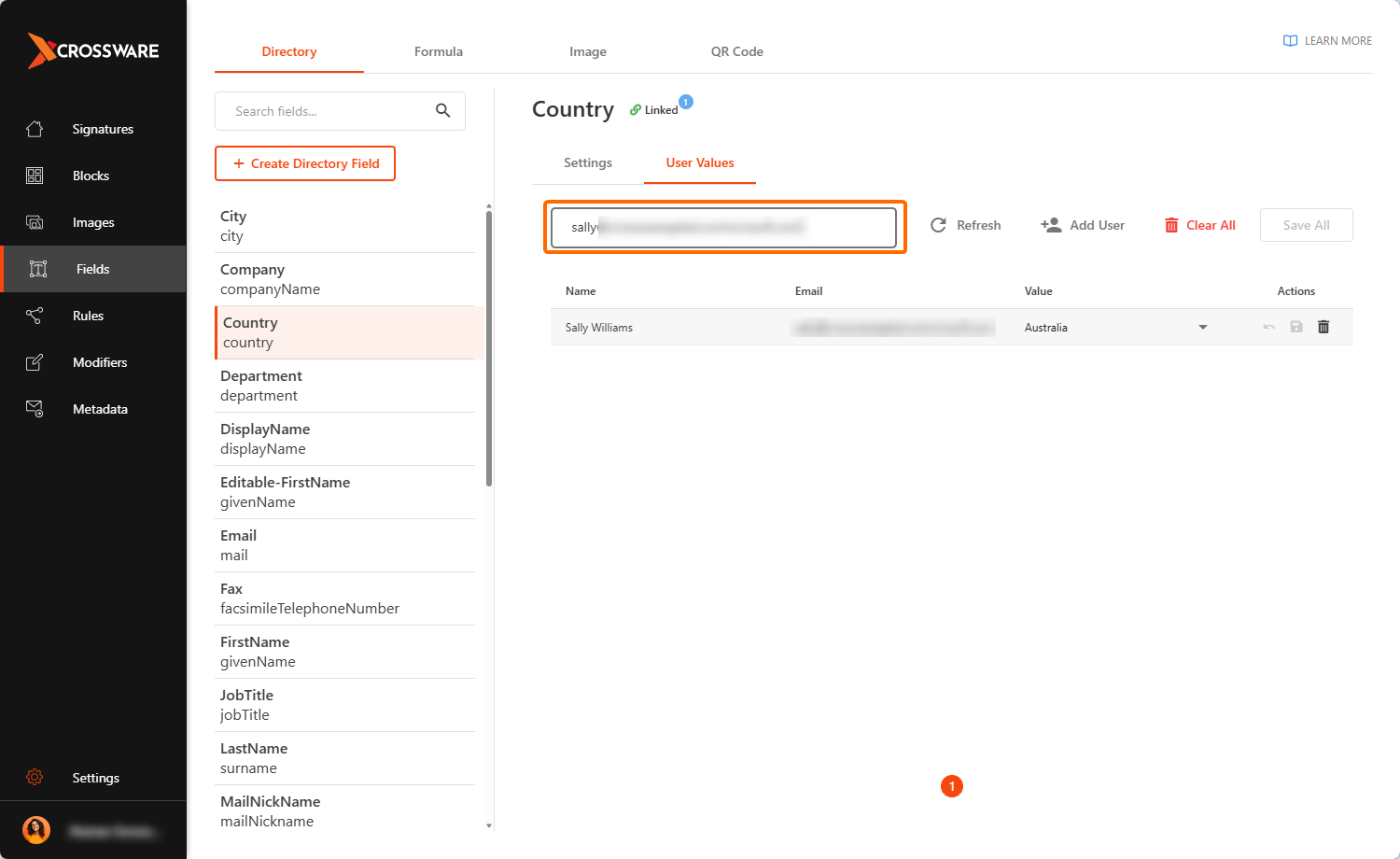
Search for a user
-
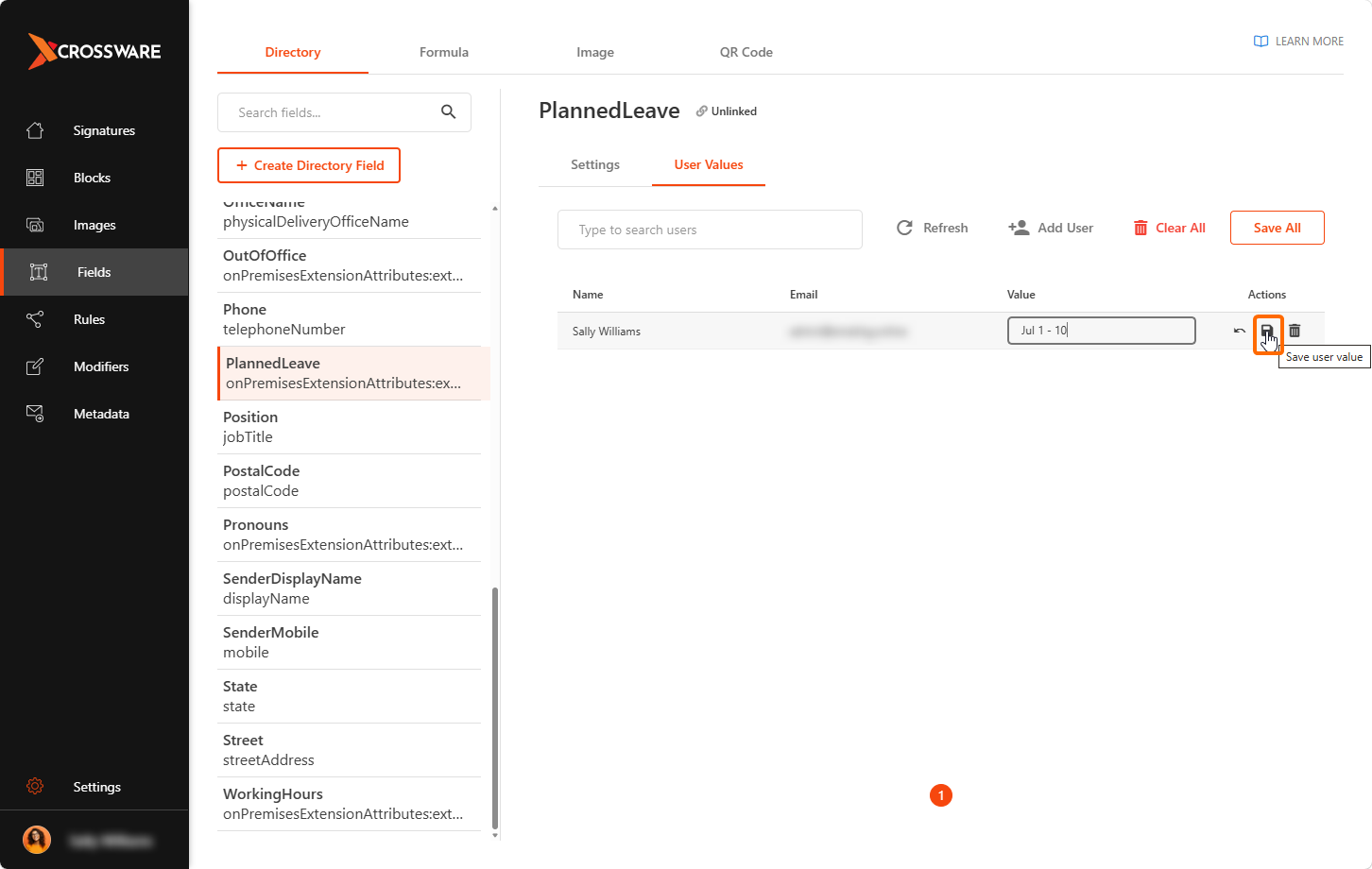
Edit a user’s value
-
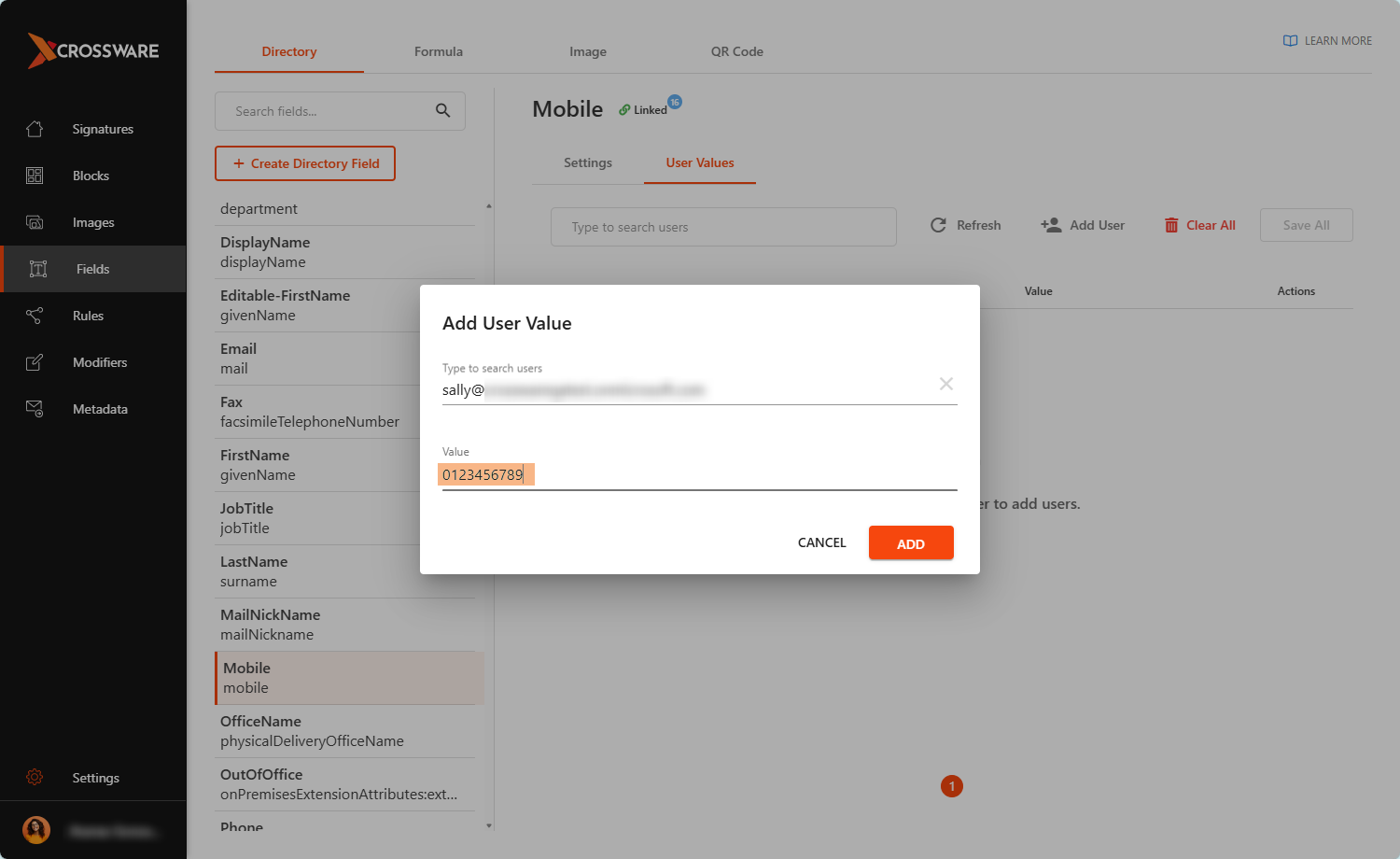
Add a value for a user
-
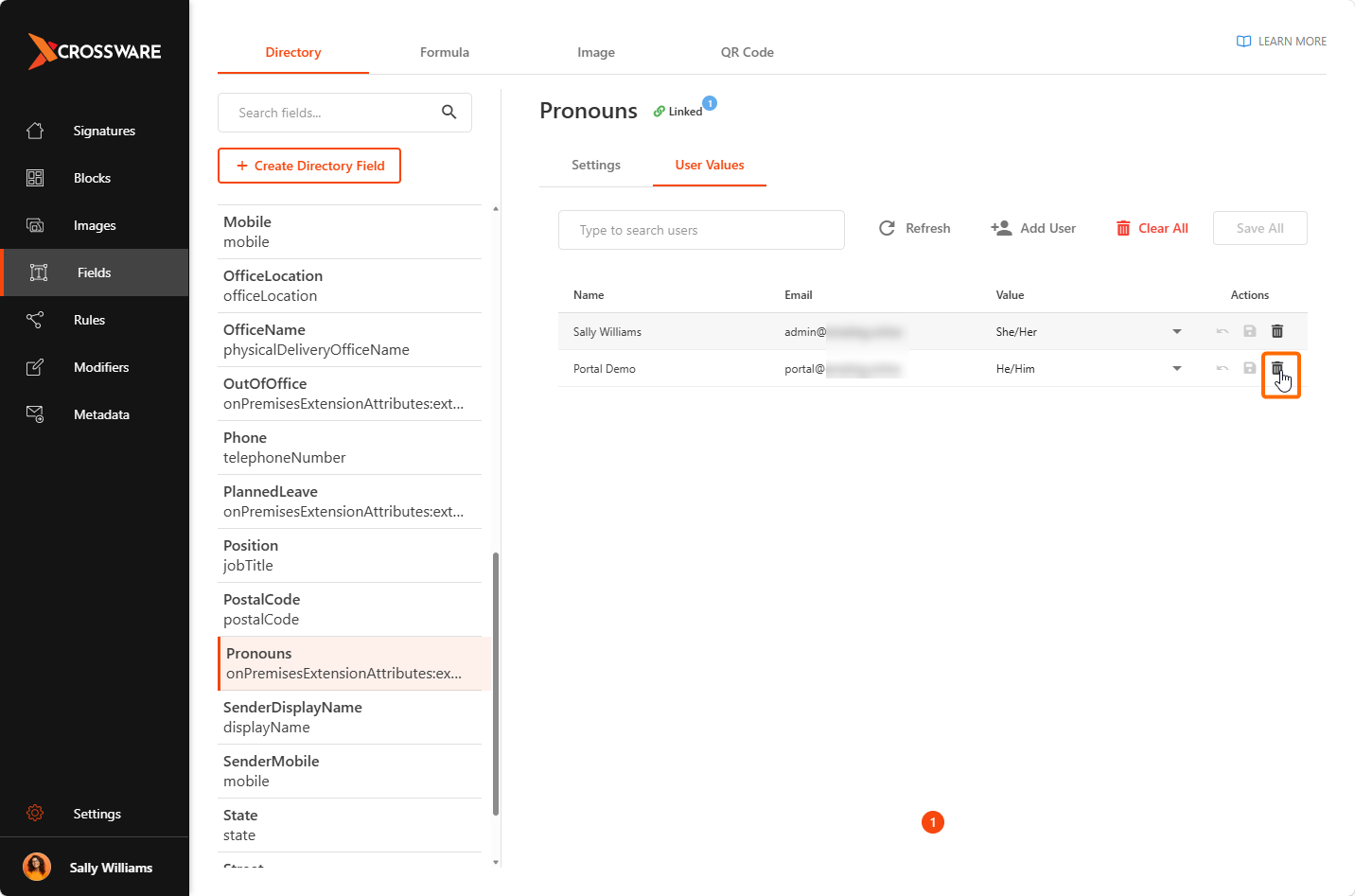
Remove a user’s value
-
Clear all user values for the selected field
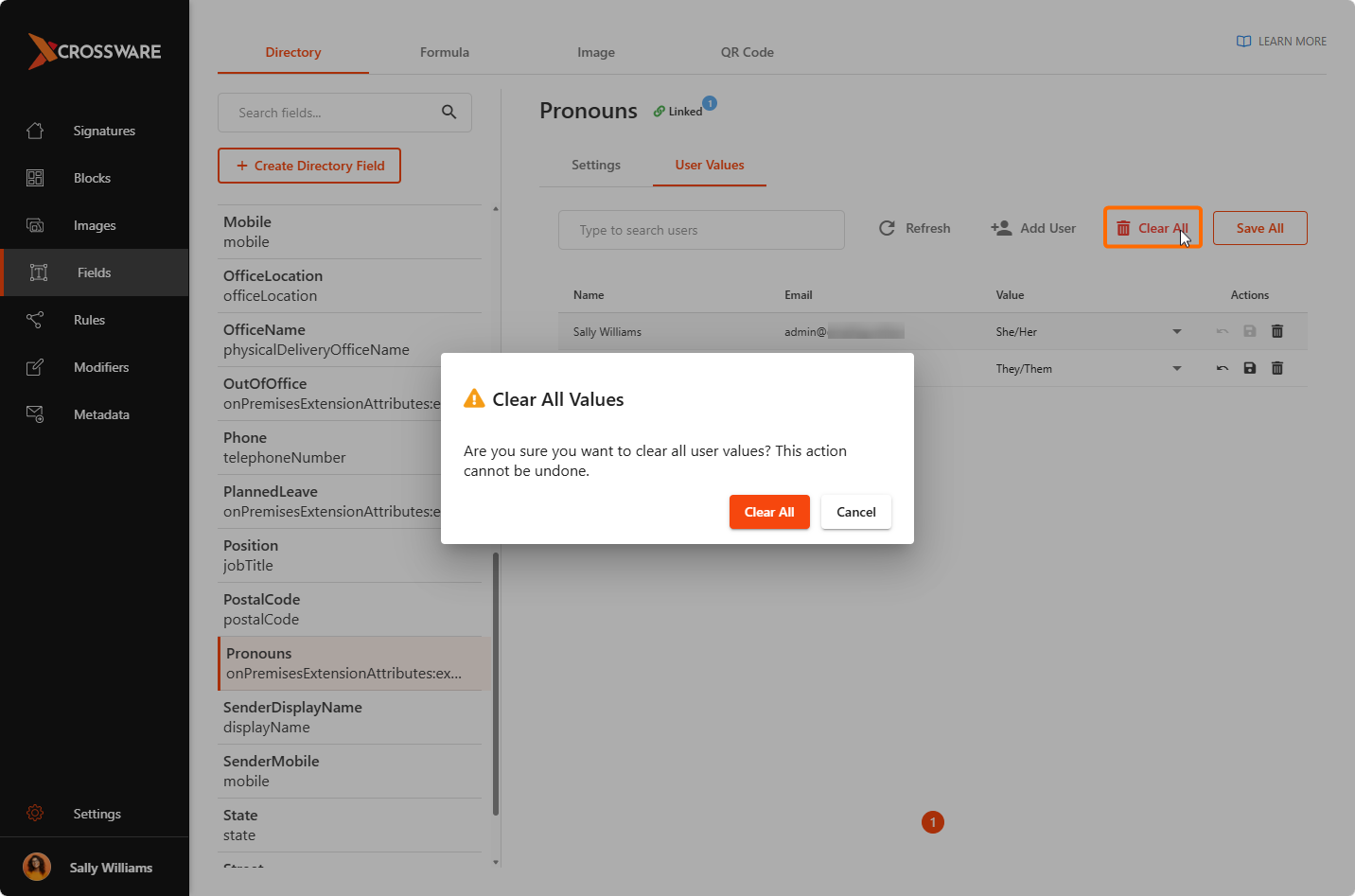
For restricted fields, only the configured values can be selected.
Modifying Custom Fields
For information on how users can modify Custom Fields, refer to the following knowledge base article: Managing Custom Fields in Crossware Me.