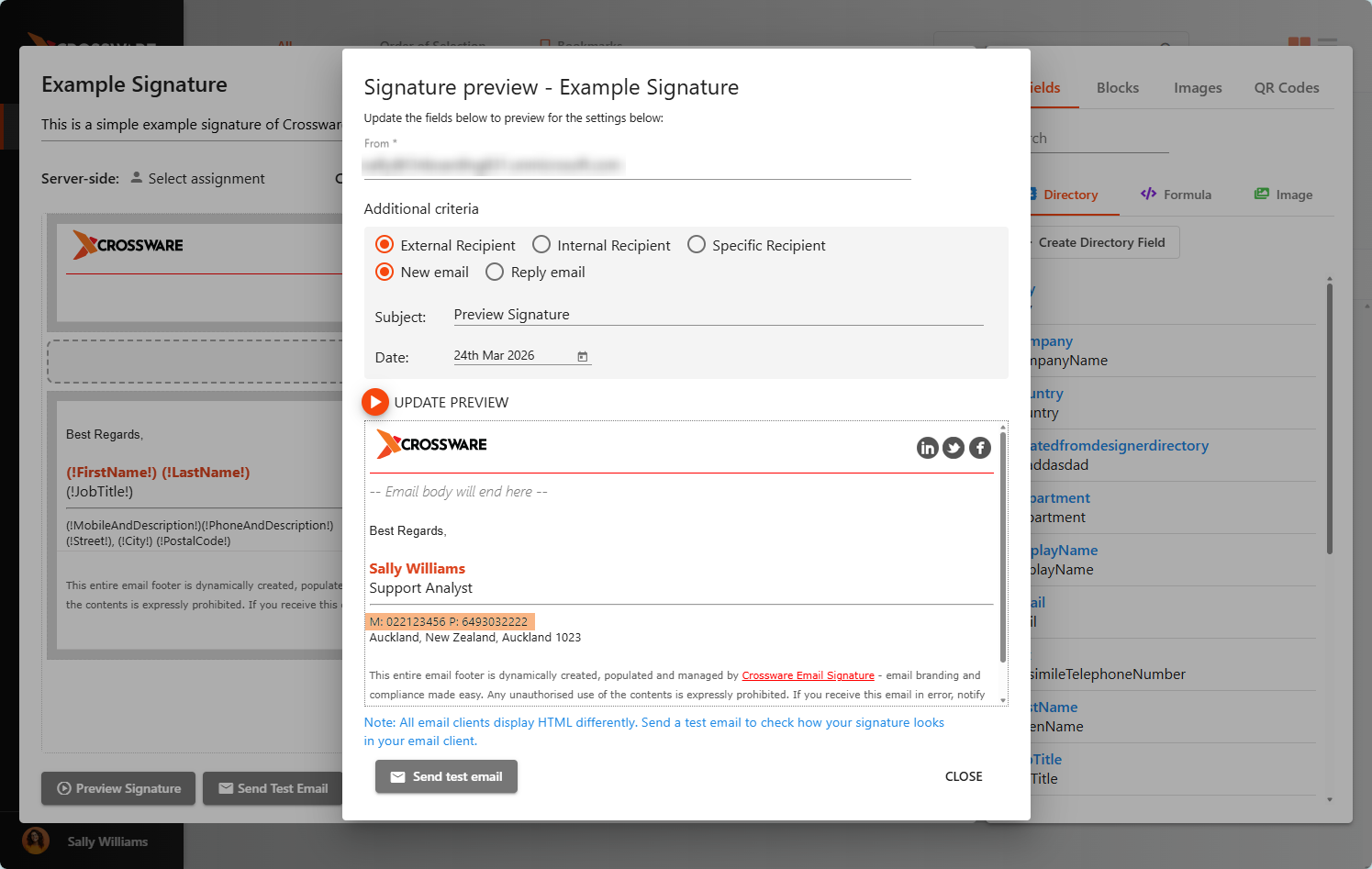
Email signatures often include fields such as Phone, Mobile, and Email.
If these fields are empty, they should not appear in the signature.
Crossware provides dynamic fields that only display when a value exists in Azure AD, helping keep signatures clean and professional.
Available Dynamic Fields
The following fields automatically hide when no value is present:
-
MobileAndDescription -
PhoneAndDescription
Customising Field Labels
You can modify how these fields are displayed (e.g., change Phone to P: or Mobile to M:).
Steps
-
Navigate to Fields
-
Select the Formula tab
-
Click the formula field you want to modify (e.g.,
MobileAndDescription) -
Update the label as needed (e.g., change
Mobile:toM:) -
Click Save
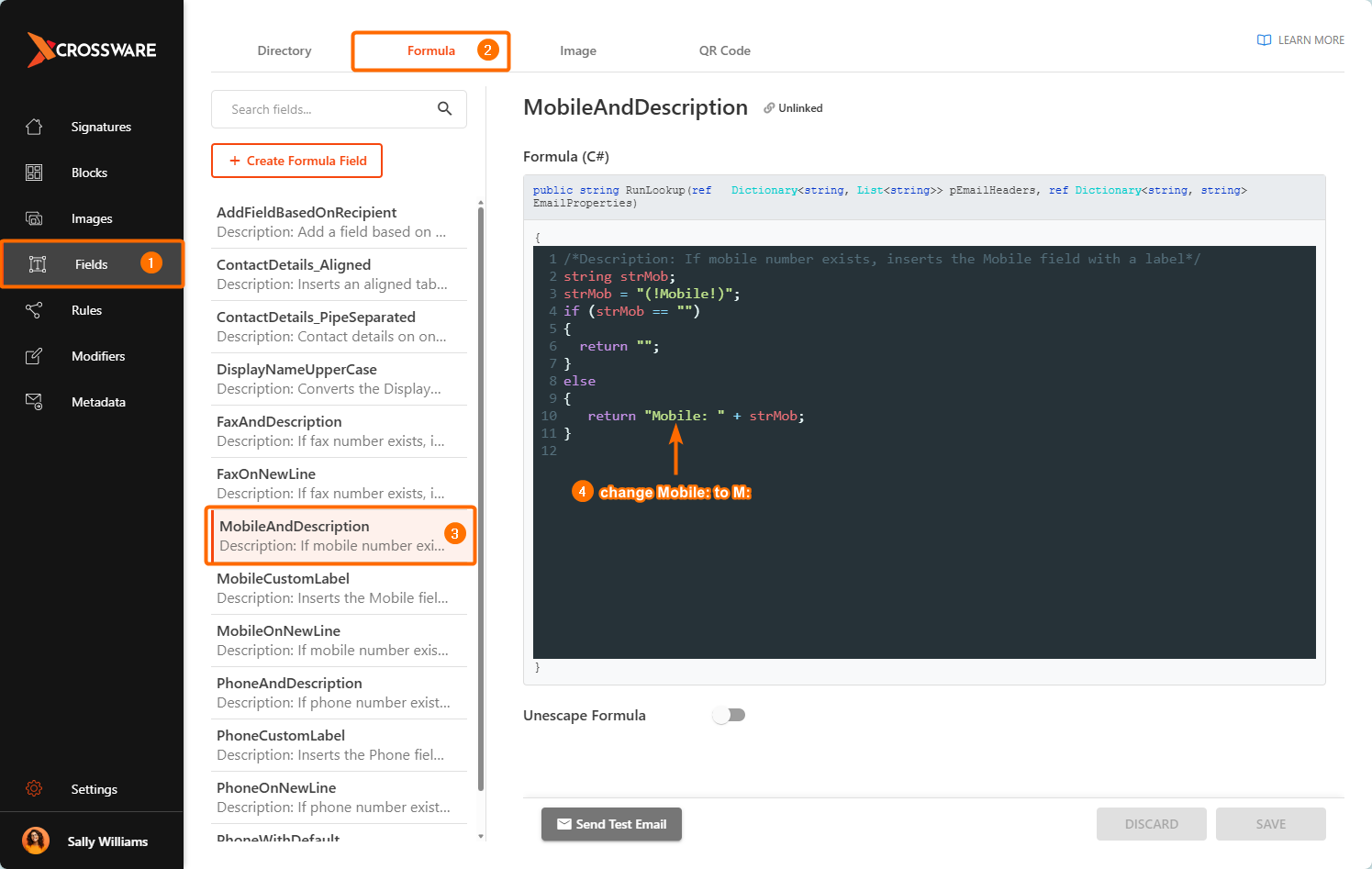
Example: Mobile Field
Only displays when a mobile number exists
Custom label applied (M:)
string strMob;
strMob = "(!mobile!)";
if (strMob == "")
{
    return "";
}
else
{
    return "M: " + strMob;
}
Example: Phone Field
Only displays when a mobile number exists
Custom label applied (P:)
string strPhone;
strPhone = "(!Phone!)";
if (strPhone == "")
{
    return "";
}
else
{
    return "P: " + strPhone;
}
Testing the Field
After saving the Formula Field:
-
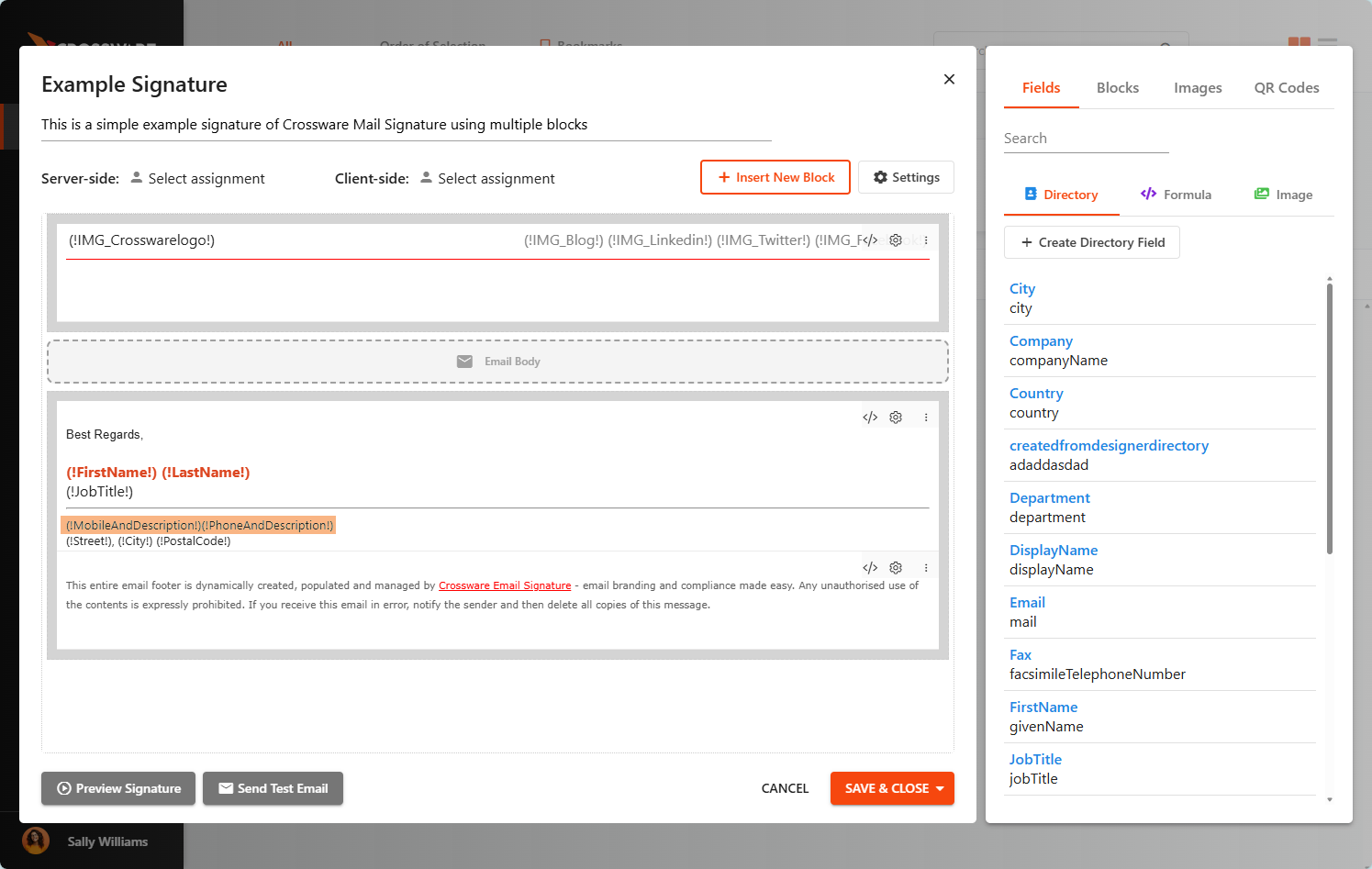
Insert it into your signature design.
-
Use Preview Signature or Send Test Email to confirm:
-
Fields only appear when populated
-
Labels display correctly
-
Only the Phone field is displayed, as the Mobile field is empty.
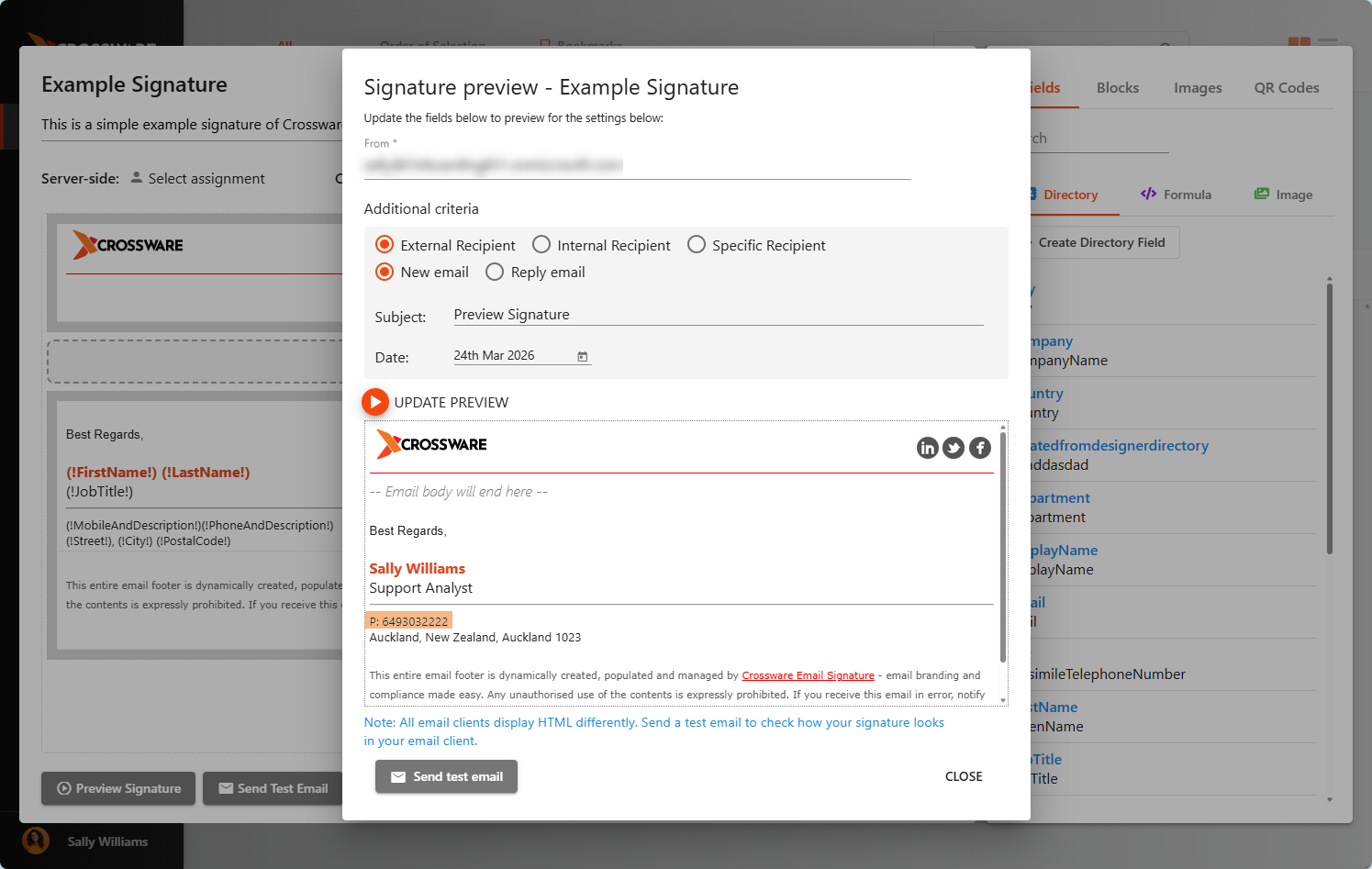
Both the Phone and Mobile fields are displayed when both fields are populated.