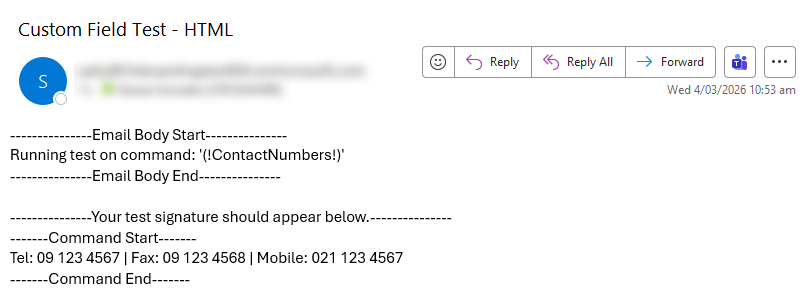
In many organisations, users may have multiple contact numbers. such as a main telephone, fax, and mobile. If you display these as separate fields, gaps may appear when one or more of the numbers are missing.
You can create a Formula Field that dynamically combines available numbers into one string, separated by a symbol (for example, | or a comma). This ensures that:
-
Only fields that contain data are displayed.
-
Formatting stays neat, without trailing spaces or empty lines.
Creating the Formula Field
-
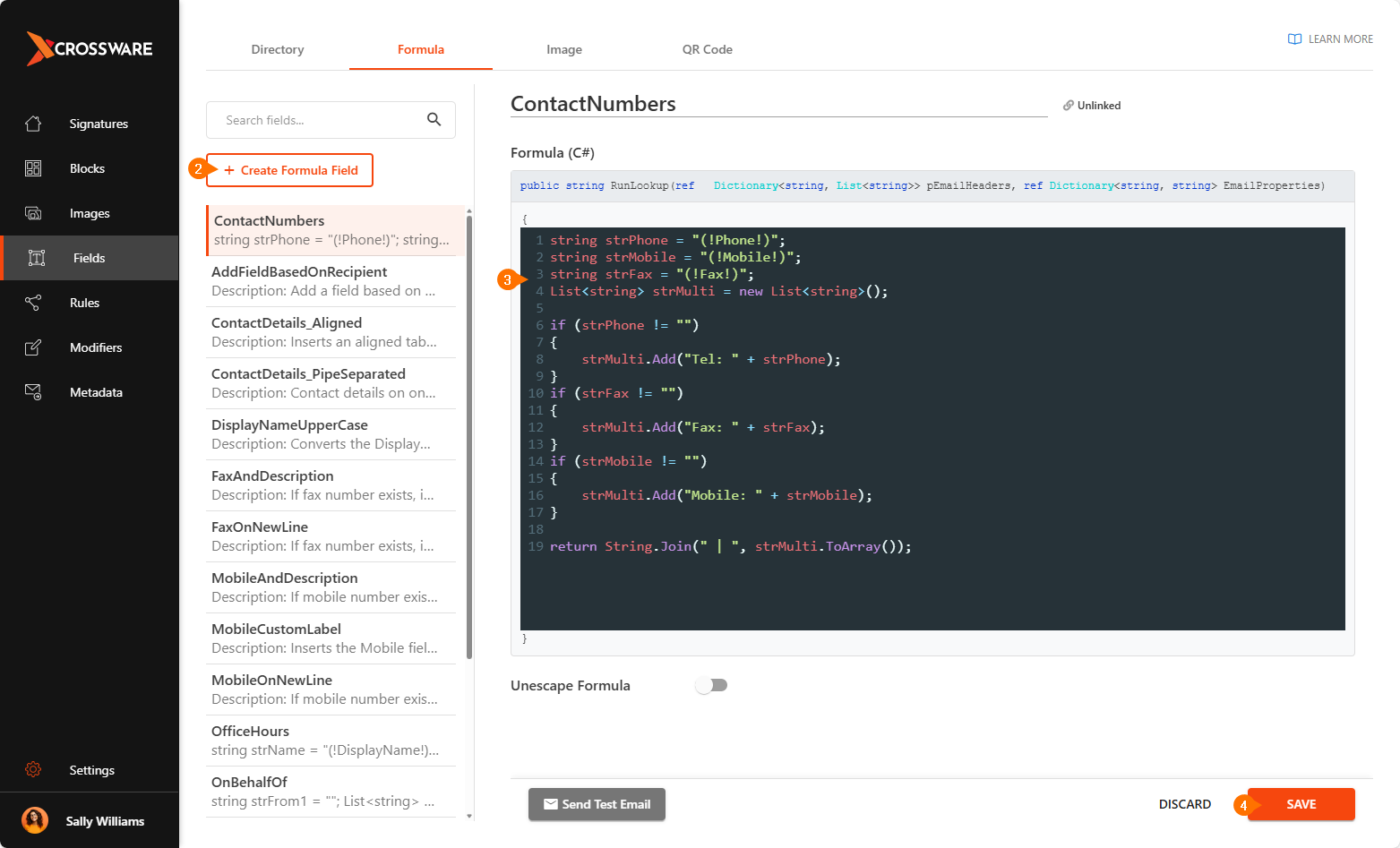
Sign in to the Crossware Portal and navigate to the Fields section.
-
Create a new Formula Field.
-
Add the following code to the Formula Editor:
string strPhone = "(!Phone!)";
string strMobile = "(!Mobile!)";
string strFax = "(!Fax!)";
List<string> strMulti = new List<string>();

if (strPhone != "")
{
    strMulti.Add("Tel: " + strPhone);
}
if (strFax != "")
{
    strMulti.Add("Fax: " + strFax);
}
if (strMobile != "")
{
    strMulti.Add("Mobile: " + strMobile);
}

return String.Join(" | ", strMulti.ToArray());
-
You can change the separator
|to another character, such as a comma,or slash/. -
Labels like
Tel:,Fax:andMobile:can also be renamed to match your organisation’s style.
-
Click Save.
Example Outputs
-
All numbers present:
Tel: 09 123 4567 | Fax: 09 123 4568 | Mobile: 021 123 4567 -
Only phone and mobile:
Tel: 09 123 4567 | Mobile: 021 123 4567 -
Only mobile:
Mobile: 021 123 4567
Testing the Field
After saving the Formula Field:
-
Insert it into your signature design.
-
Use Send Test Email with users who have different combinations of numbers.
-
Confirm that the output is correct and that no empty spaces or symbols appear where numbers are missing.