
Shared mailboxes in Microsoft 365 often cause confusion about who actually sent the email. The shared mailbox or the individual user. By default, signatures may only reflect the shared mailbox, not the person sending on its behalf.
Crossware can solve this by using the Sender field. You can capture the Sender information from the message headers and display it in the signature. This makes it clear when a message was sent on behalf of the shared mailbox.
Set the Send on Behalf Permission in Microsoft 365
-
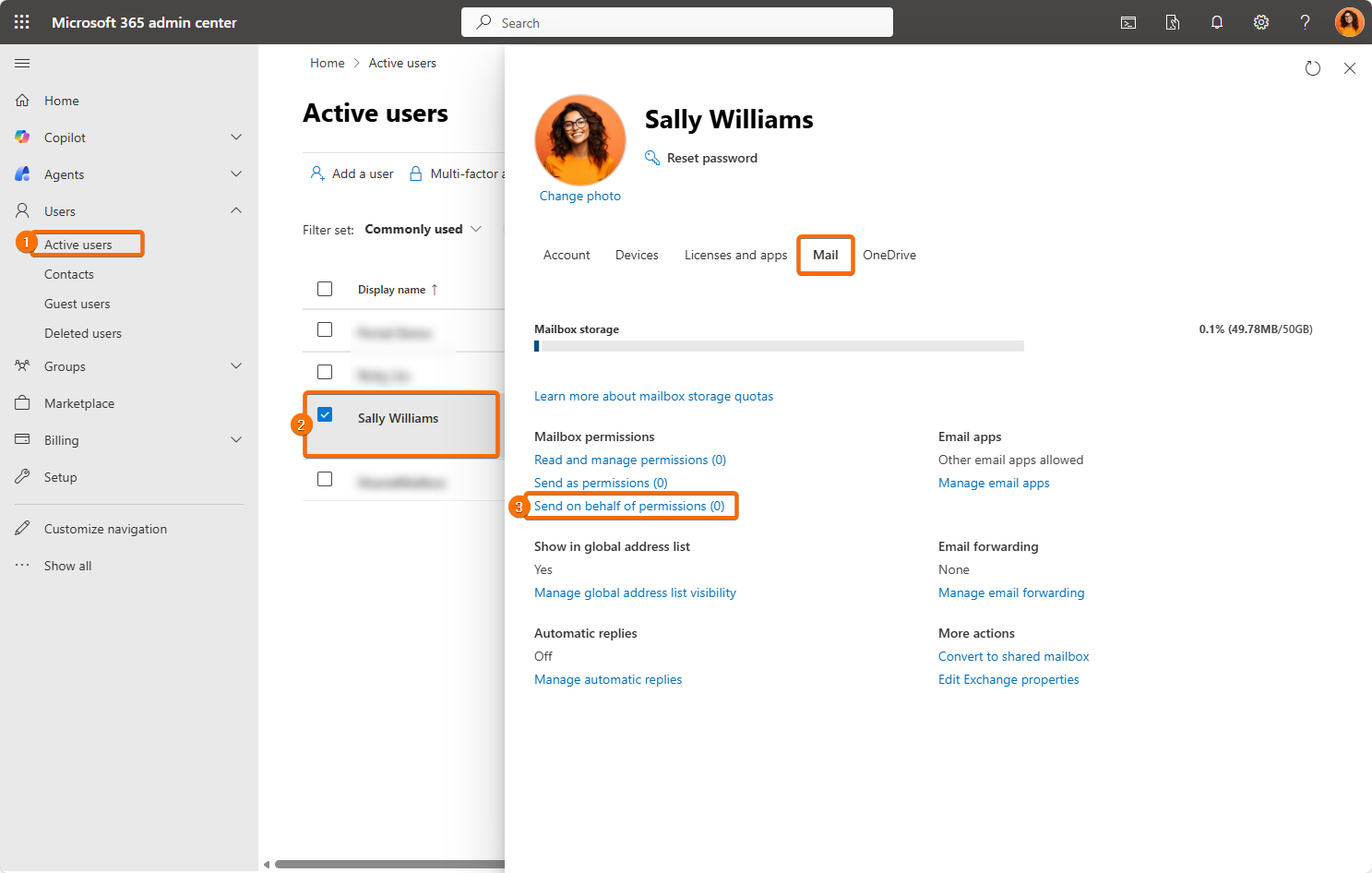
Open the Microsoft 365 admin center and go to Users, then Active users.
-
Select the user who will send on behalf of the shared mailbox.
-
Under the Mail tab, set the Send on behalf of permissions. Add the shared mailbox or the required user.
Create a Formula Field in Crossware for Sender
-
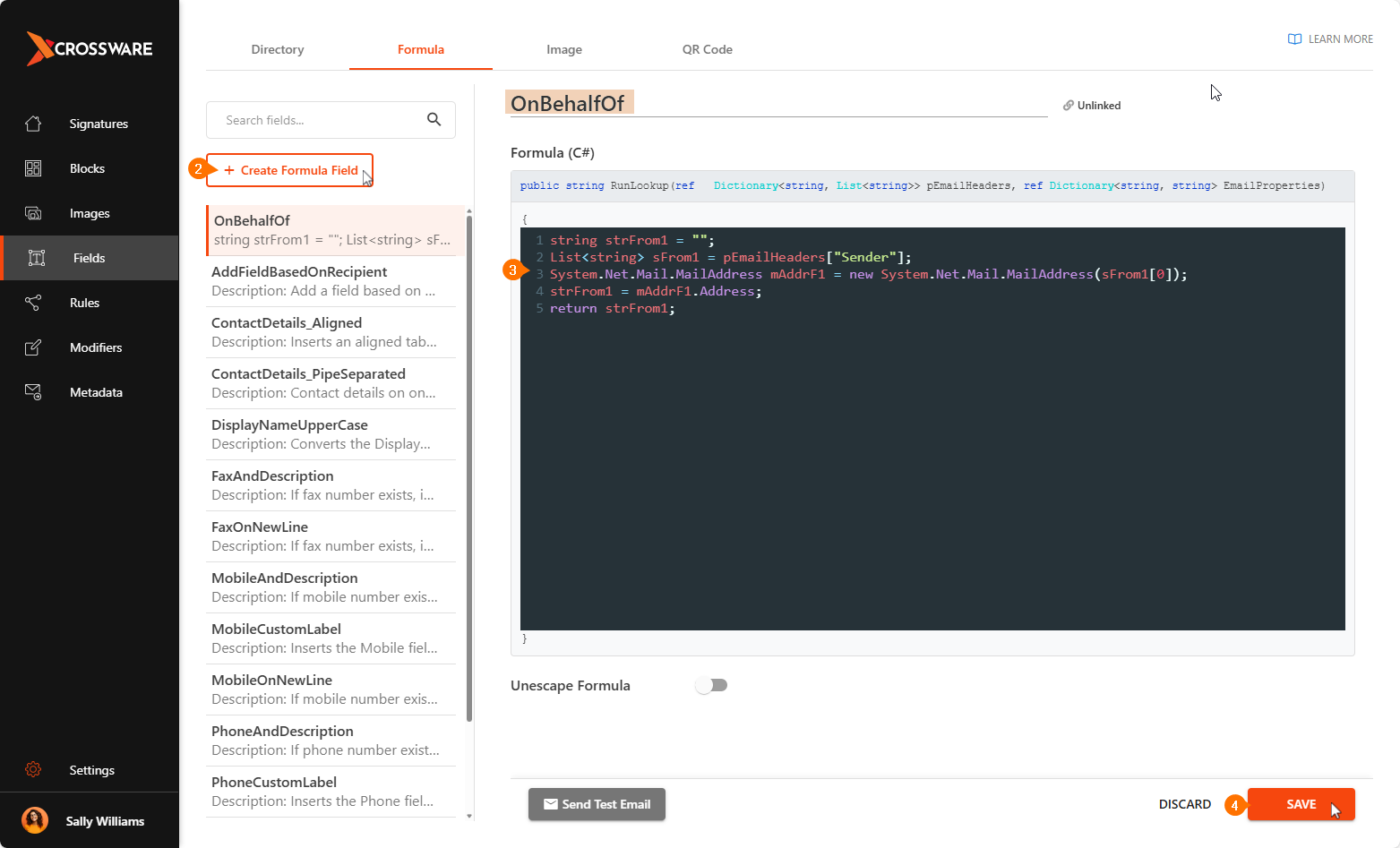
Sign in to the Crossware Portal and navigate to the Fields section.
-
Create a new Formula Field. Name it something like
OnBehalfOf. -
In the formula, use C# script below to extract the
Senderheader.
string strFrom1 = "";
List<string> sFrom1 = pEmailHeaders["Sender"];
System.Net.Mail.MailAddress mAddrF1 = new System.Net.Mail.MailAddress(sFrom1[0]);
strFrom1 = mAddrF1.Address;
return strFrom1;
-
Click Save.
Create a Directory field for Display Name
-
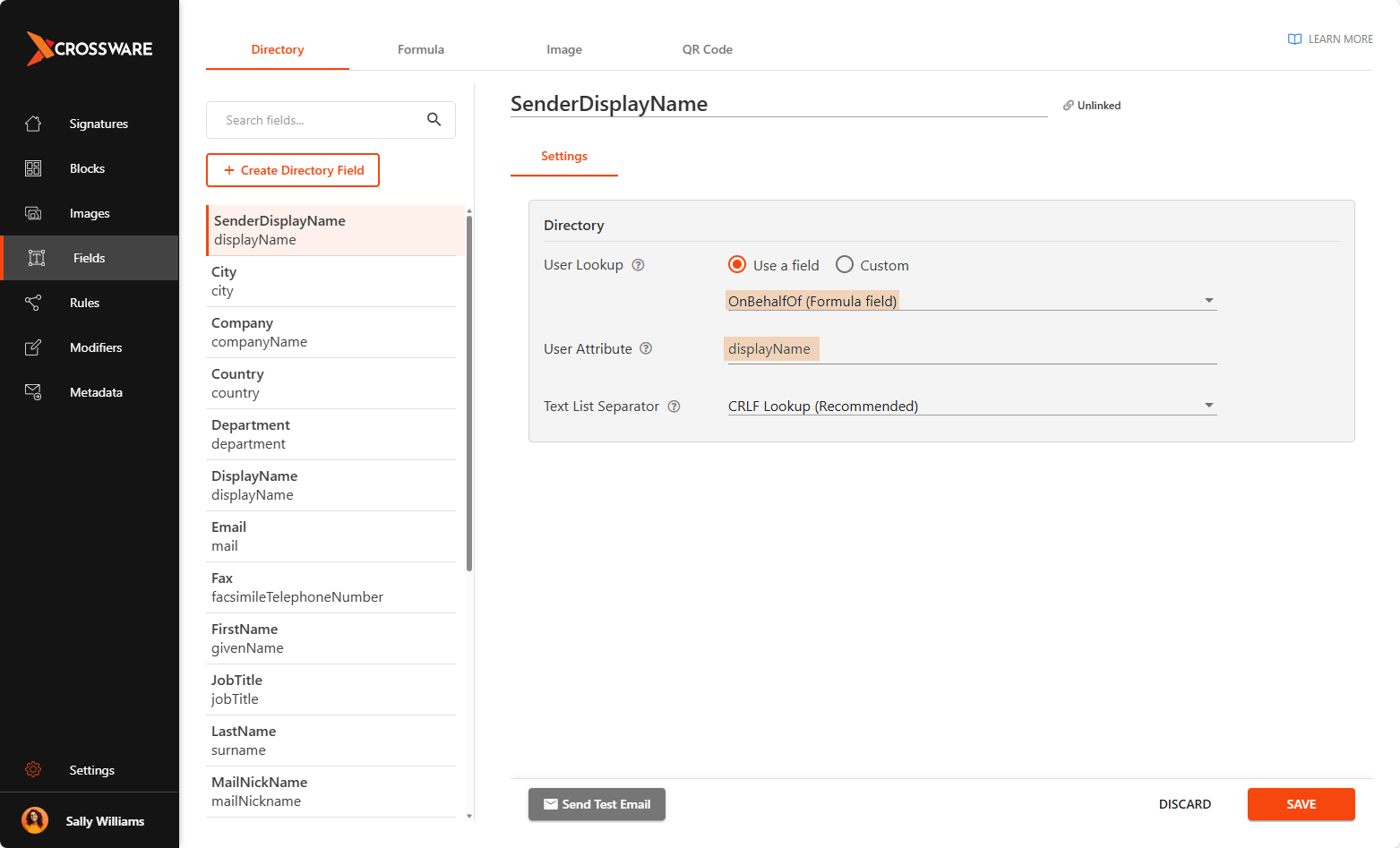
In the Crossware Portal, go to Fields section and under Directory fields, click Create directory field.
-
Set the Field settings
-
Name:
SenderDisplayName -
Directory Attribute:
displayName -
Lookup Key: Select the formula we have created on the previous step.
OnBehalfOf
-
The Directory Attribute is dependent on what information you want displaying for the sender (e.g. may be a firstName, surname, telephoneNumber etc.)
-
Click Save.
Edit the Signature Block to include the new field
-
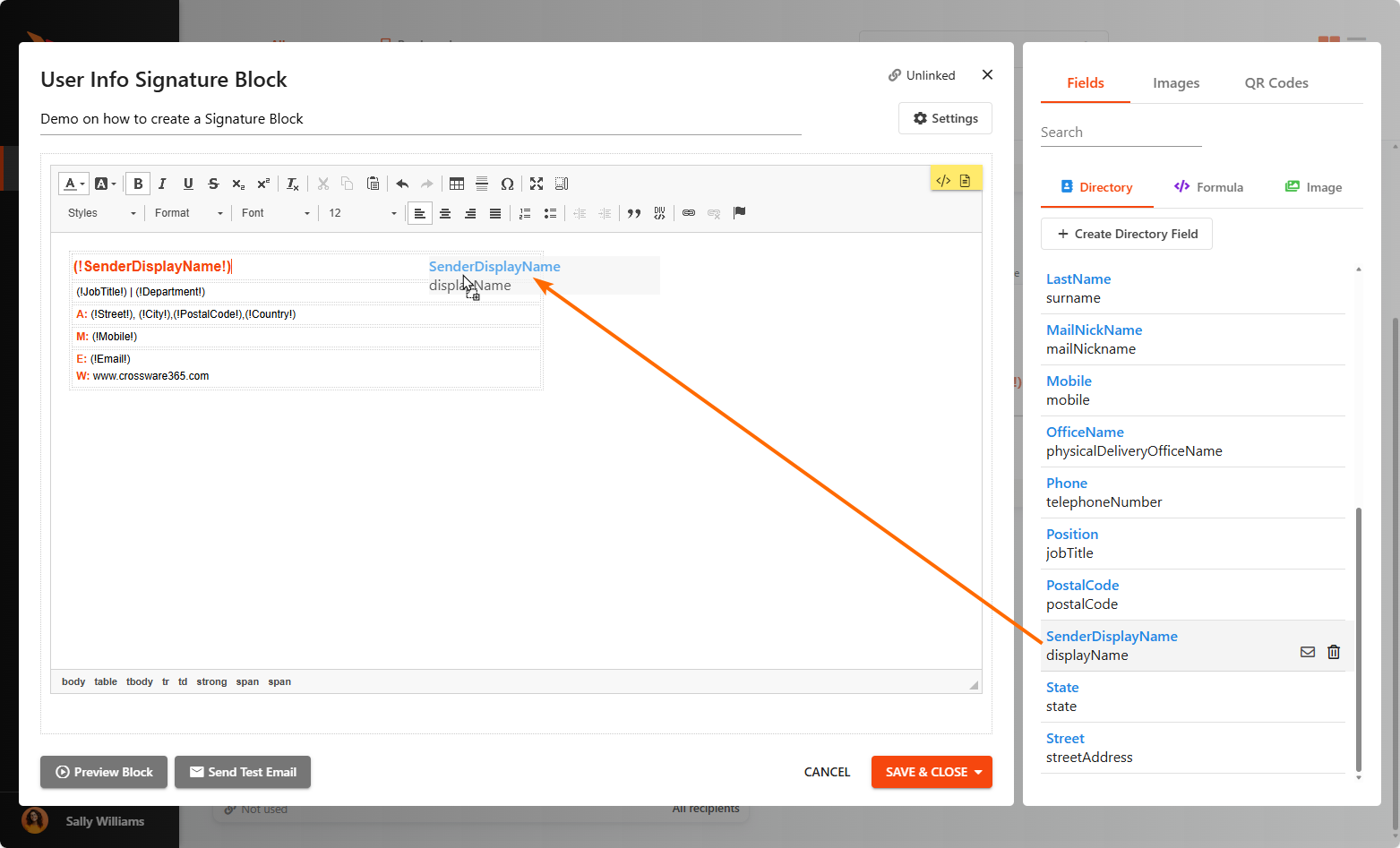
Go to Signature Blocks and hover over the signature block you want to edit.
[Place new screenshot after bug fix for border for options]
-
Drag and drop the new
SenderDisplayName(or whatever you named your directory/display field) into the signature block.
-
Click Save and Close.
Test the Configuration
-
In Outlook (or an email client), compose a new email from the shared mailbox via From field. Send it to a test address.
-
Verify that the signature shows the on behalf of/ sender field as expected.