
Issue
When you send a task request in Outlook, the recipient’s message may not display the Accept and Decline buttons, and the task details may appear scrambled or unreadable.
Cause
This occurs because Outlook originally sends the task request in Rich Text Format (RTF), but a transport component later converts the message to HTML. During this conversion, the task action buttons are removed, and the formatting of the task details is broken.
Workaround
To prevent this, you can configure an Exchange Transport Rule to exclude messages with subjects beginning Task Request: from being processed by Crossware Email Signature.
Steps to Configure the Transport Rule
-
Configure the following settings:
-
Condition (If):
Header:Subject
Matches regex:^Task Request: -
Action (Do the following):
Set a custom header, for example:
X-CWesigProcessed = Y
-
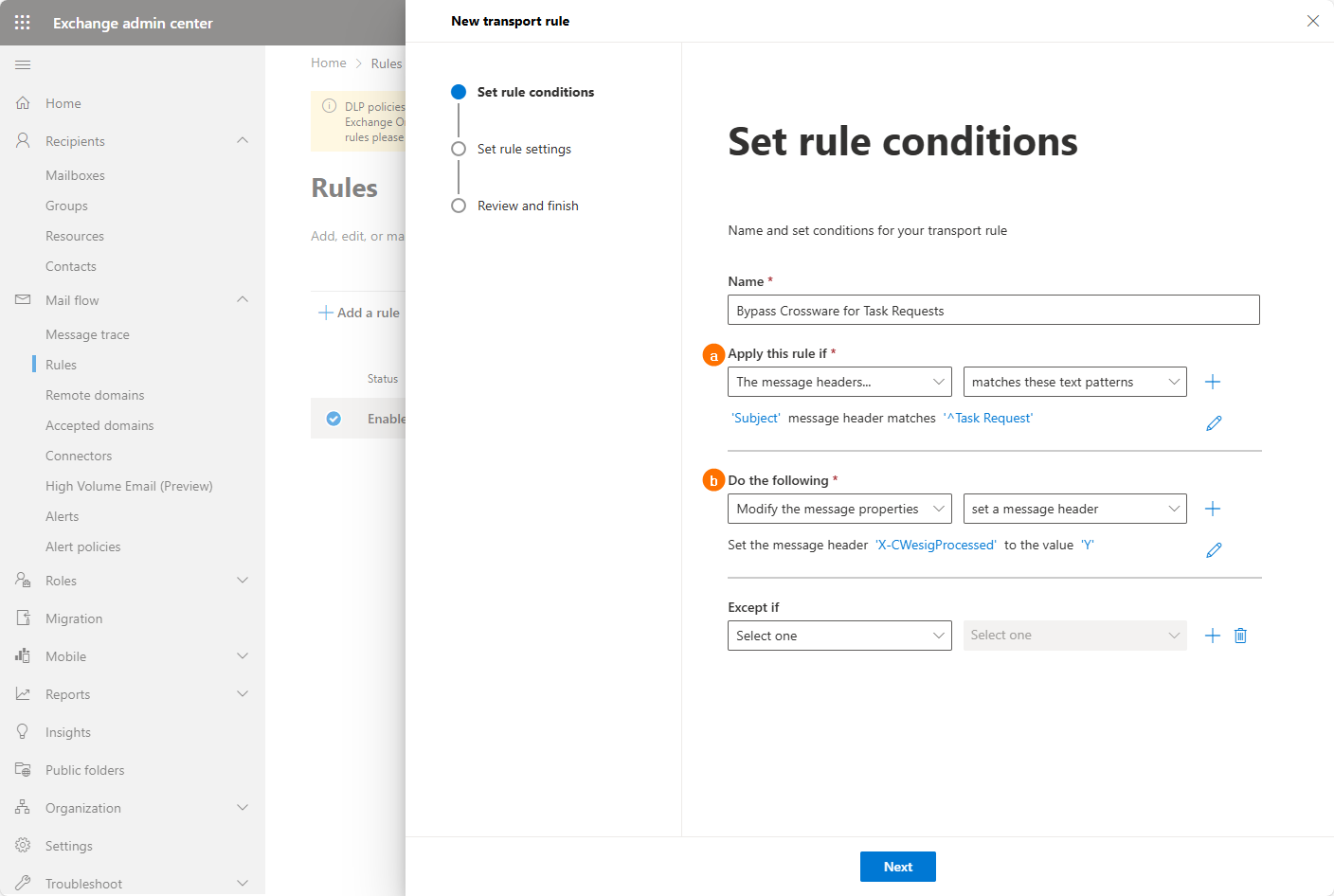
-
Rule Priority:
Set the priority of this rule higher than the Crossware Email Signature transport rule.
(This ensures task requests are excluded before signature processing is applied.)
With this rule in place, Outlook Task Request messages will bypass Crossware signature processing, ensuring the Accept/Decline buttons remain available and the task details display correctly.