
Issue
If your email signatures are not appearing on the emails you send, there are two primary causes to investigate:
-
The user is not in the correct Microsoft 365 group.
-
No signature configuration has been assigned to that user.
Incorrect Group Membership
During the Crossware Email Signature setup, a Transport Rule is created that is linked to a specific Microsoft 365 group. This rule ensures that emails from members of this group are routed to Crossware’s servers, where the appropriate signature is applied, before the email is returned to your server for delivery.
If a user isn’t a member of this group, their messages will not go through Crossware, and no signature will be added.
To check:
-
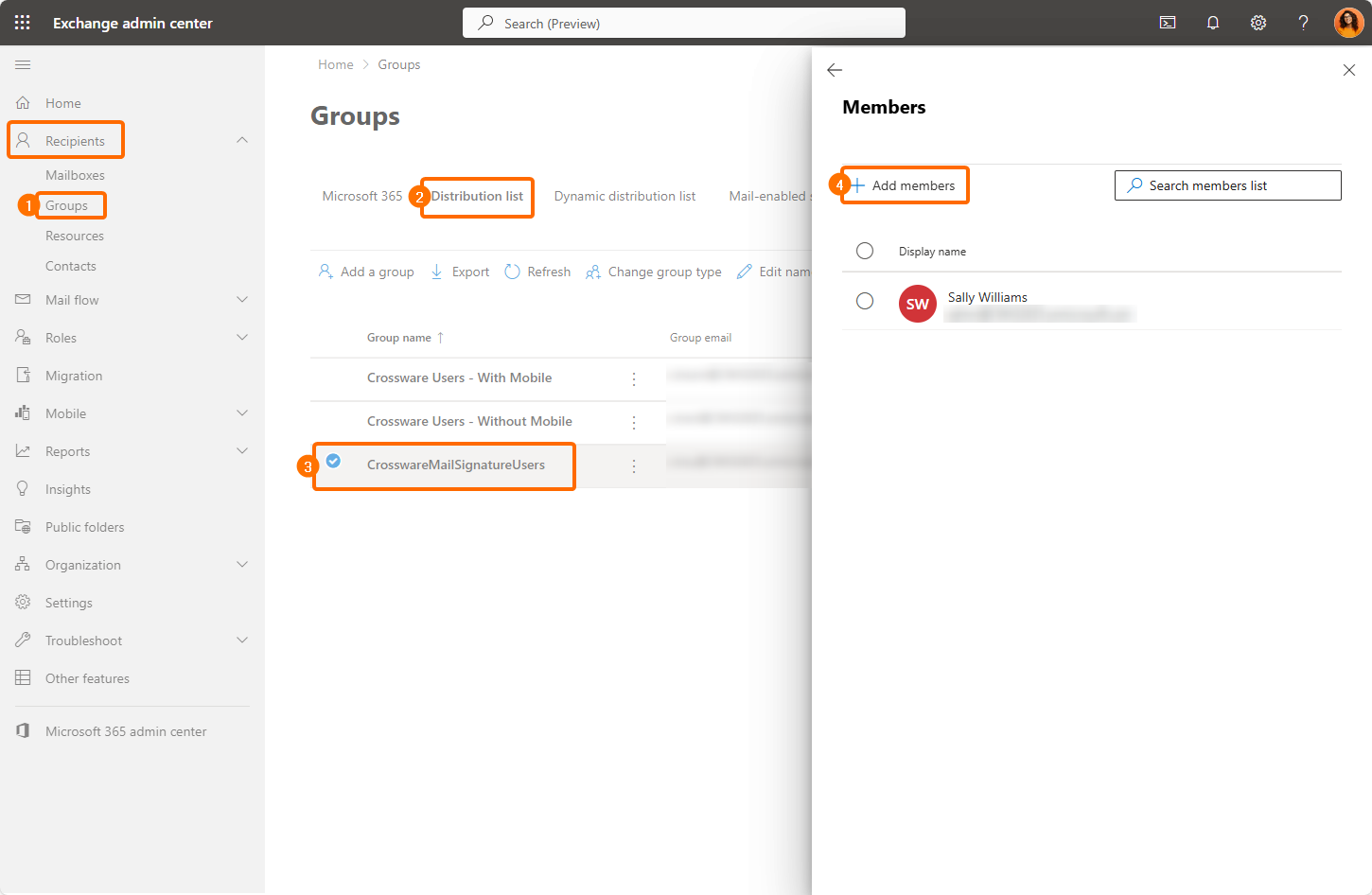
Sign in to Exchange Admin Center. Select Recipients, then choose Groups.
-
Find the group called CrosswareMailSignatureUsers (usually a Distribution List).
-
Select it, then go to Members → View All and confirm whether the user is listed.
-
If the user isn’t there, click Add Members and add them.
-
Be aware: after adding, it can take up to 15 minutes for Microsoft 365 to fully update group membership.
Missing Signature Configuration
If the group membership is correct, the next step is to check whether a signature has been assigned to the user’s account in Crossware.
To verify this:
-
Open one of the user’s emails.
-
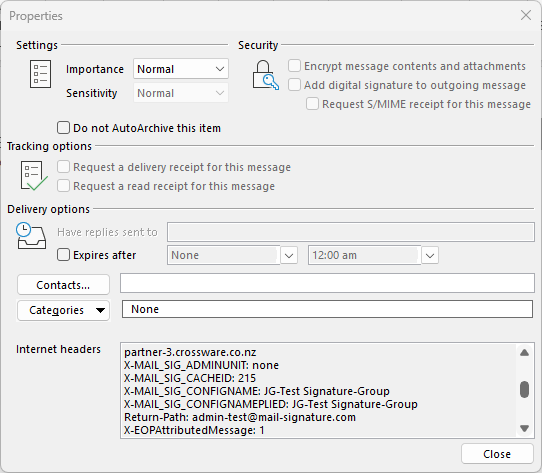
Go to File → Info → Properties (in your email client) and find the Internet Headers section.
-
Look for header lines similar to:
X_CwesigProcessed: Y X_MAIL_SIG_VERSION: 4.0.2.1820 X_MAIL_SIG_SERVER: smtpworker-in-0.xware-trial-1.o365.crossware.co.nz X_CWRandom: 1 X_MAIL_SIG_CONFIGNAME: Random X_MAIL_SIG_CONFIGNAMEAPPLIED: Random-
If you see
X_CwesigProcessed: Y, this means the email is being processed by Crossware. -
However, if the
X_MAIL_SIG_CONFIGNAMEAPPLIEDsuggests a configuration (e.g. "Random") that doesn’t match your intended signature, then the problem is likely with how signatures are assigned within Crossware.
-
-
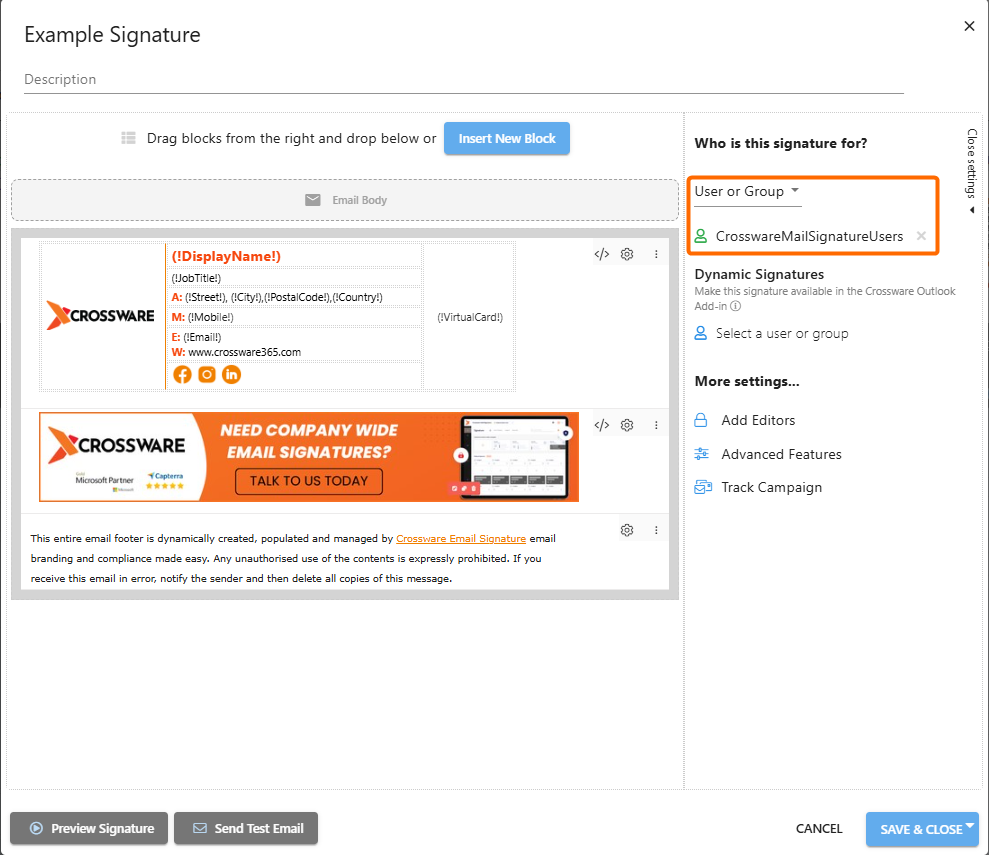
In the Crossware portal, go to the Signature Assignment area and check whether the correct configuration is assigned to that user (or their group).
Next Steps
-
If everything above looks correct but signatures are still not appearing, contact Crossware Support for further assistance.
-
Make sure to provide them with:
-
The email headers you inspected.
-
Details of the user’s group membership (are they in the CrosswareMailSignatureUsers group?).
-
Which signature configuration (template) you expect to be applied.
-