
By default, Crossware signatures are applied to all messages that pass through the transport rule. However, there are situations where you don't want signatures to be appended specifically for Planner or Teams comment messages.
This article shows how to set up an exception in the Crossware Transport rule, so those kinds of comment messages are excluded.
How To Exclude Signatures for Planner/Teams Comments
-
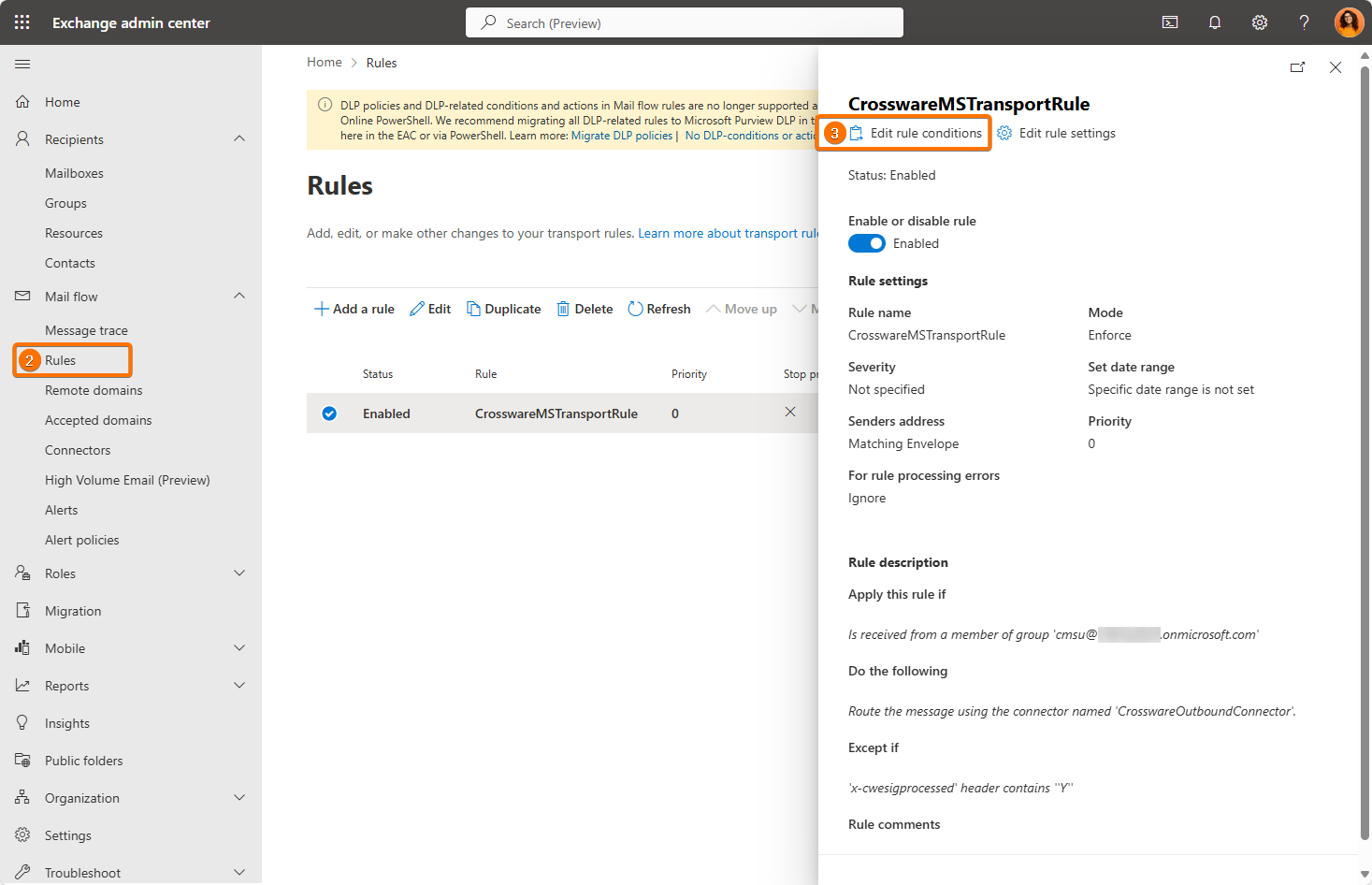
Sign in to your Exchange Admin Center.
-
Navigate to Mail flow > Rules.
-
Find the Crossware Transport rule. Click Edit for that rule.
-
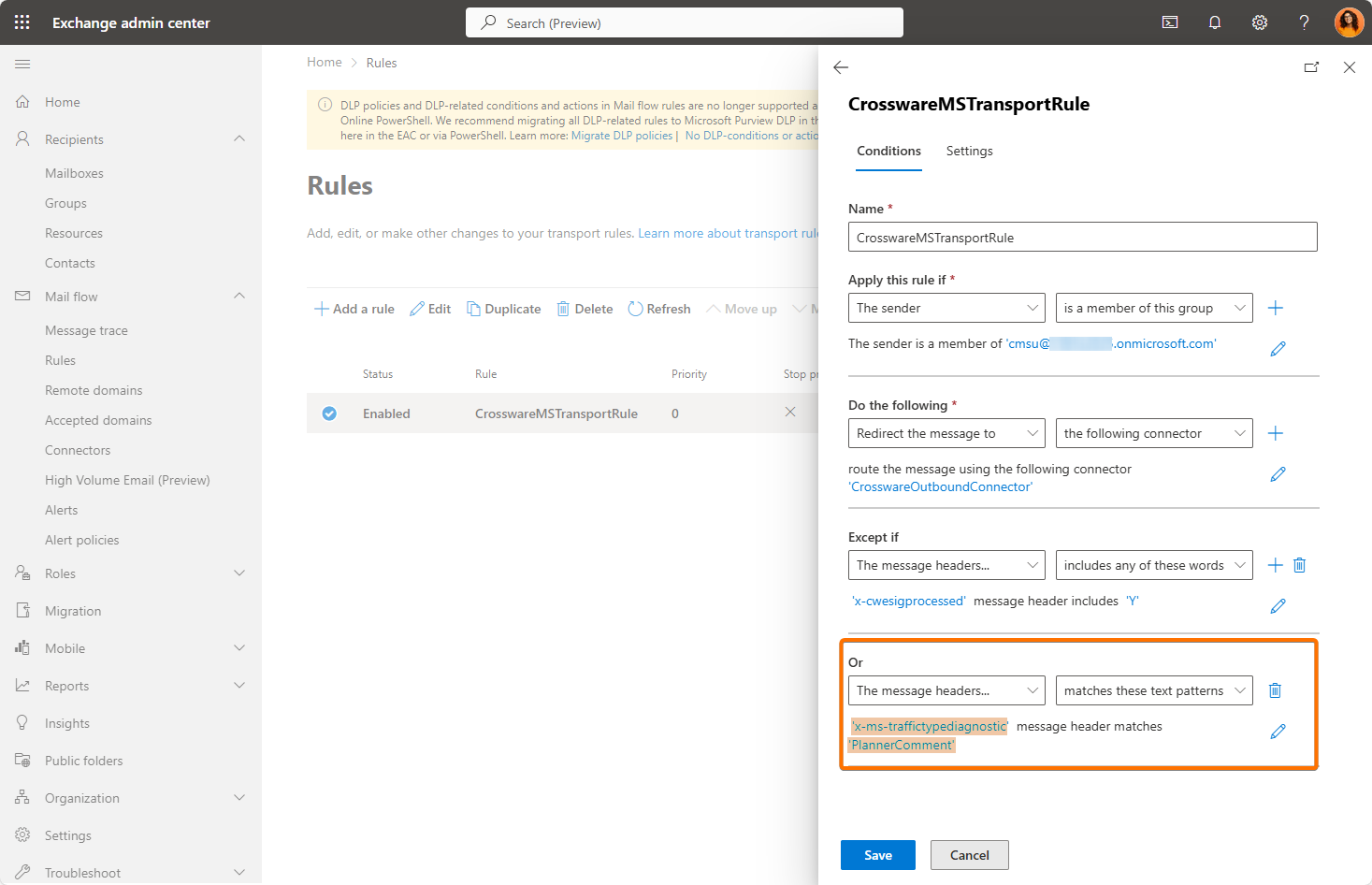
Scroll down to the Except If section of the rule.
-
Add a new exception:
-
From the dropdown, select: The message headers matches → matches these text patterns.
-
For Header, enter:
x-ms-traffictypediagnostic -
For Pattern, enter:
PlannerComment
-
-
Save the changes to the rule.