
If requested by Support, please follow the steps below to collect the required logs from Outlook. These logs help diagnose issues by showing what Outlook is doing in the background when the problem occurs.
Launch Outlook with Developer Tools
-
Close Outlook completely.
-
Press
Windows Key + Rto open the Run dialog. -
Type:
olk.exe -devtoolsand press Enter. -
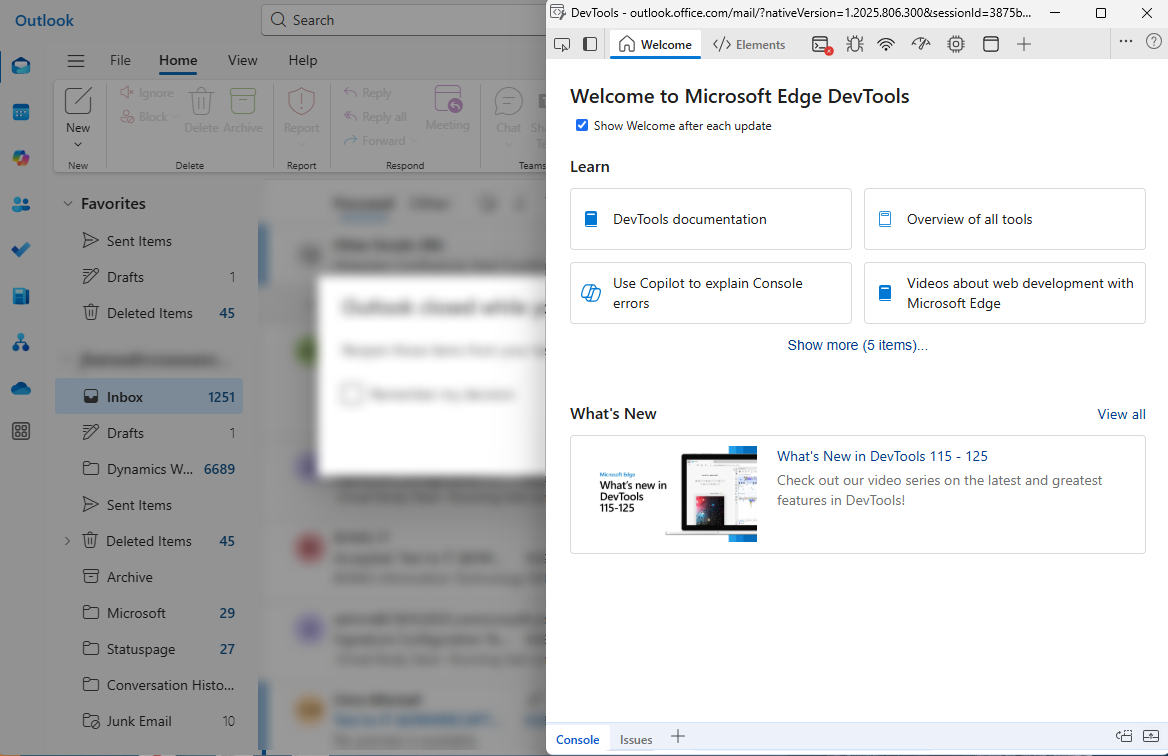
Outlook will open with the Developer Tools window automatically displayed.
Collect Console Logs
-
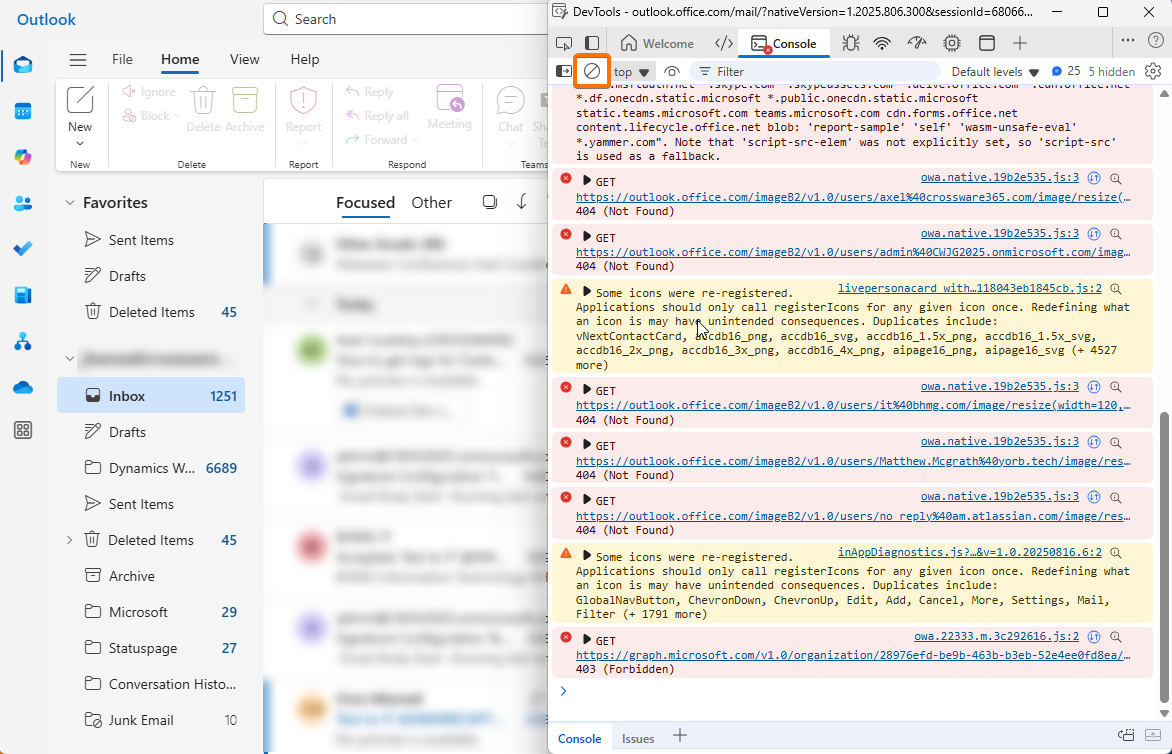
In the Developer Tools window, select the Console tab.
-
Clear existing logs by clicking the circle with slash icon (or press Ctrl + L).
-
Reproduce the issue in Outlook.
-
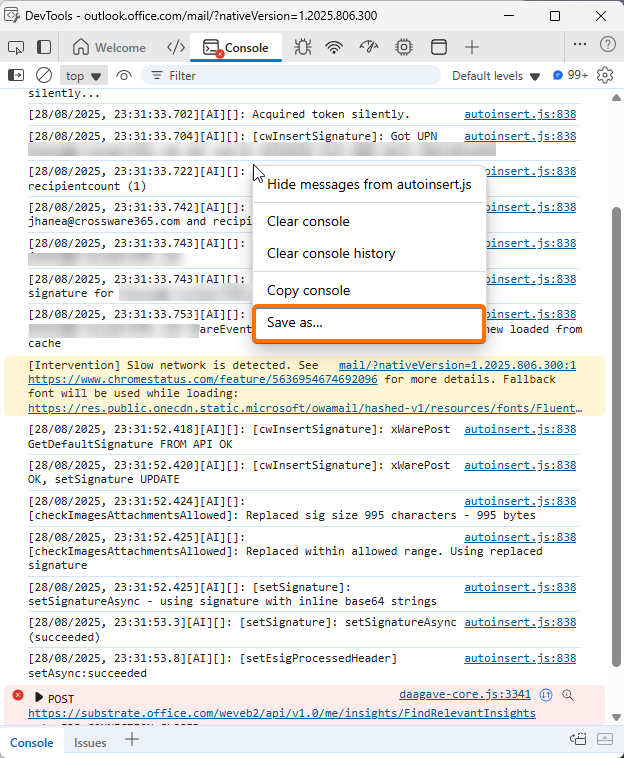
After reproducing the issue, right-click inside the console area and select Save as…
-
Save the file (e.g., console.log).
Collect Network Logs
-
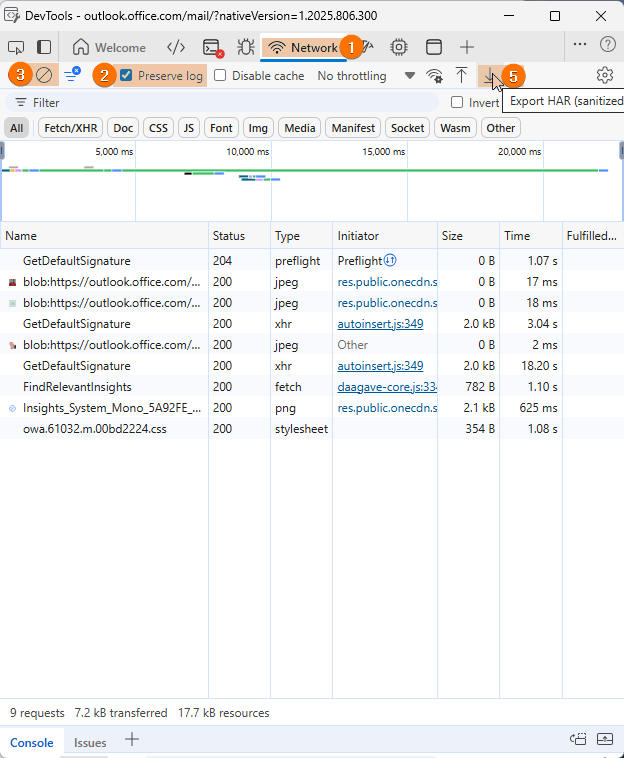
Switch to the Network tab in Developer Tools.
-
Check the option Preserve log at the top.
-
Clear existing logs by clicking the clear icon (circle with slash).
-
Reproduce the issue in Outlook.
-
Once done, click the download button (downward arrow) and choose Export .HAR (sanitized).
-
Save the file (e.g., network-log.har).
Share the Logs
-
Console log → .log or .txt file
-
Network log → .har file
Please send both files to your Support contact or attach them to your open ticket.