
Scenario
In some cases, special or accented characters may not appear correctly in emails after a signature has been applied.
Cause
This usually occurs because Microsoft Outlook is not configured to send outgoing messages using Unicode (UTF-8). If another character set is used, accented or special characters may be displayed incorrectly by the recipient.
Resolution
Update Outlook to ensure it sends messages in Unicode (UTF-8):
-
Open Outlook and go to File > Options.
-
Select Advanced from the menu on the left.
-
Scroll down to the International Options section.
-
Under Preferred encoding for outgoing messages, choose Unicode (UTF-8).
-
Click OK to apply the changes.
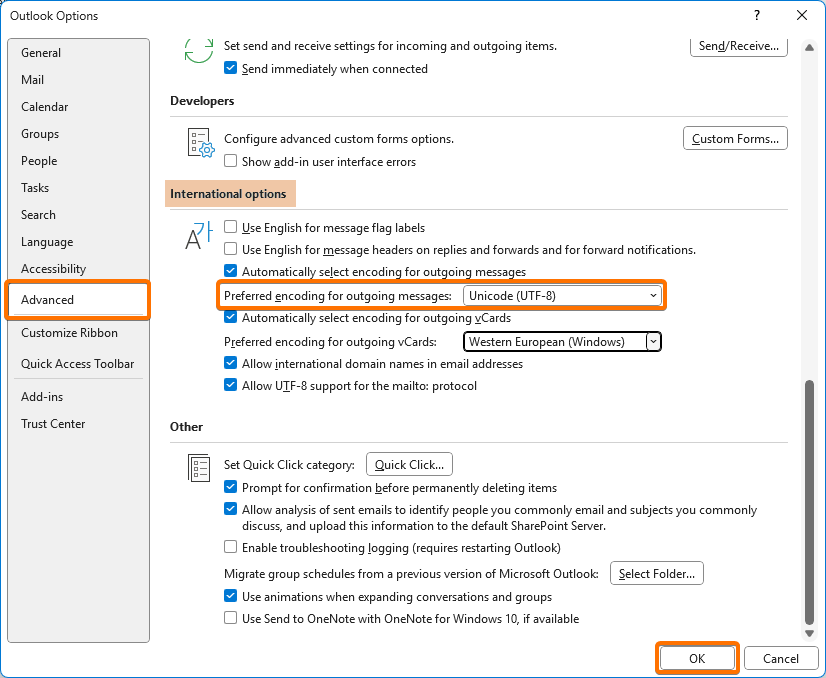
Once enabled, this ensures special and accented characters are preserved correctly in outgoing emails that include signatures.