
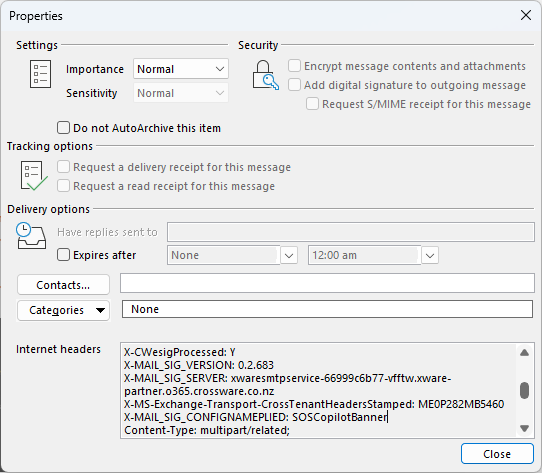
You can confirm whether an email has been processed by Crossware Email Signature by checking the header fields that are added during processing.
The following headers are added by Crossware:
|
Header name |
Description |
|---|---|
|
X-CWEsigProcessed |
Set to |
|
X-MAIL_SIG_SERVER |
Identifies the server that applied the processing. |
|
MAIL_SIG_VERSION |
Shows the Crossware software version used. |
|
MAIL_SIG_CONFIGNAME |
Displays the main signature configuration applied. |
|
MAIL_SIG_CONFIGNAME_APPLIED |
Lists all applied configuration documents and signature blocks. For linked-only signatures, only the applied block is shown. This header also appears for “Reply only” and “New email only” configurations. |
How to check the Email headers
-
Open the email in Outlook.
-
Select File > Properties.
-
Review the Internet headers section.
-
Locate the Crossware headers listed above.
Troubleshooting with System Fields
System fields can be useful when signatures do not appear as expected.
-
Check if the email was processed
-
Look for X-CWEsigProcessed = Y.
-
If this header is missing, the email was not processed by Crossware.
-
-
Verify which configuration applied
-
Review MAIL_SIG_CONFIGNAME_APPLIED to confirm the correct signature configuration was used.
-