
If you encounter an issue with Dynamic Signatures in Outlook Web App (OWA), you may be asked by Crossware Support to provide debug logs. These logs can help identify and resolve the problem.
Steps to Collect Logs
-
Open your browser and sign in to your Outlook Web App account.
-
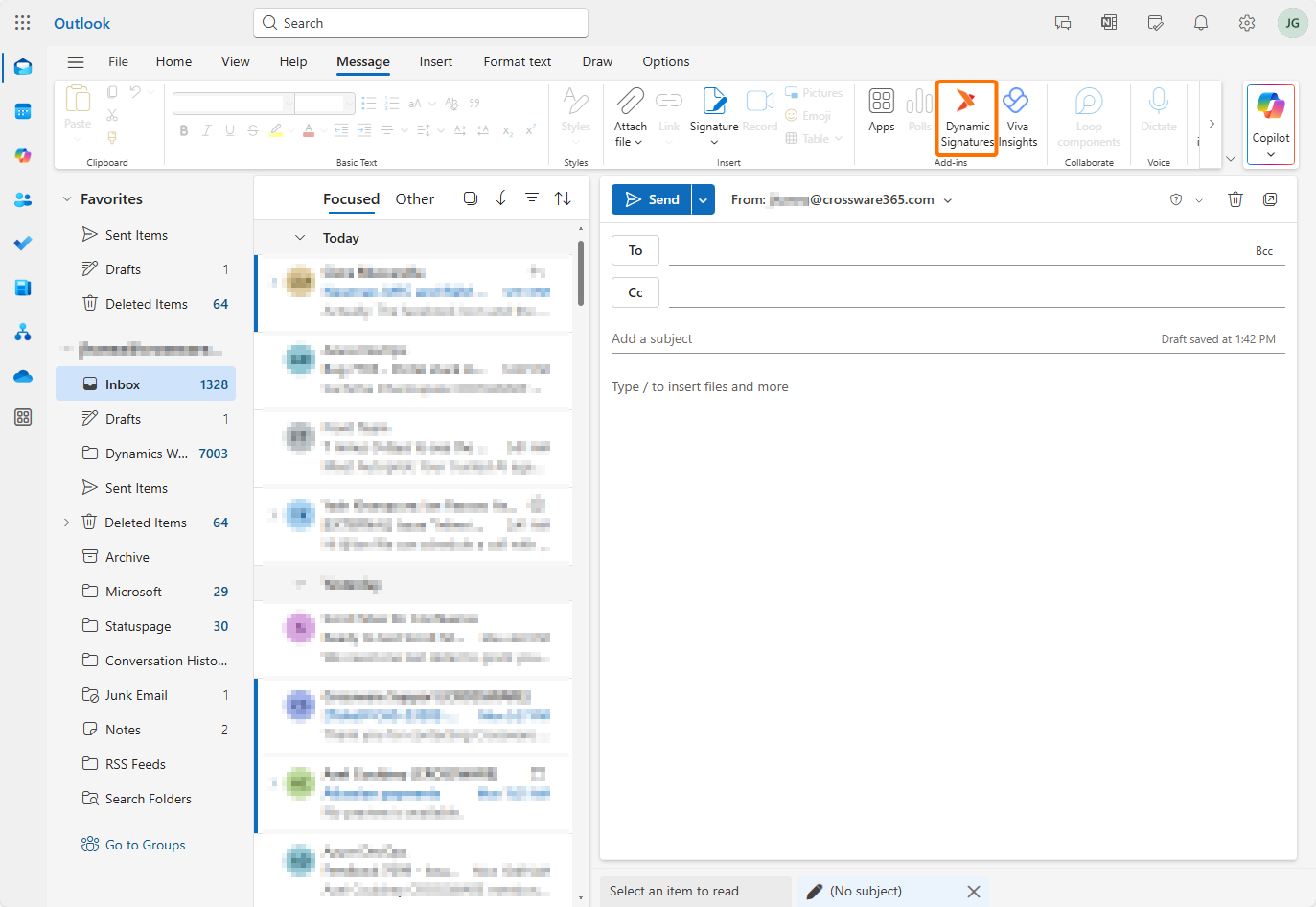
Launch the Dynamic Signatures add-in from your mailbox.
-
Open Developer Tools
-
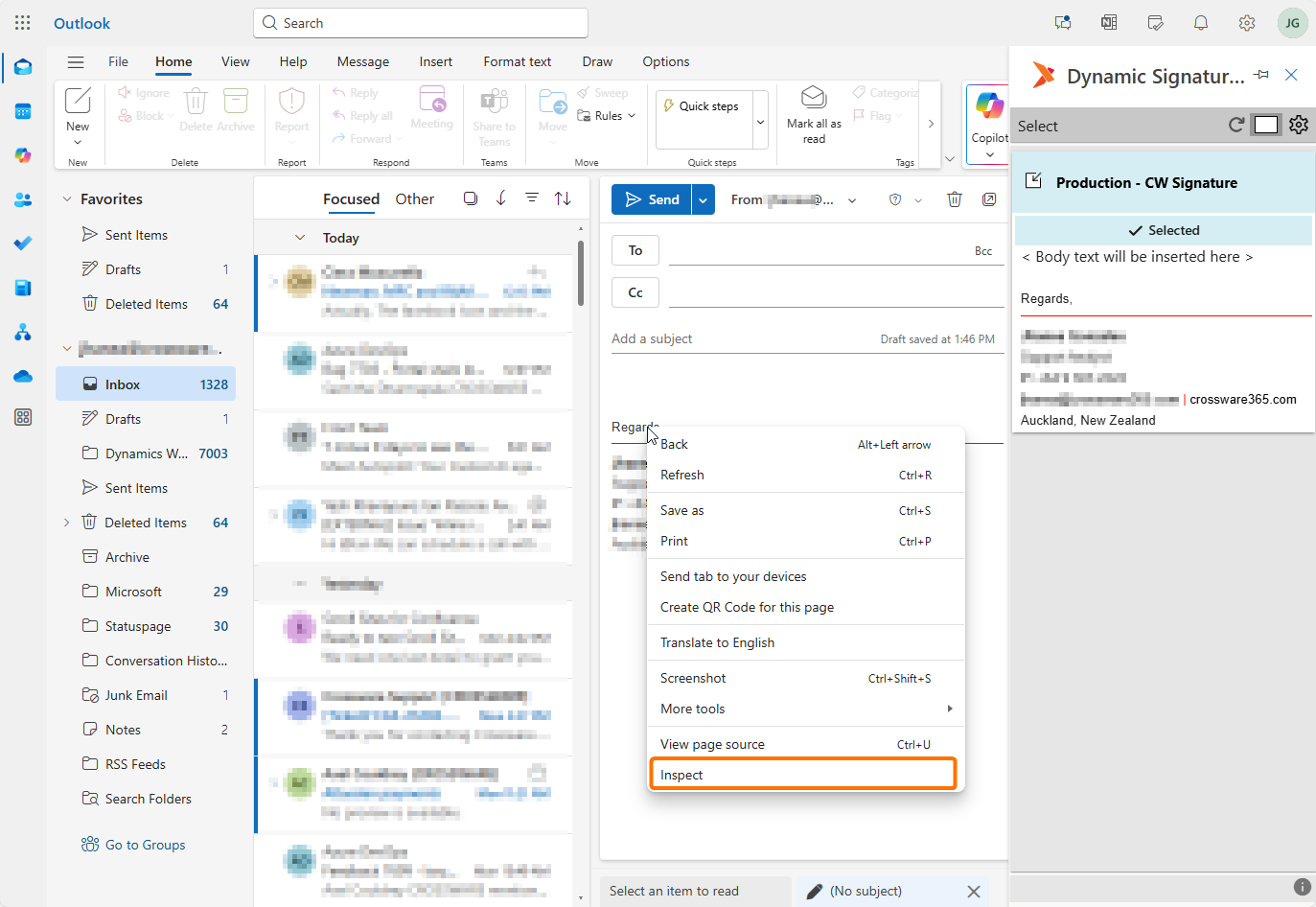
In most browsers, press F12 or right-click the page and select Inspect.
-
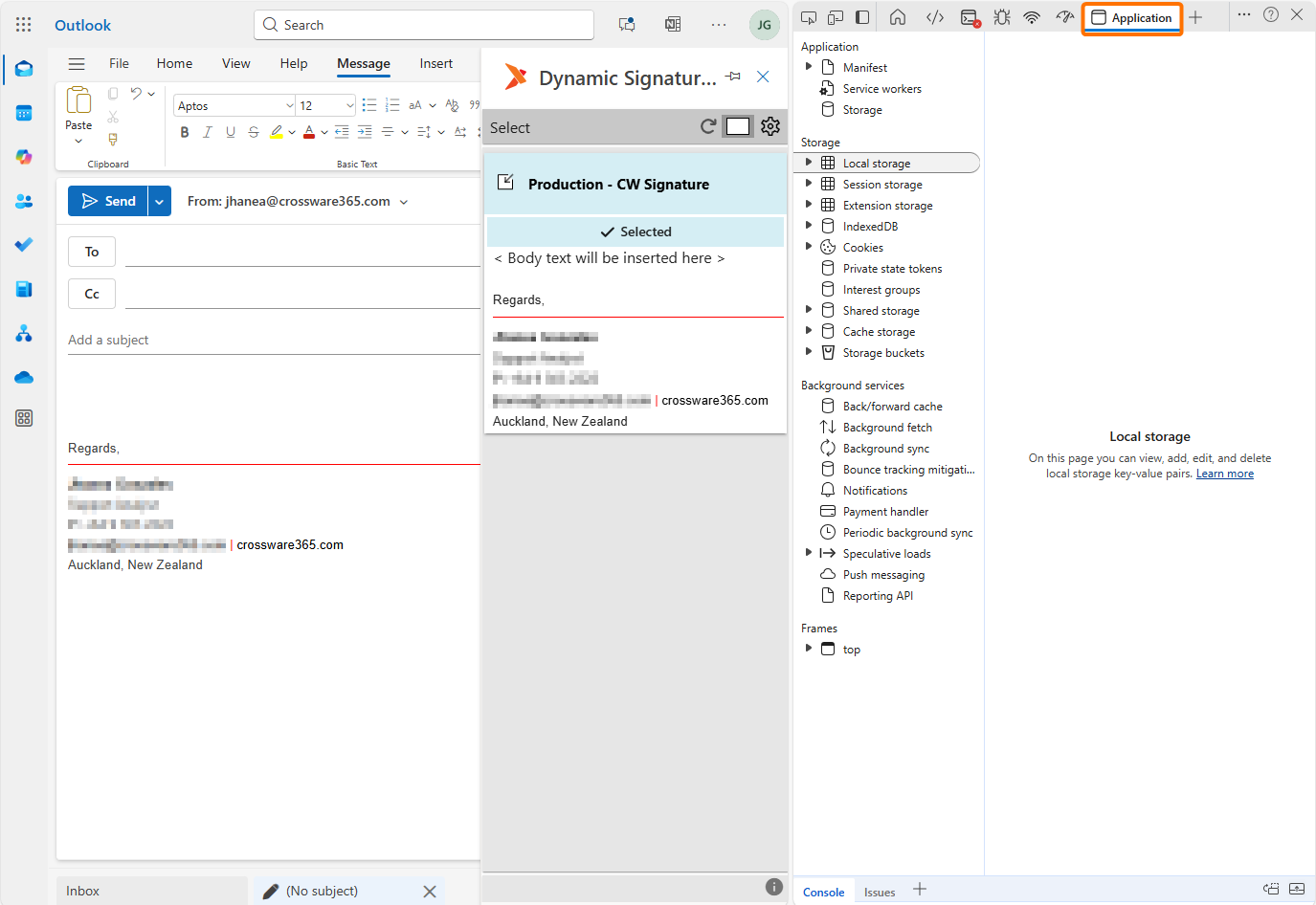
Navigate to the Application tab.
-
-
Enable Debug Mode
-
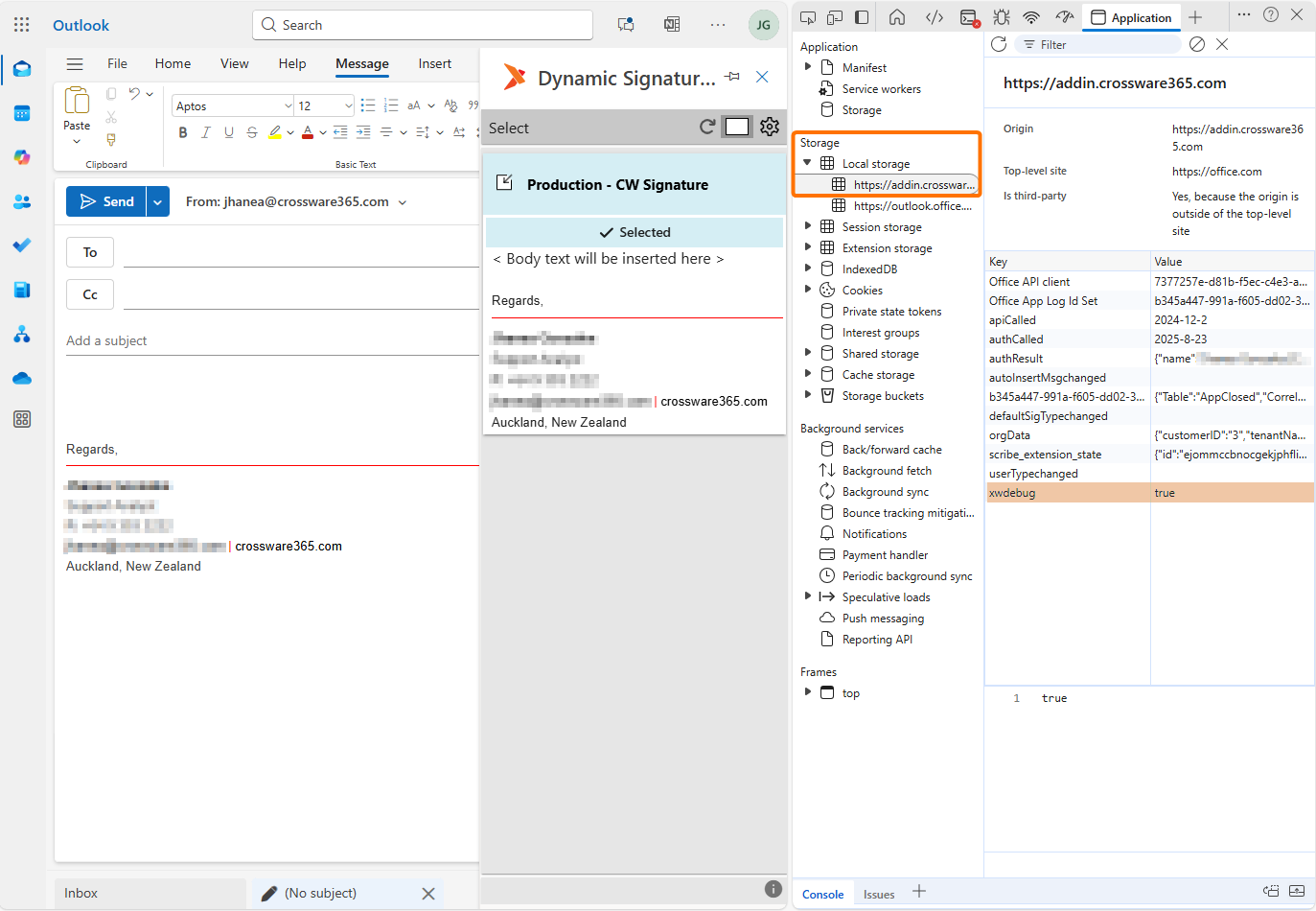
In the left-hand menu, Under Storage, expand Local Storage and select https://addin.crossware365.com.
-
Right-click inside the list of stored items and choose Add Item.
-
Enter the following:
-
Key:
xwdebug -
Value:
true
-
-
-
Perform the steps that triggered the problem so that the system records the relevant log entries.
-
Save the Console Logs
-
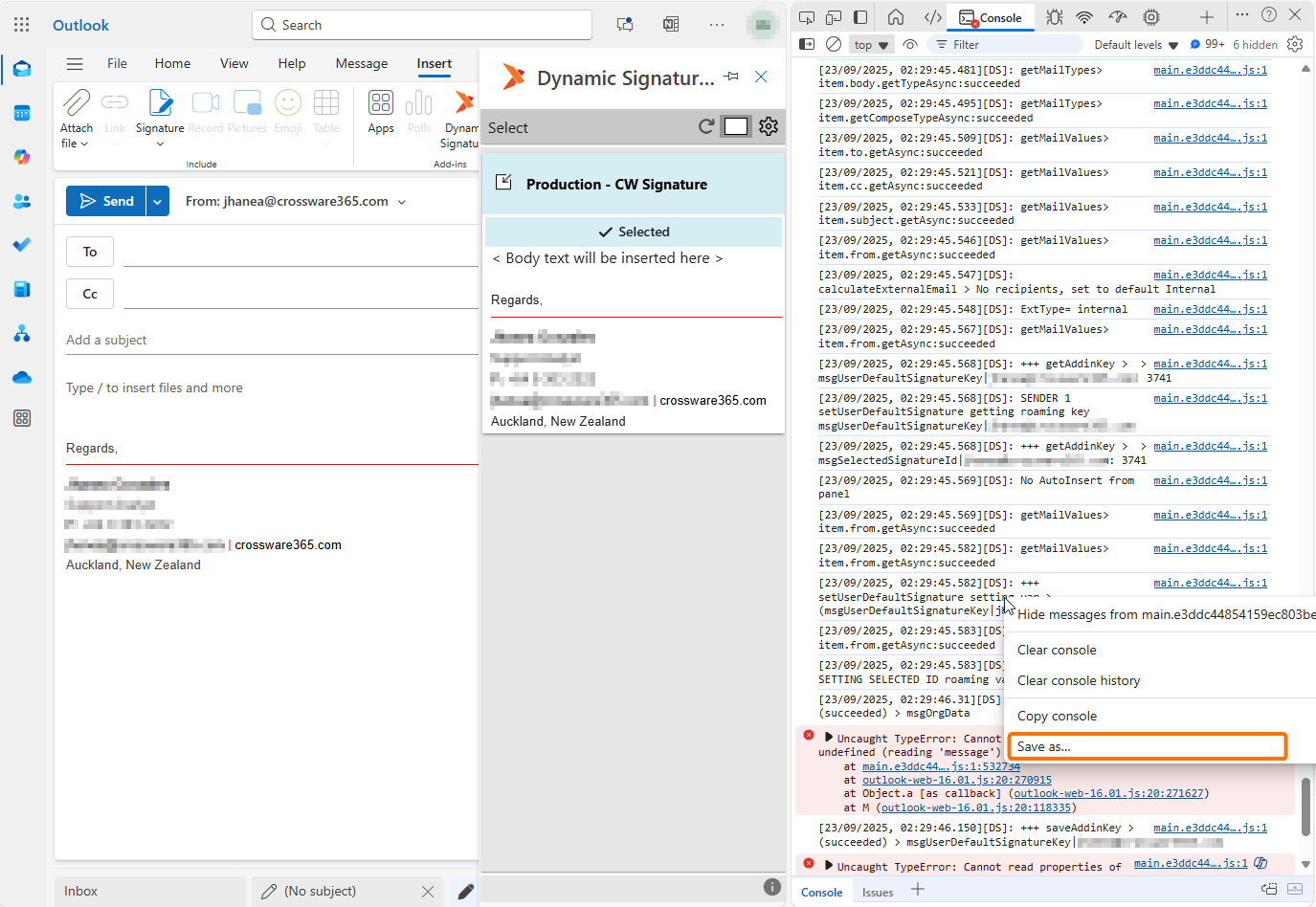
In Developer Tools, go to the Console tab.
-
Right-click anywhere in the log output and select Save as….
-
Save the log file to your computer.
-
-
Attach the saved log file to your support request and send it to Crossware Support.
-
Remove Debug Entry (important)
-
Return to Local Storage in Developer Tools.
-
Delete the
xwdebugentry you created.
-