
By default, Out of Office (OOO) replies do not pass through Crossware Email Signature and therefore won't include a signature. You can enable this by creating a dedicated transport rule in Microsoft 365.
Prerequisite
Before proceeding, update your inbound connector to the new unique certificate. Signatures cannot be applied to automatic replies until this step is complete. Learn more here.
Create a new Transport Rule in your Microsoft 365 Admin Center
-
Sign in to your Exchange Admin Center.
-
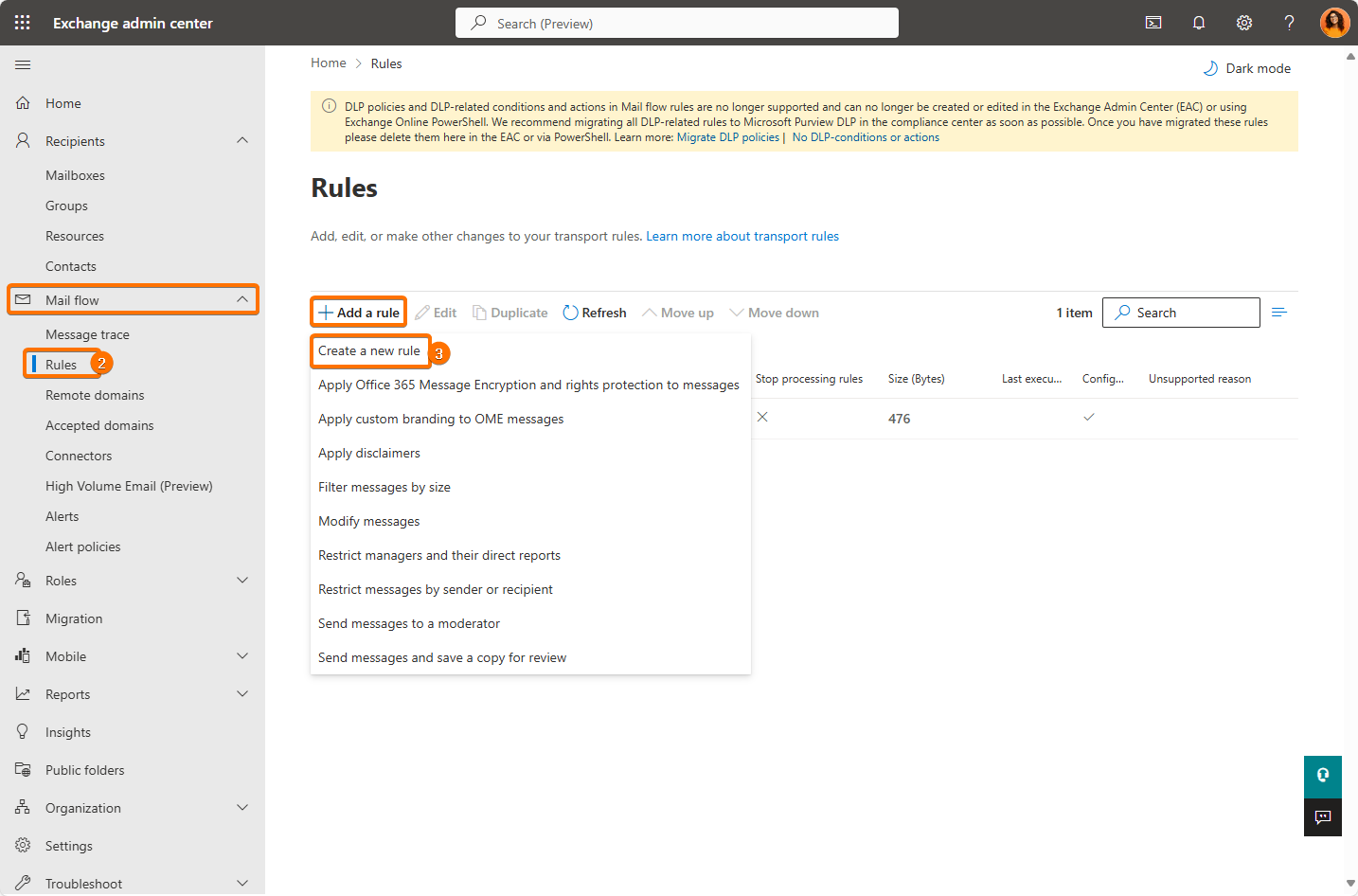
Navigate to Mail flow > Rules.
-
Click Add a rule and choose Create a new rule.
-
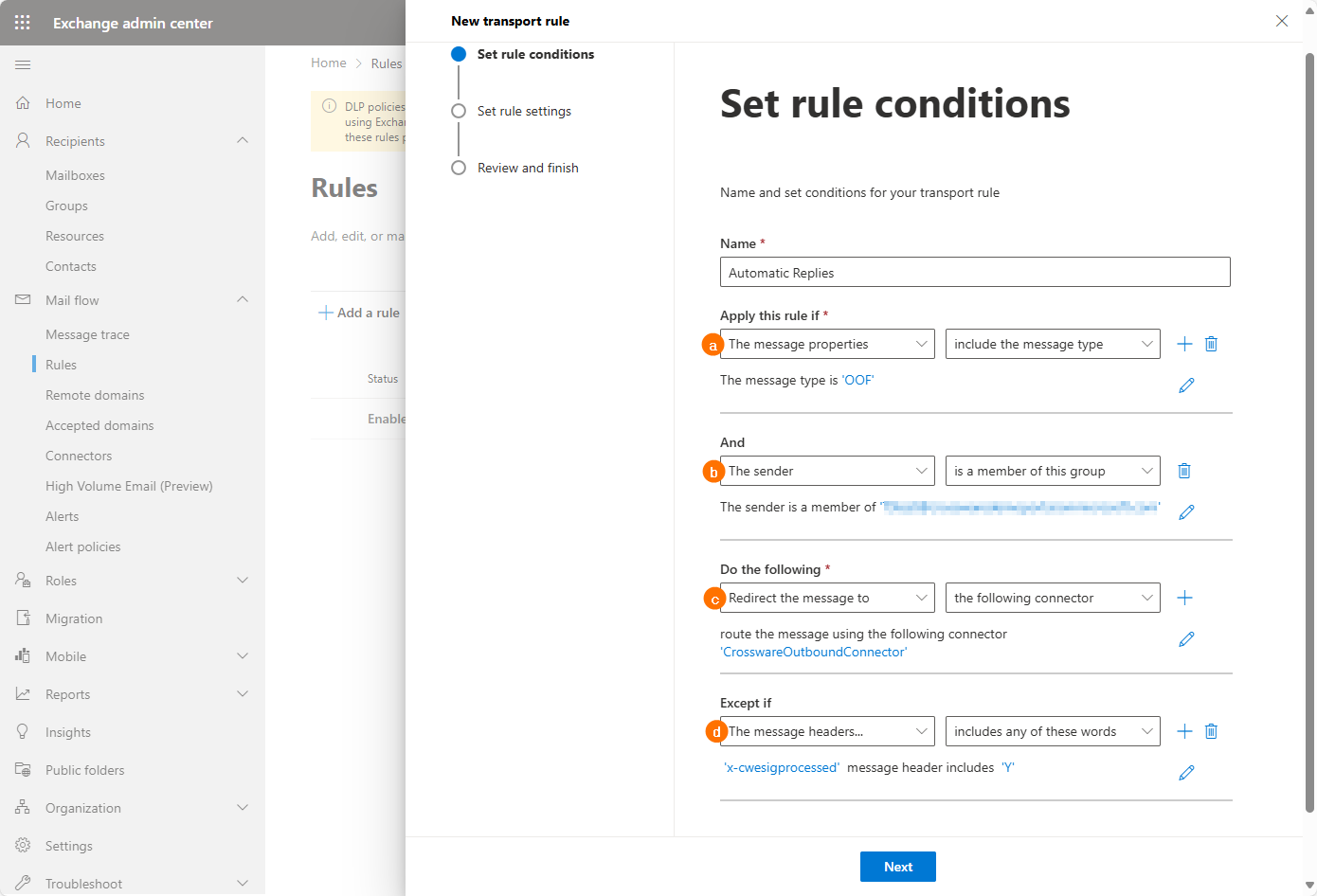
Give your new rule a Name (e.g., Automatic Replies).
-
Set the Conditions of the Transport Rule:
-
Apply this rule if → The message properties → include the message type → Automatic Reply.
-
And → The sender → is a member of this group → Crossware Group (where the group is whichever group is assigned to your existing Crossware mail flow rule).
NOTE: If you do not add the group here as a check, ALL your organisation's automatic replies will go through Crossware, and you may go over your user subscription number. -
Do the following → Redirect the message to → the following connector → select the CrosswareOutboundConnector.
-
Except if → The message headers → includes any of these words:
-
For Header, enter
x-cwesigprocessed -
For Pattern, enter
Y
-
-
-
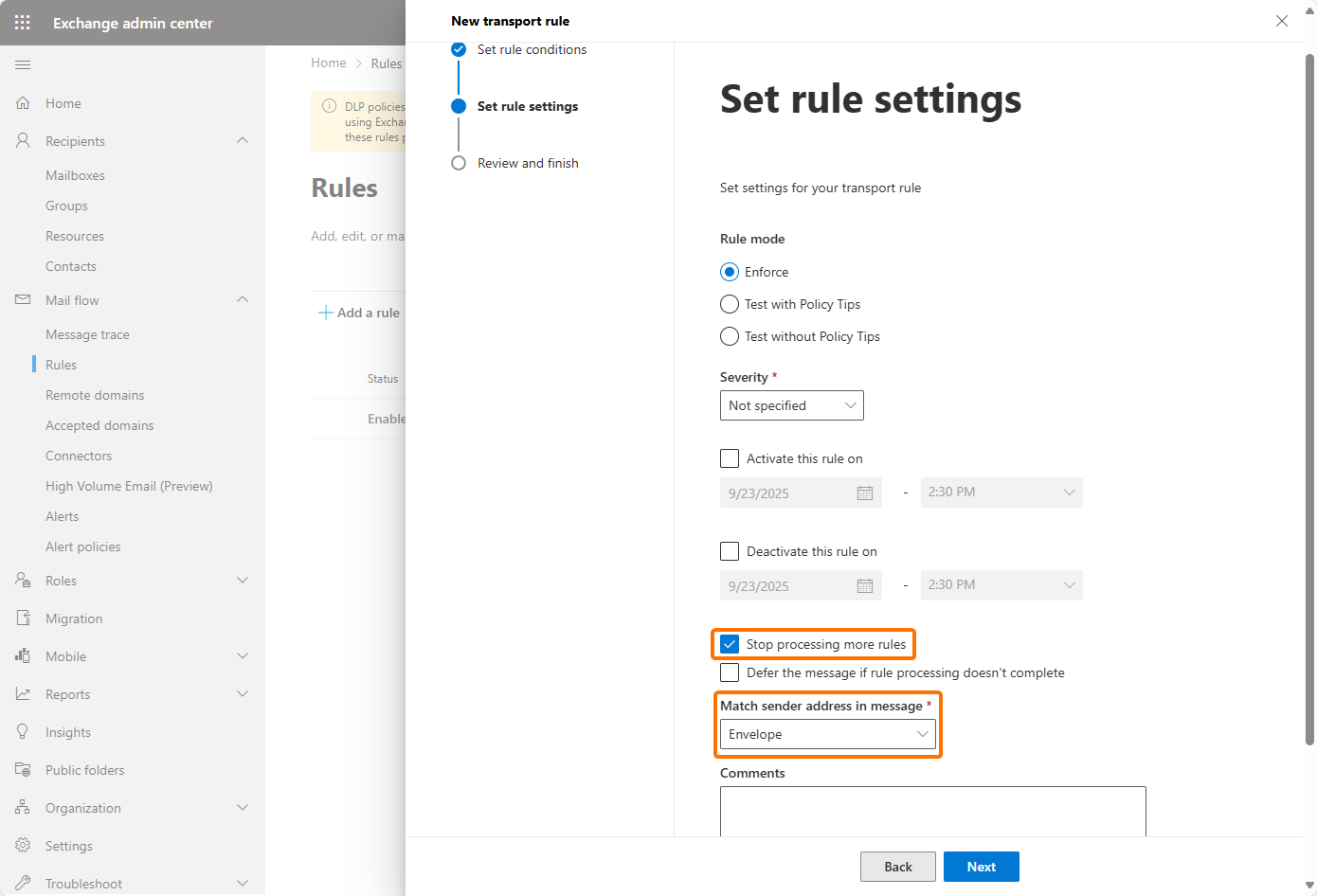
Select Stop processing more rules.
-
In Match sender address in message, choose Envelope.
-
Click Next, then Finish.
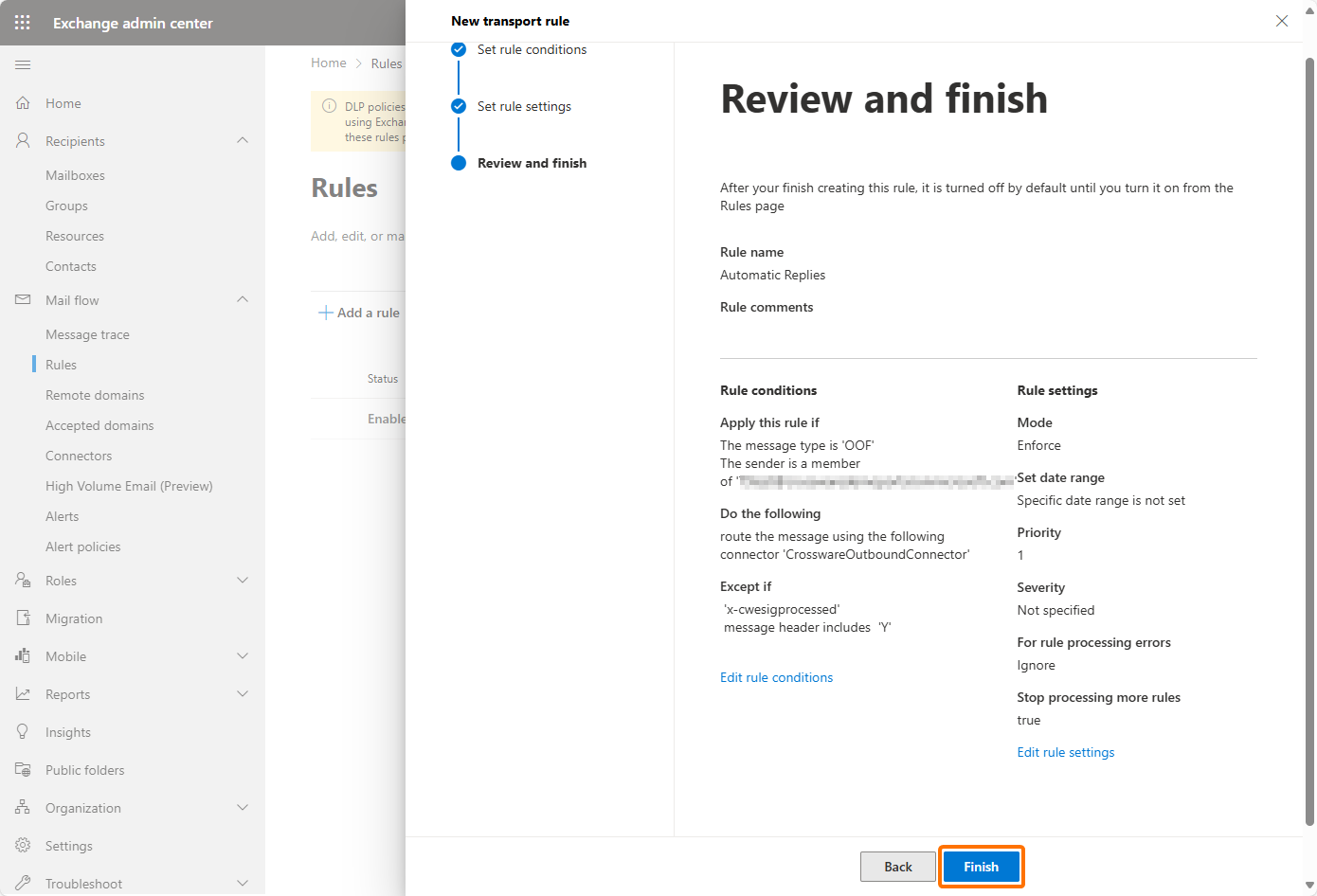
It may take up to 45 minutes for the rule to take effect.