
Why is Crossware moving to a unique certificate?
Microsoft is enhancing email routing in Exchange Online and improving how mail flow is managed. These changes specifically affect inbound connectors and their certificates.
Currently, some existing Crossware customers use a wildcard certificate (*.crossware.co.nz).
To comply with Microsoft’s changes, Crossware is transitioning to unique TLS certificates in the format:
<unique certificate>.crosswaretls.com
For more details, please refer to the Microsoft article: Updated Requirements for SMTP Relay through Exchange Online.
What does this mean for you?
-
Crossware has an automated update process available under:
Admin Settings > Setup > Connector > Update Automatically in the Crossware Portal. -
If you prefer not to use automation, you can select Update Manually and follow the steps below.
Will there be downtime?
No. Crossware ensures zero downtime:
-
A new inbound connector is created while the old one remains active.
-
A 30-minute grace period allows Microsoft changes to propagate before switching.
What changes occur in your Exchange environment?
Crossware will:
-
Rename the existing inbound connector →
CrosswareInboundConnector-BACKUP. -
Create a new inbound connector →
CrosswareInboundConnector, configured to validate mail using the new certificate and accepted domain. -
Add the unique certificate name as an accepted domain, so Exchange Online can identify your organization.
Why must the unique certificate be an accepted domain?
This ensures that Exchange Online can uniquely identify your organization and allows scenarios like automatic replies / Out of Office messages (which often lack a return path) to be routed successfully.
The domain may show as No Services selected in your Admin Center. This is expected as the domain is only used for identification, not mail routing. Do not remove it.
Manual Update Process
Backup Existing Connector
-
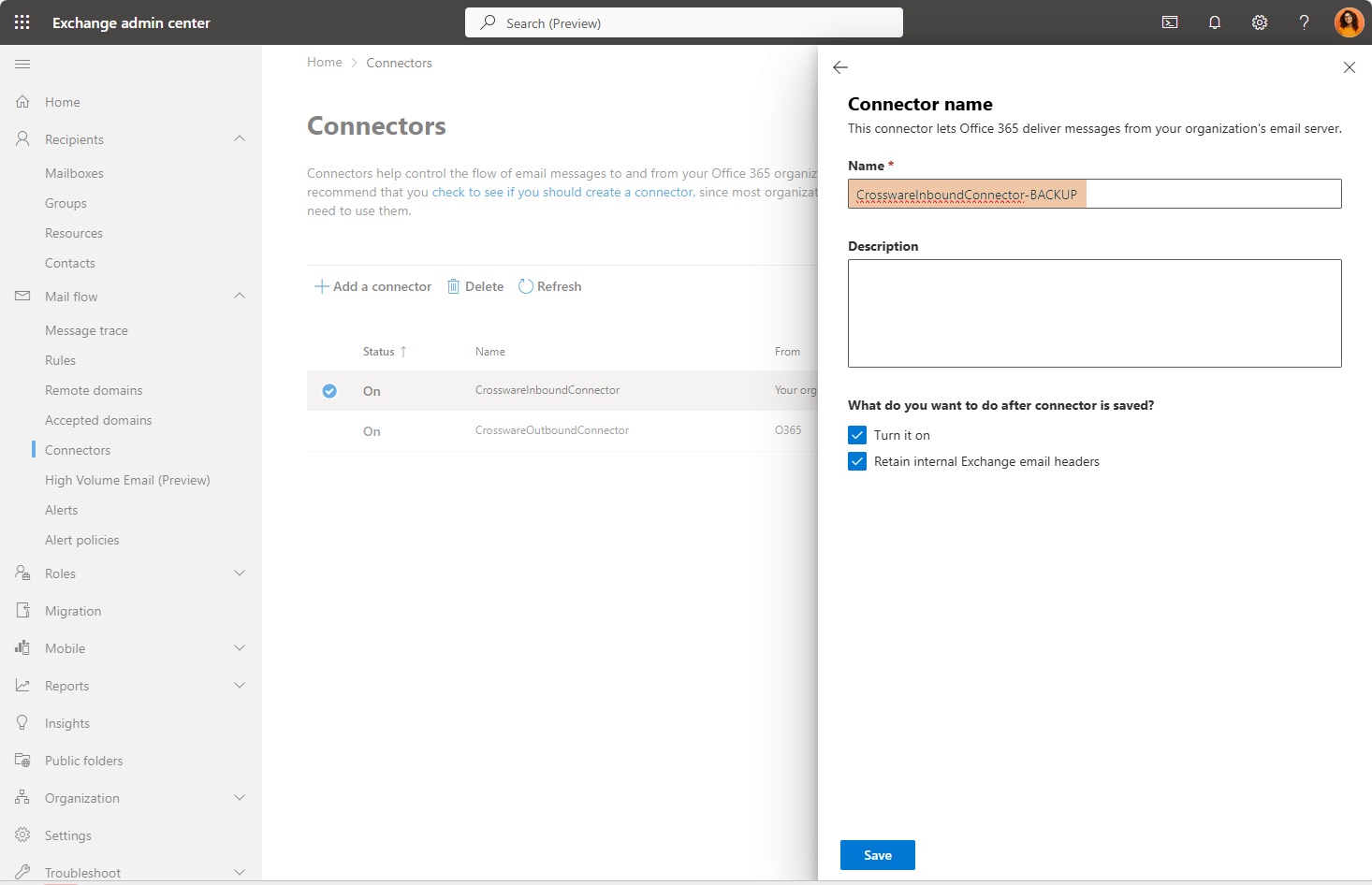
In Exchange Admin Center, Navigate to Mail flow > Connectors.
-
Rename
Crossware Inbound ConnectortoCrosswareInboundConnector-BACKUP -
Leave this connector enabled.
Make sure to leave the two checkboxes ticked.
Ensures mail continues to flow until the grace period finishes. If you turn this off your mail flow will be impacted.
Generate a Unique Certificate
-
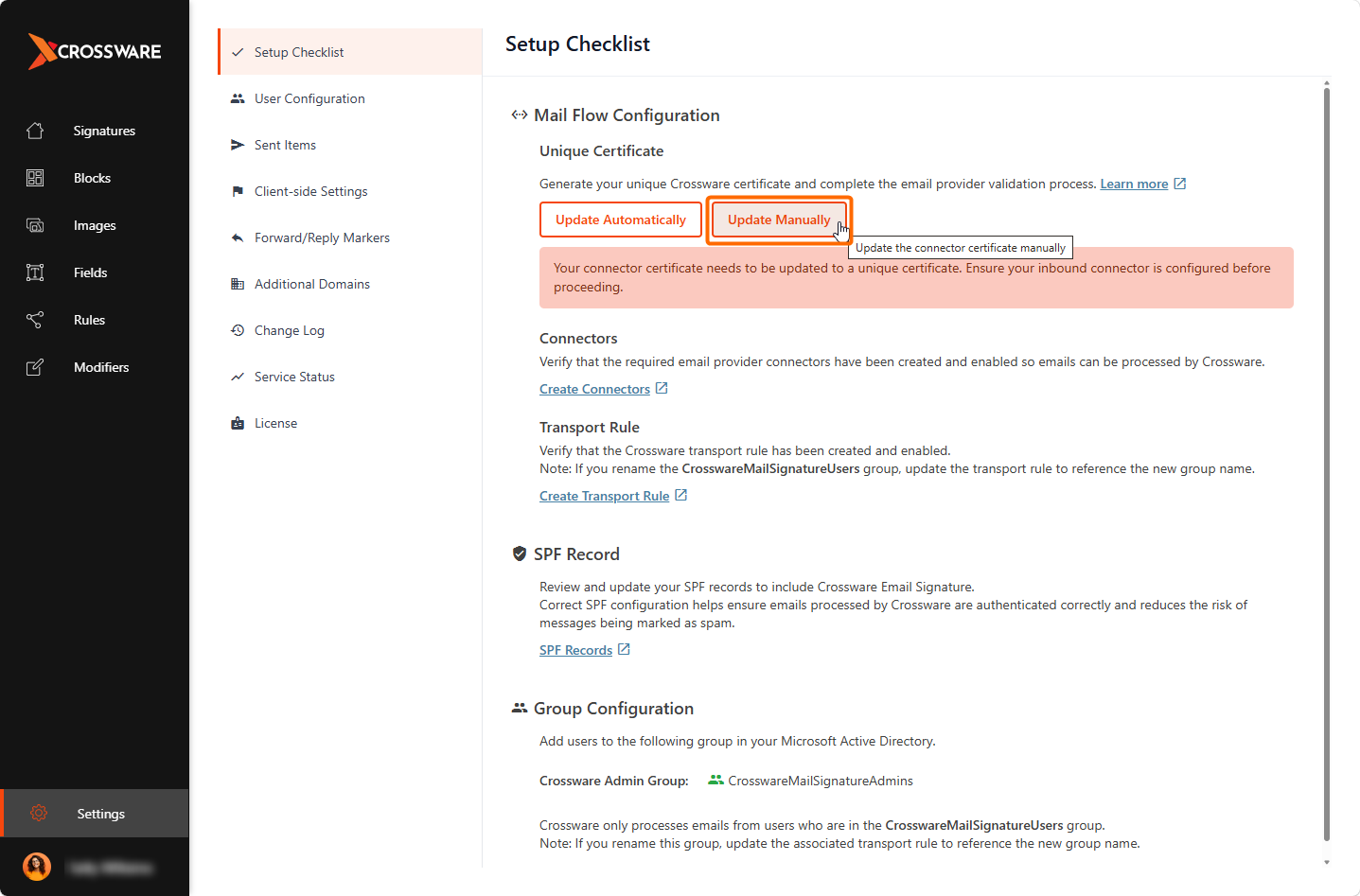
Sign in to the Crossware Portal and navigate to Settings, then select Setup Checklist.
-
Under Unique Certificate section, click Update Manually.
-
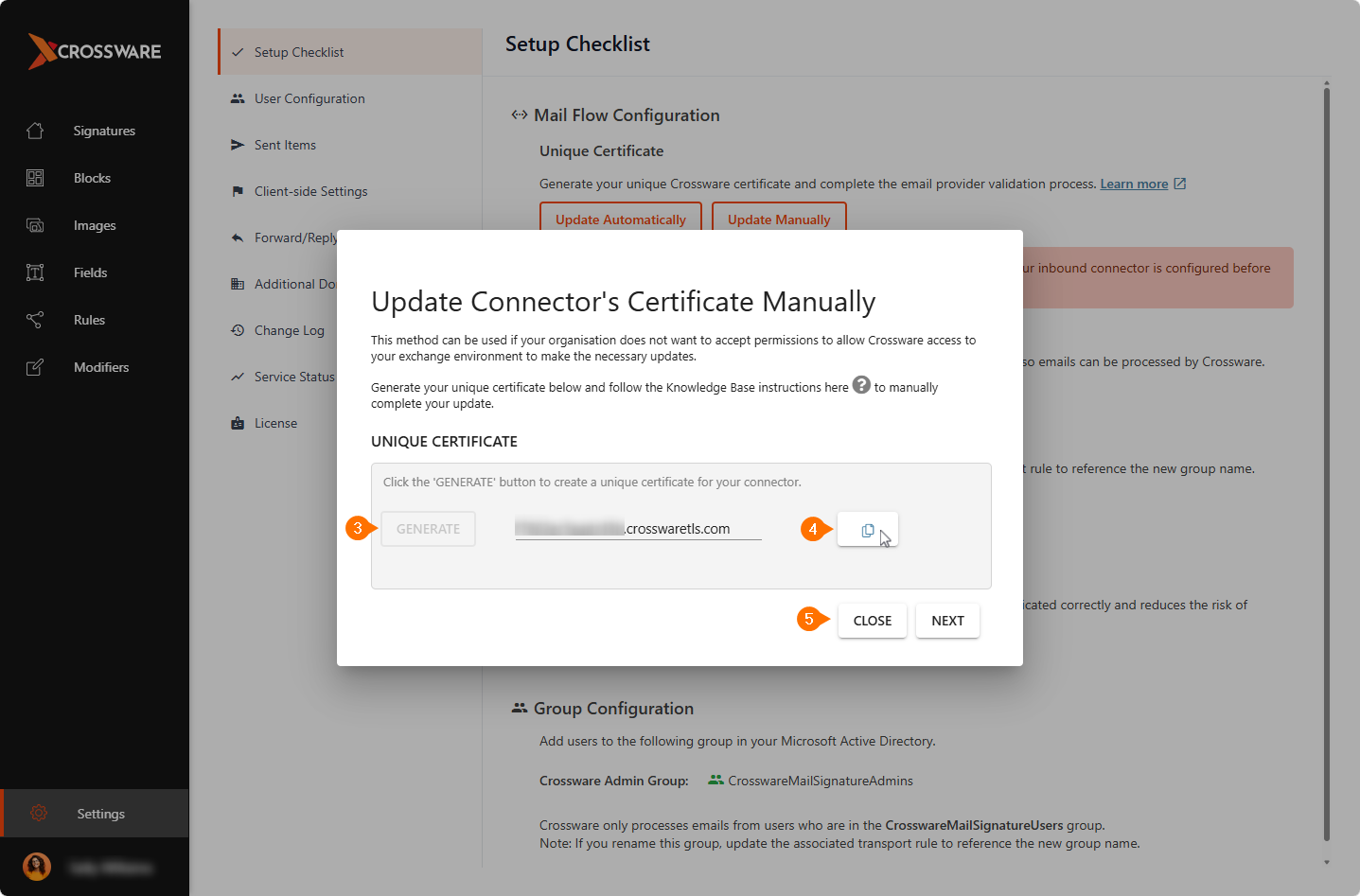
Click Generate to create a unique certificate.
-
Copy the generated certificate for later use in the Exchange Admin Center.
-
Close the dialog. The certificate will be automatically saved in the portal.
Create New Inbound Connector
-
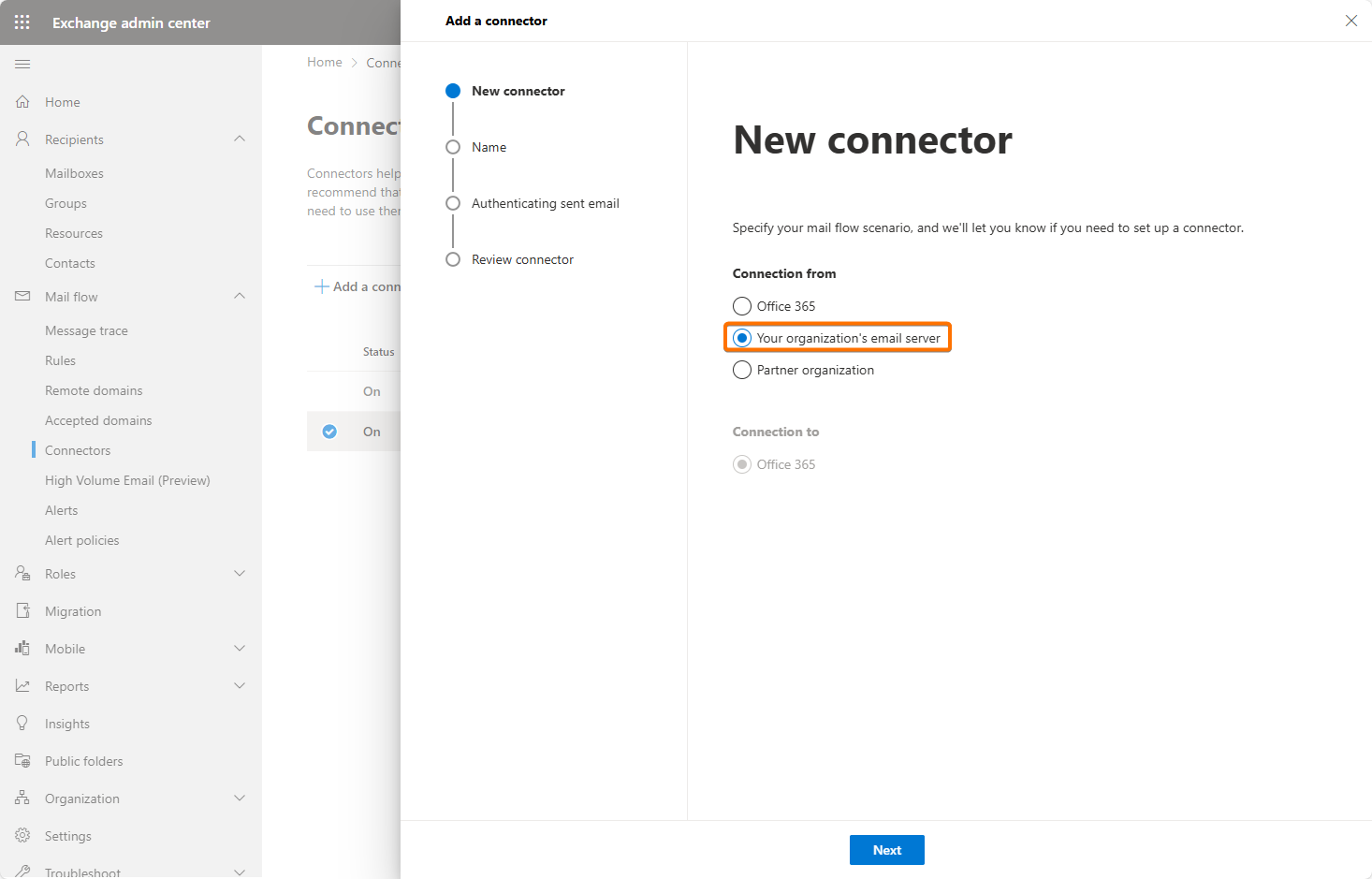
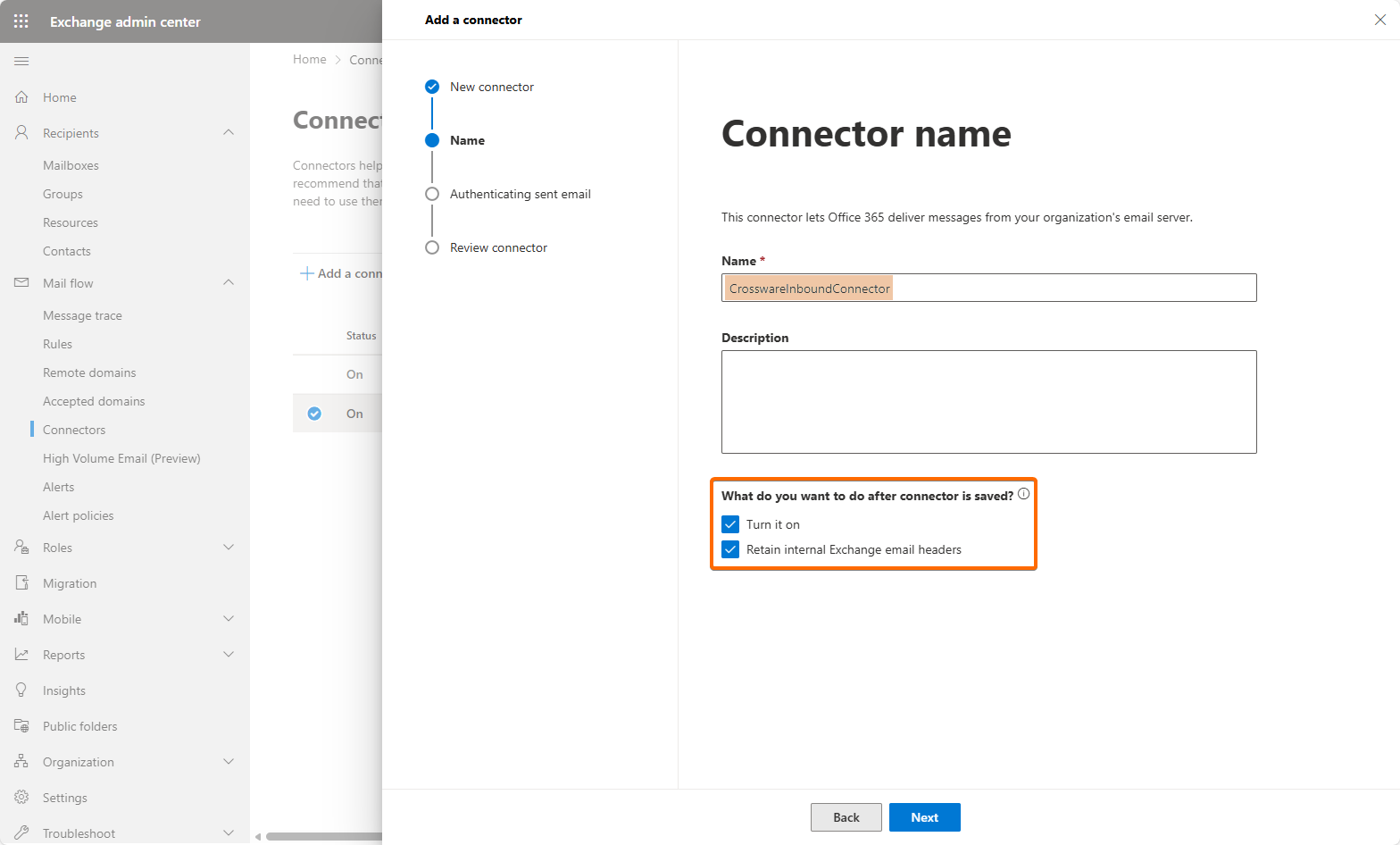
In Exchange Admin Center, create a new Inbound Connector named
CrosswareInboundConnector.
-
Enter name as CrosswareInboundConnector and tick Turn it on and Retain internal Exchange email headers.
-
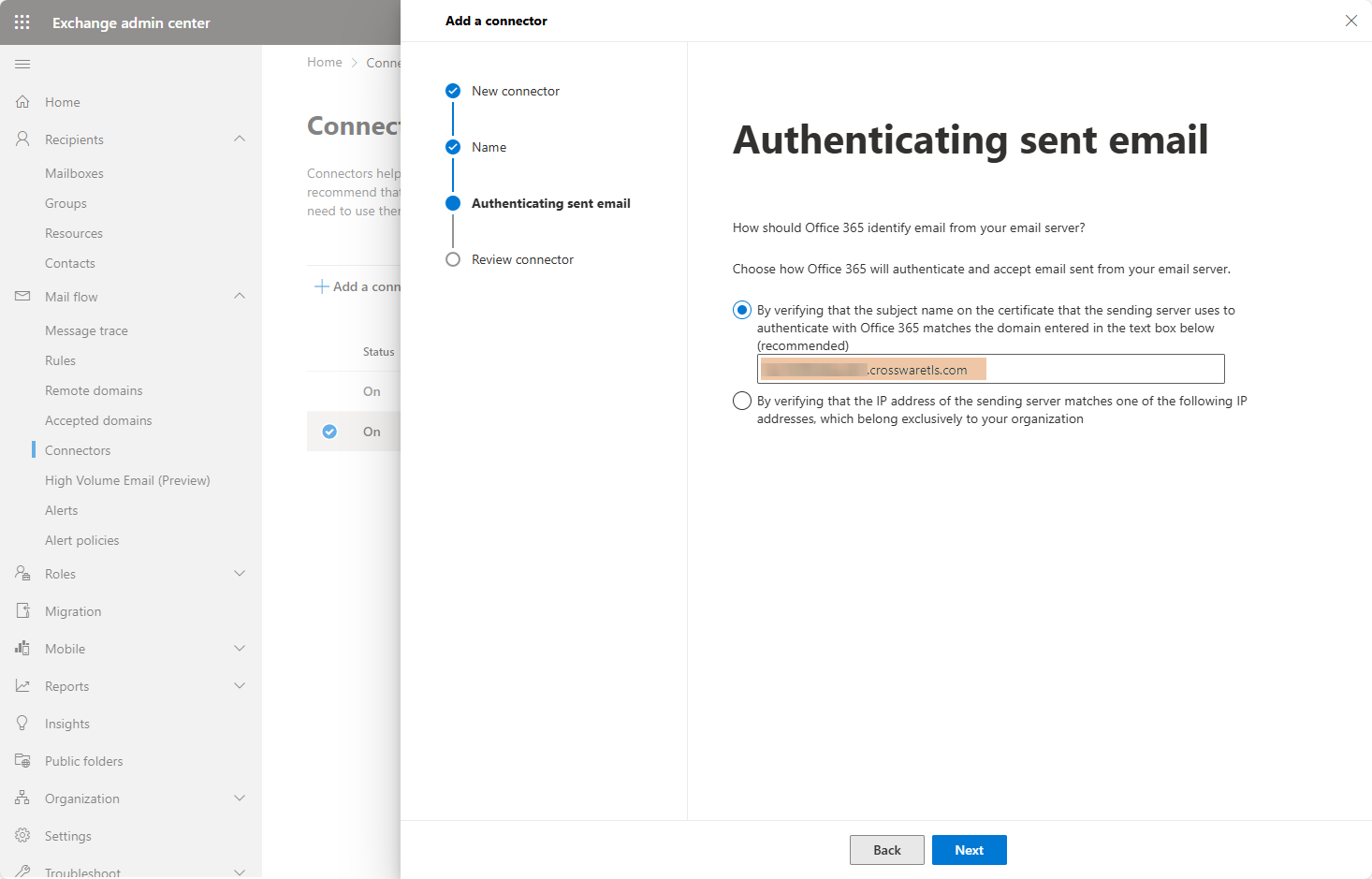
Paste the new certificate generated.
-
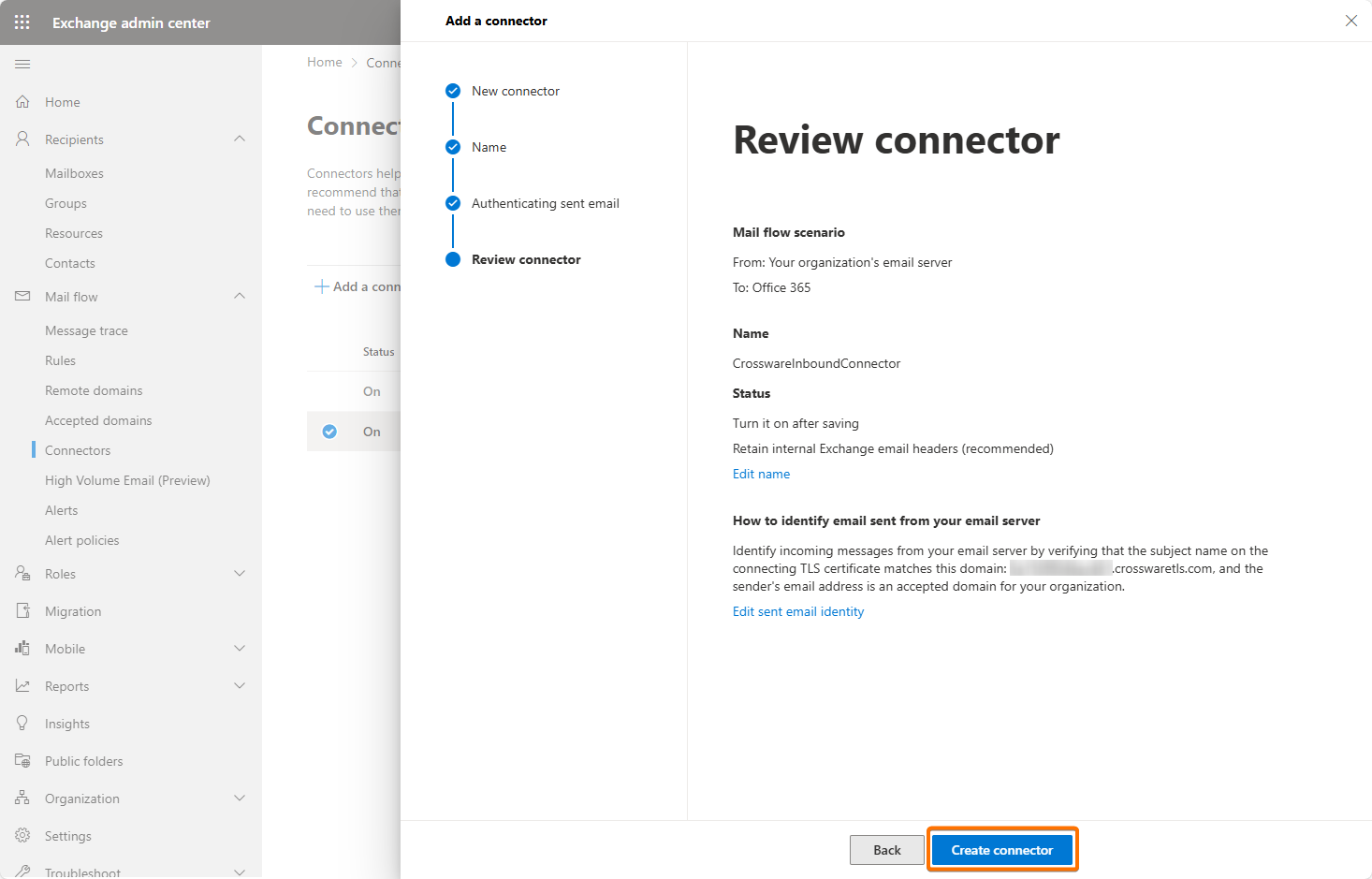
Click Create Connector.
Add Accepted Domain
-
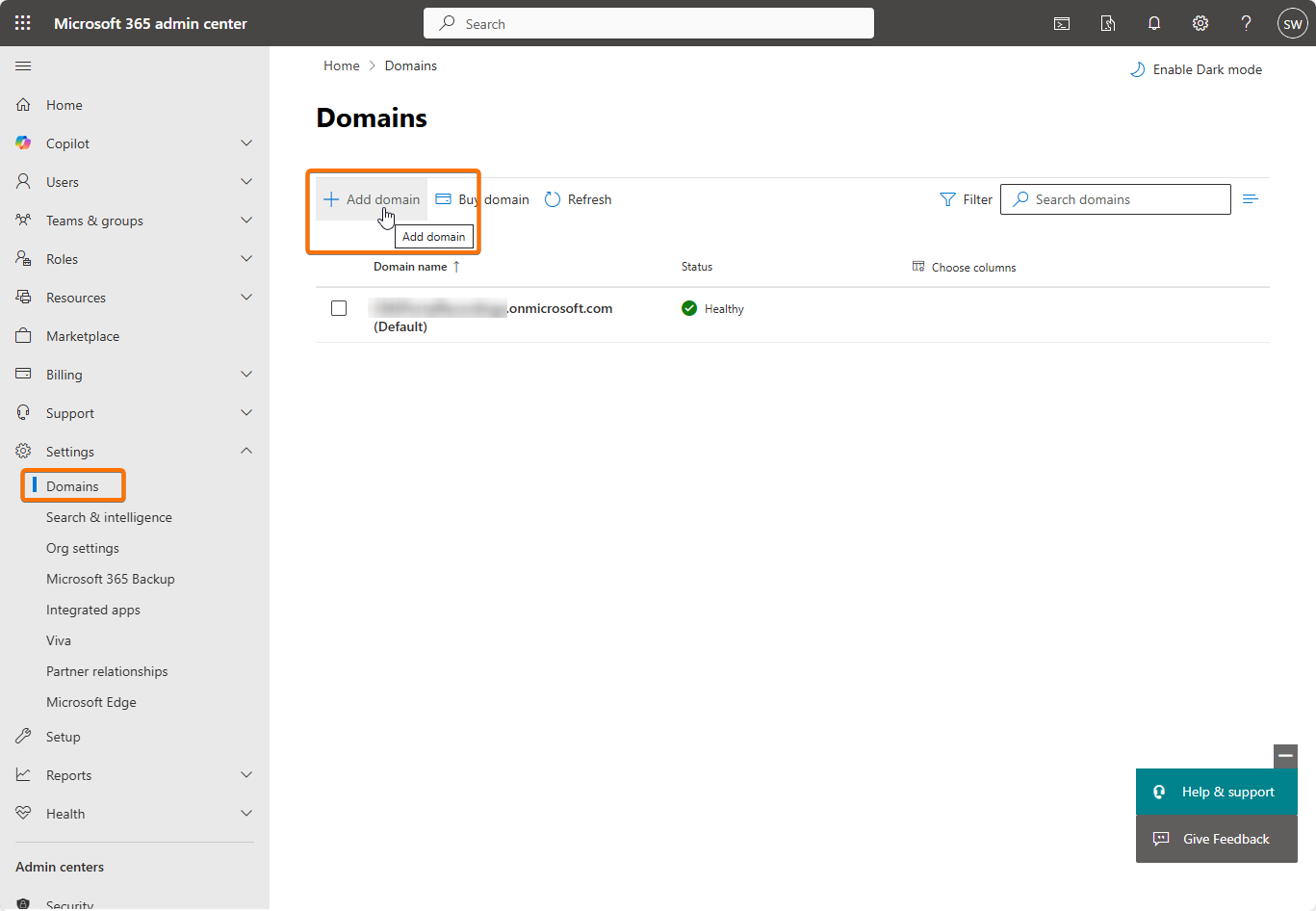
In Microsoft 365 Admin Center, go to Settings > Domains > Add Domain.
-
Add the unique certificate domain as an Accepted Domain
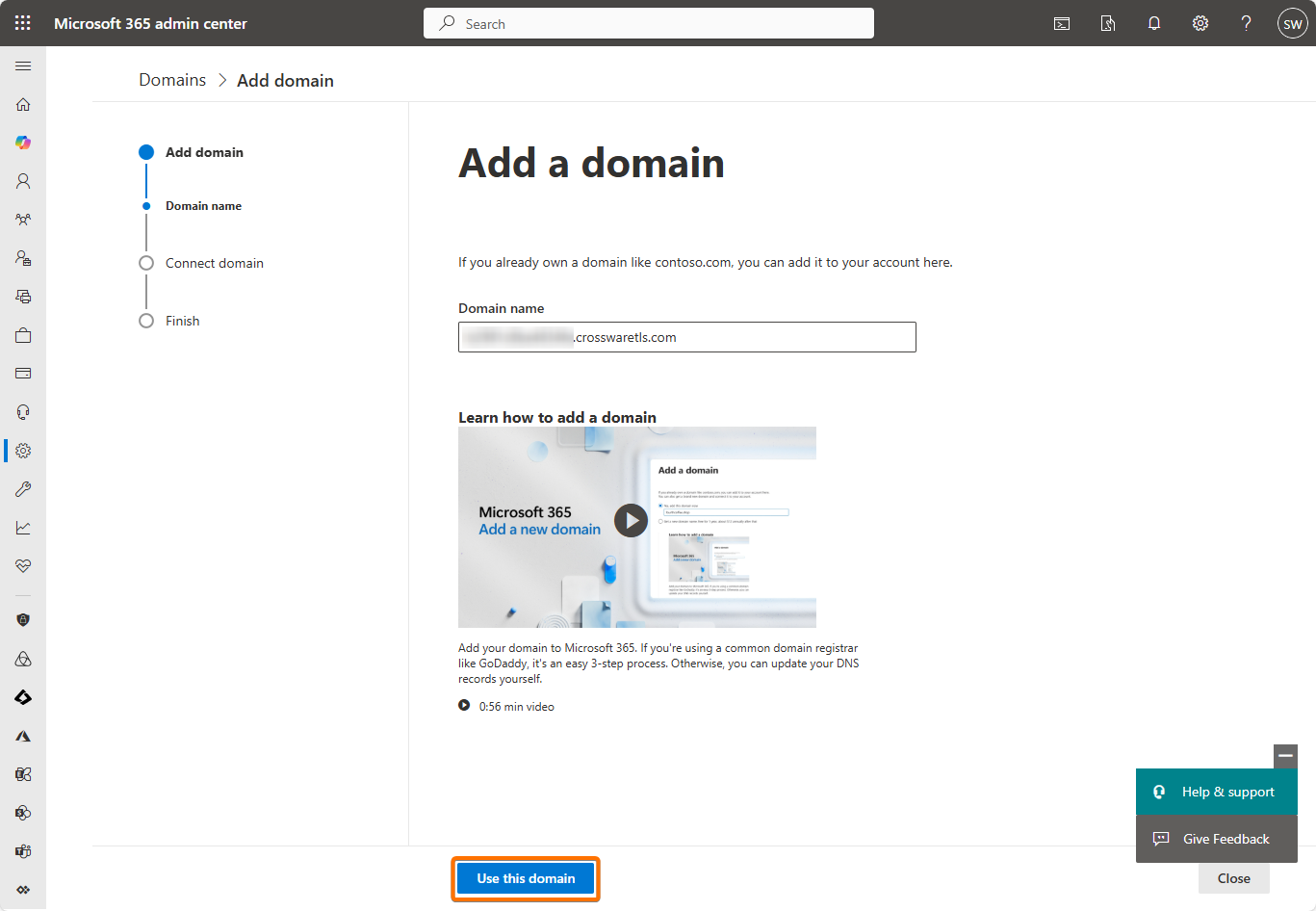
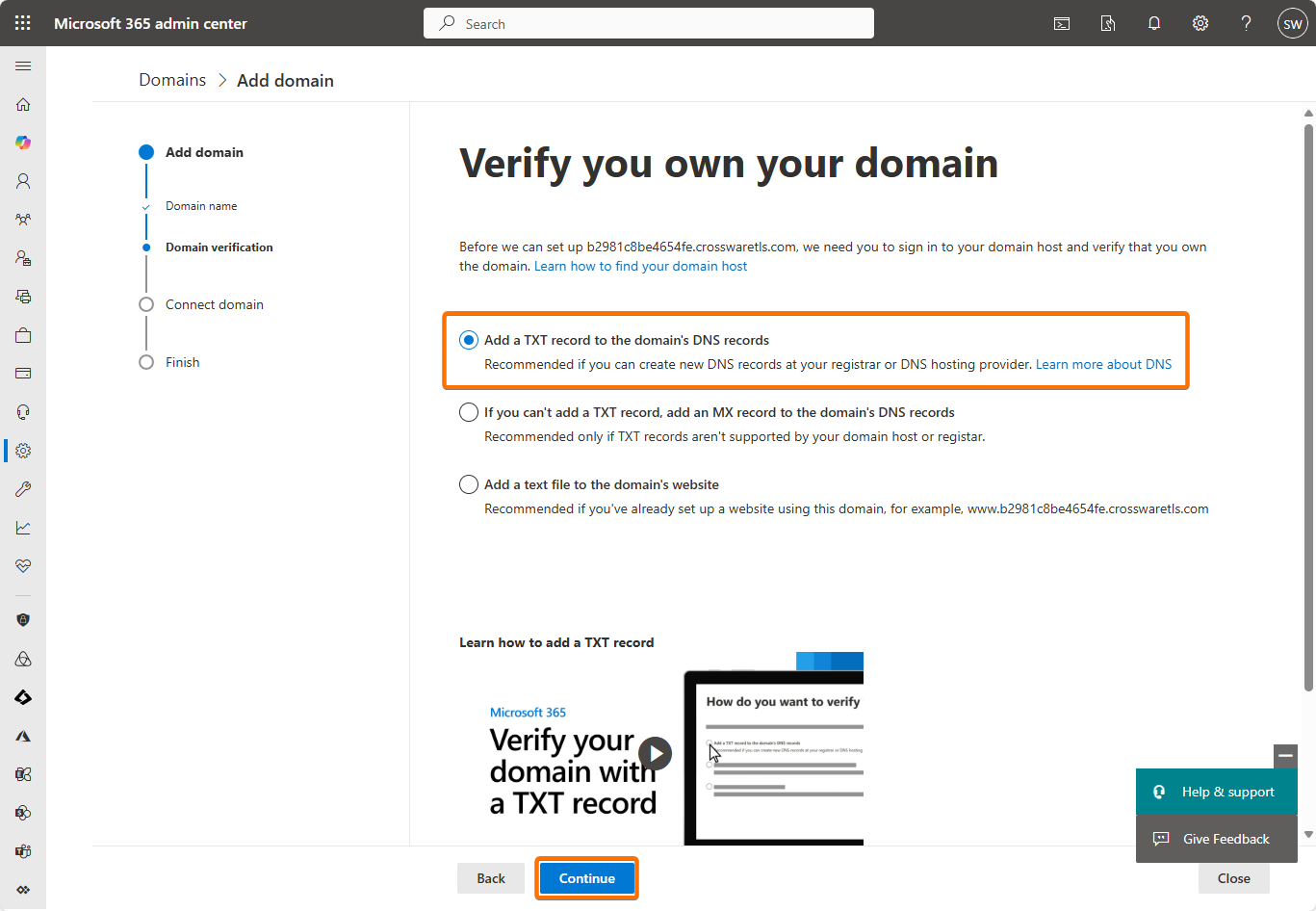
You don't need to do the DNS change within your own DNS. This is updated on Crossware's side.
Copy TXT Value
-
On the Domains page, copy the TXT record value provided.
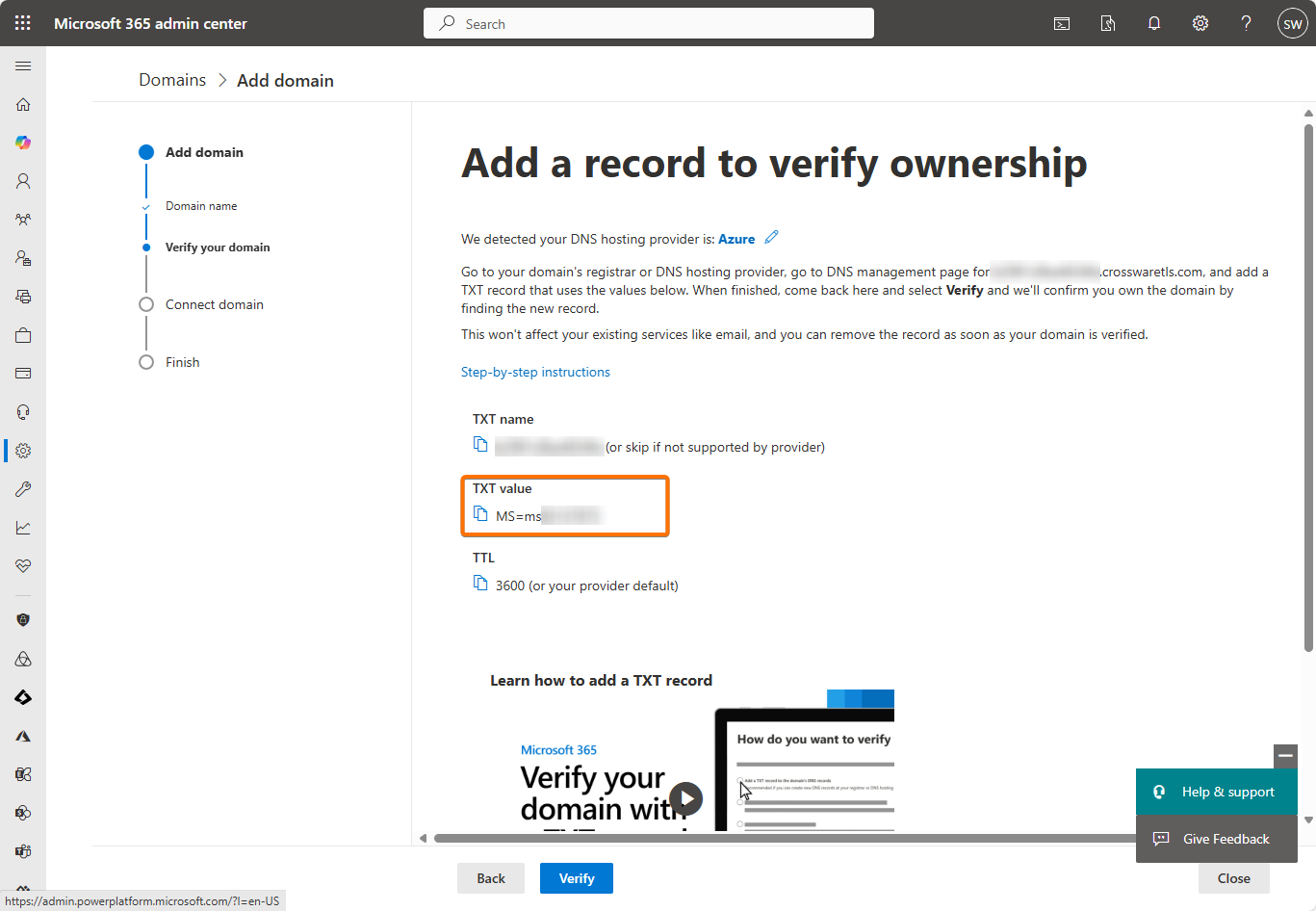
-
Keep the Admin Center open.
Add TXT Value in Crossware Portal
-
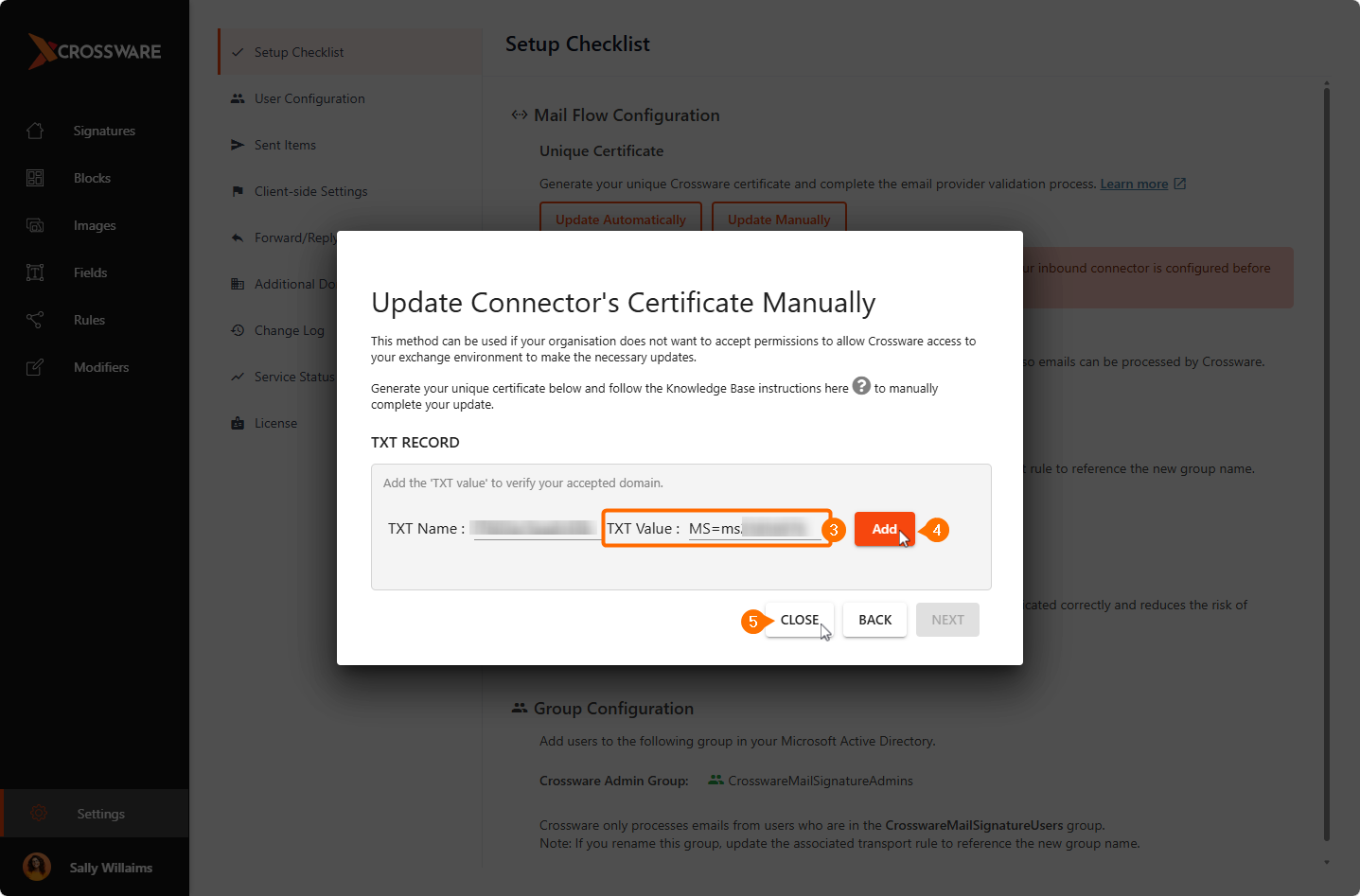
Go back to the Crossware Portal and navigate to Settings, then select Setup Checklist.
-
Select Update Manually.
-
Paste the TXT value.
Make sure to include the MS= -
click Add.
-
Close the dialog box (progress will be saved).
Verify the Domain
-
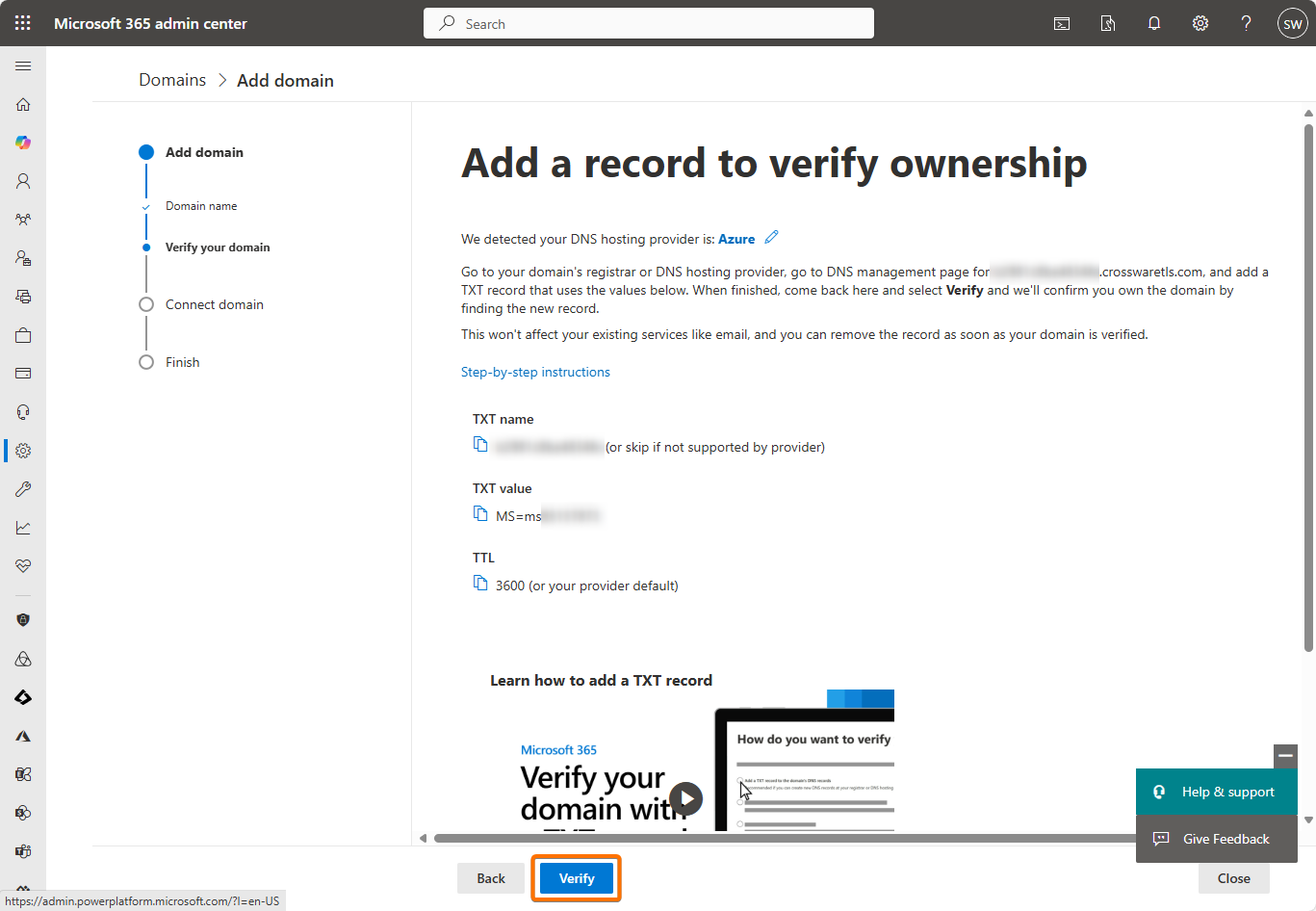
Return to Microsoft 365 Admin Center Domains setting.
-
Click Verify.
-
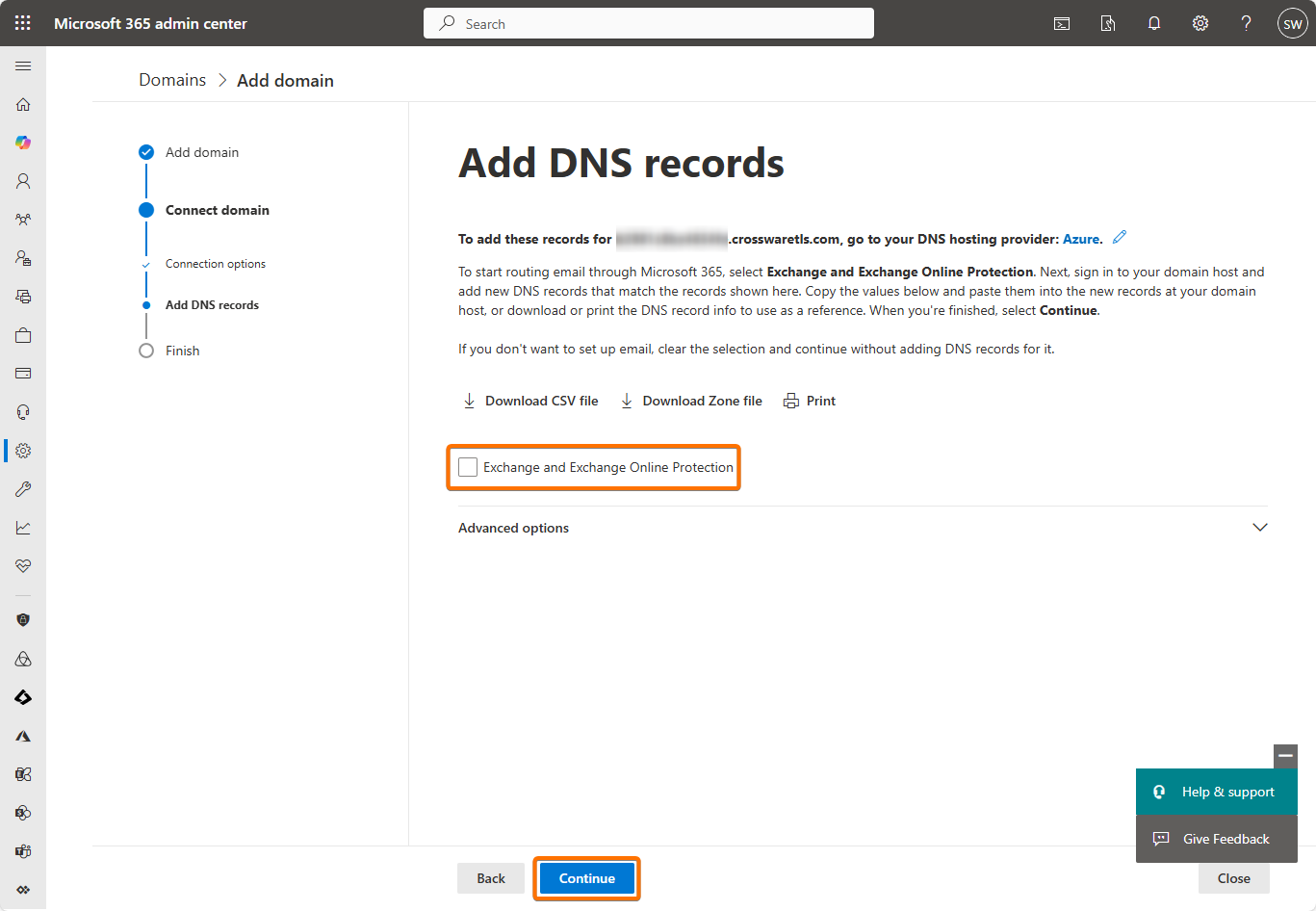
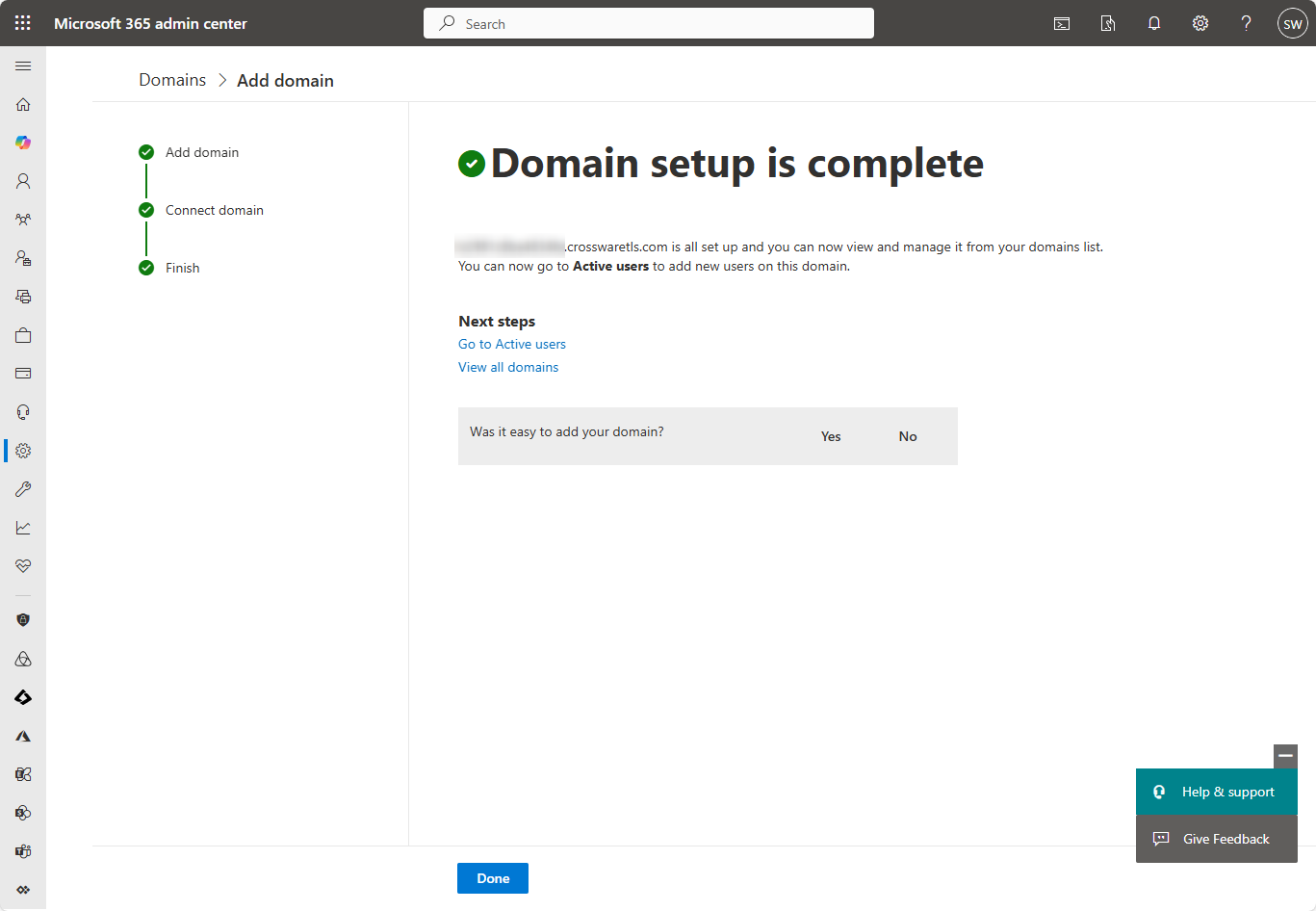
Uncheck Exchange and Exchange Online Protection then click Continue.
Finalise in Crossware Portal
-
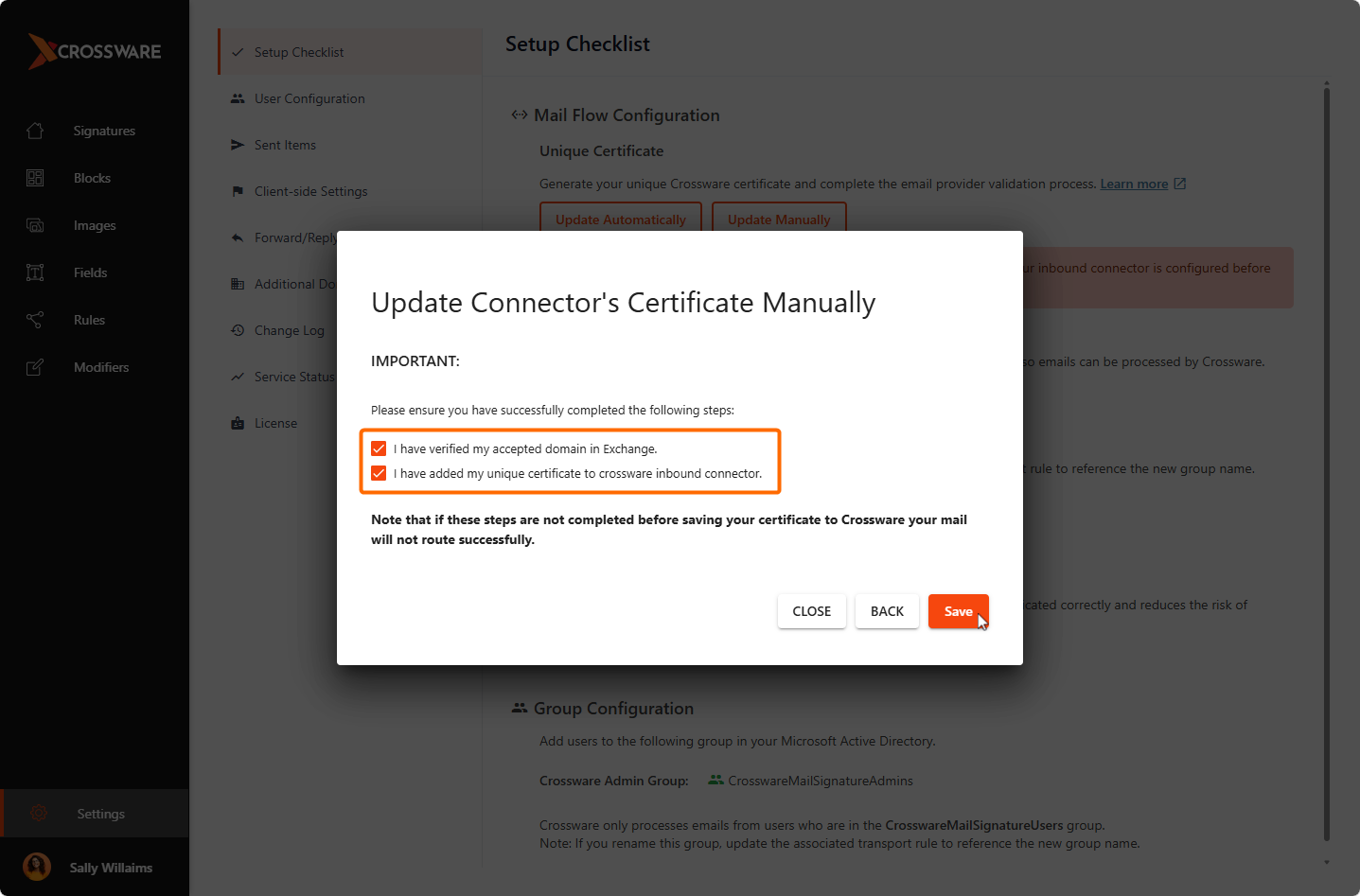
Back in the Crossware Portal, confirm steps are completed and click Save.
-
This starts the 30-minute grace period before the switch.
You have successfully updated to a unique certificate and added it as an accepted domain. Mail flow will continue uninterrupted.
You can delete the CrosswareInboundConnector-BACKUP after 2 days.