You can control who can add, edit and delete signatures through the Crossware Email Signature Designer from your Microsoft 365 Admin Center.
you can also grant access through Crossware Email Signature Designer if you want to give a user(s) access to edit specific signatures they have been assigned.
Prerequisites
-
Access to the Crossware Portal.
-
Administrative privileges to manage users/groups.
-
For full access via Microsoft Admin Center: Microsoft 365 admin rights.
Grant Access to Edit a Signature
-
Sign in to the Crossware Portal.
-
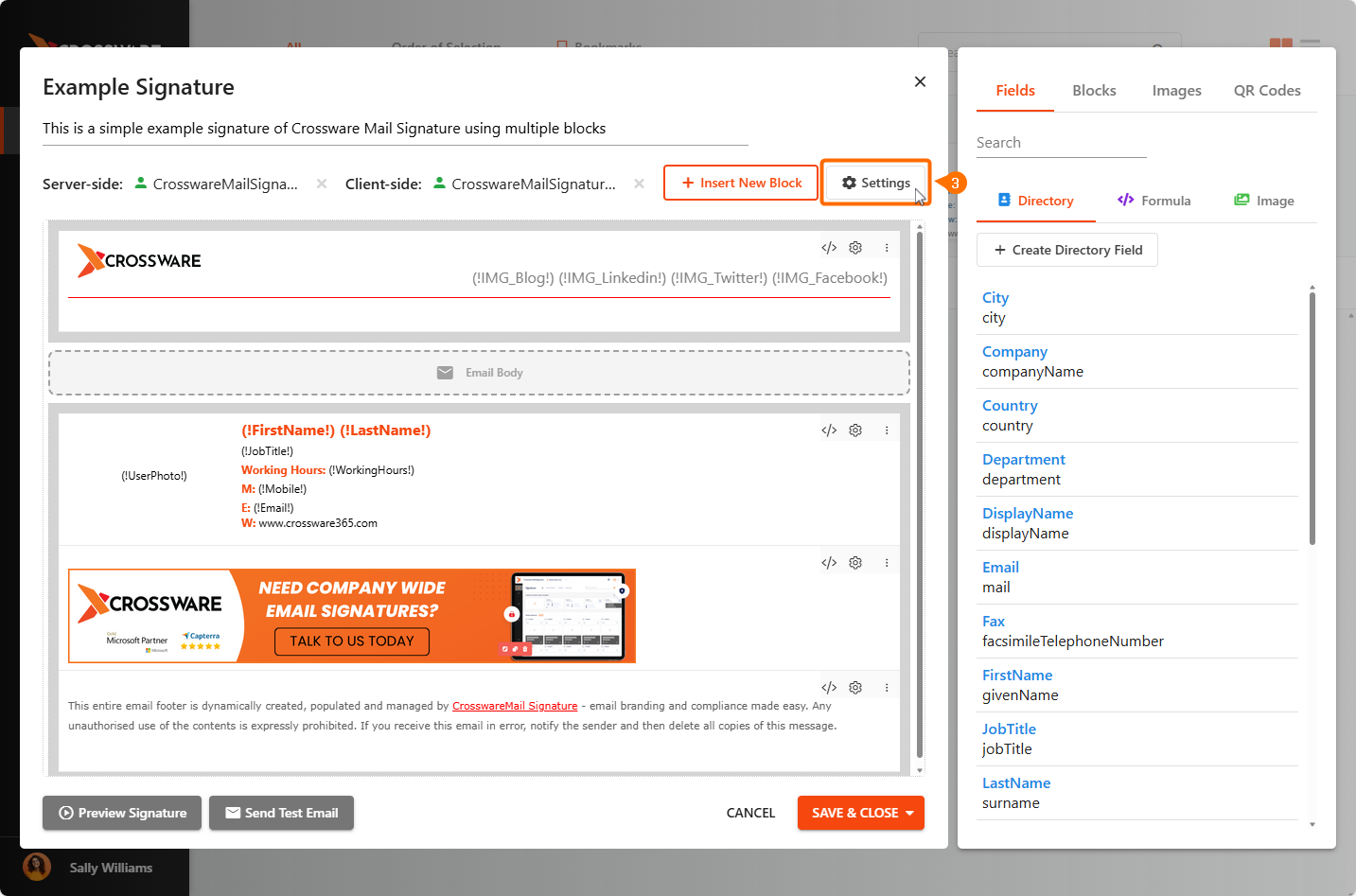
Navigate to Signatures and select the signature you want to edit permissions for.
-
Click Settings.
-
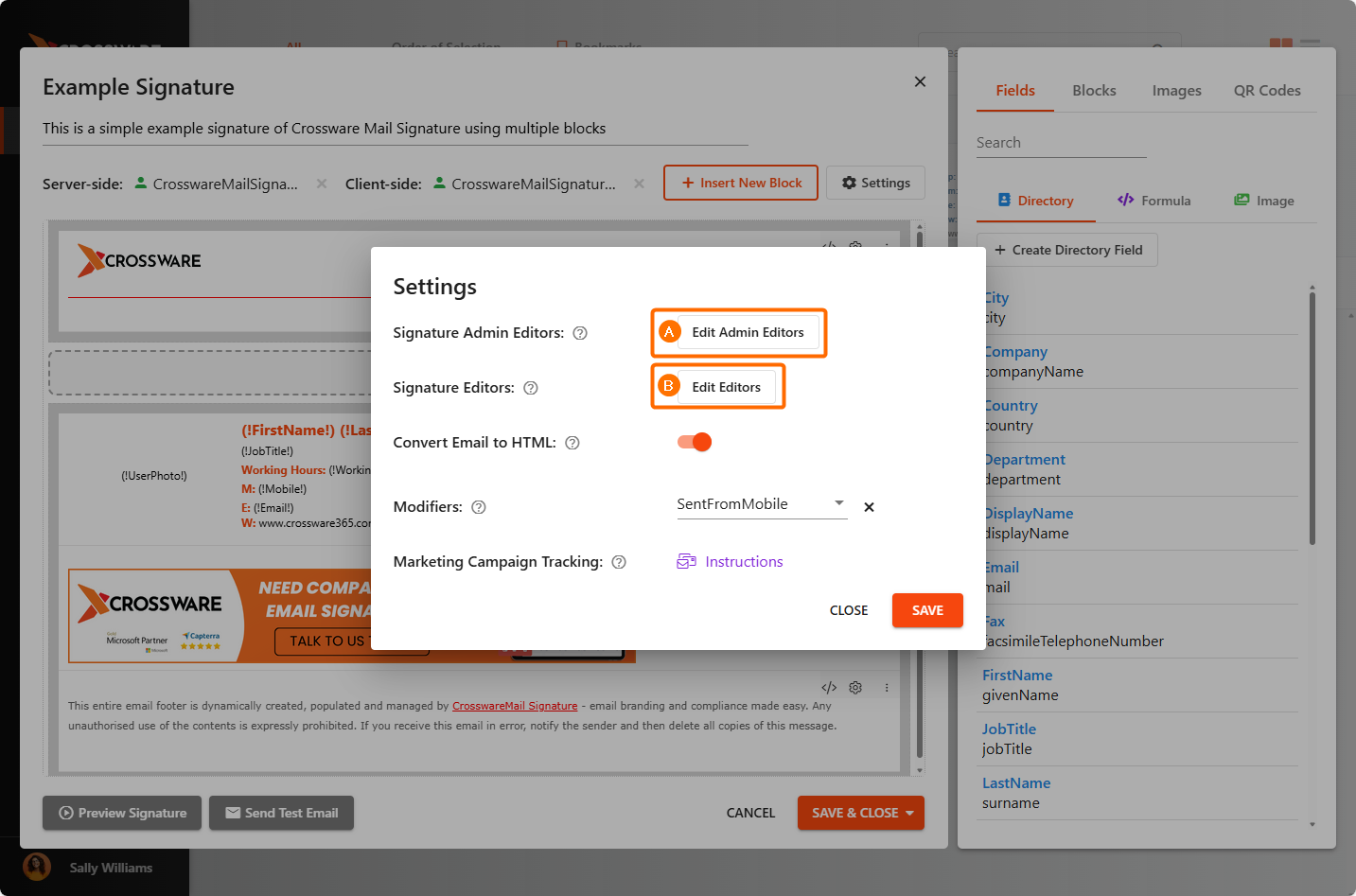
Choose between Signature Admin Editor or Signature Editors.
-
Signature Admin Editors - Signature admin editors can edit the HTML of the signature, and add, remove or rearrange blocks in the signature. They can change any settings, including signature security. Global admins have admin editor access by default.
-
Signature Editors - Signature editors can edit the HTML of the signature but not change any settings.
-
-
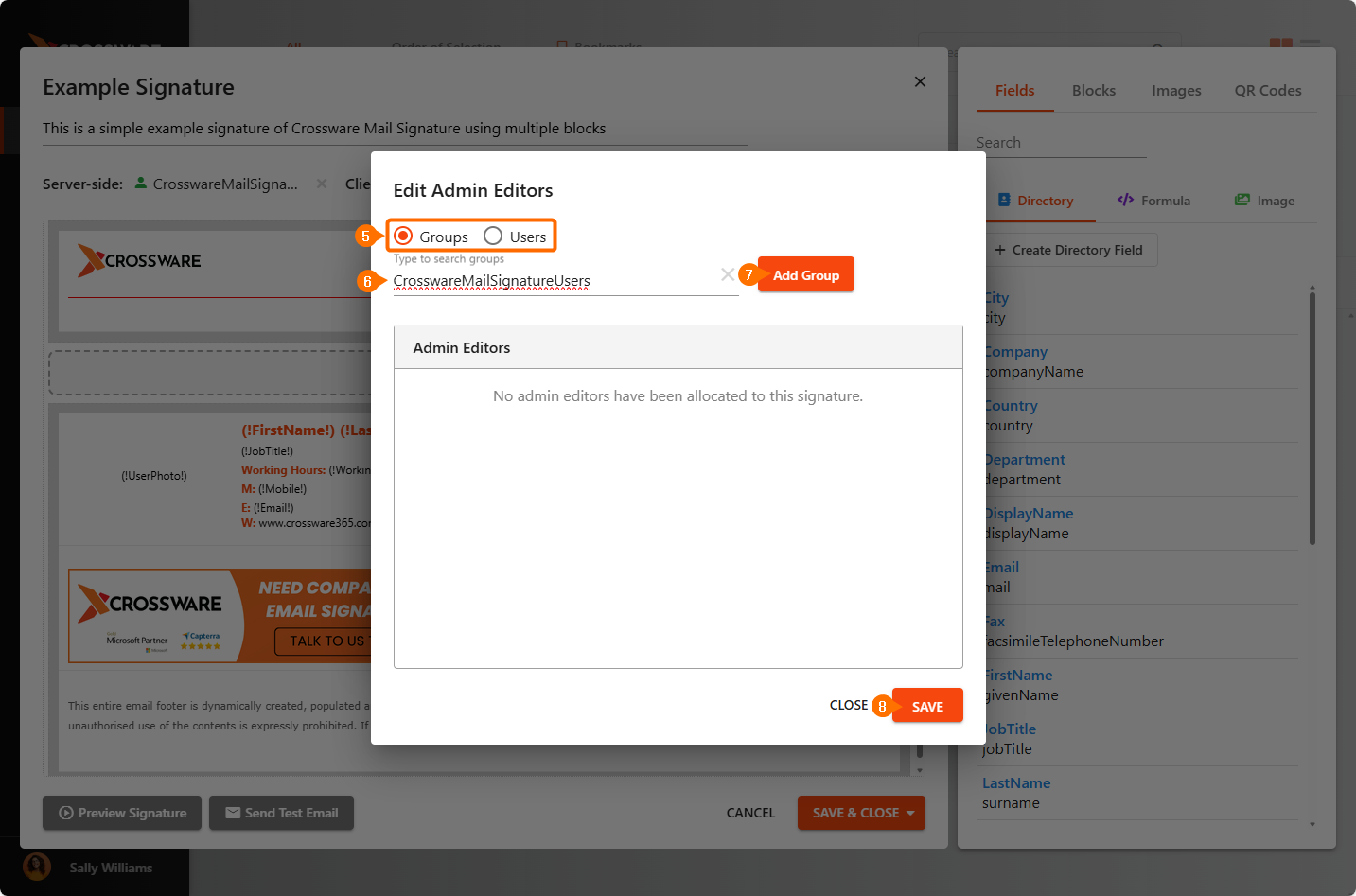
Select whether you want to add Groups or Users.
-
In the search box, start typing to find the Group or User you want to add.
-
Select the result, then click Add Group.
-
Click Save to apply your changes.
Grant Access to Edit a Signature Block
-
Sign in to the Crossware Portal.
-
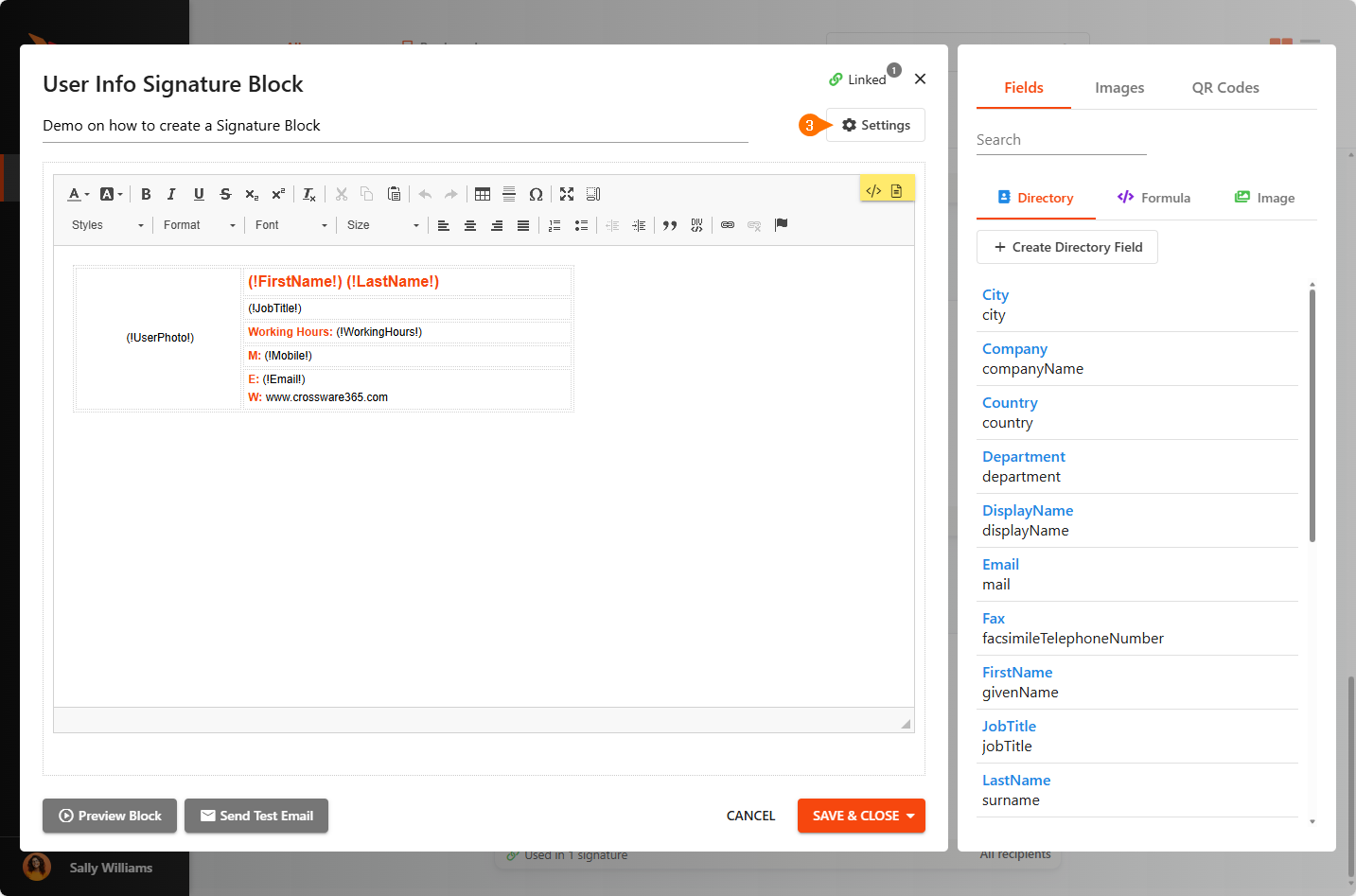
Navigate to Blocks section and select the signature block you want to edit permissions for.
-
Click Settings.
-
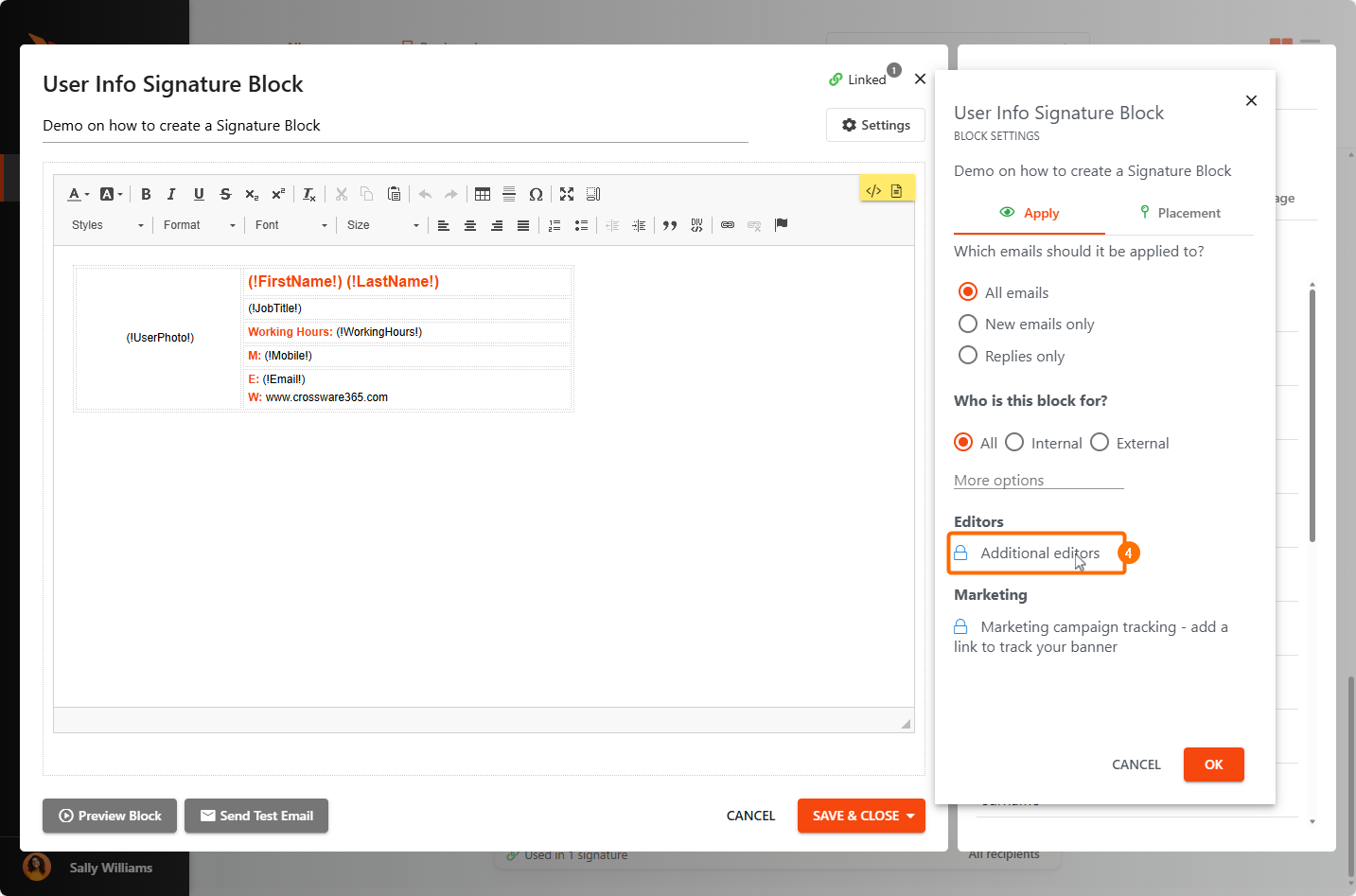
Under Editors select Additional editors.
-
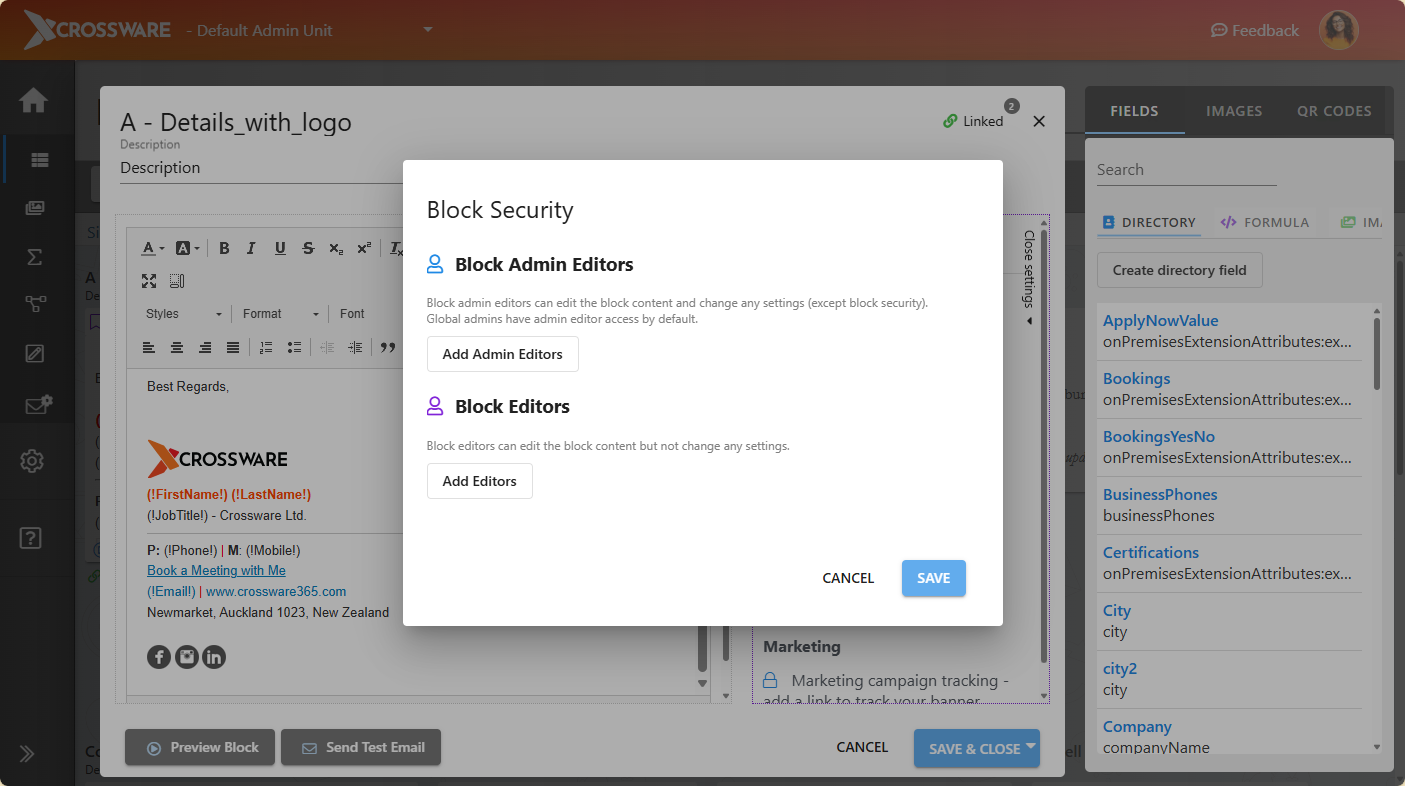
After selecting Additional editors, a pop-up will display two sections:
-
Block Admin Editors – Can edit content and settings (except block security).
-
Block Editors – Can edit content only.
-
Choose the appropriate option based on the level of access required.
-
Select either Add Admin Editors or Add Editors.
-
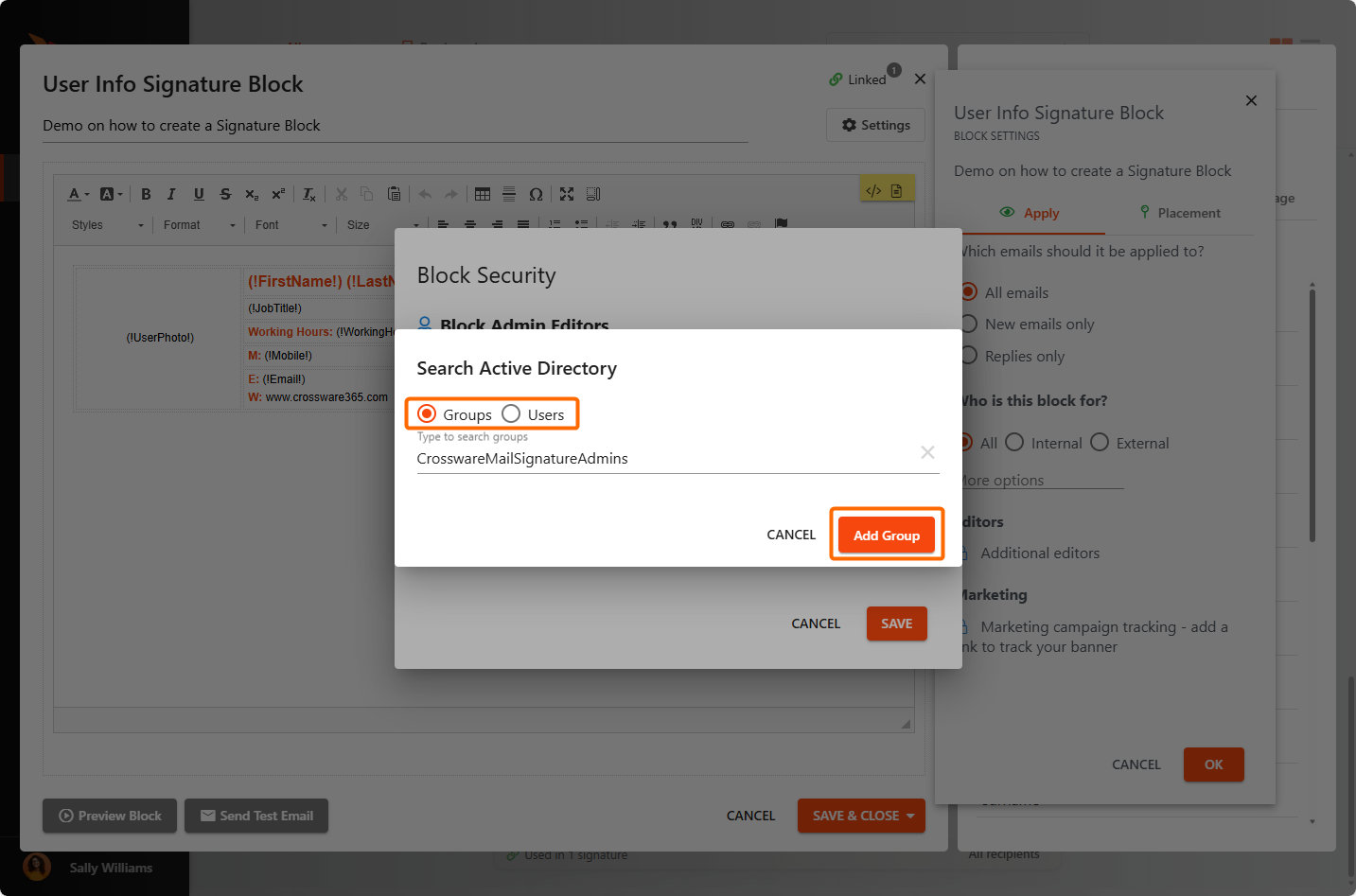
Select whether you want to add Groups or Users. In the search box, start typing to find the Group or User you want to add. Click Add User.
-
Click Save to apply the changes.
Grant Full Signature Designer Access via Microsoft Admin Center
-
Go to Microsoft 365 Admin Center and sign in with your admin credentials.
-
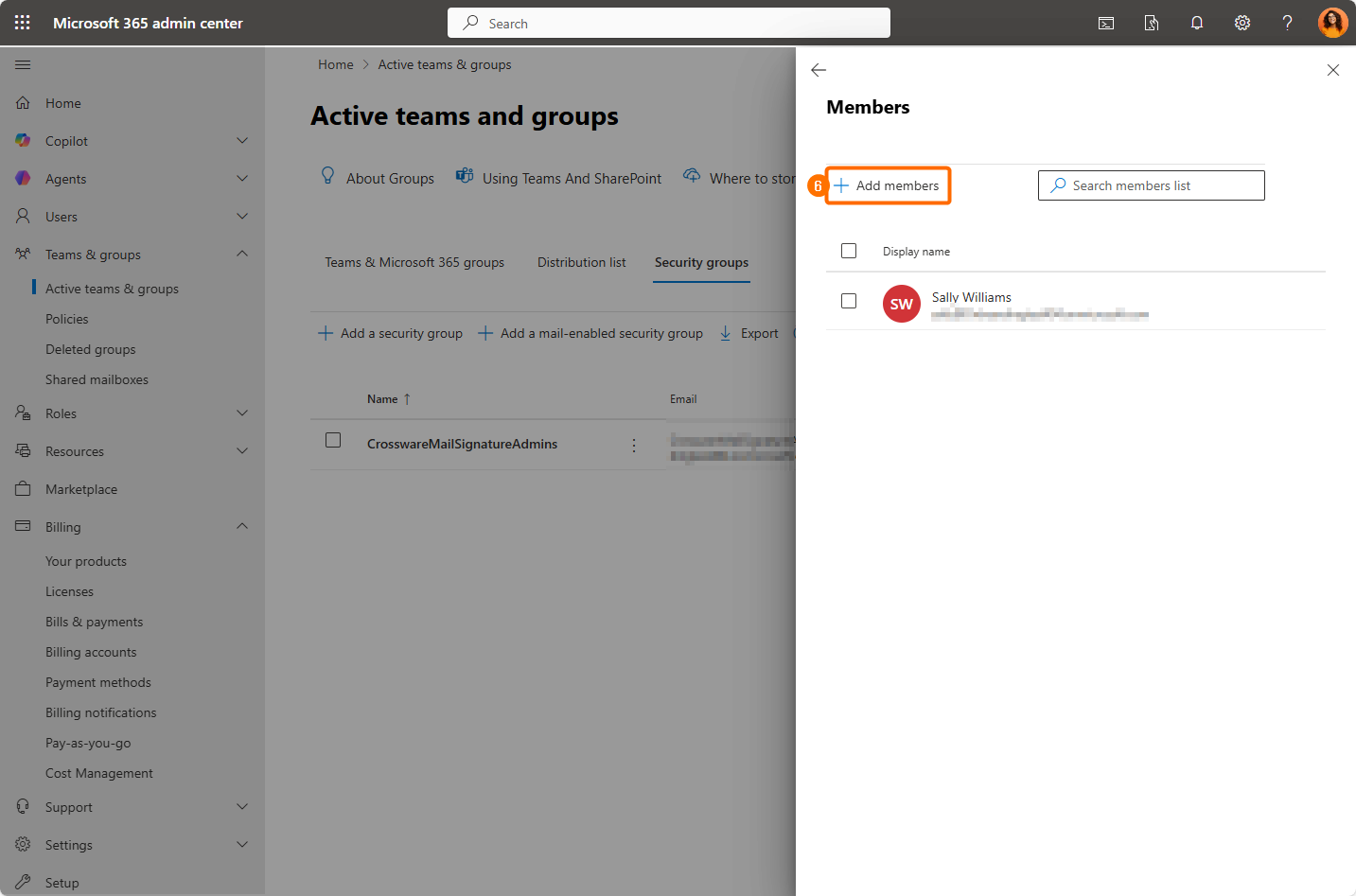
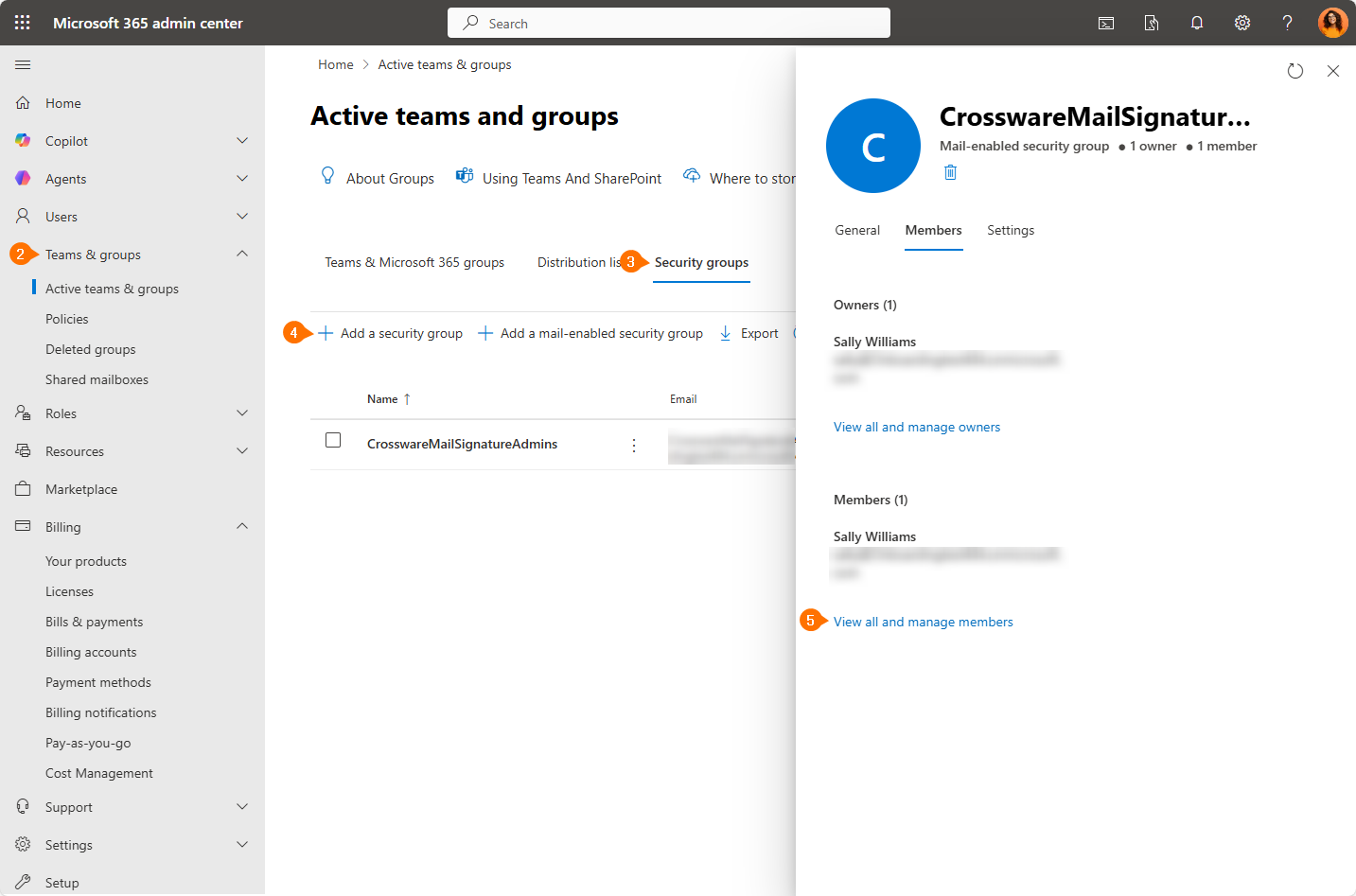
Navigate to Teams & groups > Active teams & groups.
-
Choose Security groups.
-
Create a security group (if not already created) named CrosswareMailSignatureAdmins.
-
Click View all and manage members.
-
Add users or groups to CrosswareMailSignatureAdmins.
-
Members of this group will have full editing access in the Crossware Portal
-