
Overview
Follow the steps below to fully remove all components of Crossware Email Signature, including transport rules, connectors, user groups, and the Client-side Signatures add-in.
Delete the Crossware Transport Rule
-
Sign in to Exchange Admin Center.
-
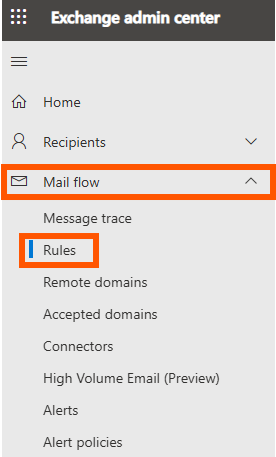
In the left-hand menu, expand Mail flow and click on Rules.
-
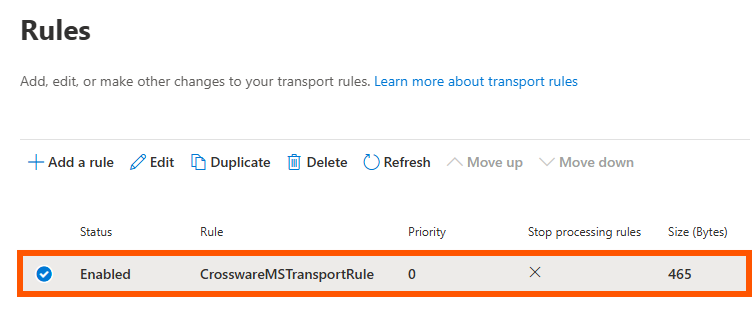
Locate and select the CrosswareTransportRule.
-
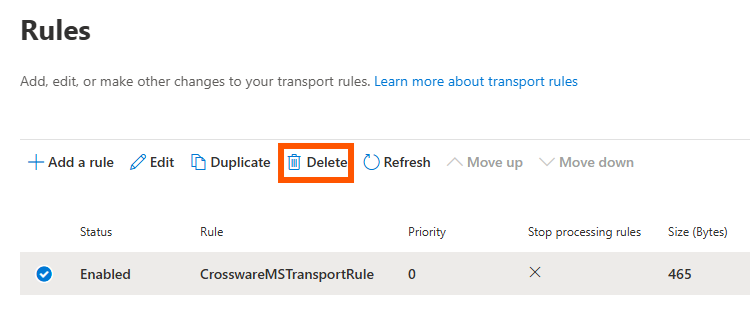
Click Delete.
-
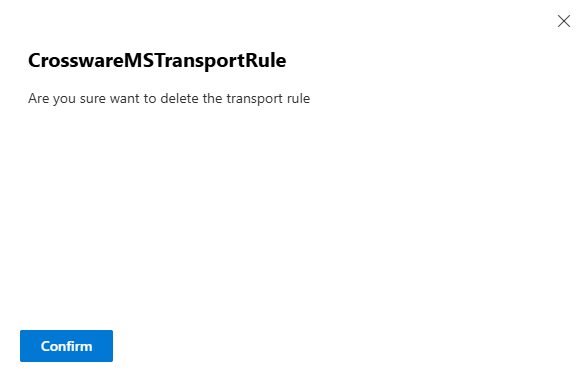
Click Confirm to complete the deletion.
Remove Crossware Connectors
-
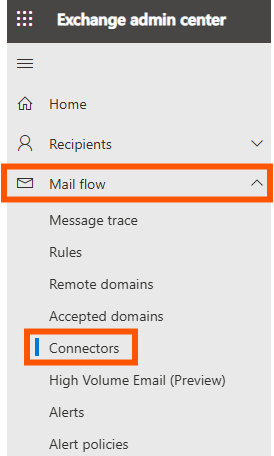
Under Mail flow, click on Connectors.
-
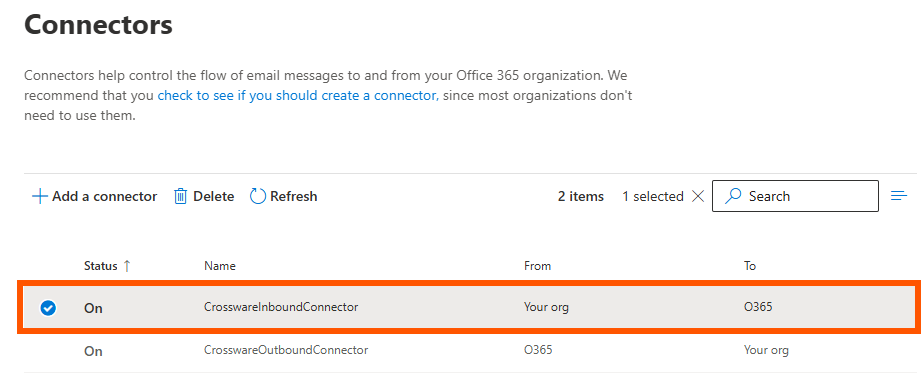
Find and select CrosswareInboundConnector.
-
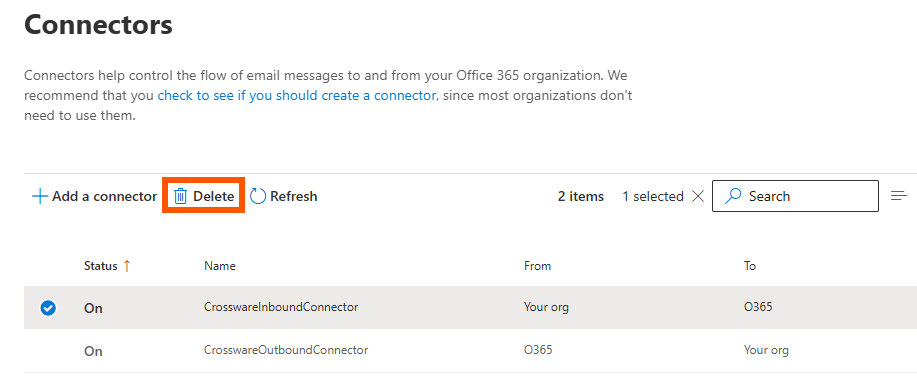
Click Delete.
-
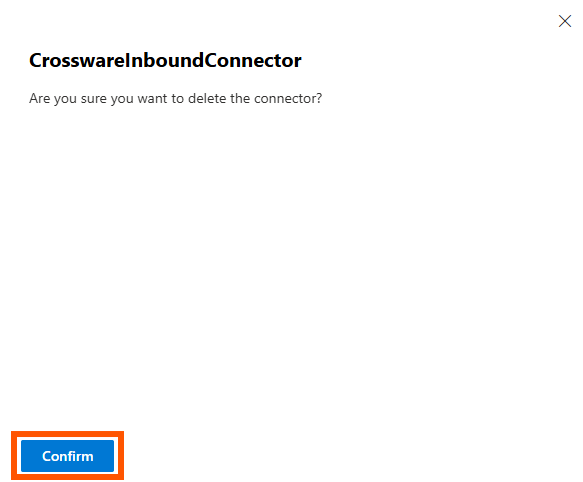
Confirm the deletion when prompted.
-
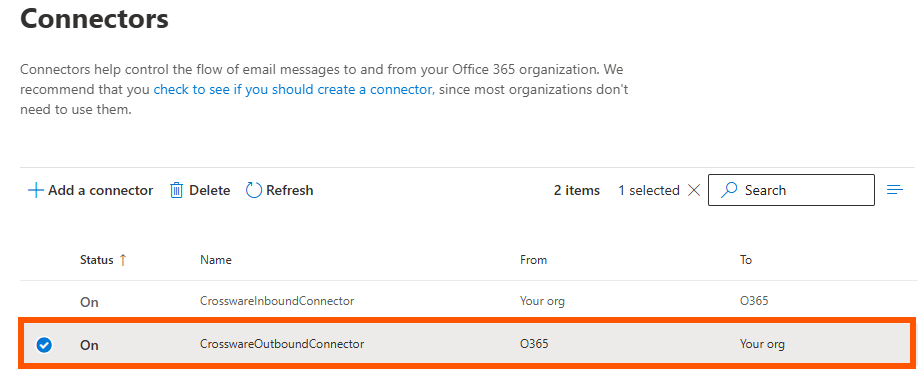
Next, select the CrosswareOutboundConnector.
-
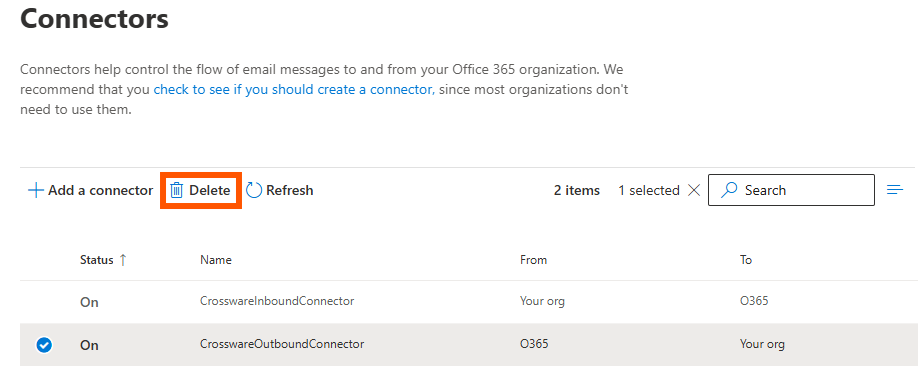
Click Delete.
-
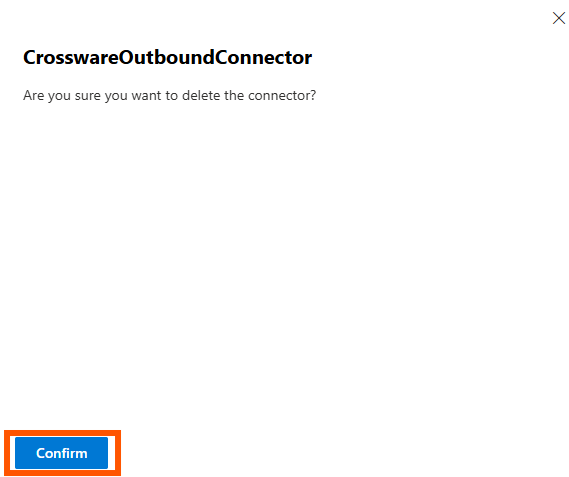
Confirm the deletion.
Delete Crossware User Groups
-
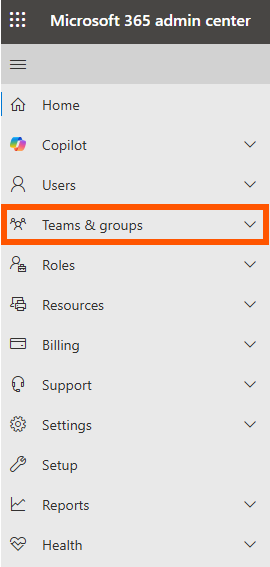
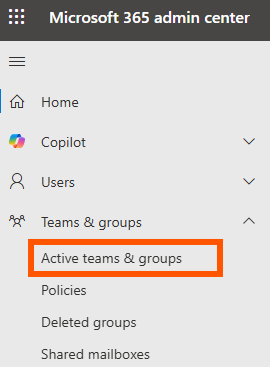
Navigate to the Teams & groups section in the Microsoft 365 Admin Center.
-
Click on Active teams & groups.
-
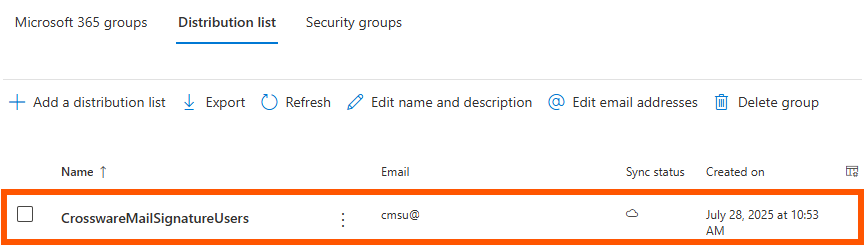
Select the Distribution list tab and locate and select the group named CrosswareMailSignatureUsers.
-
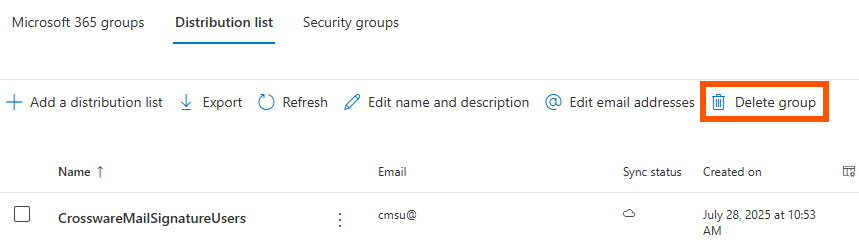
Click Delete group.
-
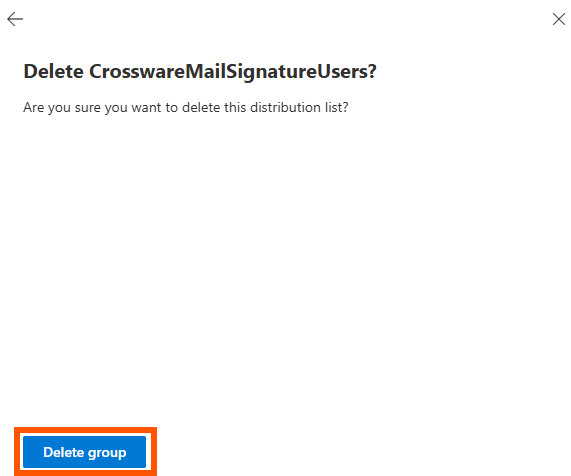
Confirm the deletion.
-
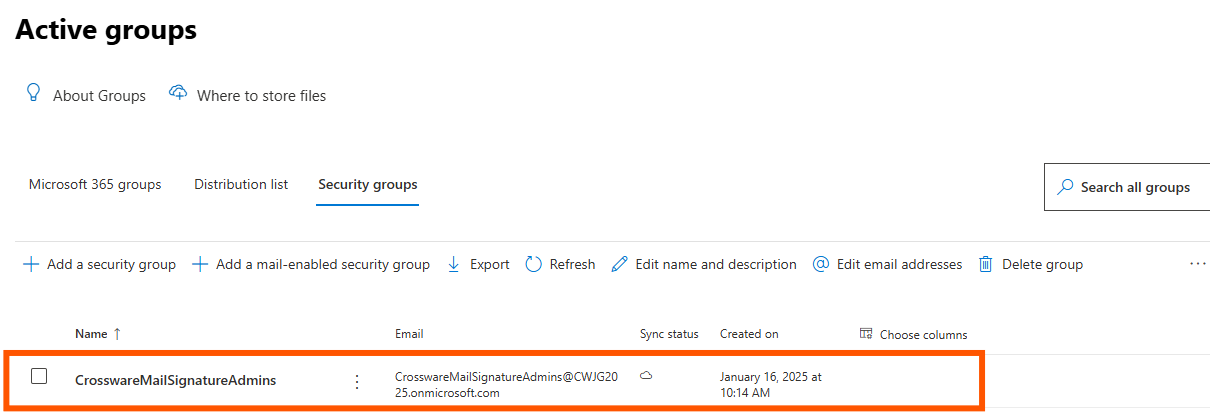
Next, go to the Security groups tab and locate and select the CrosswareMailSignatureAdmins group.
-
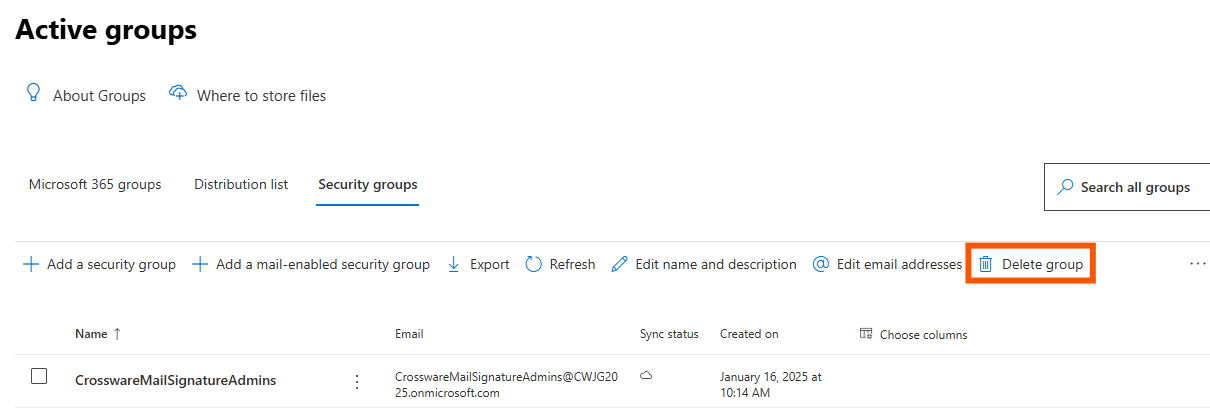
Click Delete group.
-
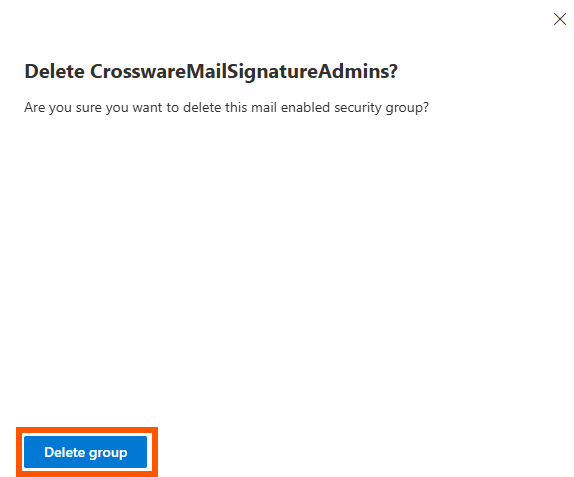
Confirm the deletion.
Remove the Client-side Signatures Add-in
-
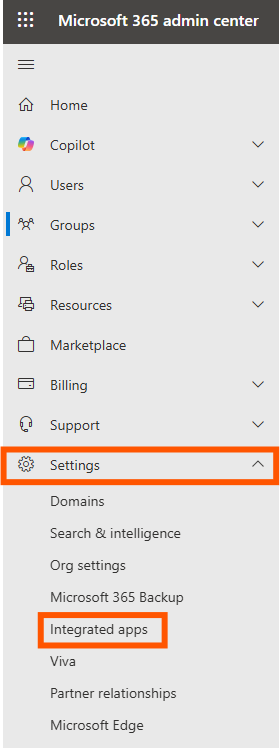
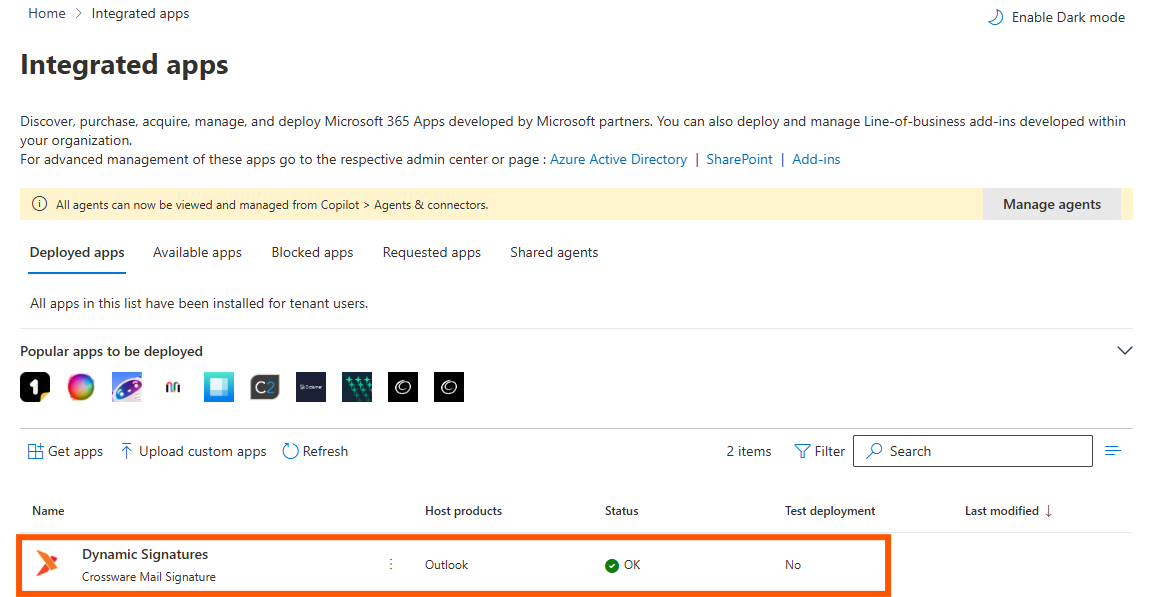
In the Microsoft 365 Admin Center, go to Settings > Integrated apps.
-
Locate and select Dynamic Signatures.
-
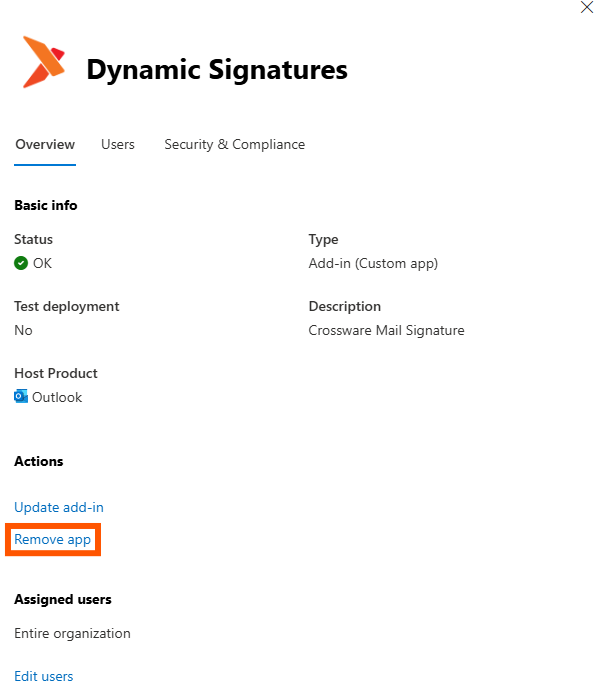
Click Remove app.
-
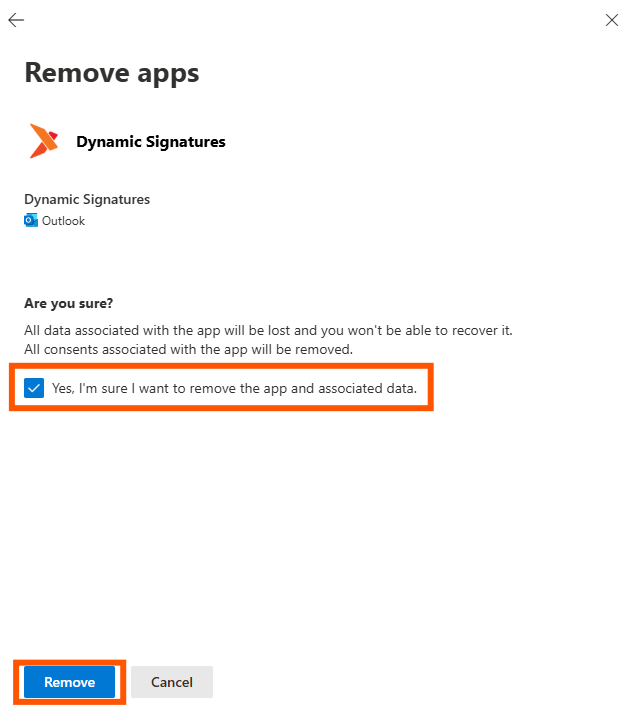
Check the box labeled "Yes, I'm sure I want to remove the app and associated data." and click Remove to finalize.
Once you've completed these steps, Crossware Email Signature and all associated configurations will be permanently removed from your Microsoft 365 environment. Be sure to notify users of the change and verify that email signatures are handled by your preferred alternative method moving forward.