
Configure Crossware Email Signature in Microsoft 365 so that email signatures are applied before messages are processed by third-party security solutions such as Mimecast, Proofpoint, Barracuda, or similar services. This ensures signatures are consistently added while maintaining compatibility with your existing email security and outbound mail flow.
Ensure Emails Reach Crossware First
To guarantee that every outgoing message receives a signature prior to third-party scanning:
-
Open Exchange Admin Center and navigate to Mail Flow > Rules.
-
Create or locate the transport/mail flow rule that sends email to the Crossware smart host for signature injection:
-
Typically, this rule should be named something like CrosswareMSTransportRule.
-
-
Move this rule to the top of the list so it runs with the highest priority.
-
This ensures Crossware sees mail before any other processing.
-
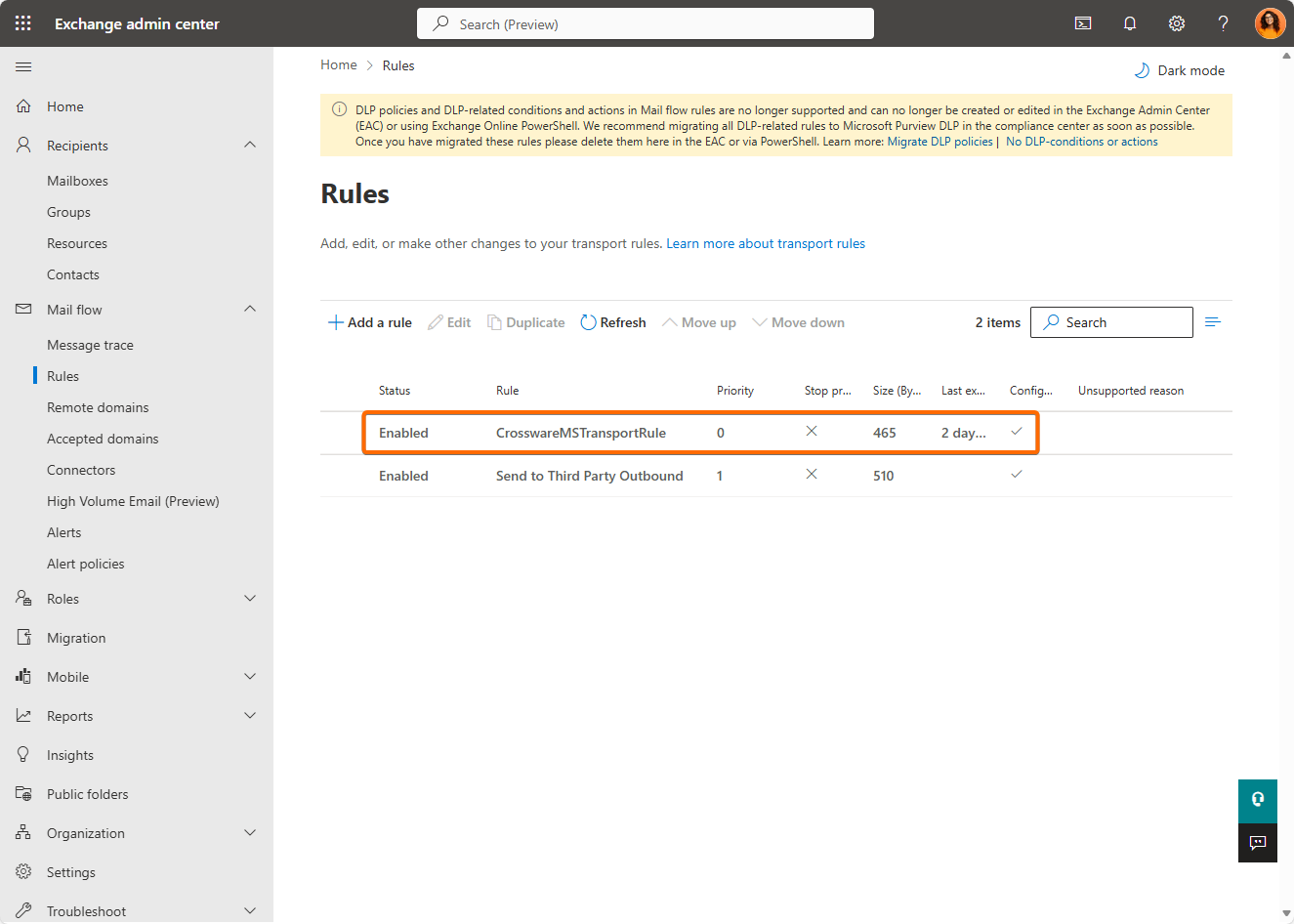
Reconfigure Your Smart Host Outbound Connector
Adjust the configuration of your third-party smart host outbound connector so it relies on a mail flow rule instead of being applied unconditionally:
-
In Exchange Admin Center > Mail Flow > Connectors, locate the outbound connector used for your security service (e.g., Mimecast/Proofpoint).
-
Edit the connector settings.
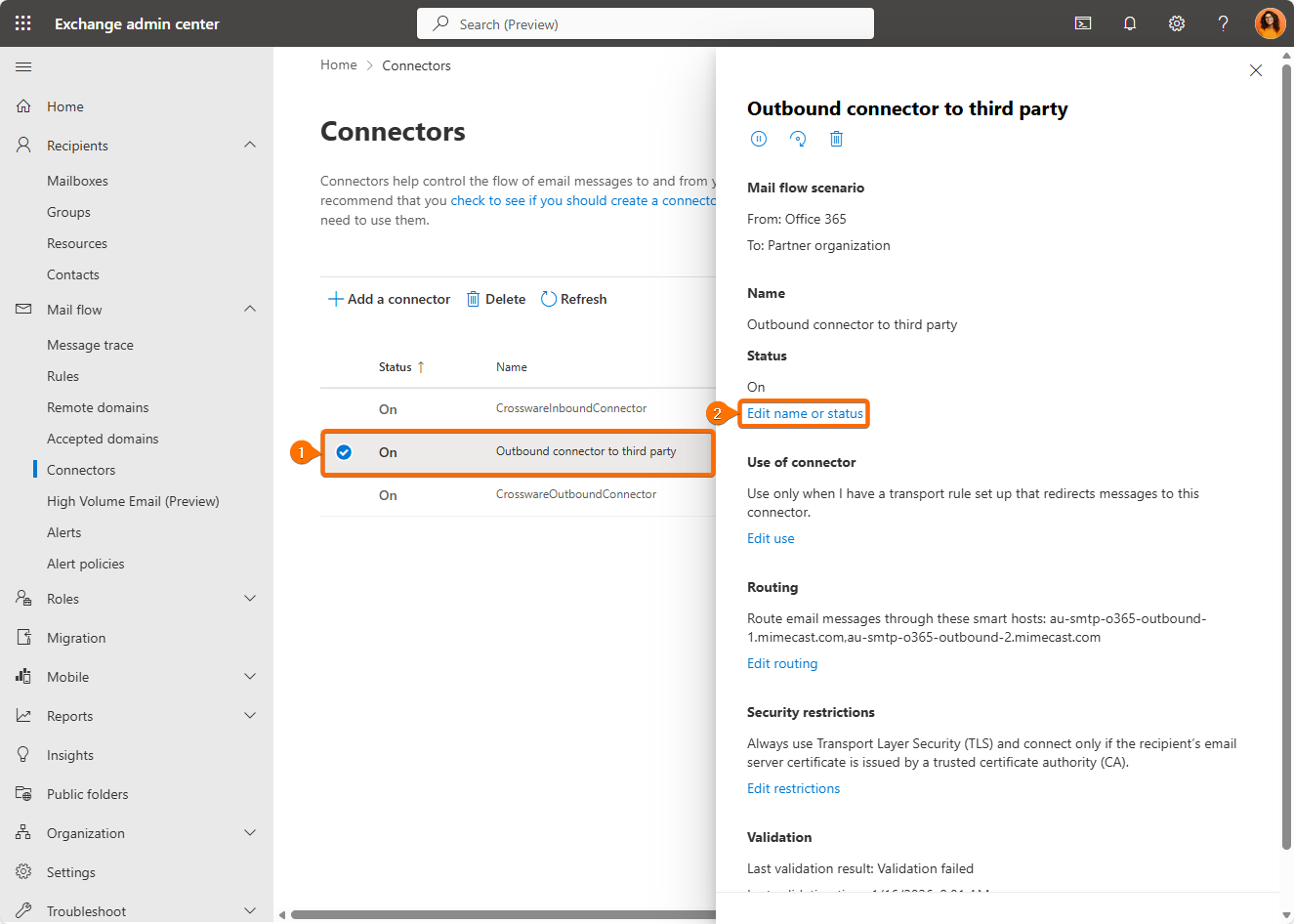
-
Set the connector Only when I have a transport rule set up that redirects messages to this connector and click Next.
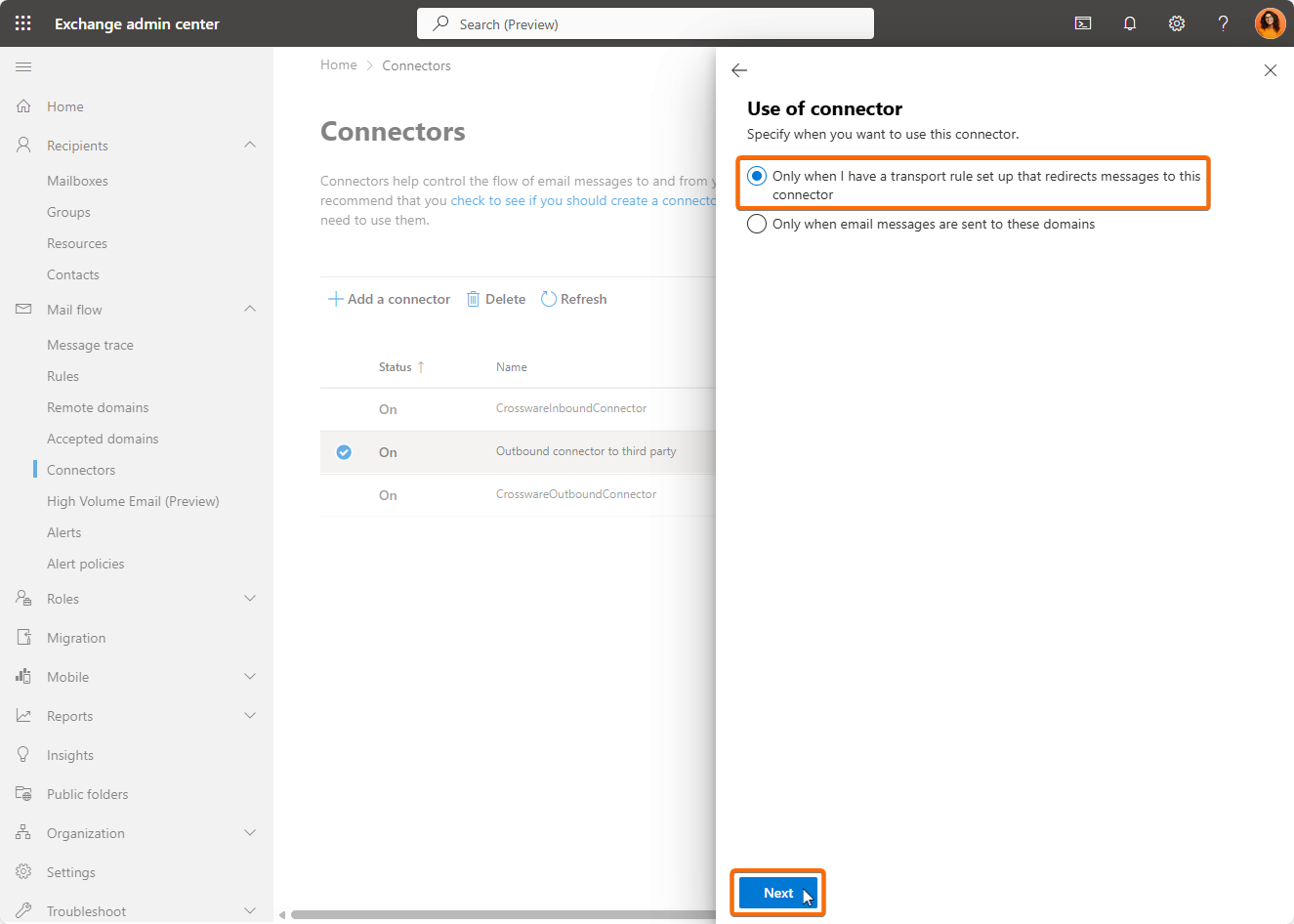
-
Complete the wizard without making any other changes and when you reach the last step close it by clicking Save.
Create a Mail Flow Rule to Route Via Smarthost
After modifying the connector:
-
In Mail Flow > Rules, click (+) Add a rule > Create New Rule.
-
Give the rule a descriptive name (e.g., Outbound via Smart Host).
-
Under Apply this rule if…, choose conditions such as:
-
Sender is internal (Inside the organization).
-
Recipient is outside (External recipients).
-
Add additional domain conditions if your smart host originally restricted specific domains.
-
-
Under Do the following…, set:
-
Redirect the message to the smart host connector edited previously.
-
-
In Except if…, optionally add a header-based exception to prevent loops:
-
Example: Exclude if a custom header like
X-Mail-Routedis present.
-
-
Enable Defer message if rule processing doesn’t complete so retry logic is supported.
-
Save the rule and ensure it’s below the Crossware signature injection rule in priority.
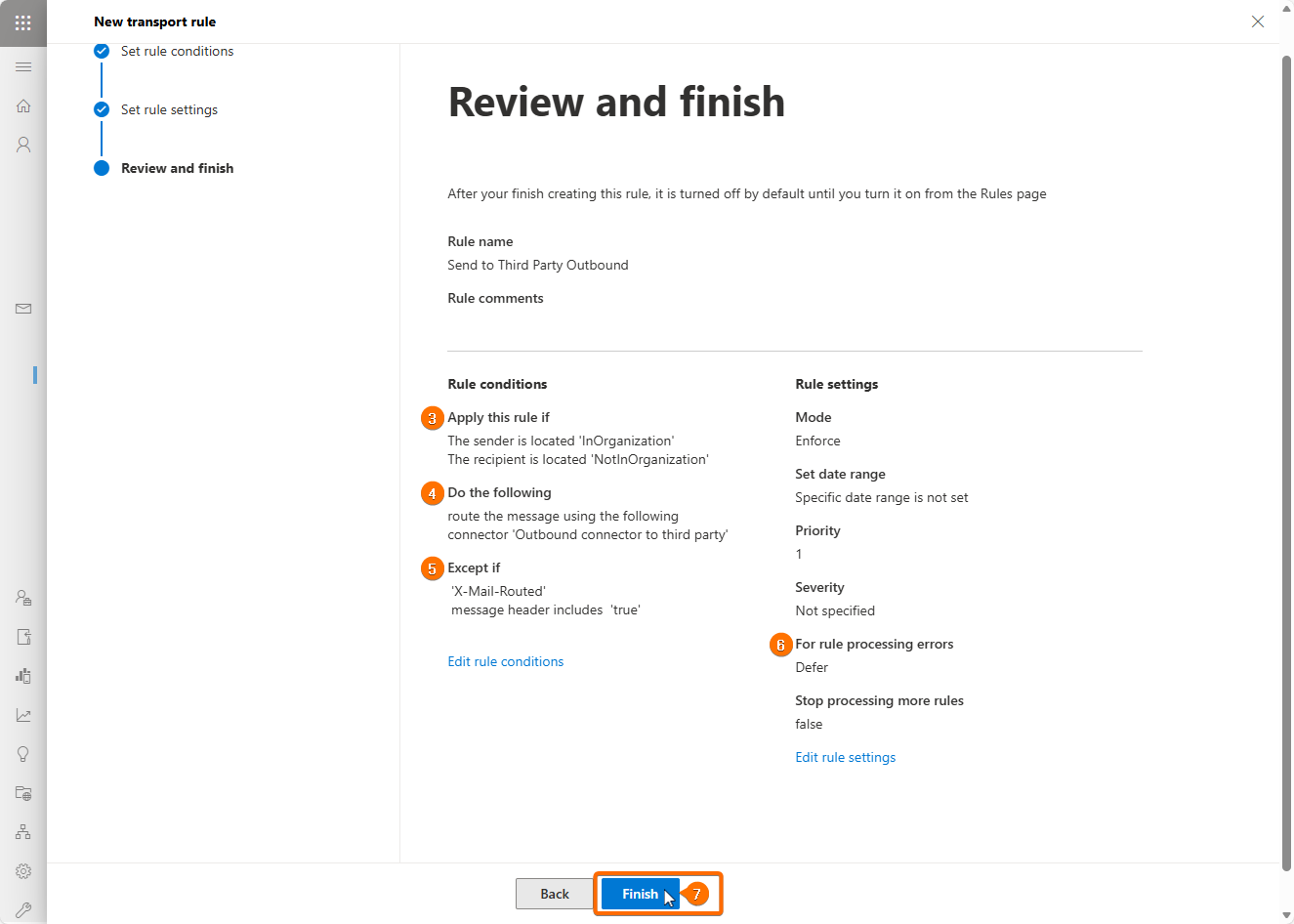
This rule ensures mail is forwarded through your third-party system only after Crossware has applied a signature first.