
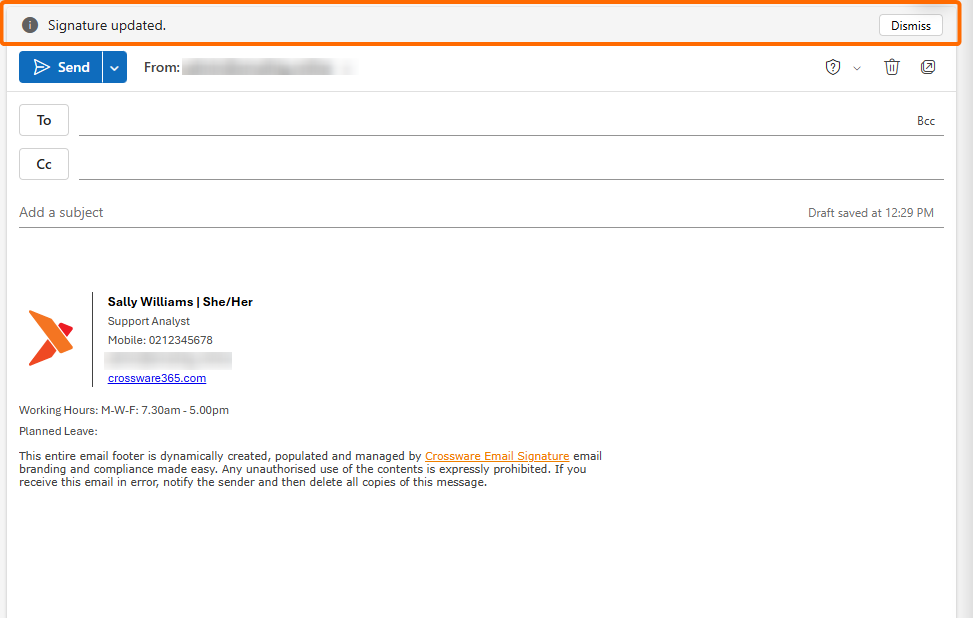
The Display Messaging setting controls whether informational messages are shown in the Outlook add-in.
For Administrators
Administrators can configure whether Display Messaging is enabled by default for users. This sets the initial value for users but does not prevent them from changing the setting themselves.
Enable the Admin Settings Panel
-
Sign in to the Crossware Portal.
-
Navigate to Settings.
-
Under Setup, select Manage Features.
-
Select Admin Settings.
From here, you can either enable the Admin Settings panel for selected administrators using a role or make it available to all.
Enable for Selected Administrators
-
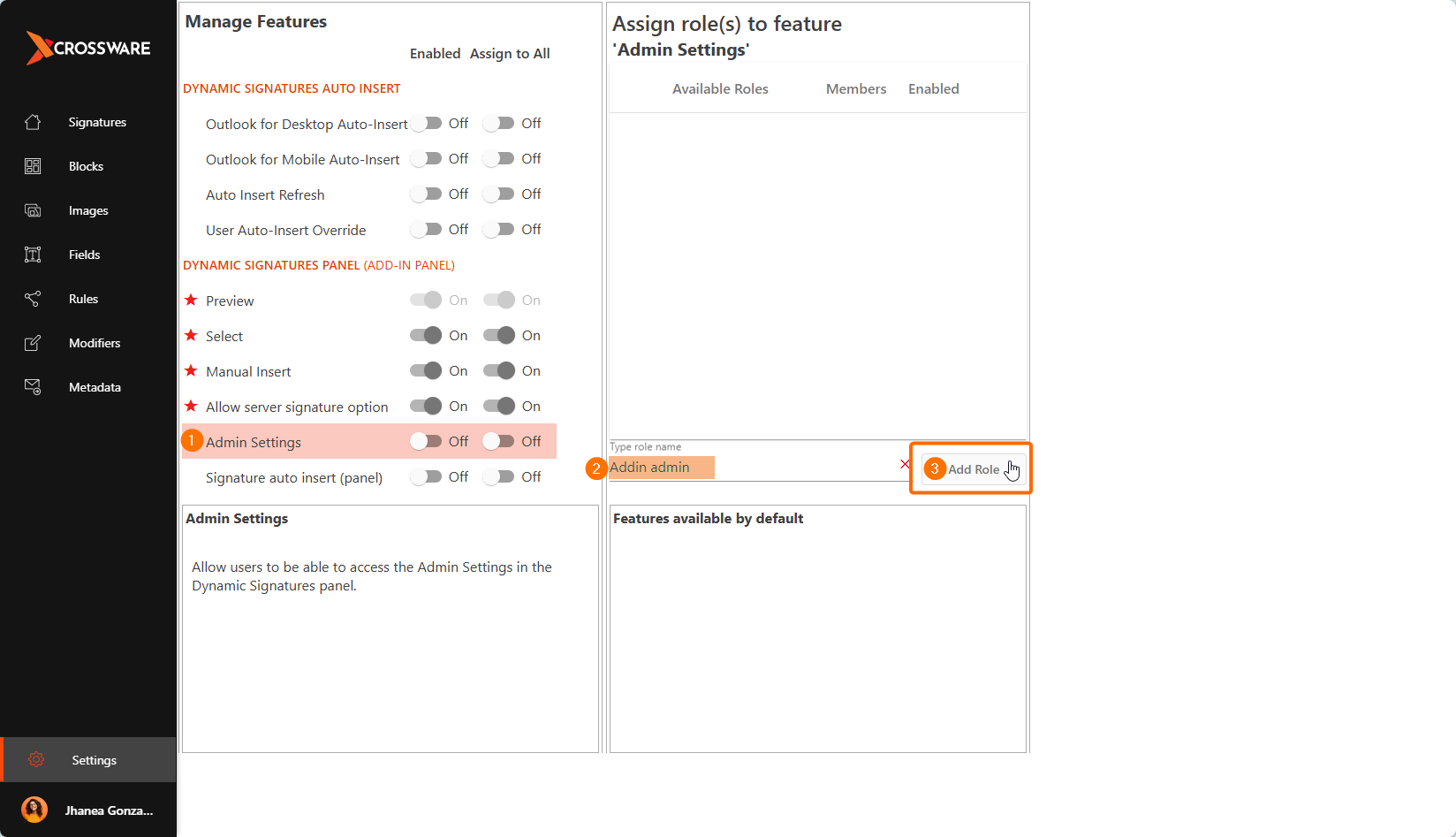
Select Admin Settings.
-
In the centre column, enter a name for the new role.
-
Select Add Role.
-
Select the newly created role from the list.
-
In the right-hand column, add the users or groups that should have access to the Admin Settings panel.
-
Ensure the role is enabled by selecting the checkbox in the first column.
-
Enable Admin Settings.
-
Leave Assign to all disabled.
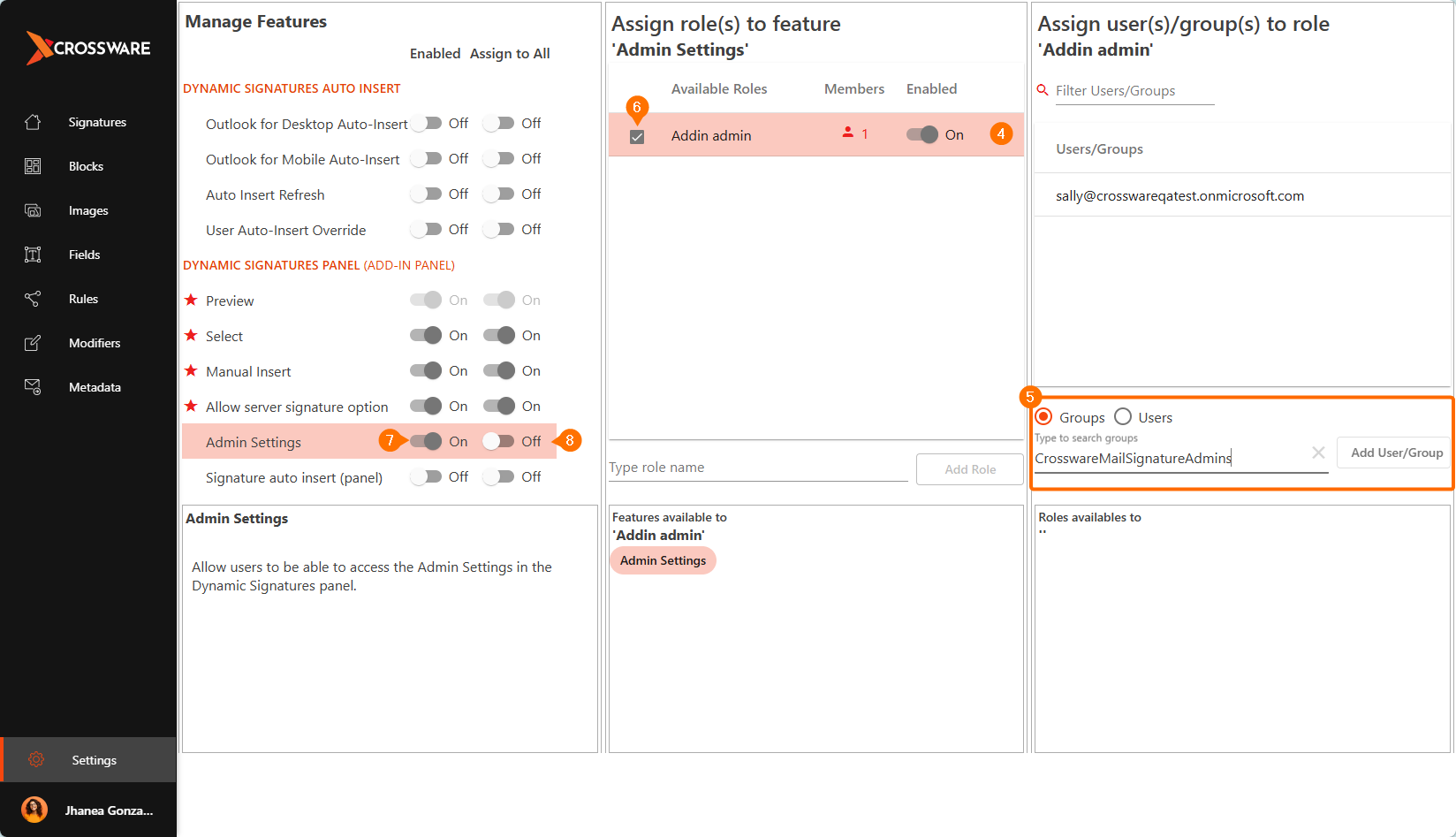
Only the users and groups assigned to this role will have access to the Admin Settings panel.
Configure the Default Setting
After the Admin Settings panel has been enabled:
-
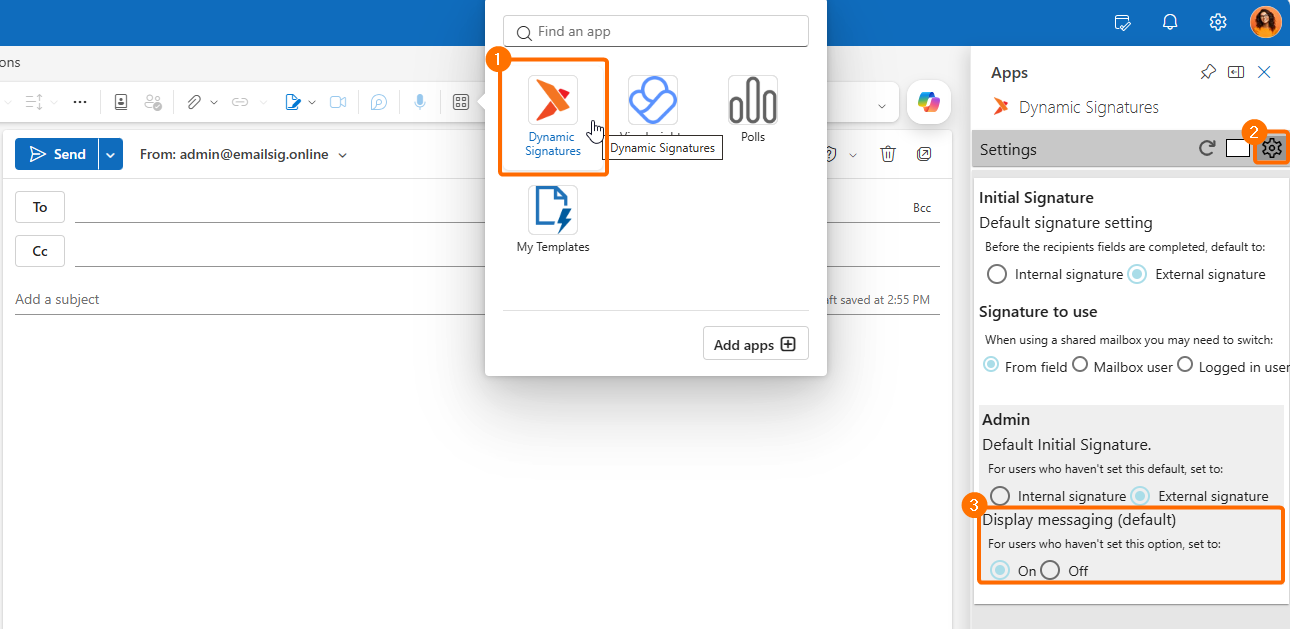
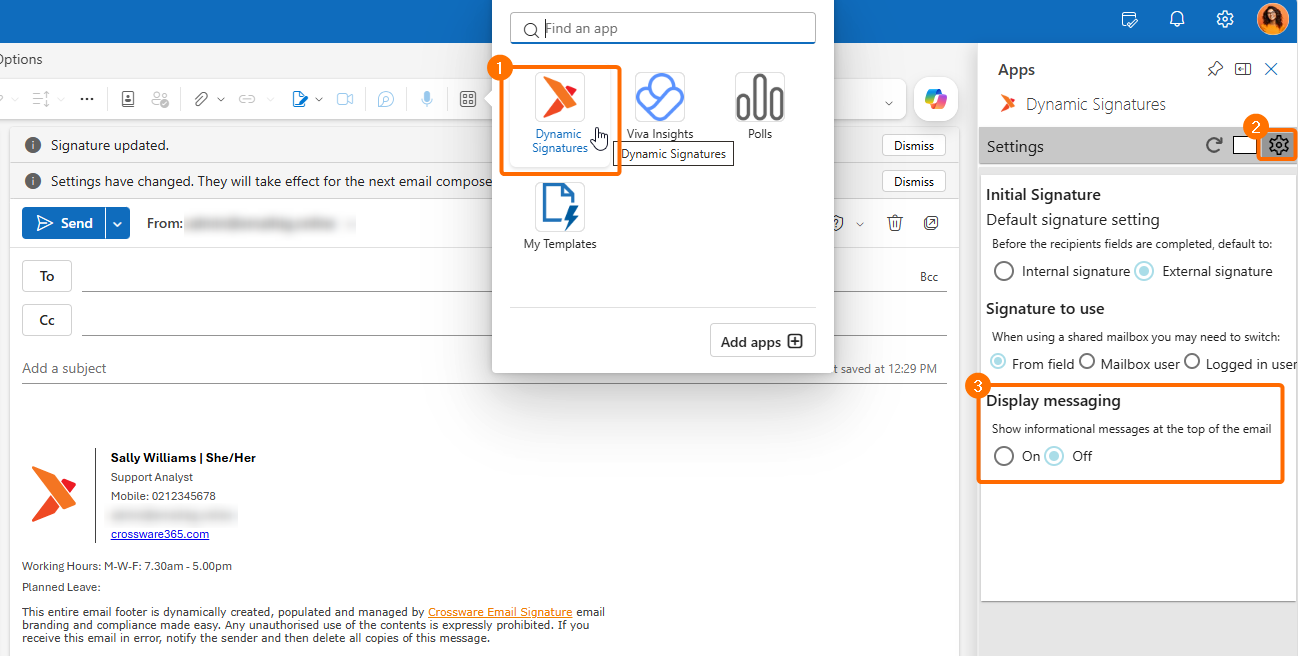
Open the Outlook add-in.
-
Select Settings.
-
Locate Display Messaging.
-
Turn the setting On or Off as required.
The selected value becomes the default for users.
Users can still change their own Display Messaging setting. The administrator setting only defines the default value.
For Users
Users can change the Display Messaging setting at any time.
-
Open the Outlook add-in.
-
Select Settings.
-
Turn Display Messaging on or off as required.
Any changes apply only to your own account and do not affect other users.