
In this article, you’ll learn how to display your Microsoft 365 profile photo in your email signature using the ADImageThumb field.
Instructions
-
Sign in to the Crossware Portal.
-
Hover over the signature you want to update and click Edit.
-
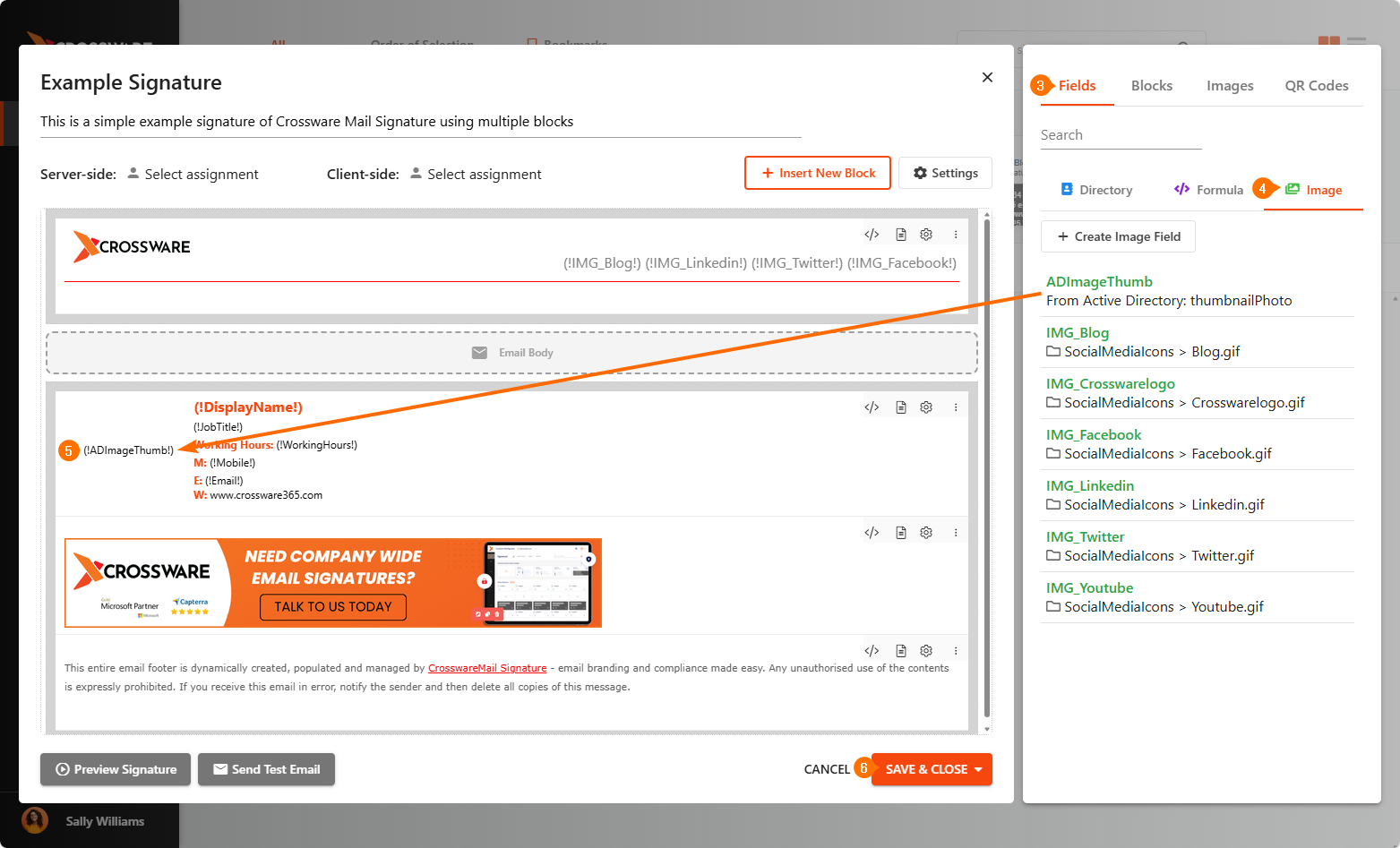
In the right-hand side panel, select Fields to open the available field options.
-
From the list of field types, select Image.
-
Drag and drop the ADImageThumb field (your Microsoft 365 profile thumbnail) into your signature design.
-
Click Save & Close to save your changes.
-
Use the Send Test Email or Preview Signature option to preview how the image appears in an actual signature.
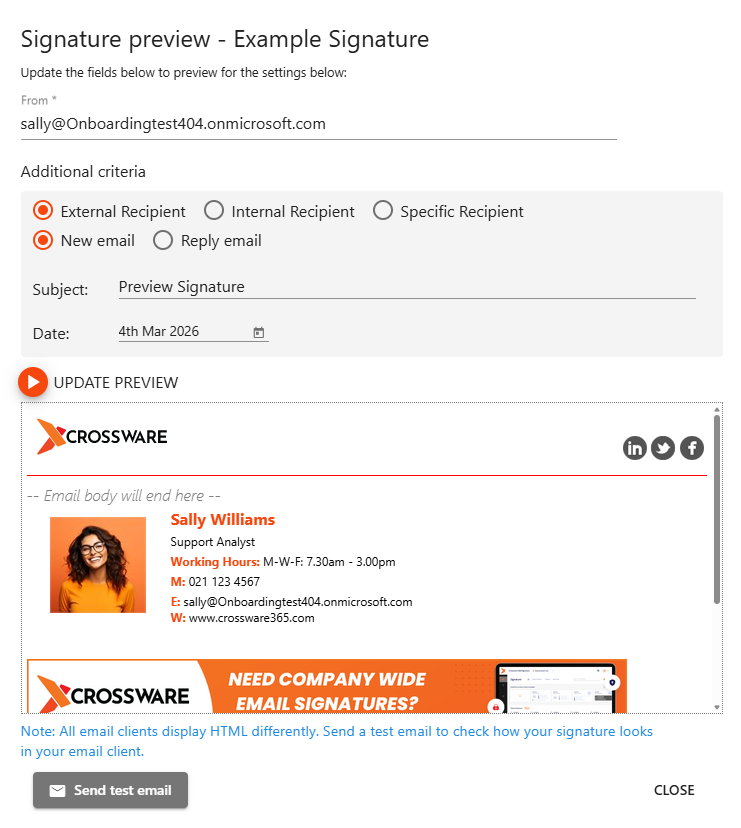
It will now display each user's Microsoft 365 profile photo in their signature.