
To apply a specific signature to all emails sent within a defined date range such as a Christmas campaign in December. You can use either the Rule Builder or a C# script in Crossware.
Create a Rule
-
Sign in to the Crossware Portal, navigate to Rules section.
-
Click Create rule.
-
Enter a descriptive name for the rule.
Configure the Rule
Option 1: Using the Rule Builder
-
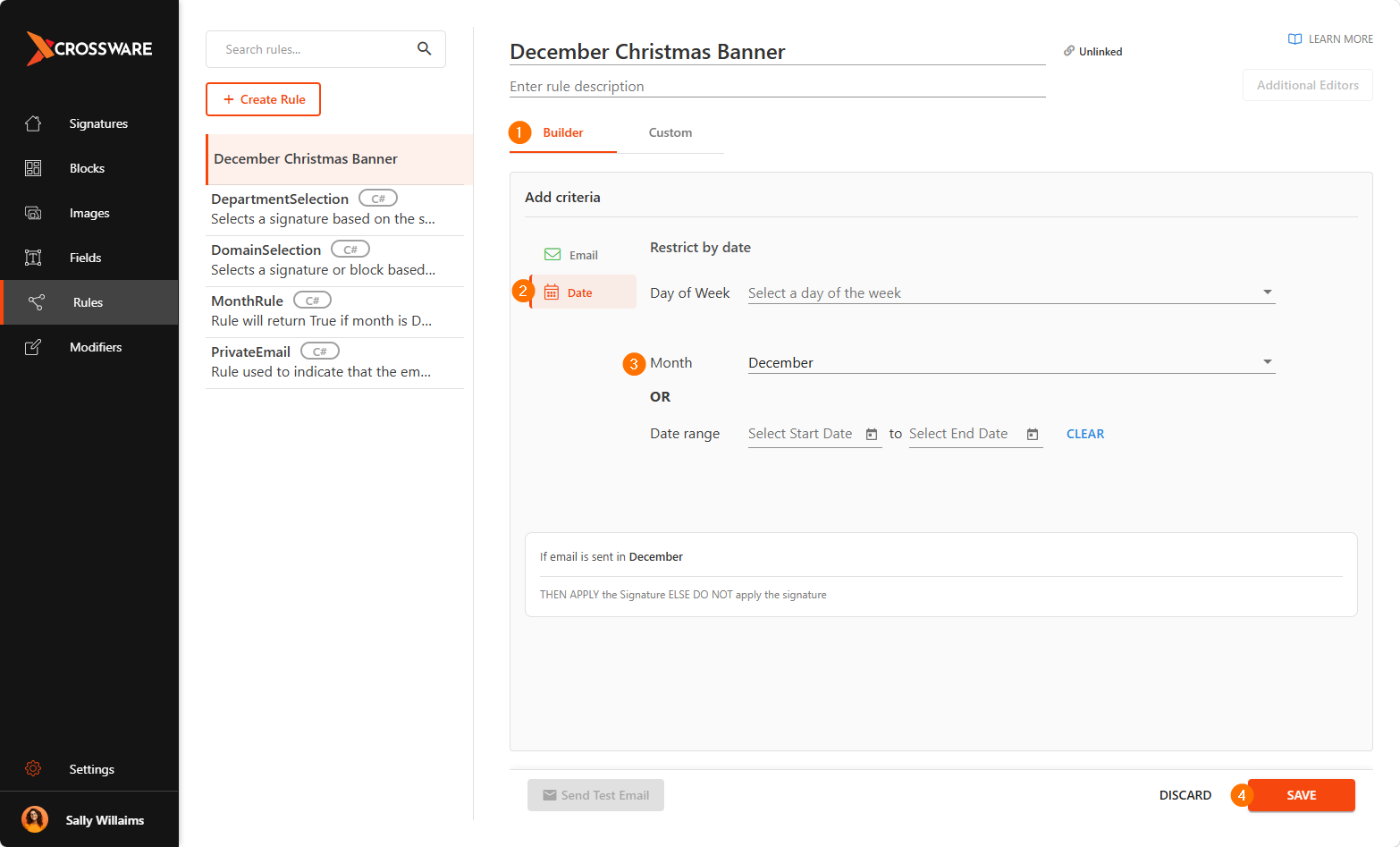
Select the Builder tab.
-
Click on the Date option.
-
Set the desired date range or month (e.g., December)
-
Click Save to save the rule.
Option 2: Using a C# Script
-
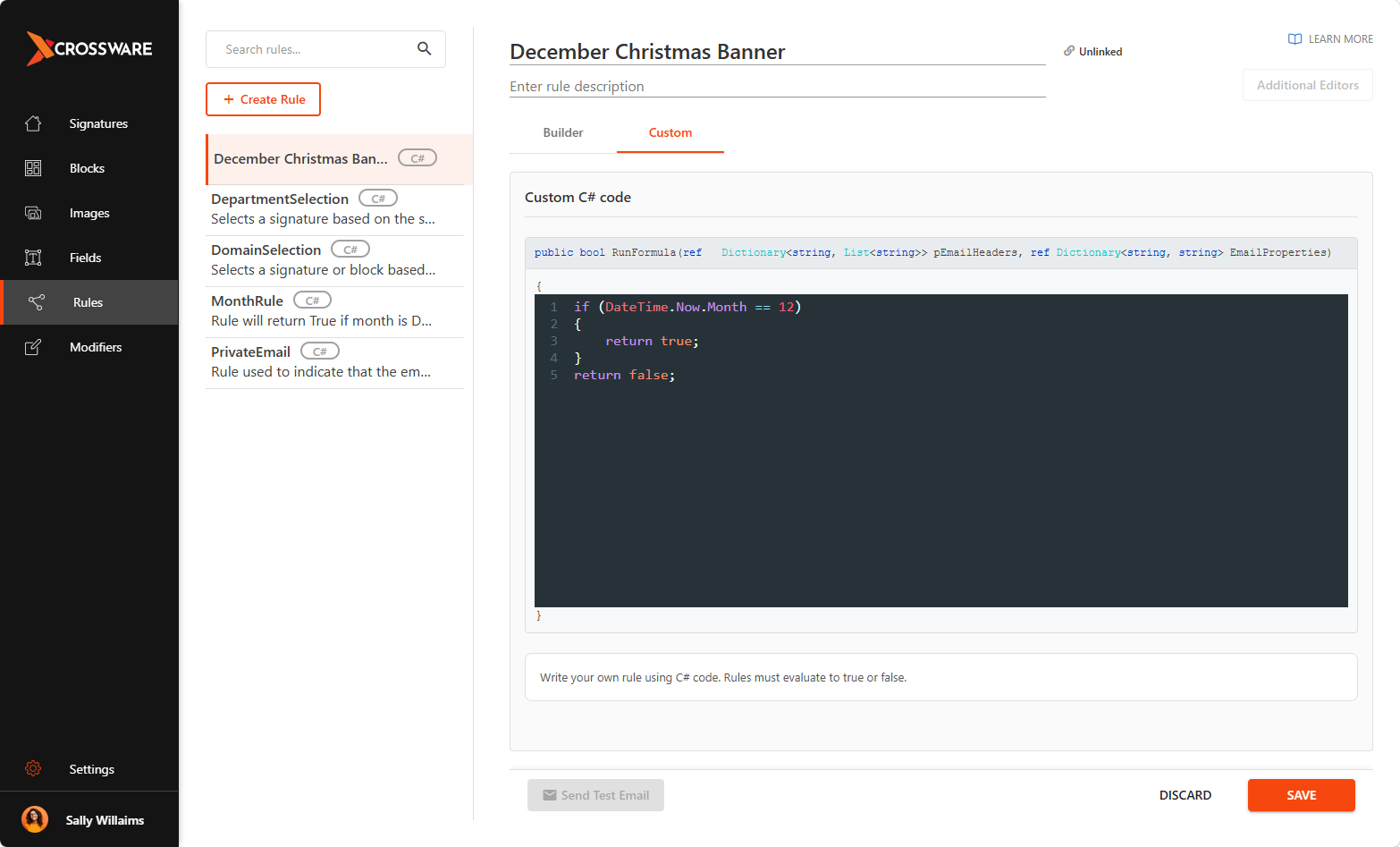
Select the CUSTOM tab.
-
Insert the following C# code to define your date range
C#if (DateTime.Now.Month == 12) { return true; } return false;
Link the Rule to a Signature or Signature Block
-
Apply the Rule to a Signature - Assign the rule to an existing email signature.
-
Apply the Rule to a Signature Block - Assign the rule to a specific block within the signature.
Set Signature Priority
-
Go to Order of Selection.
-
Make sure the rule-linked signature is placed above default signatures so it’s evaluated first.
Crossware will automatically revert to your standard signatures when the date condition will no longer match.