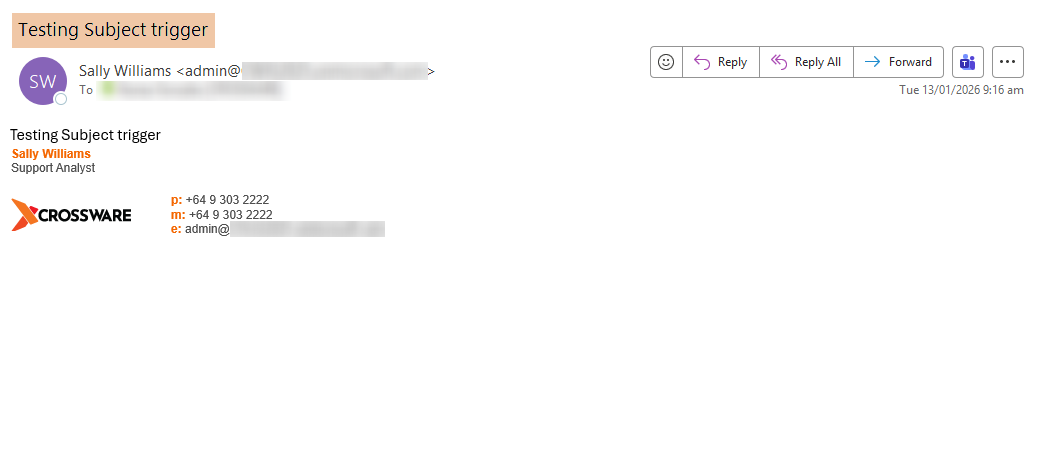
You can use subject keywords to decide which signature is applied or to prevent a signature from being applied at all. This gives users a quick way to control signature behavior directly from the email subject line.
Create a Rule
-
Sign in to the Crossware Portal and navigate to the Rules section.
-
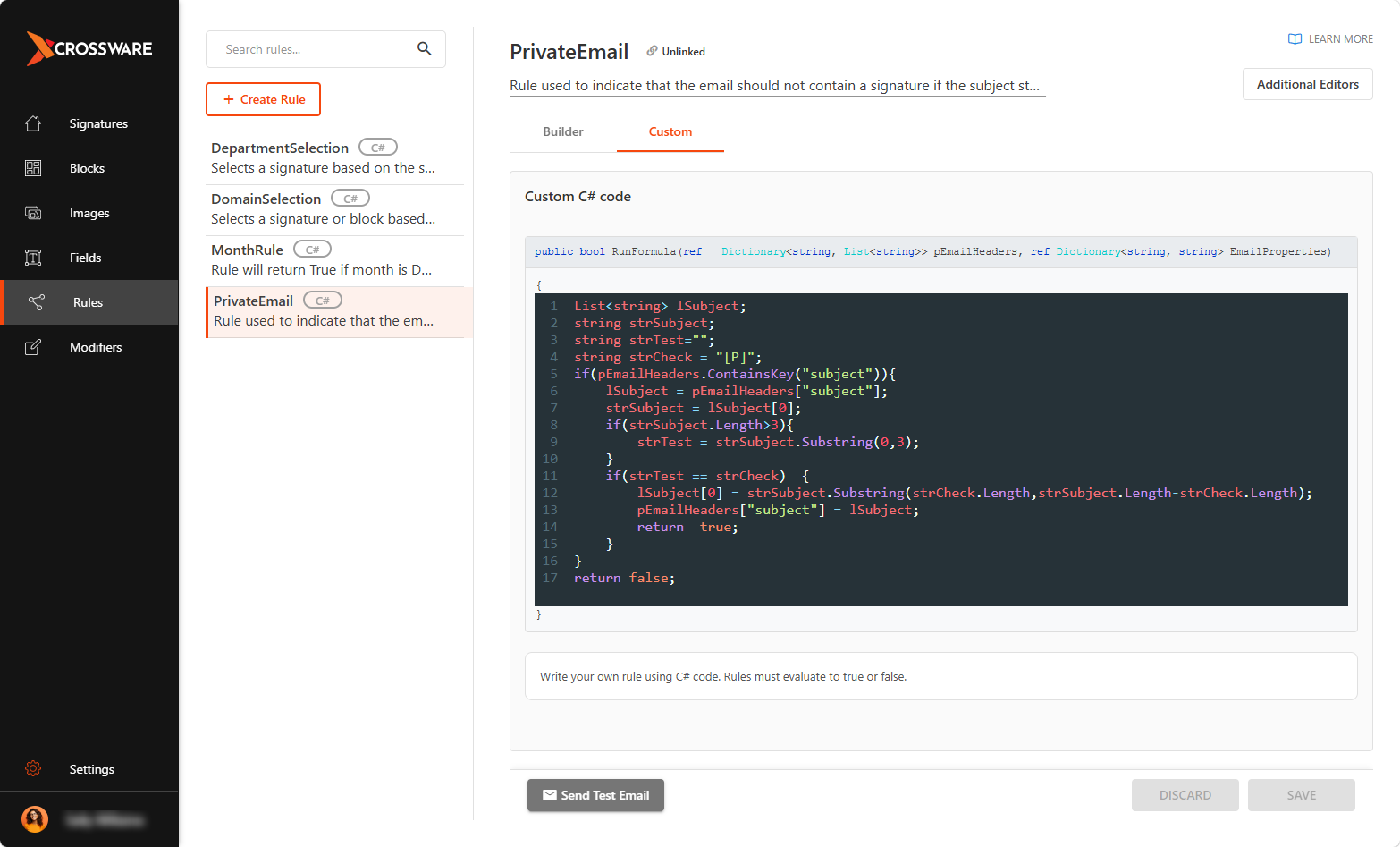
Create a new rule (e.g., Private Email).
-
Click the CUSTOM tab and add the C# script provided below to detect the keyword.
-
Example keyword:
[P]
-
List < string > lSubject;
string strSubject;
string strTest = "";
string strCheck = "[P]";
if (pEmailHeaders.ContainsKey("subject")) {
lSubject = pEmailHeaders["subject"];
strSubject = lSubject[0];
if (strSubject.Length >= 3) {
strTest = strSubject.Substring(0, 3);
}
if (strTest == strCheck) {
lSubject[0] = strSubject.Substring(strCheck.Length, strSubject.Length - strCheck.Length);
pEmailHeaders["subject"] = lSubject;
return true;
}
}
return false;
Link the Rule to a Signature or Signature Block
-
Apply the Rule to a Signature - Assign the rule to an existing email signature.
-
Apply the Rule to a Signature Block - Assign the rule to a specific block within the signature.
Order Signature Priority
-
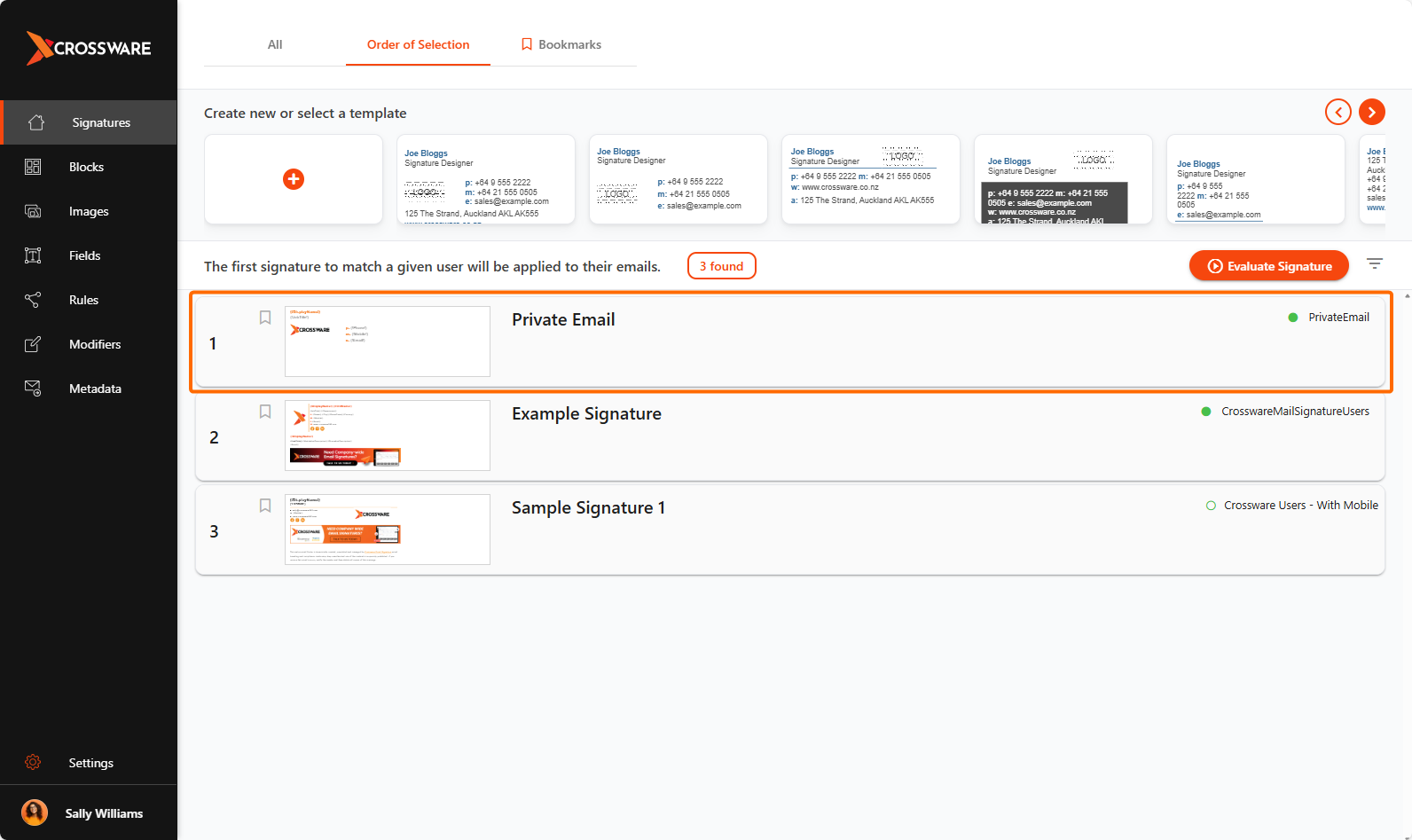
Go to the Order of Selection to ensure your rule-linked signature is evaluated before default signatures.
Test the Setup
-
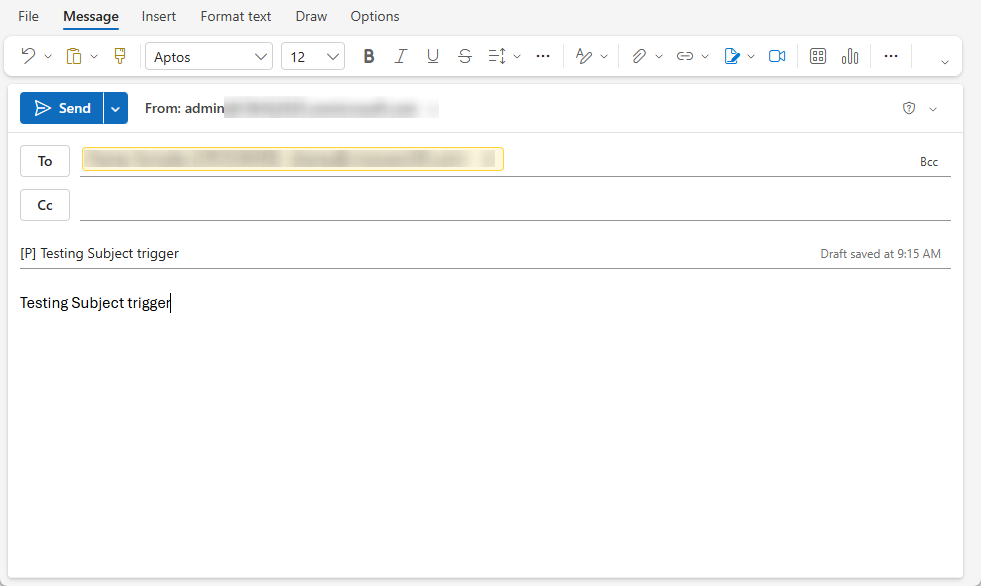
Send an email with the subject starting with
[P].
-
Confirm that:
-
The correct signature is applied.
-
The keyword is removed from the subject line.
-