
In some scenarios, you may want a specific signature to be applied only when emails are sent from a particular domain. This can be configured by creating a Rule in the Crossware Designer Portal that checks the sender’s domain and applies the appropriate signature when the condition is met.
Create a Rule
-
Sign in to the Crossware Portal and navigate to the Rules section.
-
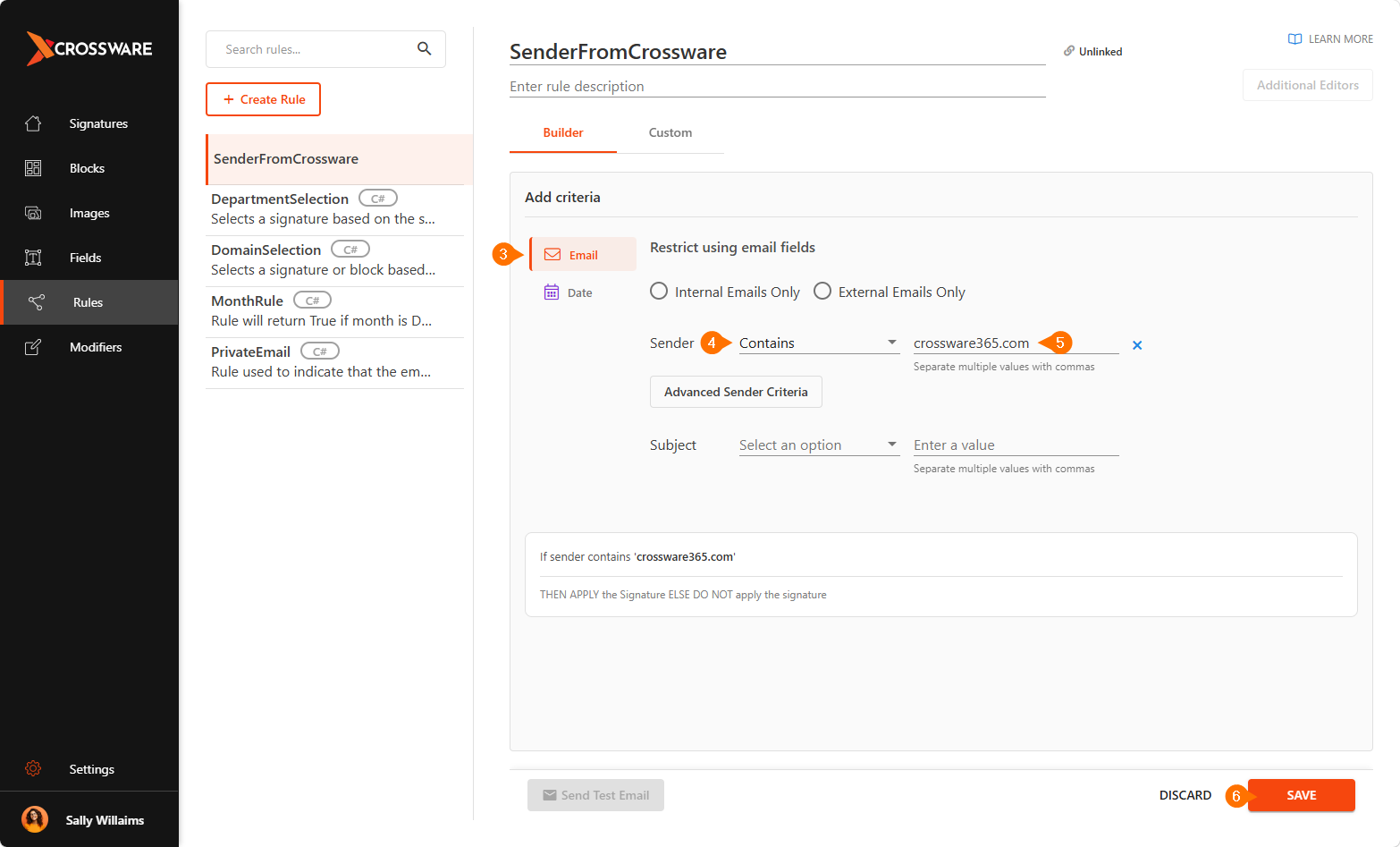
Create a new rule (for example, SenderFromCrossware).
-
On the Builder tab and select Email.
-
Under Sender, click Select an option and choose Contains.
-
In Enter a value, type the sender’s domain (for example, crossware365.com).
-
Click Save to create the rule.
Link the Rule to a Signature or Signature Block
-
Apply the Rule to a Signature - Assign the rule to an existing email signature.
-
Apply the Rule to a Signature Block - Assign the rule to a specific block within the signature.
Order Signature Priority
-
Go to the Order of Selection to ensure your rule-linked signature is evaluated before default signatures.
Test the Setup
-
Send a test email from the specified domain.
-
Confirm that the signature is properly appended only when the sender’s domain meets the rule criteria.
Crossware automatically applies the signature based on the sender domain.