
In some scenarios, you may want to apply a specific signature only when the email is sent to a particular domain. This can be achieved by creating a Rule in the Crossware Designer Portal that checks the sender’s domain and applies the correct signature accordingly.
Create a Rule
-
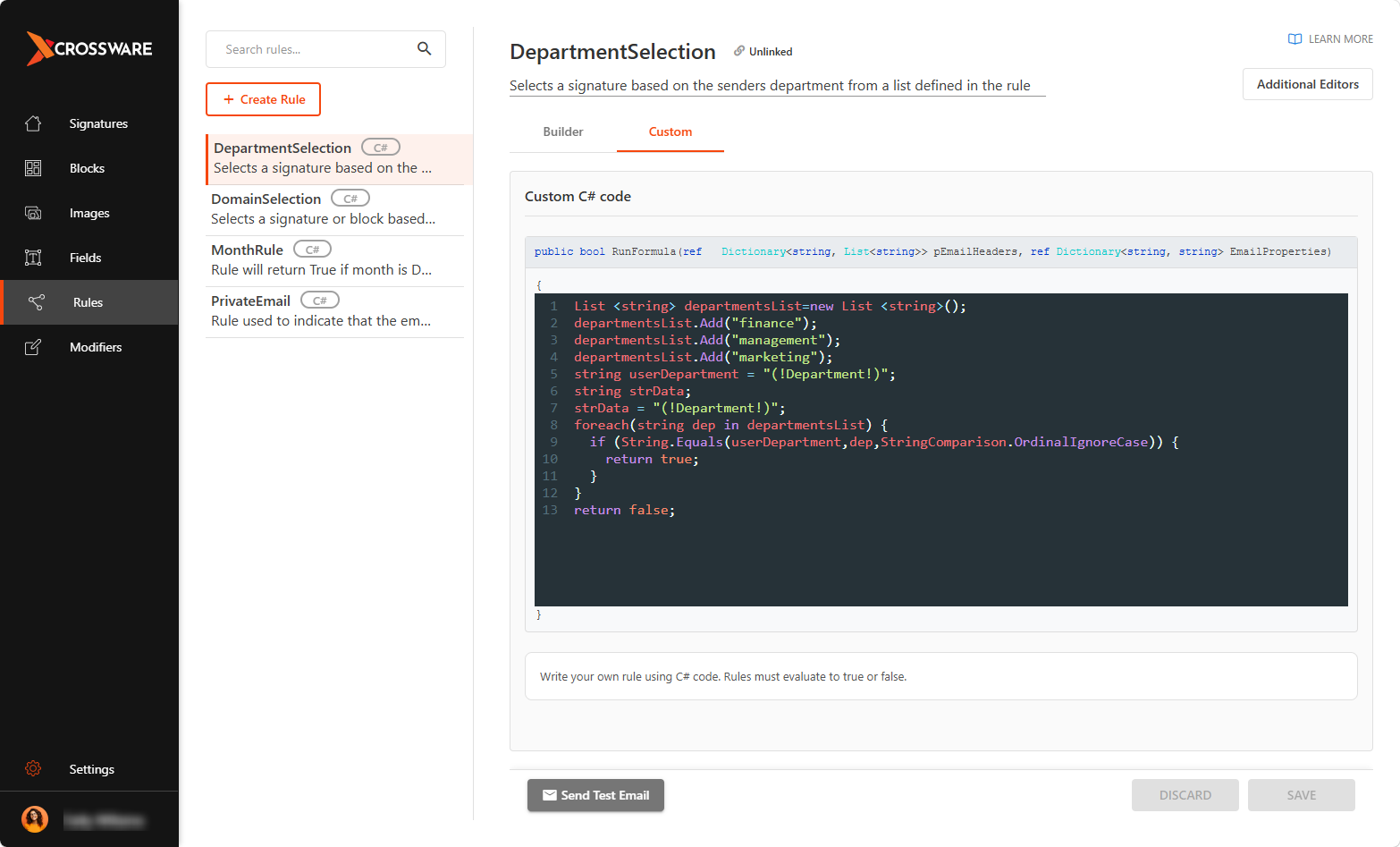
Sign in to the Crossware Portal and navigate to the Rules section.
-
Create a new rule (e.g., DomainSelection).
-
Click the CUSTOM tab and add the C# script provided below.
List < string > strList = new List < string > ();
strList.Add("@gmail.com");
strList.Add("@crossware365.com");

if (EmailProperties.ContainsKey("SMTPRCPTTO")) {
  foreach(string strItem in strList) {
    if (EmailProperties["SMTPRCPTTO"].IndexOf(strItem, StringComparison.OrdinalIgnoreCase) >= 0) {
      return false;
    }
  }
}
return true;
-
Replace gmail.com and crossware365.com with the domain you want to check.
-
This rule will evaluate the sender’s domain and return
trueonly if it matches.
Link the Rule to a Signature or Signature Block
-
Apply the Rule to a Signature - Assign the rule to an existing email signature.
-
Apply the Rule to a Signature Block - Assign the rule to a specific block within the signature.
Order Signature Priority
-
Go to the Order of Selection to ensure your rule-linked signature is evaluated before default signatures.
Test the Setup
-
Send a test email from the specified domain.
-
Confirm that the signature is properly appended only when the recipient’s domain meets the rule criteria.
Crossware automatically applies the signature based on the recipient domain.