
Crossware supports both client-side and server-side signatures when sending emails from Outlook for Mobile on iOS and Android.
Server-Side
If your Crossware Exchange Connectors are configured (see here), and you send from your mobile device while logged into your Microsoft account, your signature will automatically be attached by Crossware’s servers after you send the email. In this case, users will not see the signature while composing if Client-Side signatures is not configured.
Client-Side Signatures
-
Ensure that Dynamic Signatures is enabled (see here), and that the Outlook for Mobile Auto-Insert feature is enabled for the selected users (or all users).
-
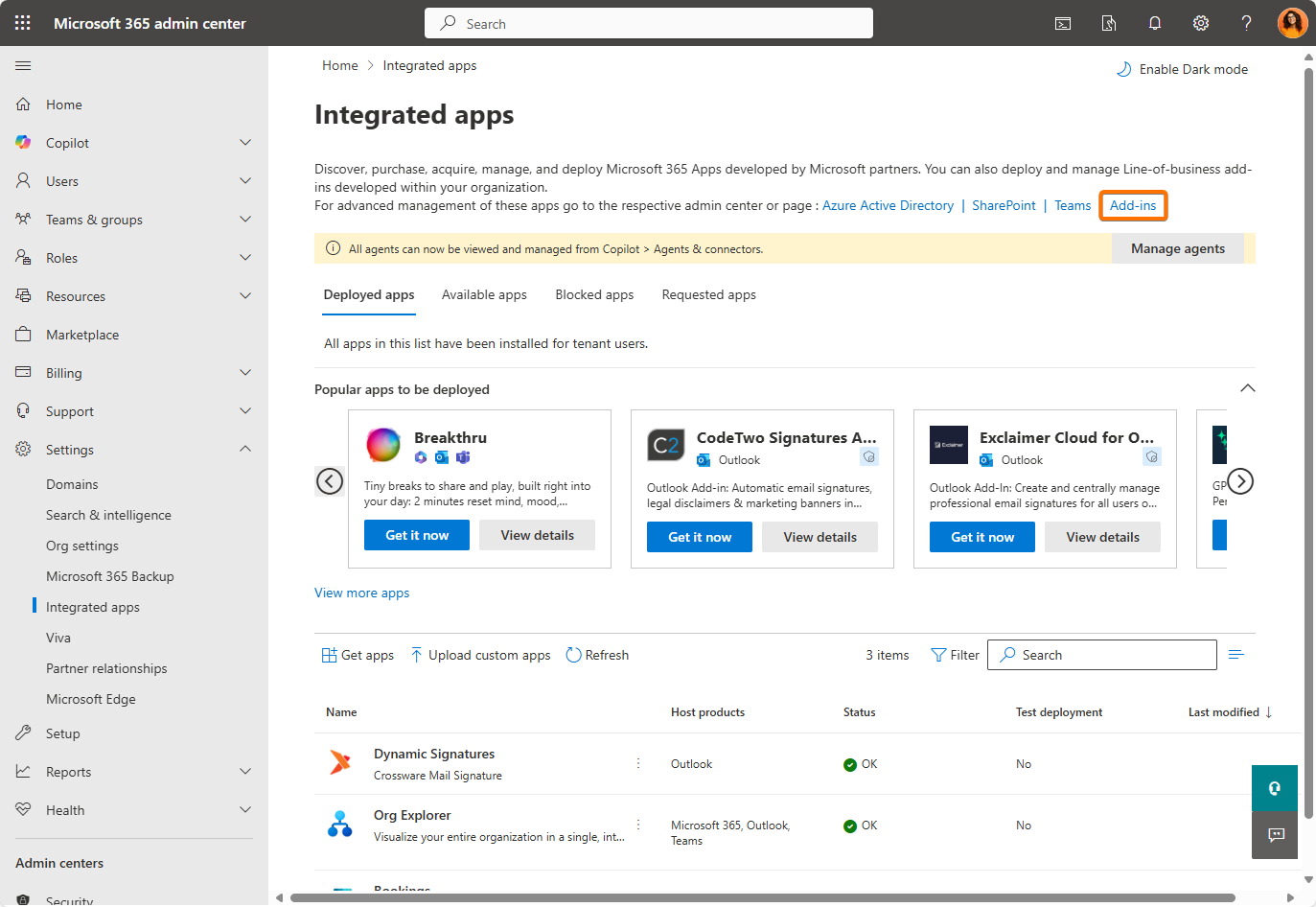
Because mobile auto-insert requires a change to the manifest, you will first need to ensure the manifest is up to date in your Microsoft 365 Admin Centre. Go to Settings > Integrated apps > Add-ins.
-
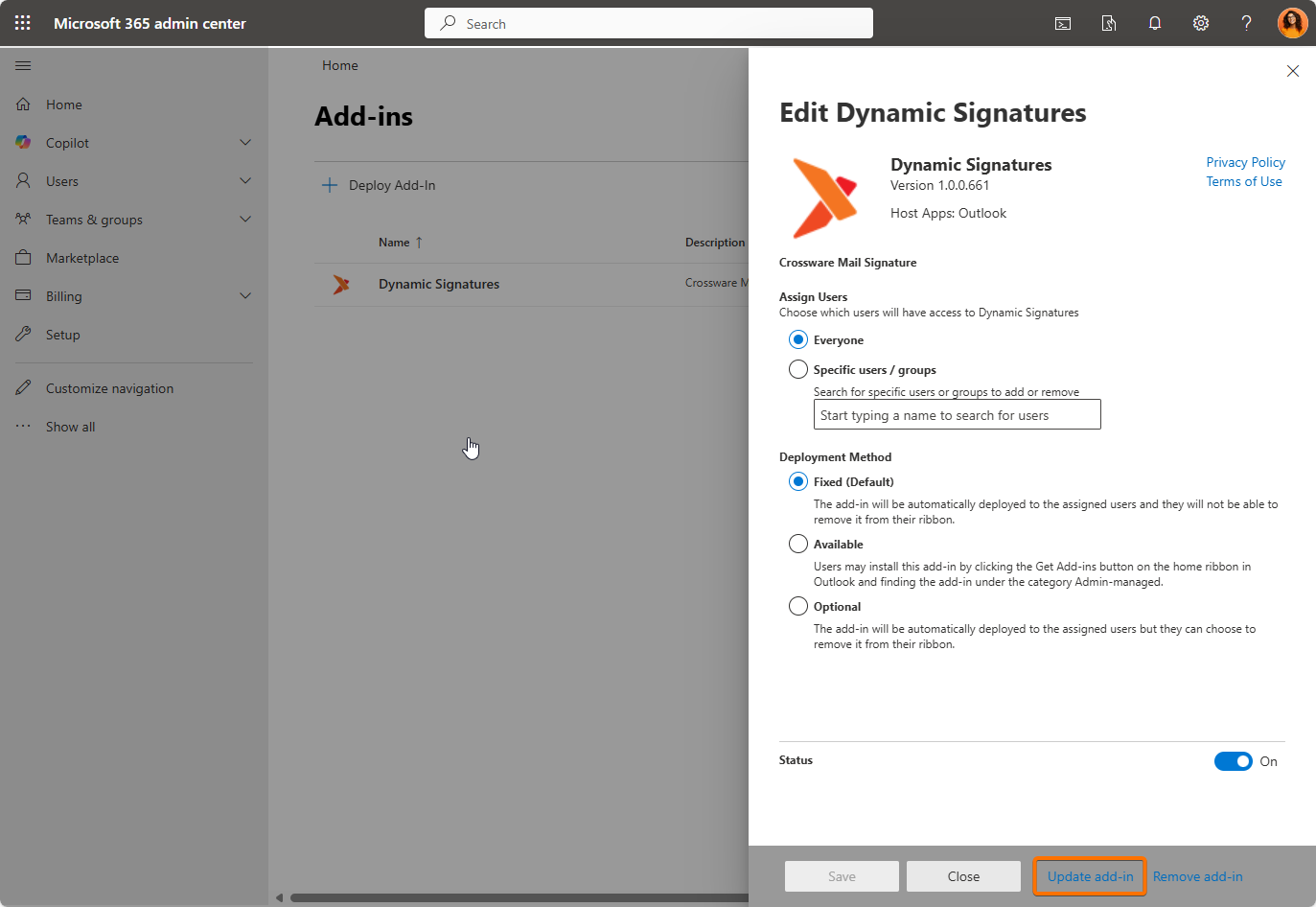
On the Add-ins page, select Dynamic Signatures. If this is not yet deployed, see here. Then select Update add-in.
-
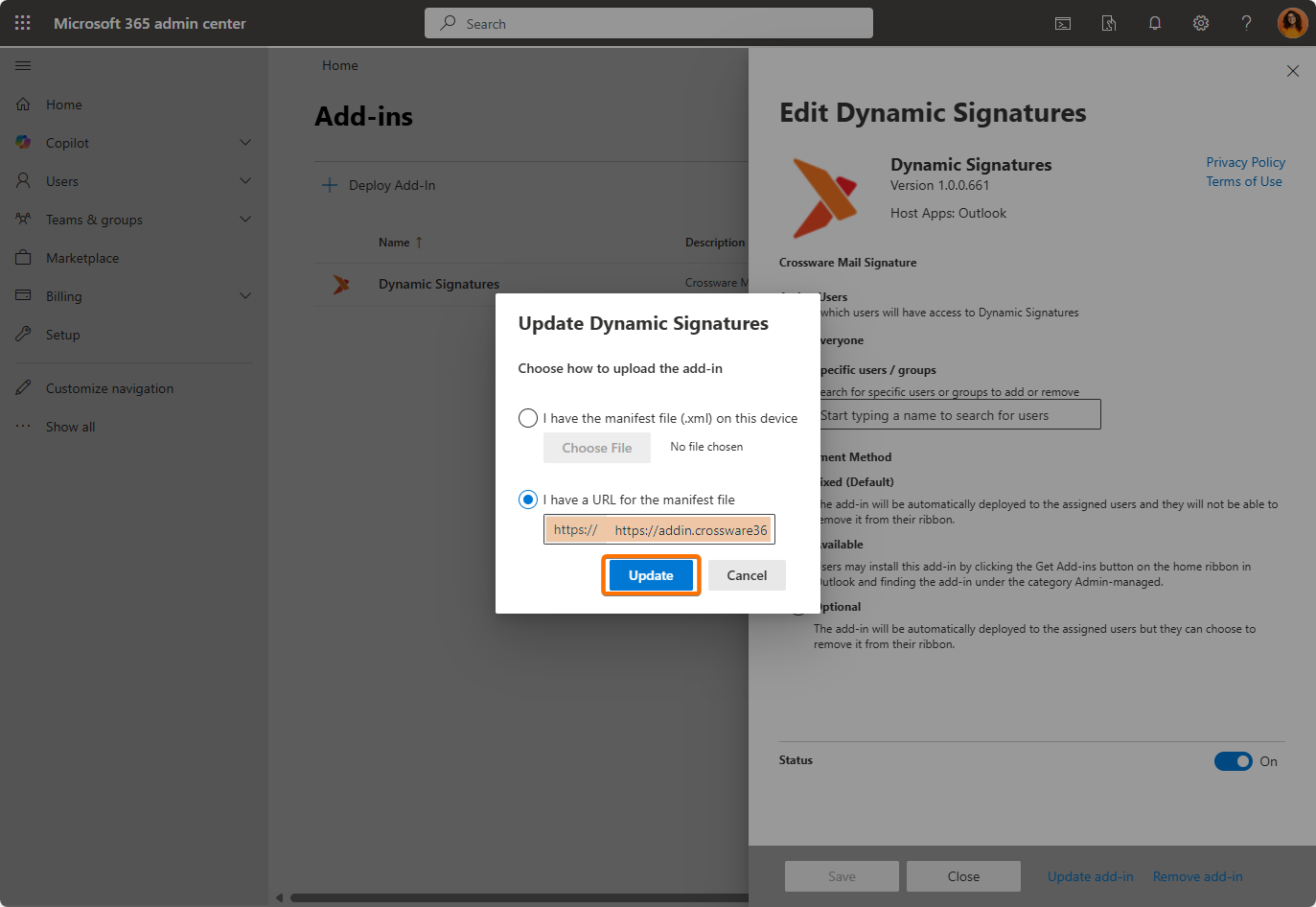
Paste in the manifest:
https://addin.crossware365.com/assets/manifest.xmland click Update add-in.
Note: Microsoft states that it may take up to 72 hours for your add-in to be deployed.
-
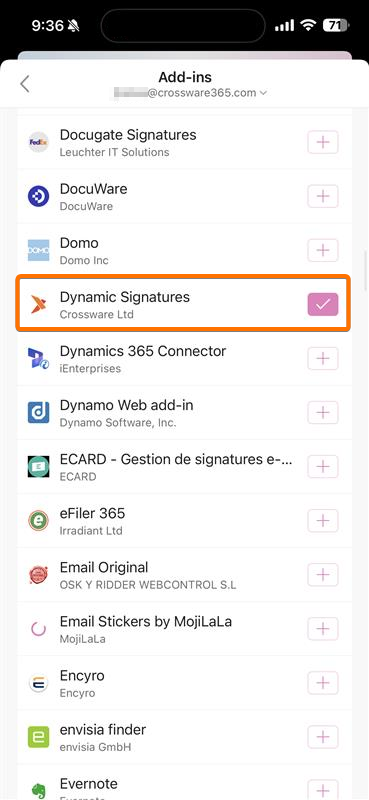
On Outlook for Mobile, go to Settings > Add-ins, ensure you are using the correct account in the dropdown, and make sure the Dynamic Signatures add-in is selected.
Enable Auto-Insert for Mobile
-
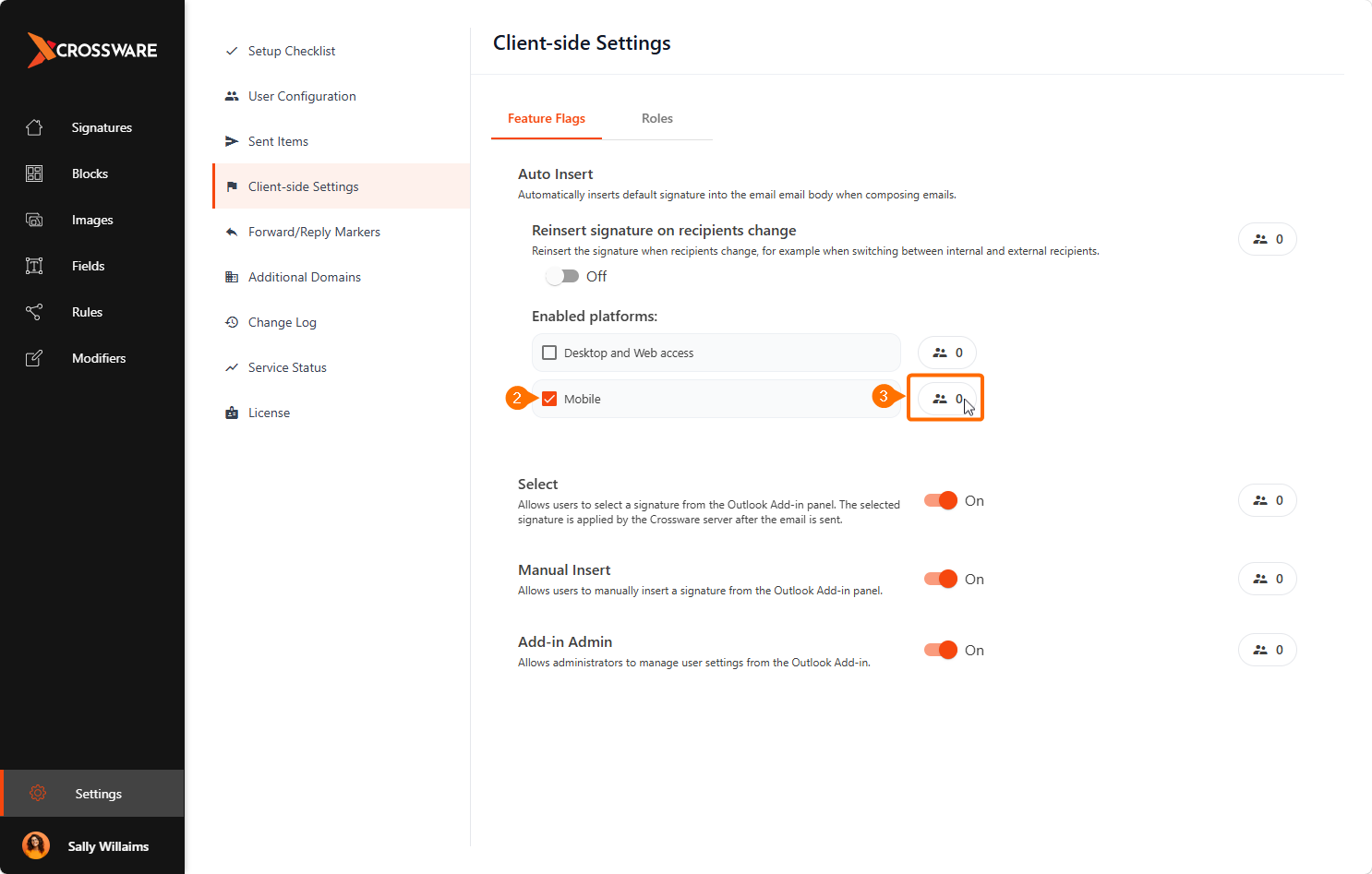
In the Crossware Portal, go to Settings > Client-side Settings.
-
Under Enabled platforms, tick Mobile to enable for mobile devices.
-
Click Users/Roles and choose who the setting applies to:
-
Enable all users - Enables the feature for all users.
-
Roles only - Enables the feature only for selected roles.
-
Notes
-
When composing an email, your default signature will be automatically inserted once the steps above are complete.
-
There are some limitations with Microsoft’s mobile add-ins:
-
Mobile does not support the Dynamic Signatures Panel. it will insert only your default signature.
-
In collapsed reply views, your signature may not be fully visible (it will show properly if expanded to full screen).
-