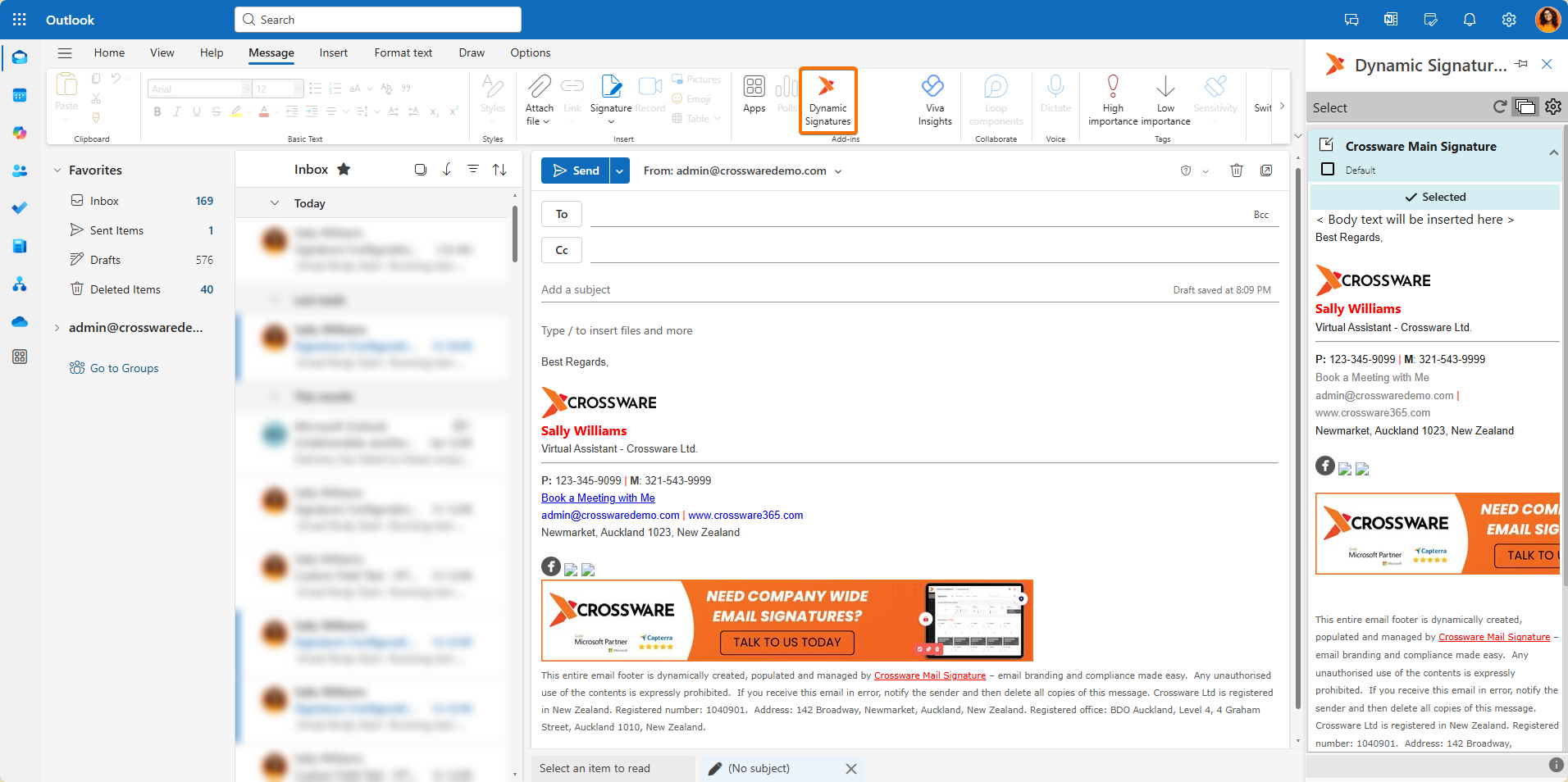
Dynamic Signatures is an Outlook Web add-in that enables users to preview and insert email signatures directly within the Outlook for Windows, Mac, Outlook on the web (OWA), iOS & Android.
Prerequisites
-
Supported platforms:
-
OWA: All features supported
-
Outlook (Monthly Channel) + Modern Authentication enabled for your tenant
-
Note: Error 13003 indicates Modern Auth is not enabled
-
-
-
Not supported on Windows 7
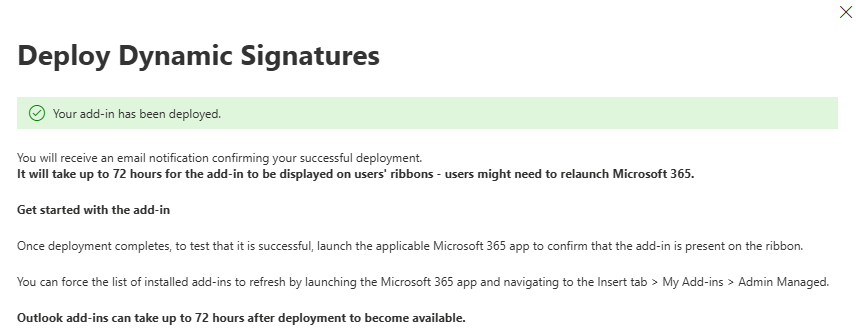
Outlook add-ins can take up to 72 hours after deployment to become available. This propagation is managed by Microsoft.
Auto Insert Minimum Requirements
-
Windows: Windows 10 1903+ or Windows Server 2019 1903+
-
Office:
-
Microsoft 365 subscription
-
Retail perpetual Office 2016+
-
Standalone Outlook (volume-licensed) not supported (API set 1.10 required; only 1.9 available)
-
-
Mac: New Outlook UI only
-
OWA: Modern version only (classic not supported)
Deploy the Add-in
-
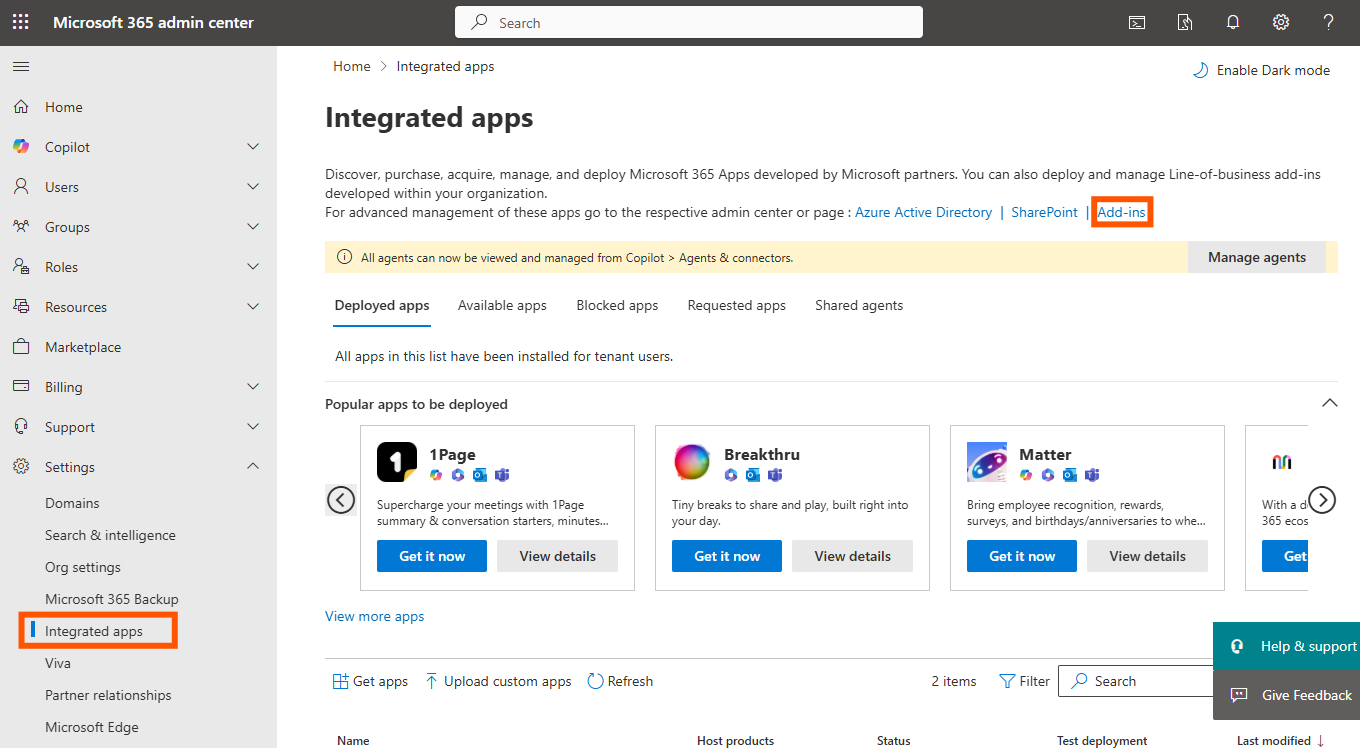
To access the Microsoft 365 admin center, sign in and navigate to Settings > Integrated apps. From there, click on Add-ins.
-
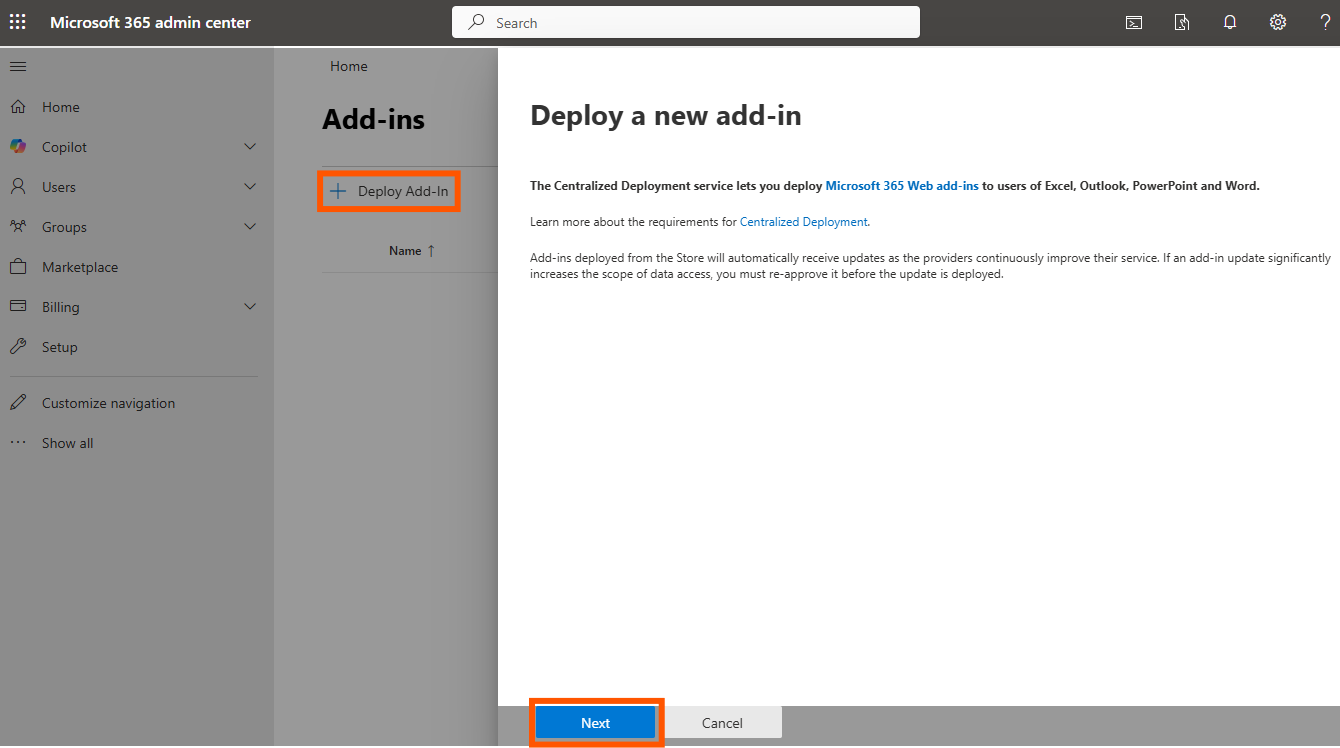
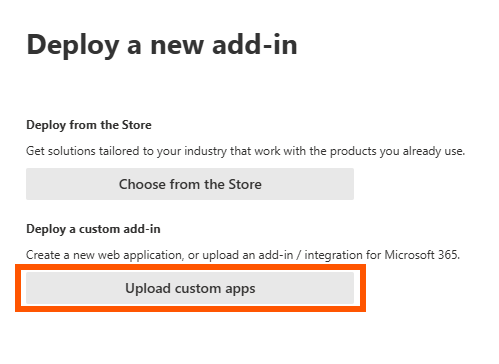
In the new popup, choose Deploy Add-In and then click Next. After that, select Upload custom apps.
-
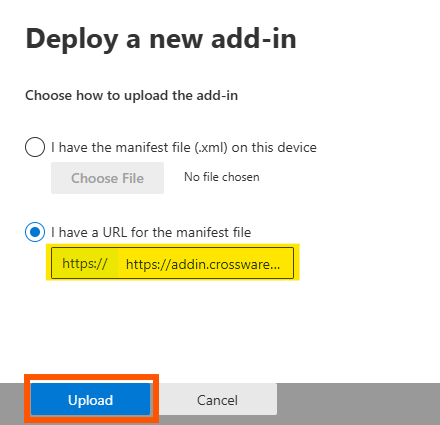
Enter the manifest URL:
https://addin.crossware365.com/assets/manifest.xmland Click Upload.
Ensure https:// is included, as it’s required for validation
-
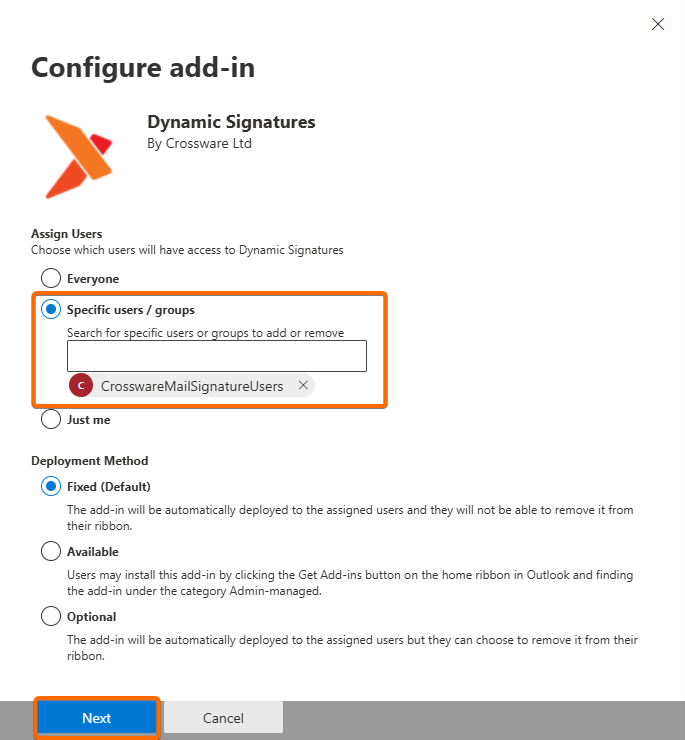
Select the target users (e.g. the whole organization or selected users/groups) and click Next.
We recommend selecting the CrosswareMailSignatureUsers group when configuring the add-in under the Specific users/groups deployment option. This ensures the add-in is deployed only to the intended users.
-
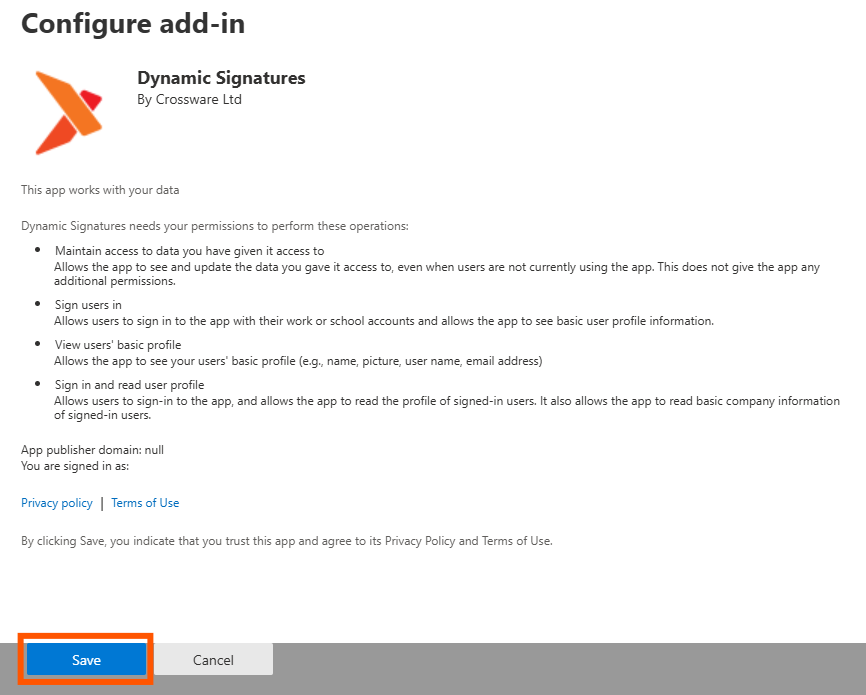
Click Save.
-
The add-in is now deployed to the selected users in your Microsoft 365 Tenant.
Using the Add-in
-
In OWA and Outlook desktop, users will see the add-in button when composing a new email.
-
They can pin the add-in, so the Dynamic Signature pane opens automatically for each new message