
The Sent Items feature in Crossware Email Signature make sure the server-side signatures applied by Crossware also appear in users’ Sent Items, allowing users to review and see exactly what recipients receive.
Prerequisites
-
Crossware Email Signature must already be set up in your Microsoft 365 tenant.
-
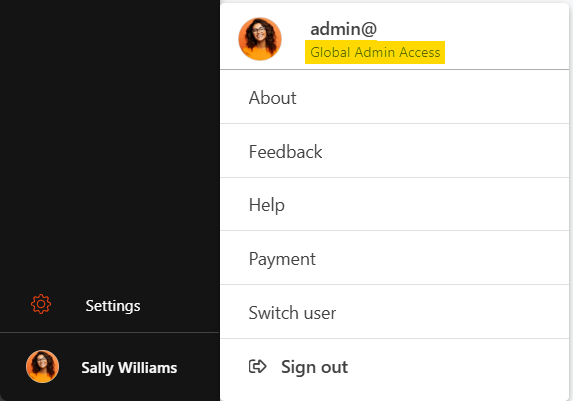
You must be logged into the Crossware Portal with Global Admin rights for your Microsoft 365 tenant.
-
Access to the Azure portal (Microsoft Entra ID) to grant necessary permissions.
Activate the Sent Items Feature
-
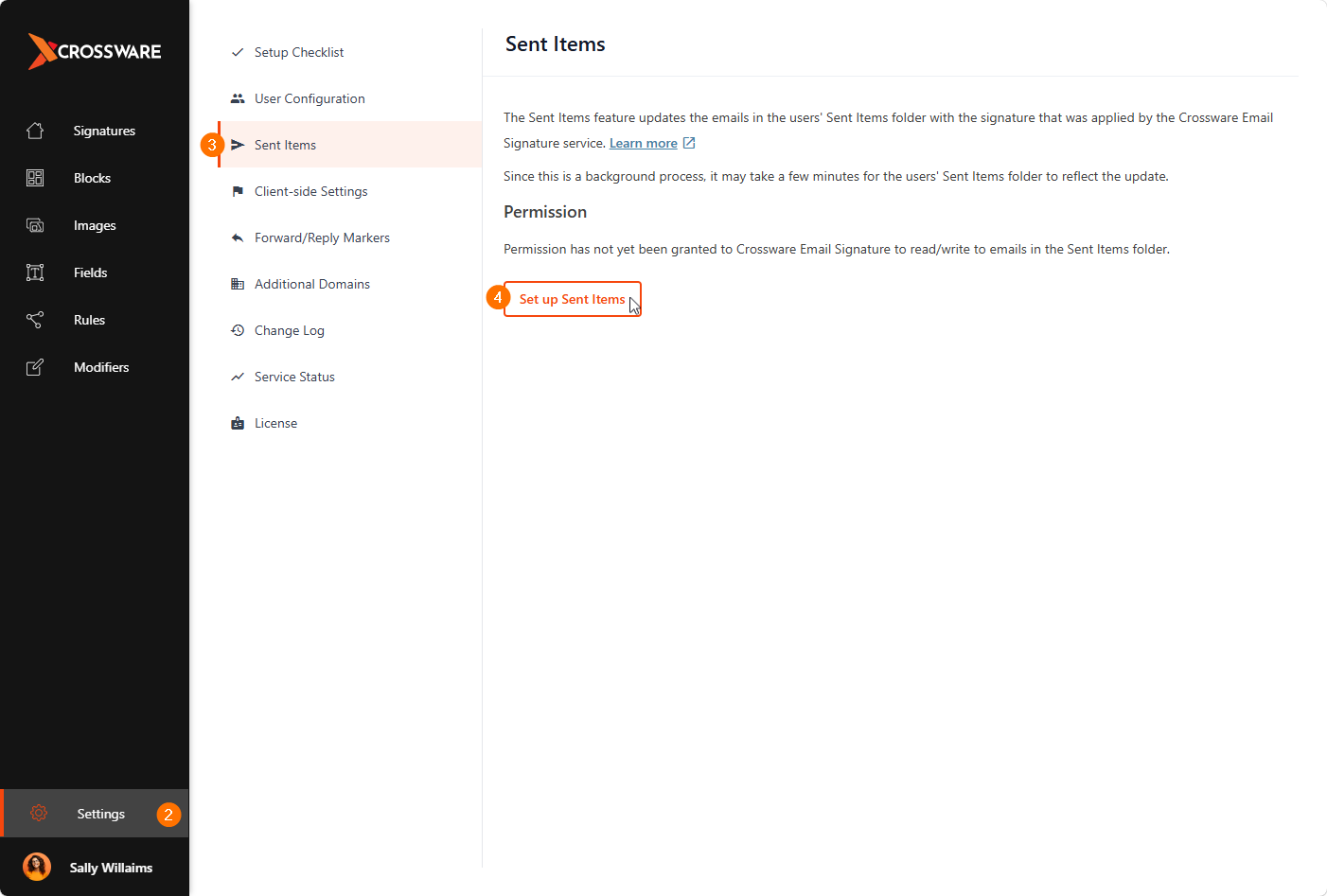
Sign in to the Crossware Portal using a Global Administrator account.
-
Navigate to Settings.
-
Select Sent Items.
-
Click Set up Sent Items.
-
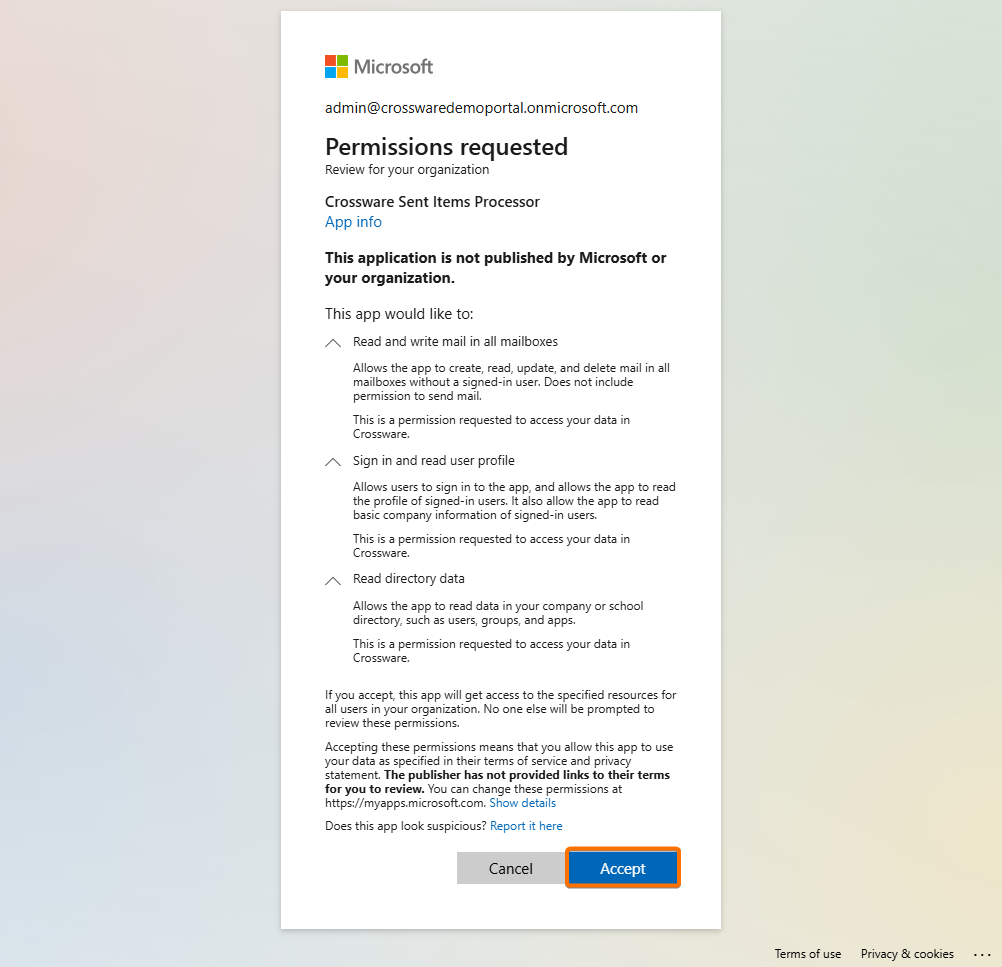
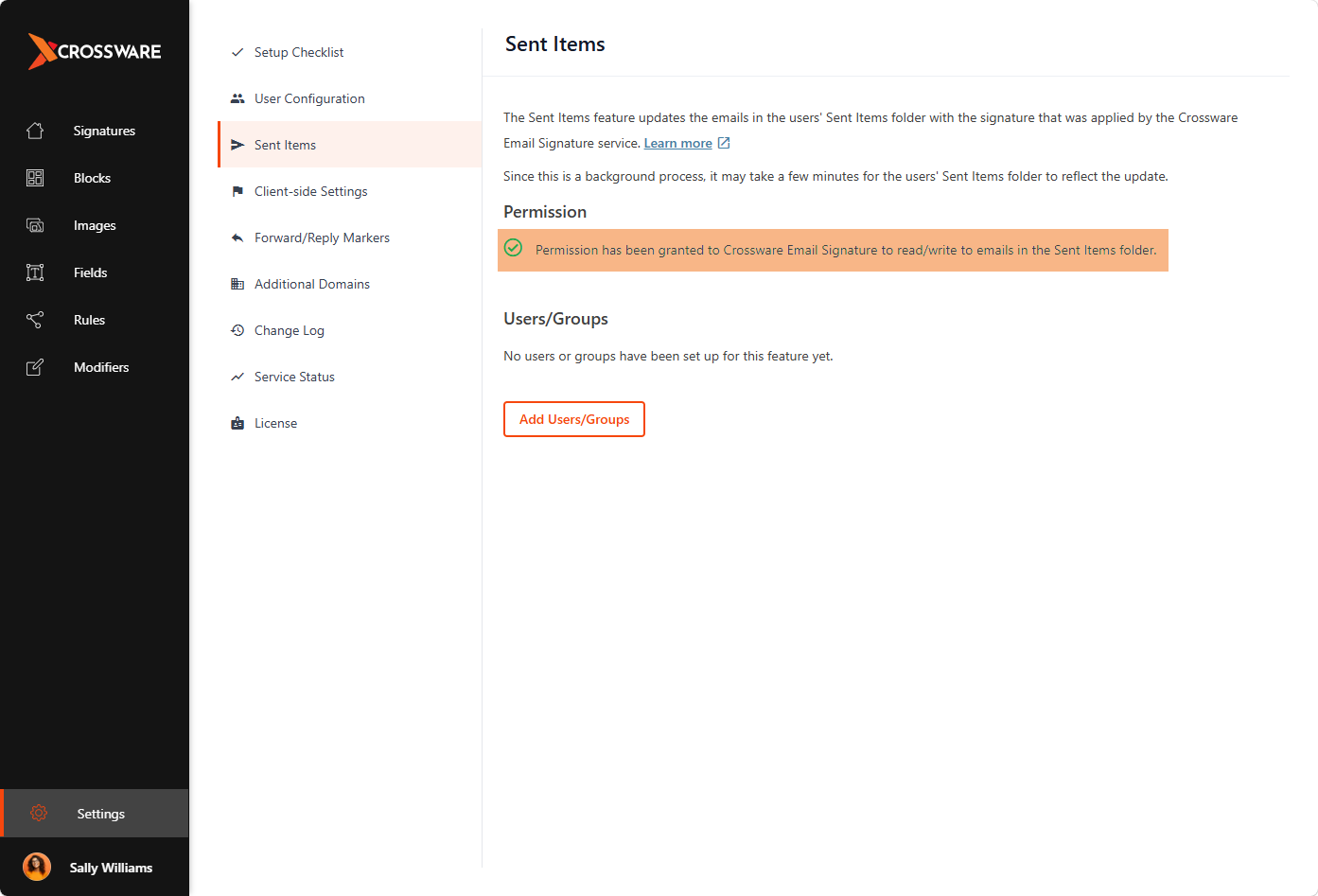
Sign in to Microsoft 365 with Global Administrator credentials to grant consent for the required permissions: Read and write mail in all mailboxes and Sign in and read user profile.
Assign Users and Groups
-
On the Sent Items page, click Add Users/Groups.
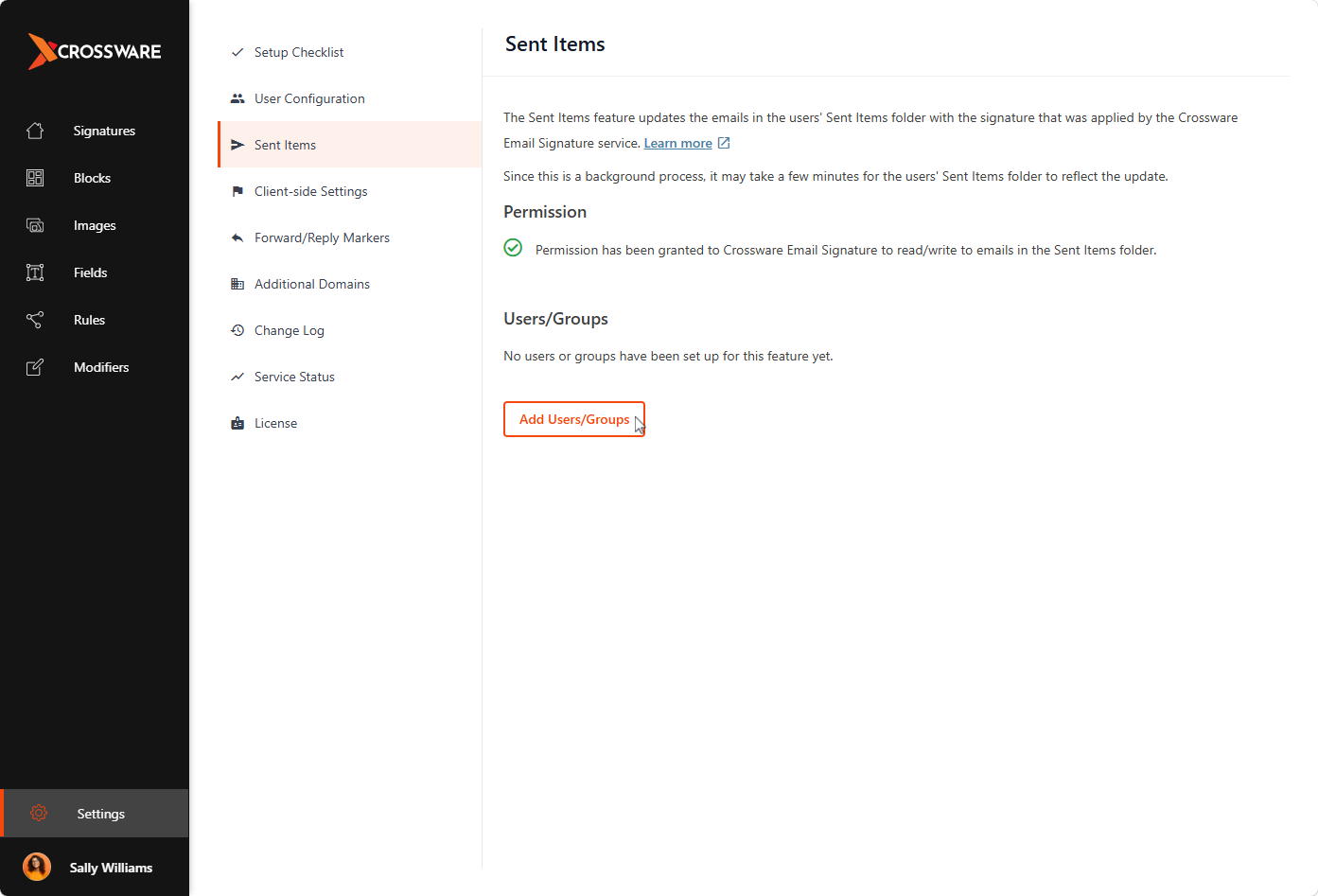
-
Select Groups or Users.
-
Search for and select the required user or group from your Microsoft 365 directory.
-
Click Add Group or Add User.
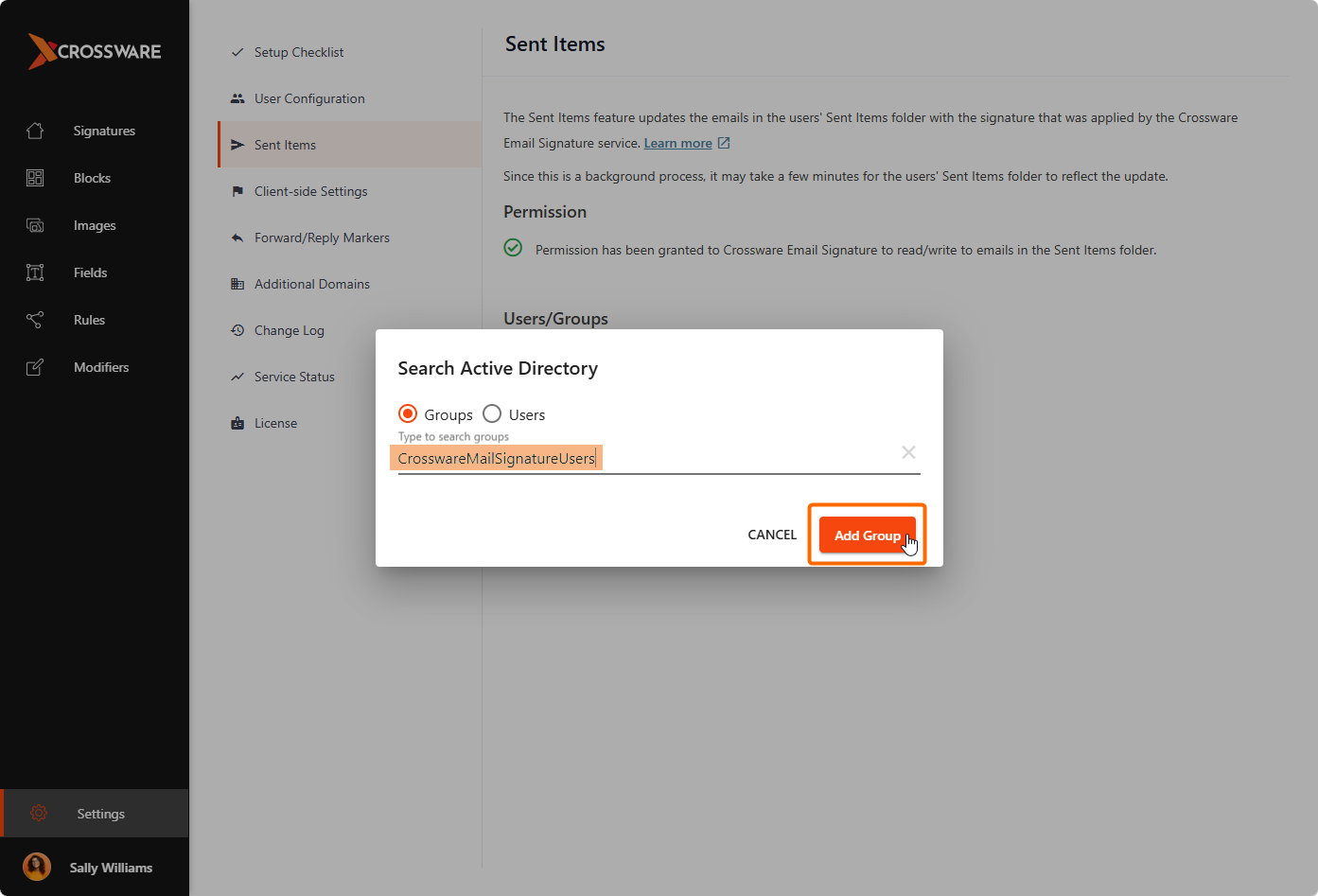
Remove Users or Groups
-
Select the checkbox next to the user or group you want to remove.
-
Click Remove.
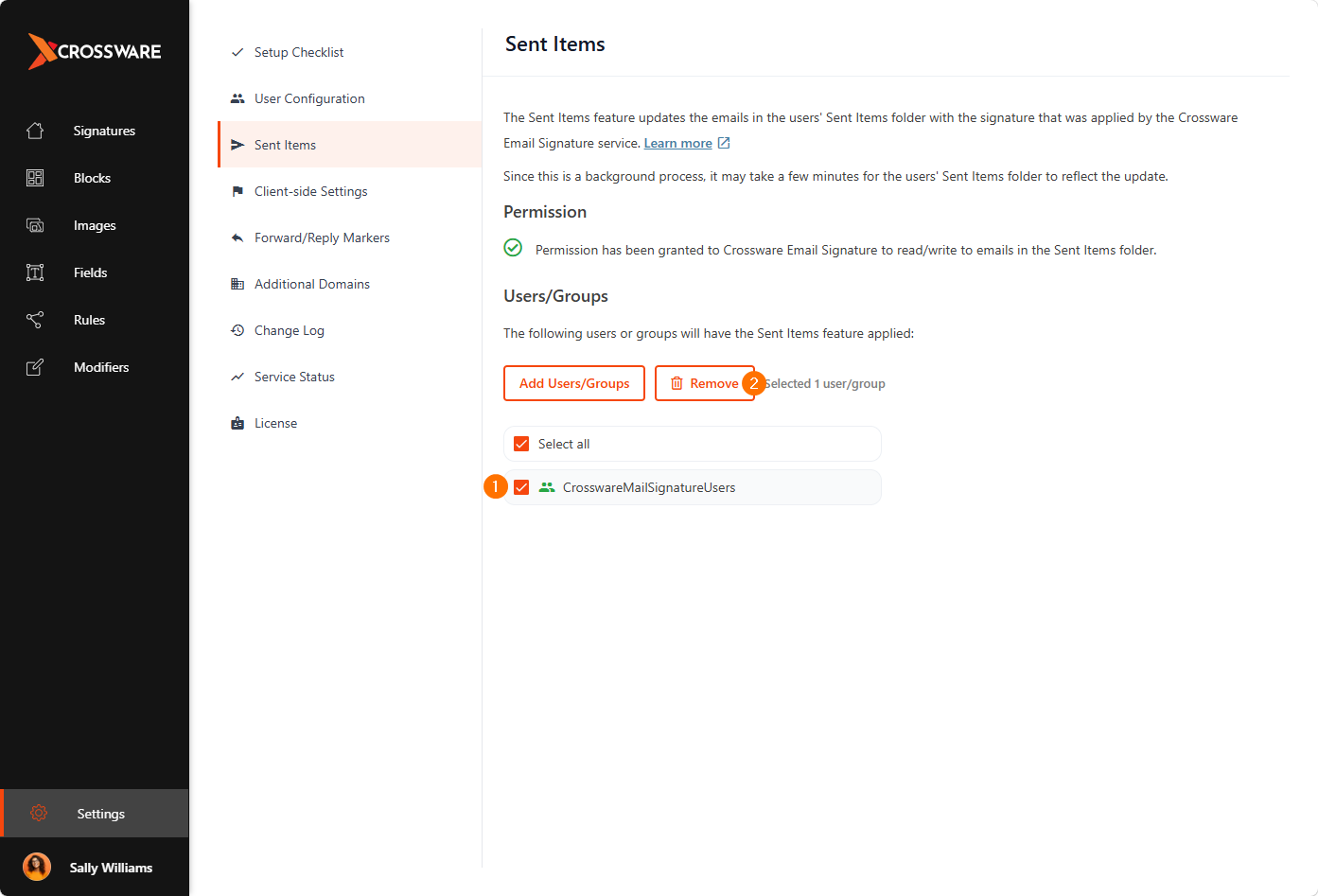
The Sent Items feature is now set up. The selected users will see the correct Crossware signatures in their Sent Items folder, just as their recipients see them.