
Get Started
-
Navigate to the Crossware Free Trial page on the Crossware website.
-
Click Start Trial for Crossware for Microsoft 365.
-
Sign in using your Microsoft 365 account.
Register Your Account
-
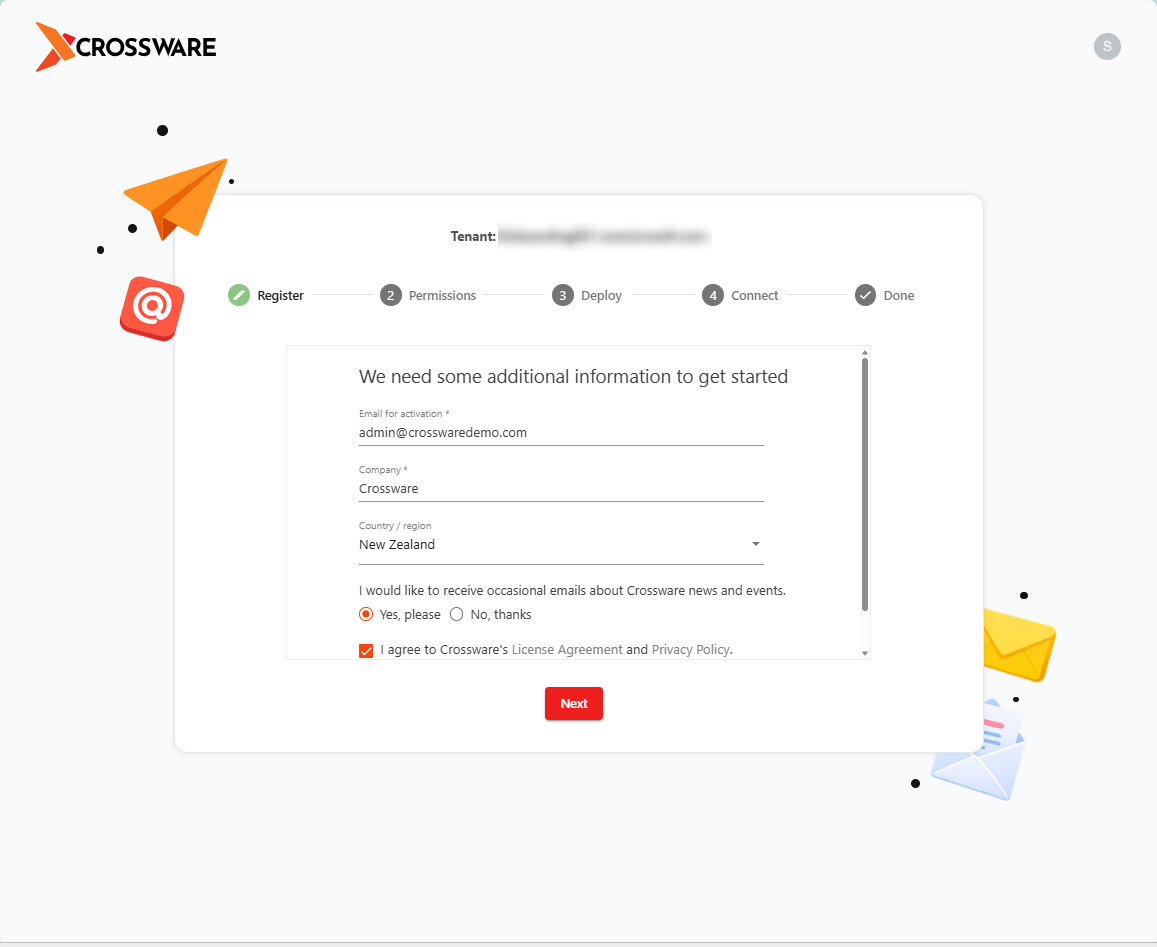
Fill in your personal and company details to register.
-
Choose your country.
-
Click Register to create your account.
Grant Permissions
-
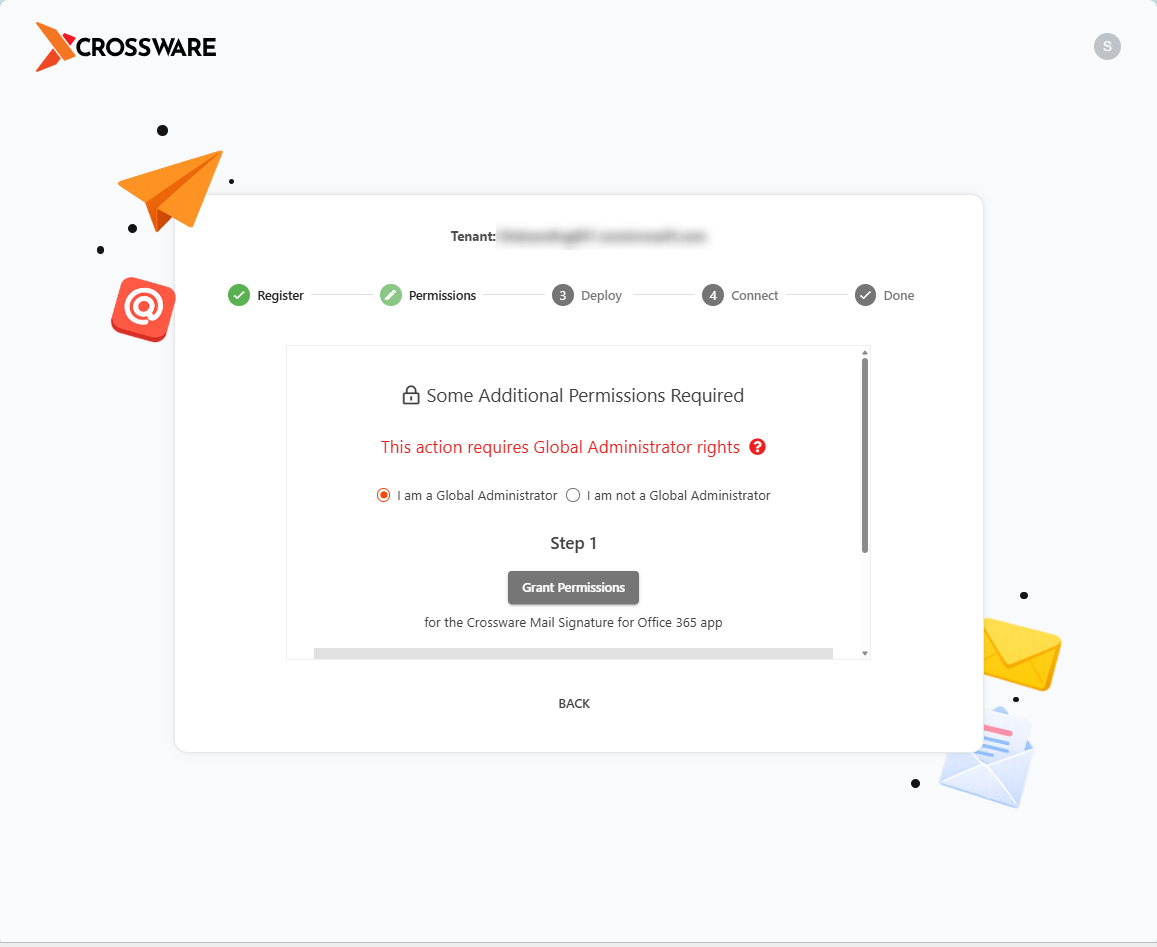
If you are not the Global Administrator of your Microsoft 365 tenant:
-
You will need to ask your Global Admin to grant the required permissions.
-
-
If you are the Global Administrator:
-
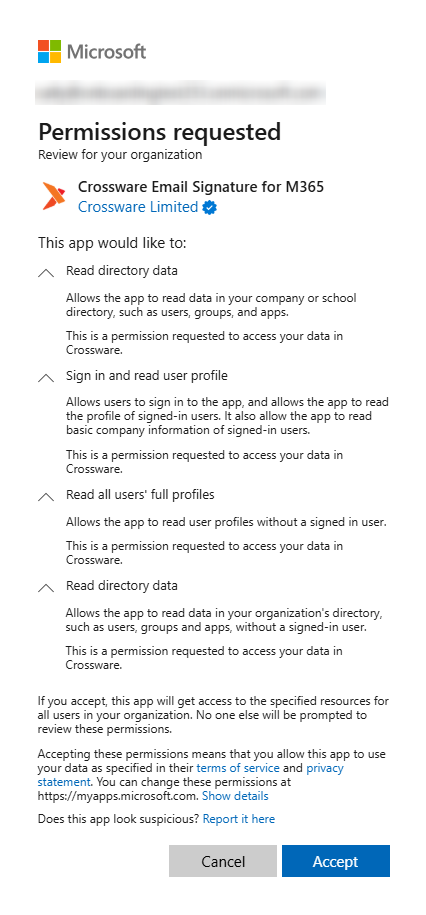
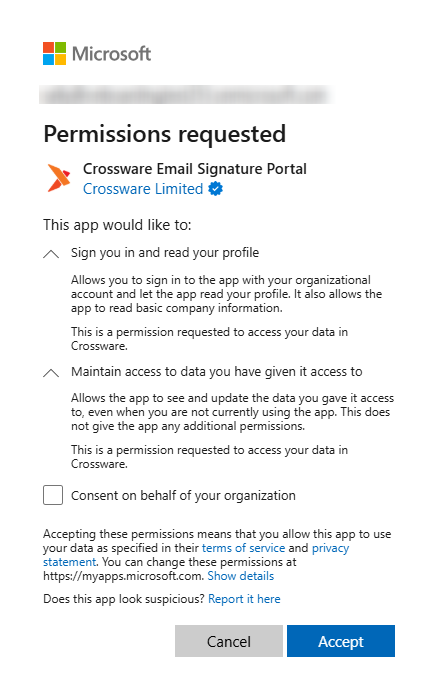
Grant the requested permissions (Step 1 & Step 2) to allow Crossware to access your Azure AD.
-
These permissions let Crossware access your Azure Entra ID and manage signature configuration.
-
|
|
Deploy and Activate
-
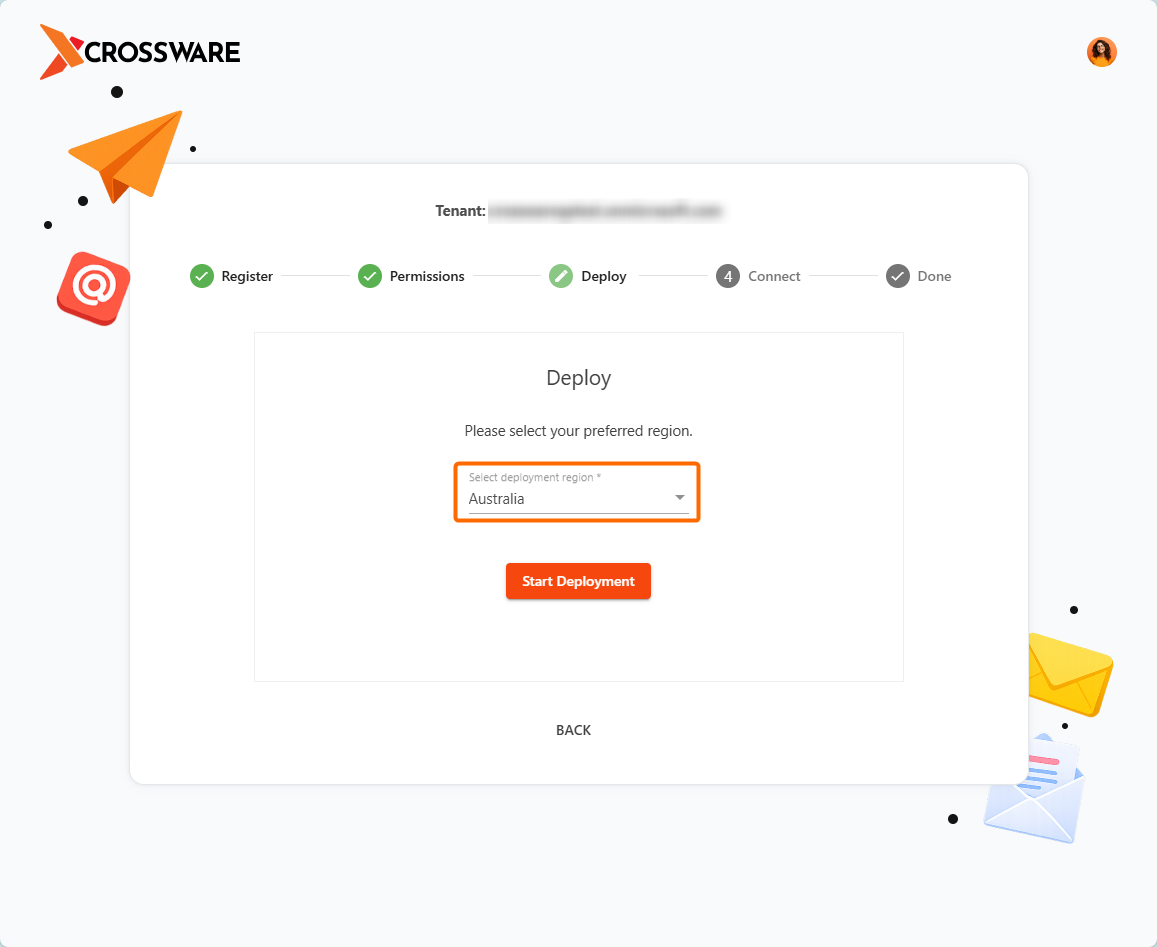
Choose the region where your Crossware tenant will be deployed.
-
Start the deployment.
-
Once deployed, if you are not Global Admin, ask your Global Admin to set up the necessary Microsoft 365 connectors. If you are Global Admin, you can create those connectors yourself using Crossware’s instructions.
Complete Setup
-
After the connectors are in place and everything is authorised, click Continue in the dashboard to finish the setup.
-
Your Crossware dashboard will now load, showing options to:
-
Create your first Signature
-
Upload Images (e.g., logos)
-
Configure Signature Assignment to apply signatures to users or groups
-
Trial Details
-
Your account is provisioned with a free 30-day trial.
-
During the trial, you can:
-
Test all Crossware features
-
Create signatures and assign them to groups or users
-