
Formula field allow you to extend the basic Active Directory (AD) lookup functions by writing a C# script. This script can manipulate data at runtime and return a string based on your logic.
What Formula Fields Can Do
Formula fields provide flexibility beyond standard AD lookups. For example, you can use them to:
-
Add conditions – e.g. only show a label if the user's AD field contains data.
-
Format values – adjust how phone numbers, job titles, or names appear in the signature.
-
Combine fields – merge values from multiple AD properties into a single output (e.g. First Name + Last Name).
-
Insert default text – display a fallback value when an AD field is empty.
-
Apply logic – create dynamic content. For example, you could display different images based on the user's department.
This makes formula fields especially useful for keeping signatures professional and consistent without requiring every AD field to be perfectly maintained.
Creating a Formula Field
-
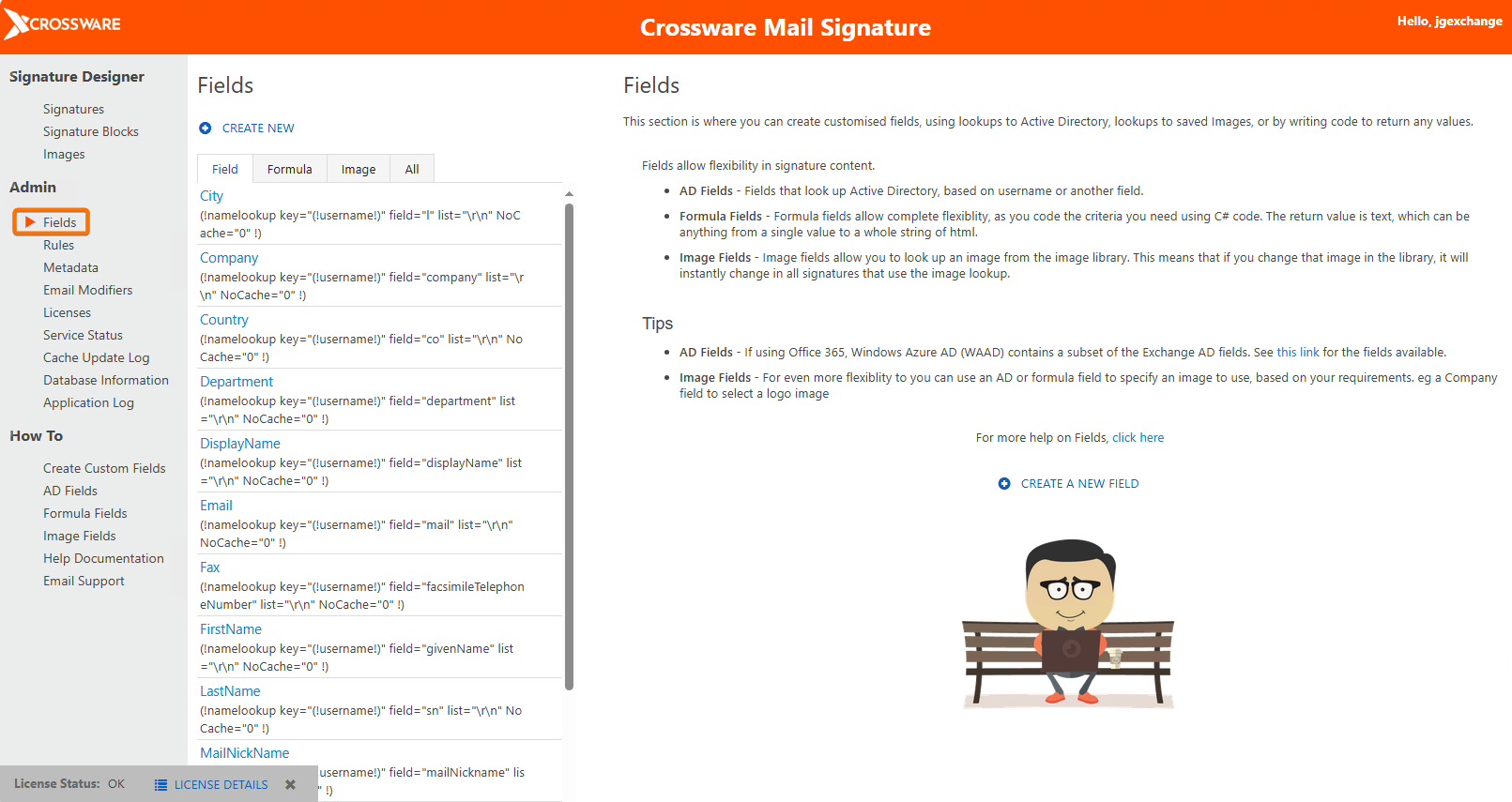
In the Admin section, click Fields.
-
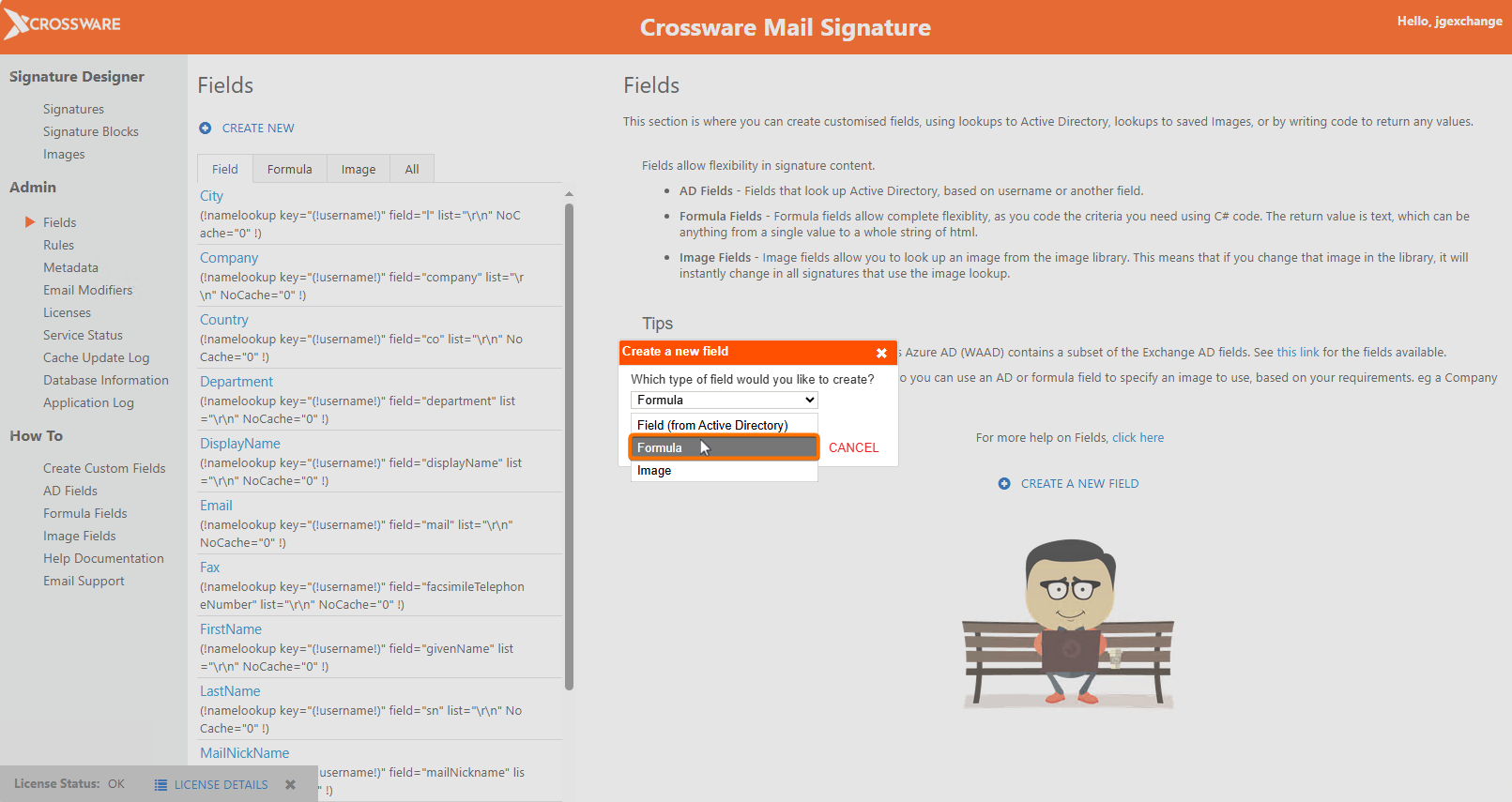
Click Create New. From the dropdown, select Formula, then click Continue.
Example Use-Case
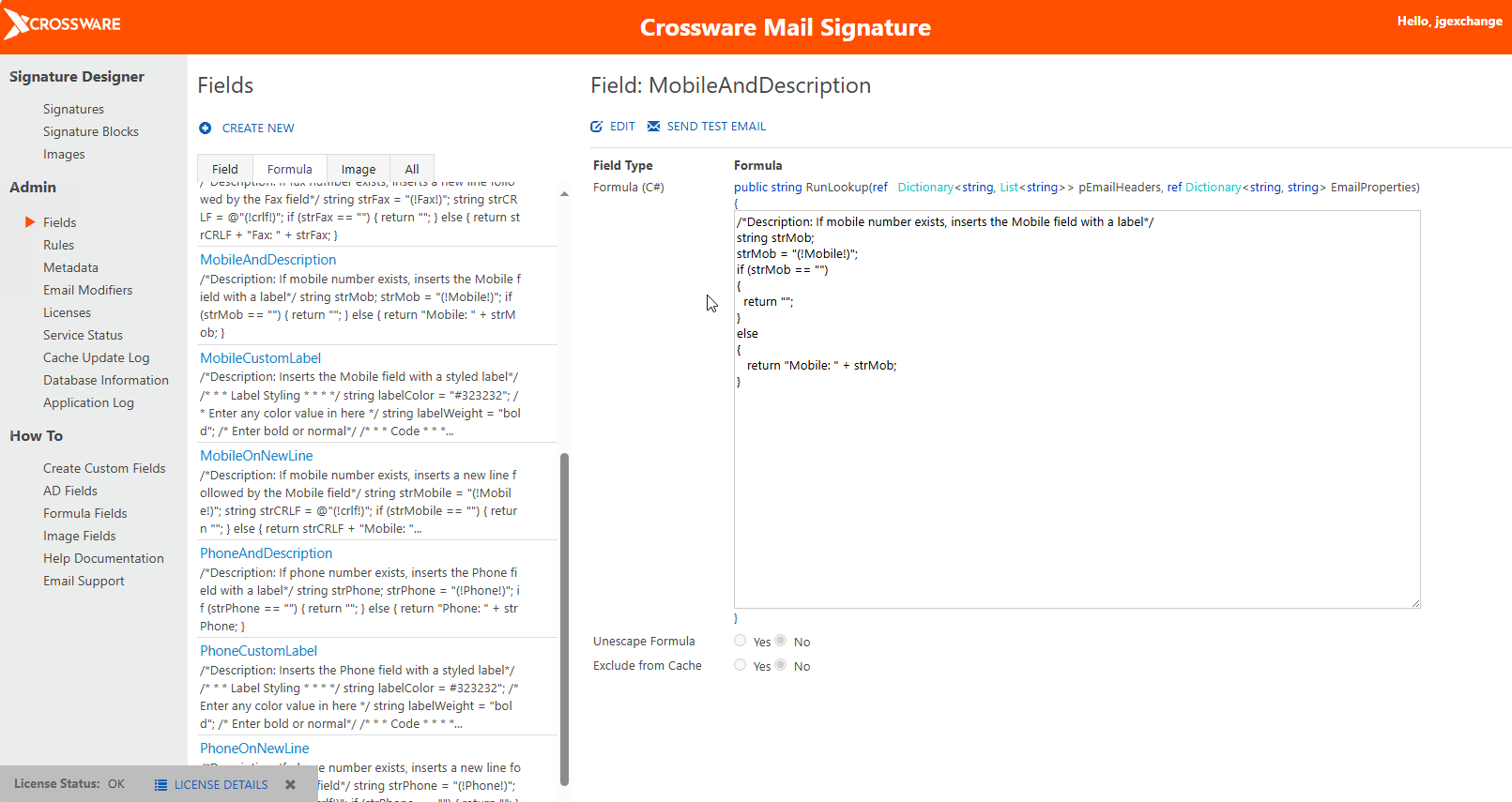
Suppose you want to display a user's mobile number in the signature with a label, but only if that data exists in AD. If the mobile field is empty, the signature should omit the label and not leave awkward blank spaces.
Key Elements
|
Element |
Description |
|---|---|
|
Lookup Name |
Must be unique. This name appears in the list of available lookups when configuring signatures or signature blocks. |
|
Formula (C#) |
The script you author here is executed at runtime. It reads AD properties, applies logic (such as testing if a field is empty), then returns a string. |