
Overview
AD Fields allow you to retrieve and use data stored in your Windows Azure Active Directory (WAAD). These fields enable dynamic personalization of your email signatures based on user attributes, such as name, title, department, or other directory information.
Understanding the AD Field Components
Each AD Field configuration includes several key components that determine how data is retrieved and displayed.
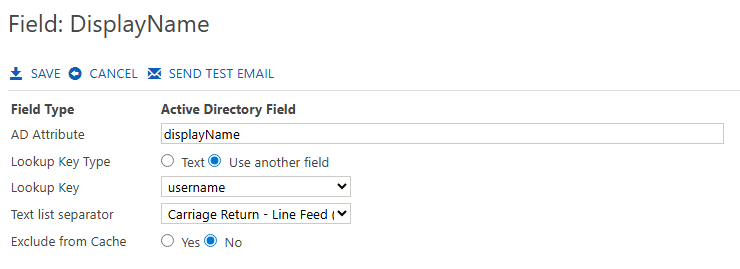
Field Name
The Field Name is the internal identifier used within Crossware Email Signature.
Example: DisplayName
This name is referenced when inserting the field into a signature design.
Field Type
The Field Type is set automatically when creating a new field. The available types are:
-
Field (from Active Directory) – Pulls data directly from Azure AD attributes.
-
Formula – Uses a formula or conditional logic to generate dynamic content.
-
Image – Inserts an image or logo dynamically.
AD Attribute
The AD Attribute defines which WAAD property to retrieve.
Example: displayName
This should match the exact attribute name in your directory (e.g., givenName, mail, jobTitle).
Lookup Key Type
The Lookup Key Type determines how Crossware identifies the specific record in Azure AD. There are two options:
-
Text – Uses a static text value as the lookup key.
-
Use another field – References another field’s lookup value (commonly
(!username!)).
Use Another Field
If Use another field is selected as the Lookup Key Type, you must choose which preconfigured lookup to use.
This is typically the (!username!) field, which links to the user's Azure AD username.
Lookup Key
The Lookup Key is the actual value used to perform the directory lookup.
It can be either the static text you entered or a value derived from another field.
Text List Separator
When the data retrieved from Azure AD is a list (e.g., multiple email addresses or group memberships), you can specify a Text List Separator to format how those values are displayed.
Examples:
-
Comma (
,) -
Semicolon (
;) -
Carriage Return (
↵)
Exclude from Caching
Normally, all look ups are cached in memory during the lifetime of the email. Enabling this setting will stop this caching. This is useful if the returned data is dependant of the mail format, e.g. the email contains both a plain text and a html component.