
Image fields allow you to insert custom images such as company logos, banners or social media icons directly into email signatures. Images are stored online in the Image Library and added in-line (not as attachments), ensuring they appear professional and consistent.
Components of an Image Field
-
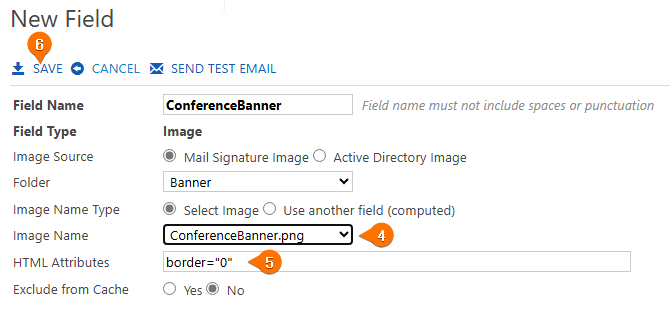
Field Name – A unique name that appears when creating a signature or signature block.
-
Field Type – Automatically set when creating a new field (Active Directory, Formula or Image).
-
Image Source – Select from the Image Library or from a directory field (WAAD/AD).
-
Folder – Choose the folder in which the image is stored.
-
Image Name – Enter the image name with the correct file extension. The name must match exactly between the Image Library and the field.
-
Image HTML Attributes – Optional attributes such as width, height or style to control how the image displays in email.

Creating Image Fields
-
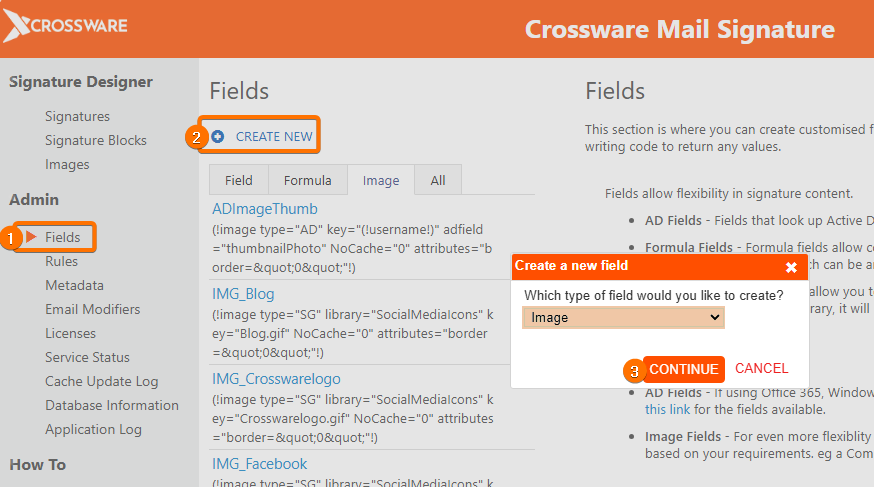
In the Admin section, click Fields.
-
Click Create New.
-
Select Image from the dropdown and click Continue.
-
Enter the details including the exact image name from the Image Library.
-
Add any HTML attributes if required.
-
Click Save.
Test the Image Field
-
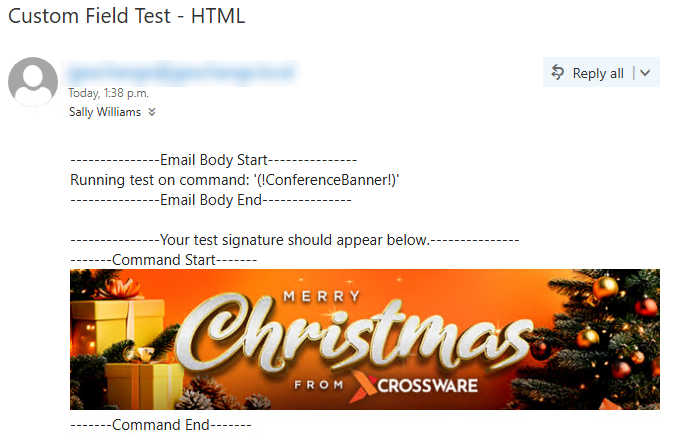
Click Send Test Email and select a recipient.
-
Verify the image displays correctly.
-
Once confirmed, the field is ready for use in your signature.
Uses of Image Fields
-
Shared Images – Reuse logos, banners or social icons across multiple signatures. Updating the image in the library updates it everywhere.
-
Employee Photos – If employee images are stored in Active Directory, they can be pulled dynamically into signatures. (Guide coming soon)
You have now successfully created and tested an Image Field.