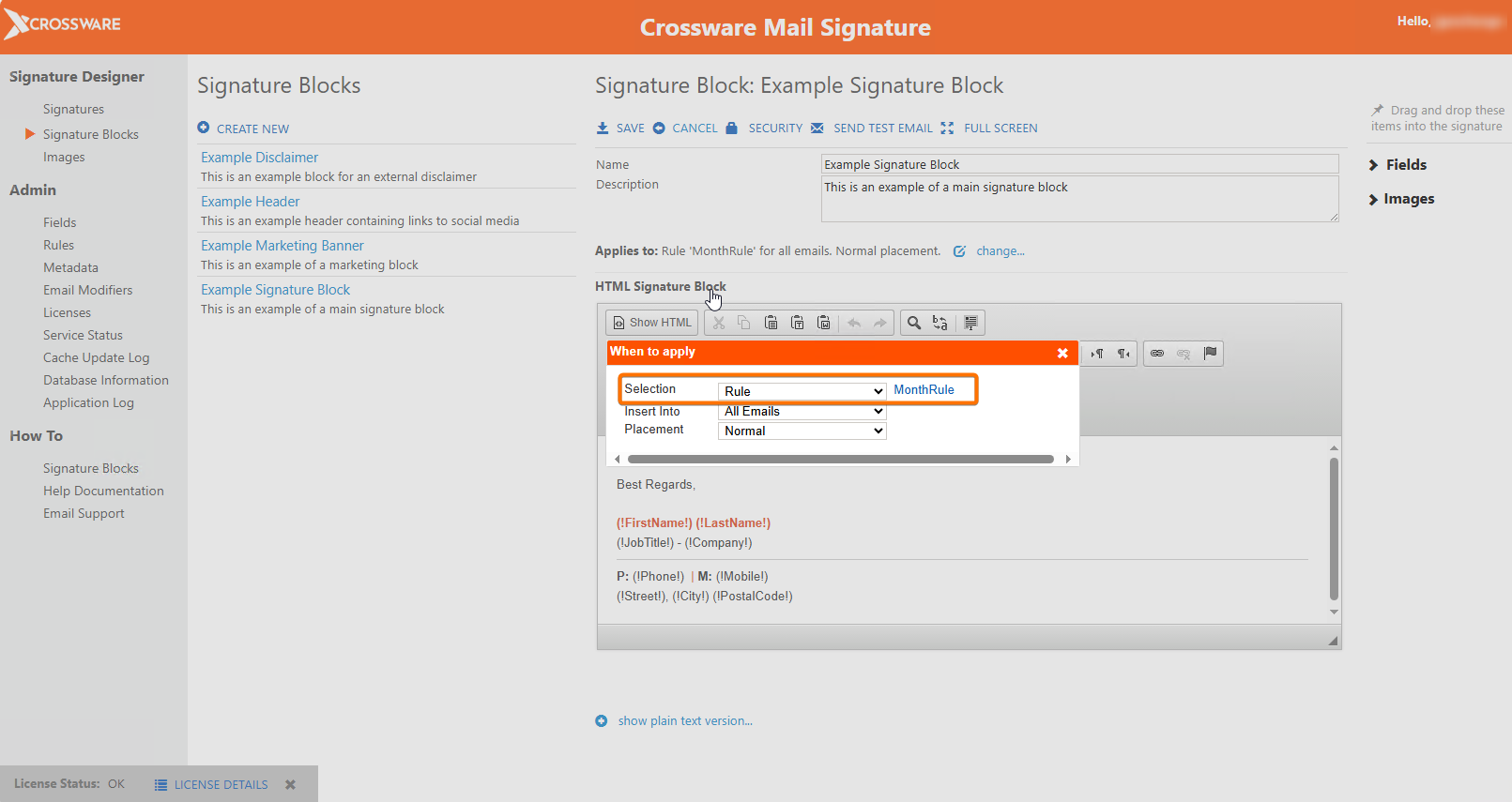
Rules are true/false decisions based on C# scripts. They allow you to define conditions that determine when a signature or signature block is applied.
Examples of Rule Use
-
Seasonal signatures – e.g. apply a Christmas banner only in December.
-
Internal vs external – show disclaimers or banners only on external emails.
-
Date-based campaigns – add an advert banner between 1–14 February.
-
Group-based signatures – apply a specific design only for members of a group, such as the Sales Team.
Creating a Rule
-
In the Admin section, open Rules.
-
Click CREATE NEW.
-
Complete the rule builder document:
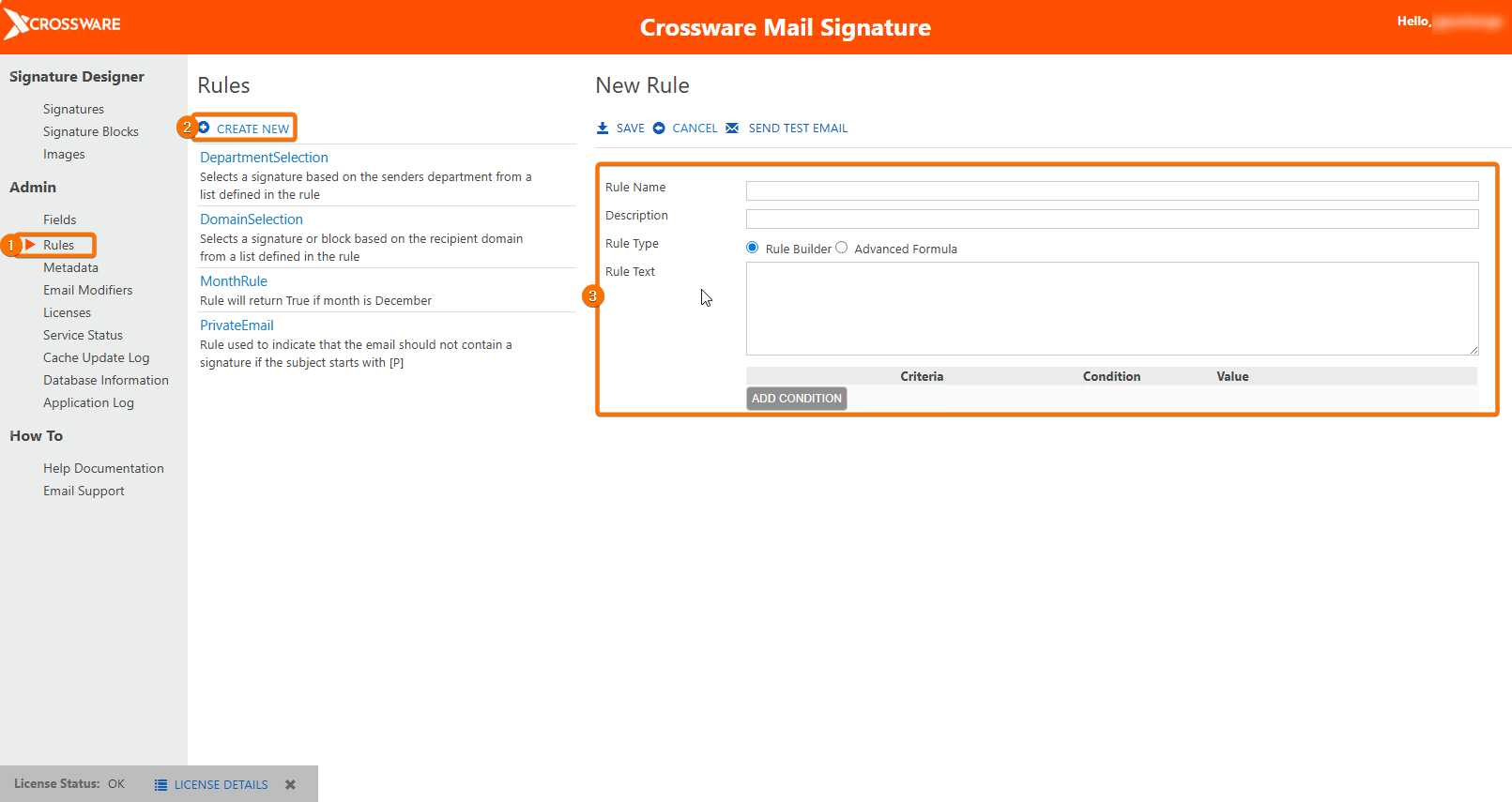
Rule Name
The name used to reference the rule in signatures, blocks, or formulas.
Description
Optional text explaining the rule’s purpose.
Rule Type
-
Rule Builder – create rules by adding conditions.
-
Advanced Formula – write your own C# script that returns true or false.
Add Condition
-
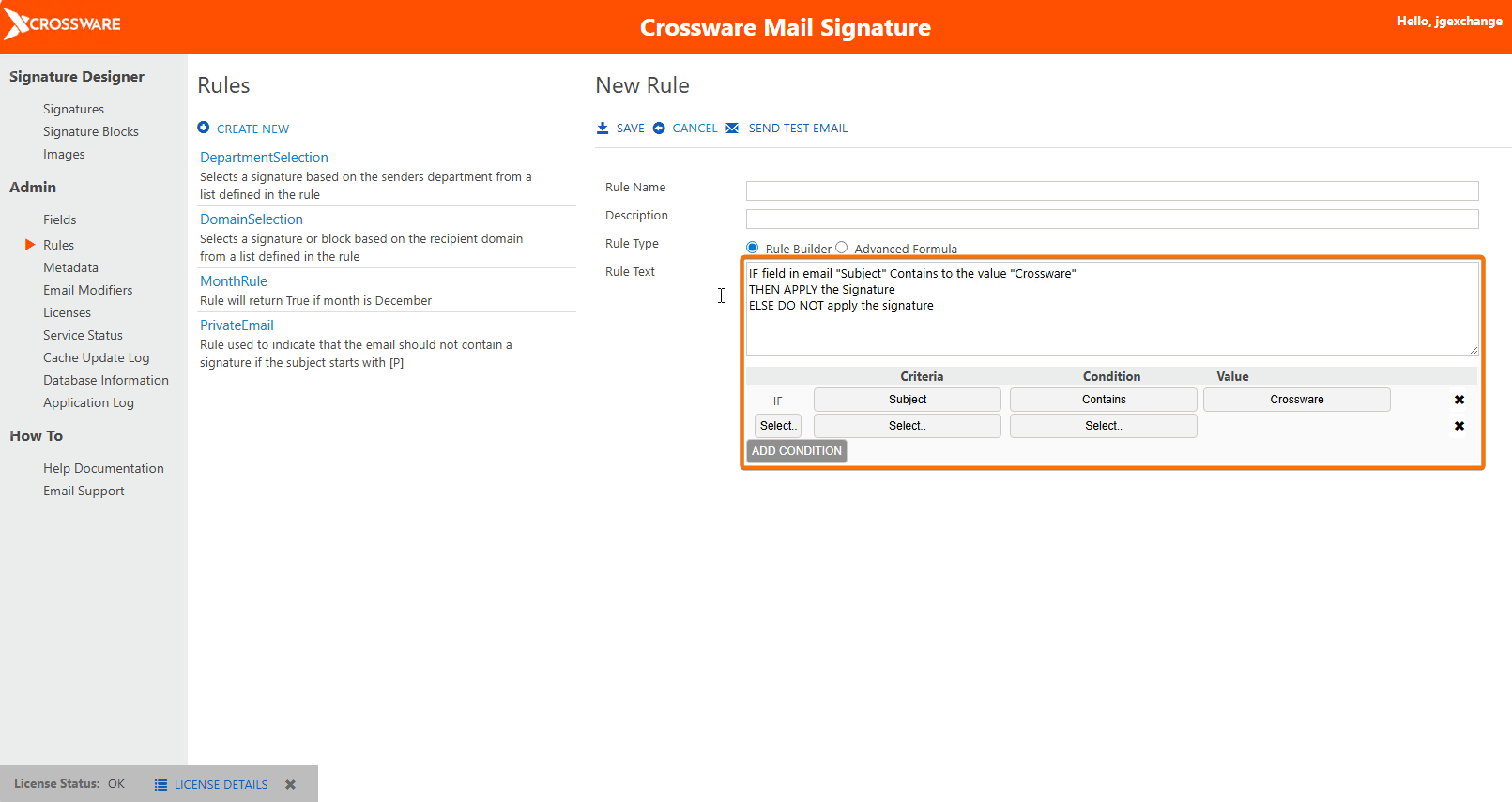
Criteria – choose an attribute (e.g. Subject).
-
Condition – set how it is matched (e.g. Contains).
-
Value – enter the value to check.
The builder generates an If Statement in the Rule Text.
Create a Copy of an Existing Rule
Copying an existing rule is useful when you want to make modifications without altering the original. Note that the new rule will not be automatically applied to any Signatures or Signature Blocks.
-
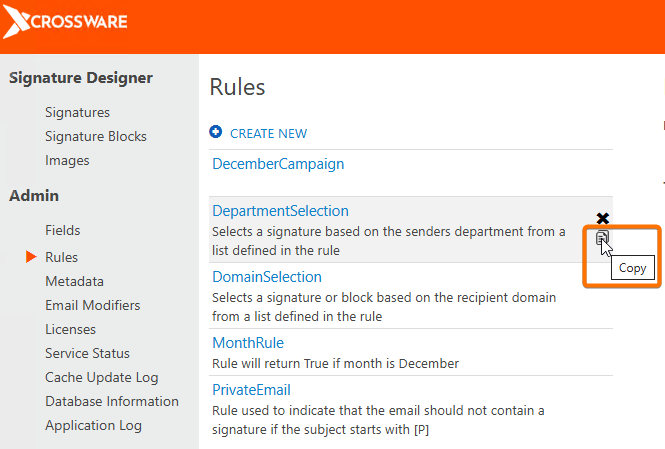
In the Admin section, open Rules.
-
Hover your cursor over that rule and click the copy icon.
-
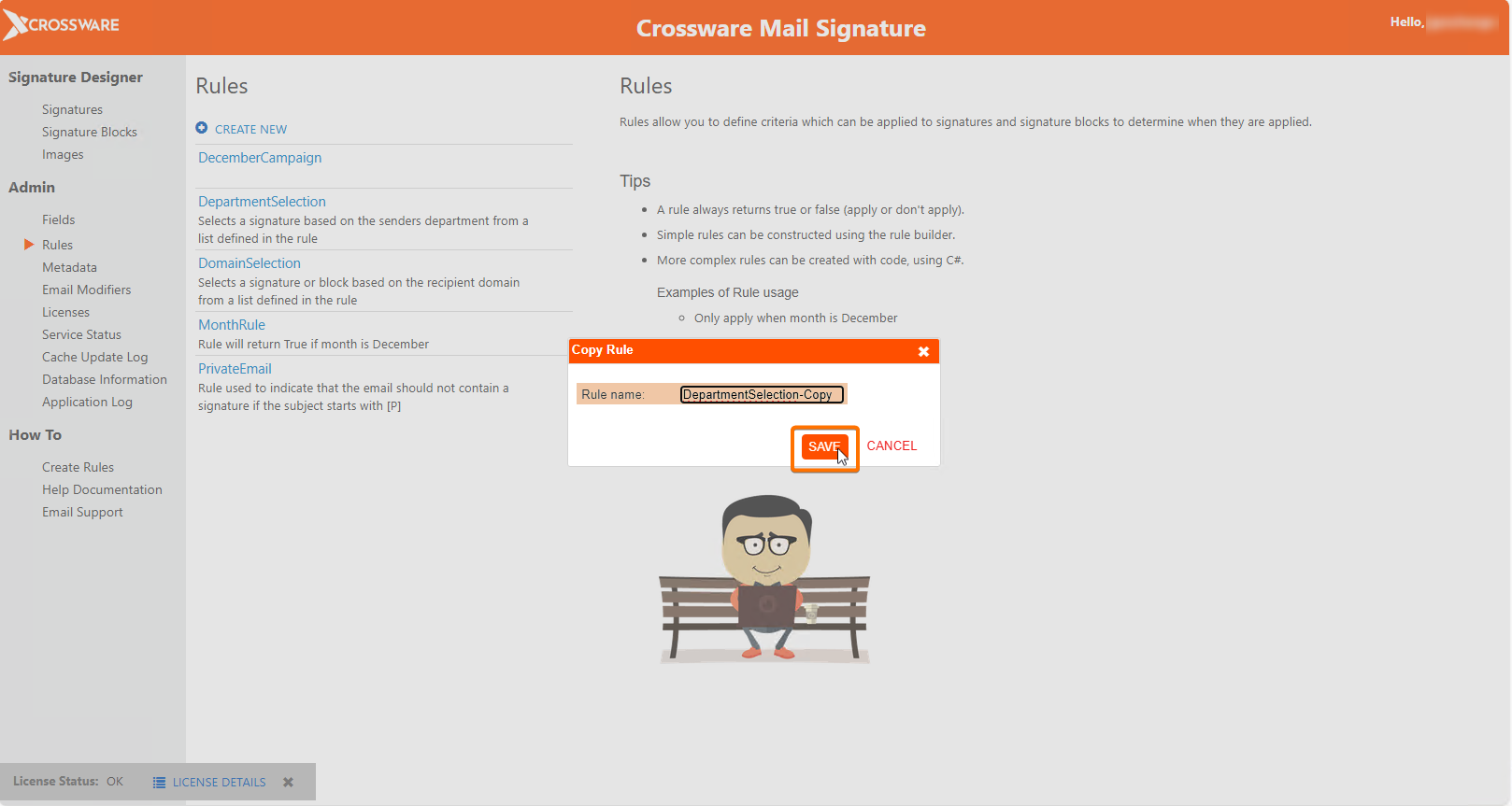
In the Copy Rule dialogue box, enter a name for the new rule and click Save.
-
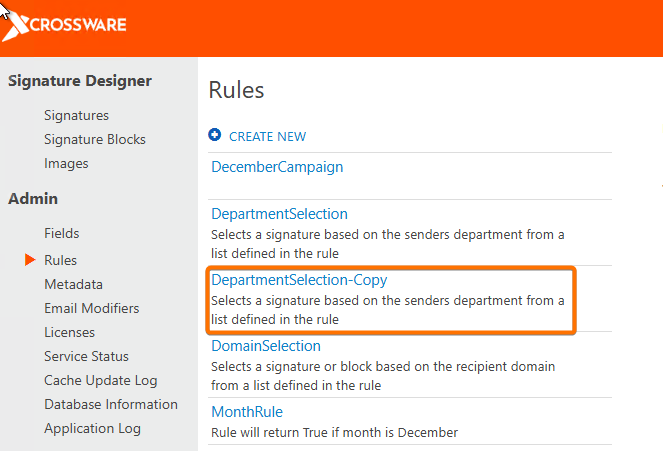
The new rule will now appear in your rules list.
-
Open the newly copied rule and click Edit to apply any changes. Once finalized, you can assign it to Signatures or Signature Blocks as needed.
Testing Rules
-
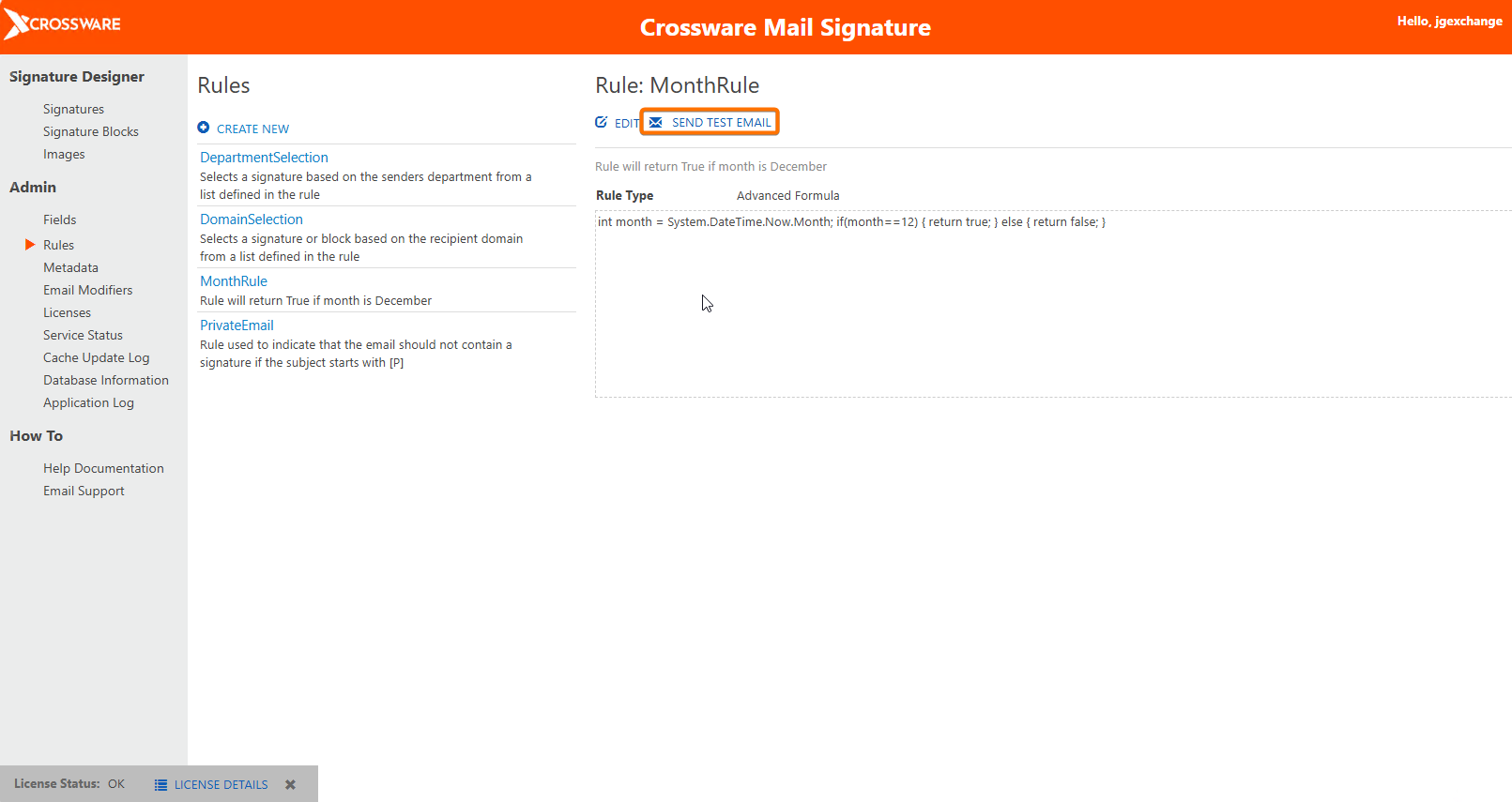
Use SEND TEST EMAIL to evaluate the rule.
-
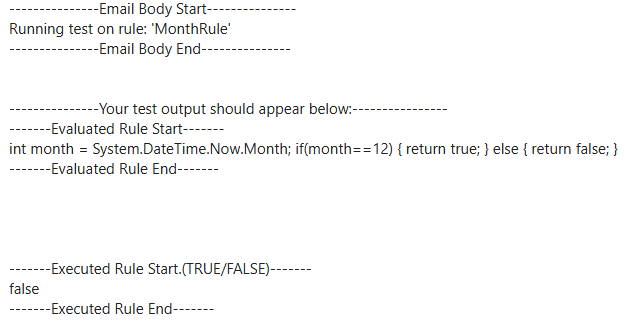
The test shows lookup values, the generated formula, and whether it evaluates to true or false.
Applying Rules
-
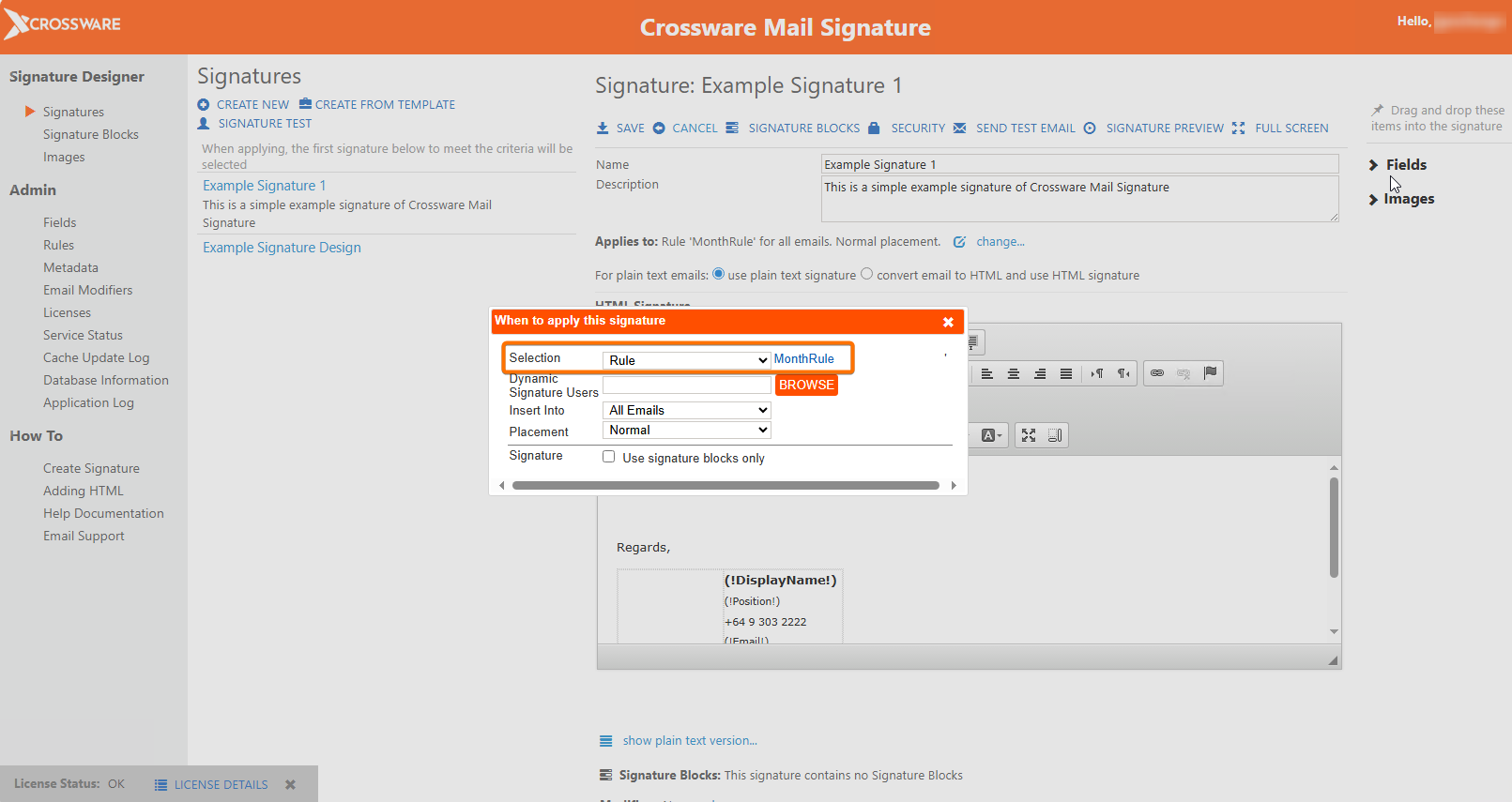
Signature – decide which signature to use.
-
Signature blocks – Rules can be used in the selection of signature blocks.