
You can use rules in Crossware to apply promotional banners or seasonal content to email signatures. Rules work as simple TRUE/FALSE conditions and can be based on dates, message type, or user groups.
Creating a Rule
-
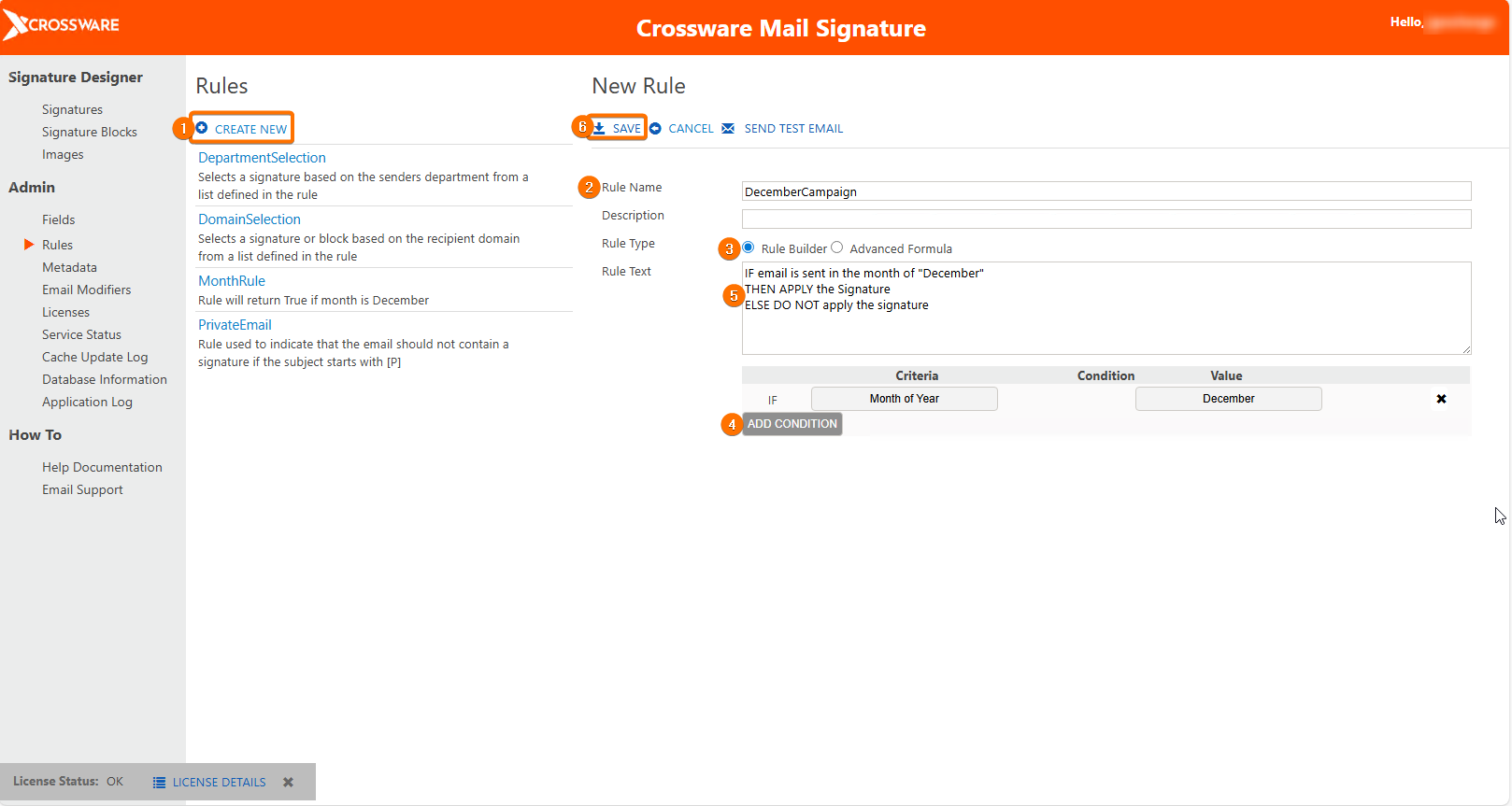
In the Admin section, go to Rules and click Create New.
-
Enter a Rule Name and optional Description.
-
Choose Rule Builder.
-
Click Add Condition.
-
For a December campaign:
-
Select Criteria → Month of Year.
-
Select Condition → Equals.
-
Enter Value → December.
-
-
-
Confirm the rule logic displayed in the Rule Text window.
-
Save the Rule.
Applying the Rule to a Signature Block
-
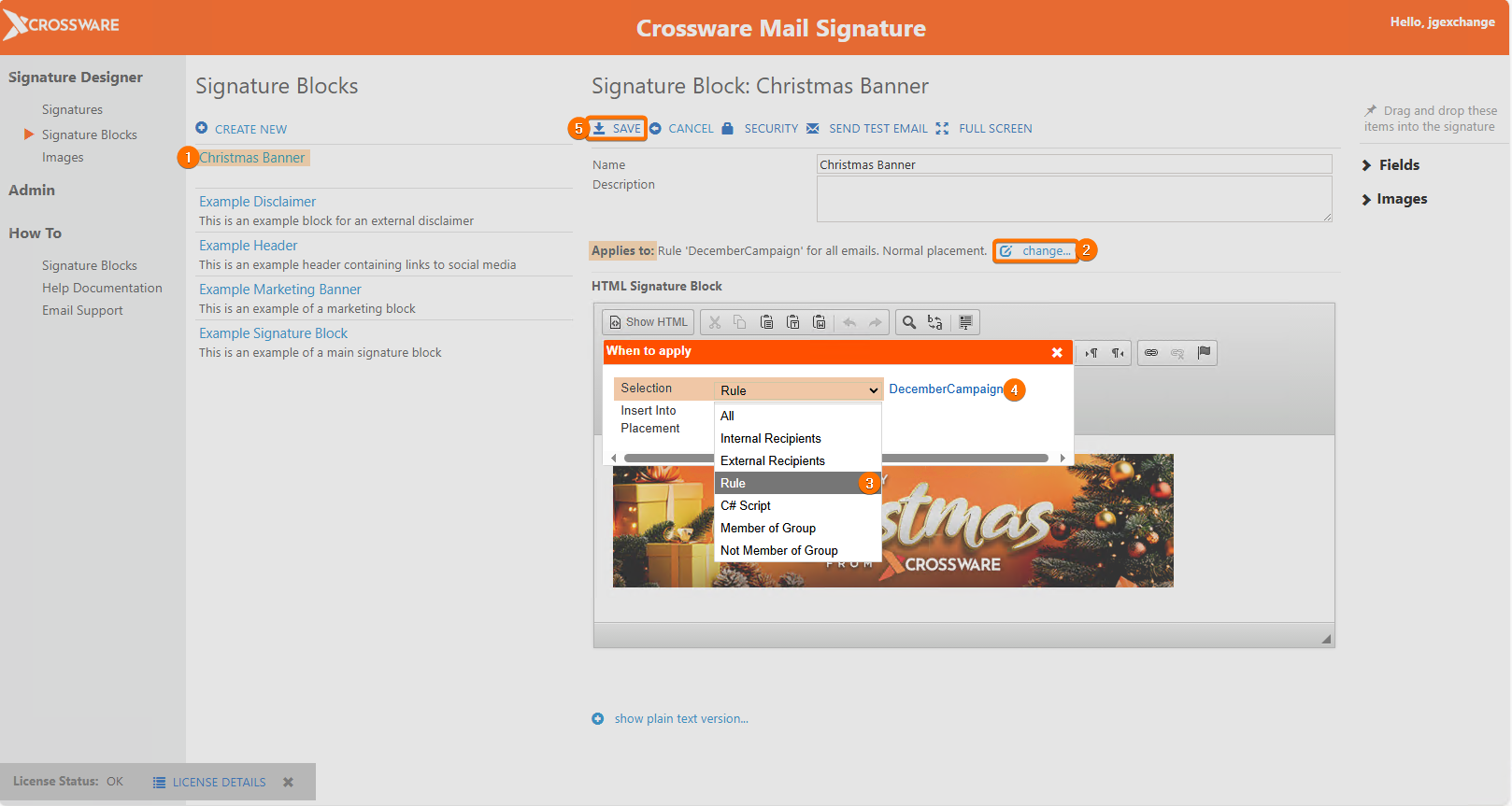
Open the signature block you want to use for December.
-
In the Applies to section, click Change.
-
From the drop-down, select Rule.
-
Choose your newly created December Rule.
-
Click Save to apply the changes.
Your promotional banner will now automatically appear only when the condition is met (e.g., during December).