
Images help enhance your email signatures by including elements such as company logos, social media icons, banners or promotional graphics.
The Image Library in the Signature Designer allows you to store, organise and reuse these images across multiple signatures.
By creating folders, you can categorise images for easier management, for example, separating logos, social media icons and marketing images.
Create an Image Folder
-
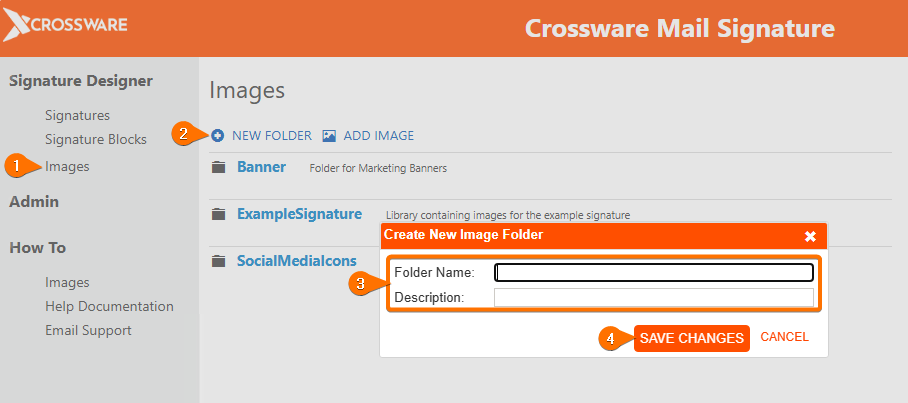
In the Signature Designer section, Click Images.
-
Click NEW FOLDER.
-
Enter a Folder Name and Description.
-
Click Save Changes.
Your tenant includes a default folder called SocialMediaIcons. Fields for these icons are already available.
Upload Images to the Image Library
-
Click Add Image.
-
Select the folder where you want to add the image.
-
Upload the image from your computer.
-
Click Add Image to complete the upload.
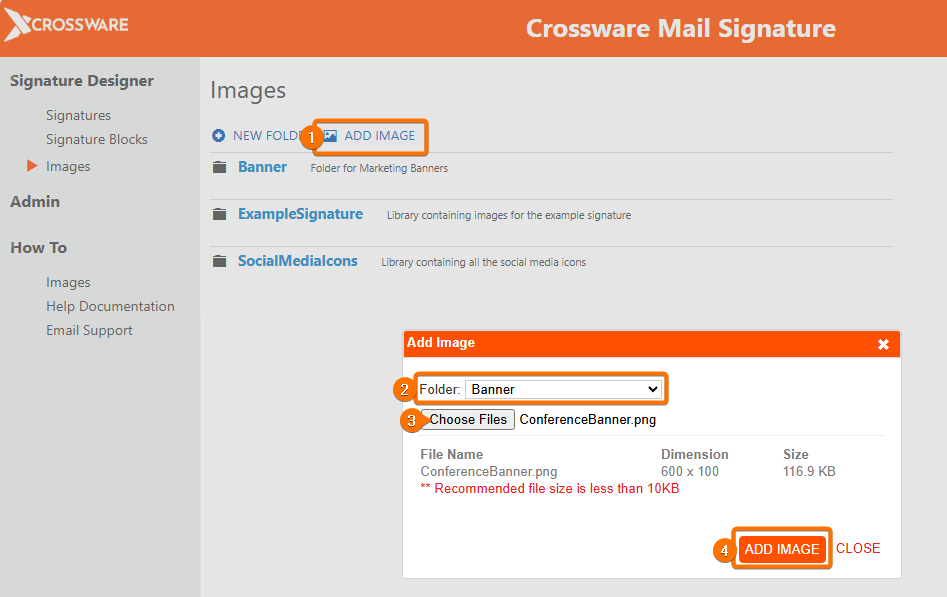
Recommended: Keep image size under 10 KB for best performance.
Additional Recommendations
-
Use .PNG or .JPG formats for best compatibility.
-
Keep image dimensions consistent with your email design.
-
Test your signatures on multiple email clients to verify image appearance and alignment.