
The Crossware Email Signature service is showing we are processing emails for more users than your subscribed number.
Why this happens & how to fix it
You have increased the number of users requiring email signatures
Purchase subscriptions for the additional users by contacting our Sales team here
Some users are counted in the service but don’t actually need a signature
Server-Side
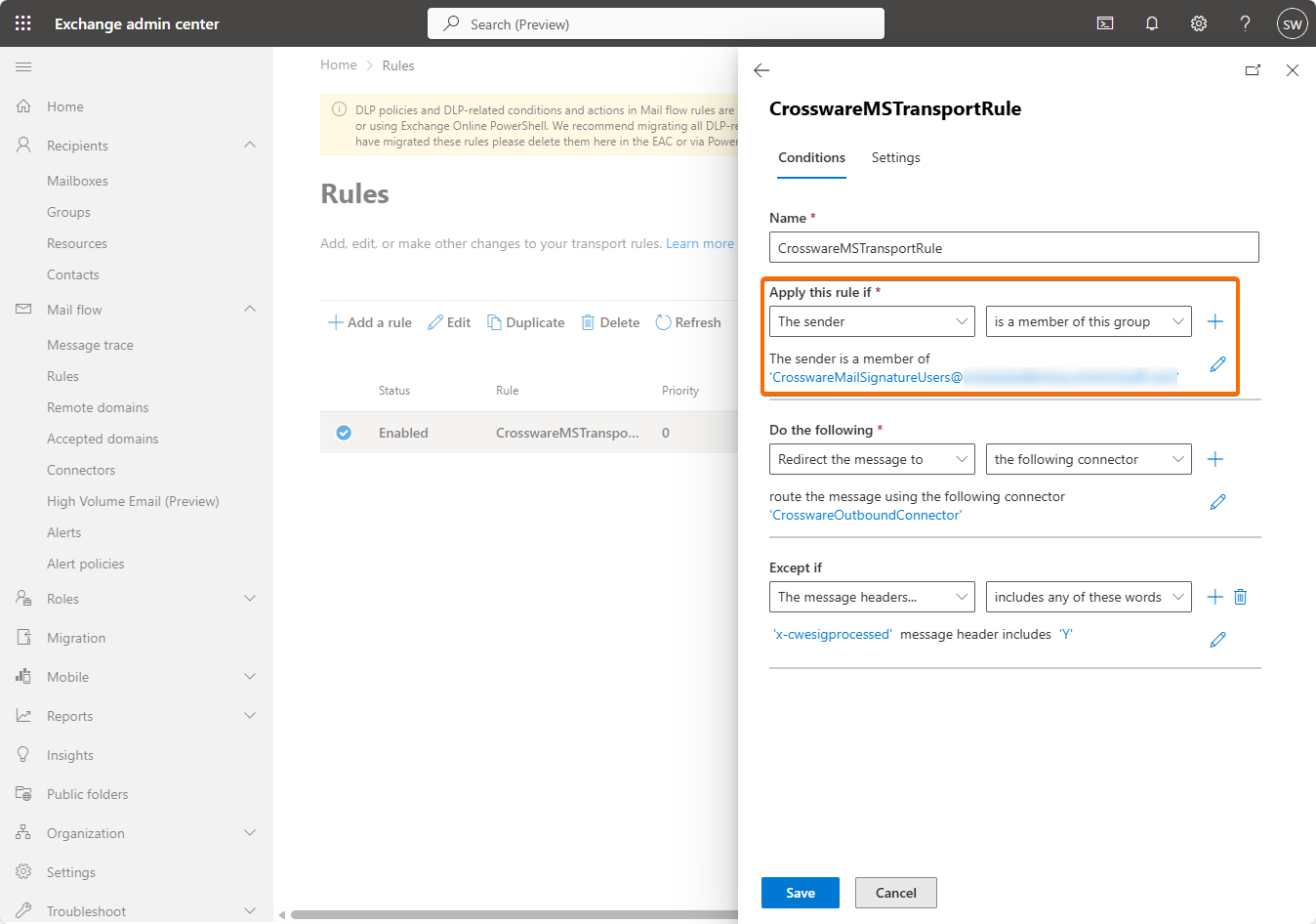
Update your Transport Rule in Microsoft 365 Exchange Admin Centre so it is using a group that only contains users that require a Crossware Email Signature Subscription.
-
Go to the Exchange Admin Center
-
Navigate to Mail Flow > Rules > Crossware Transport Rule
-
Check the group that is attached to the Crossware Transport Rule (by default this is CrosswareMailSignatureUsers) and ensure this group only contains users that you wish to have a Crossware Email Signature Subscription. If you have users/mailboxes in this group that don’t need a signature, remove them from the group.
Client-Side (Dynamic Signatures)
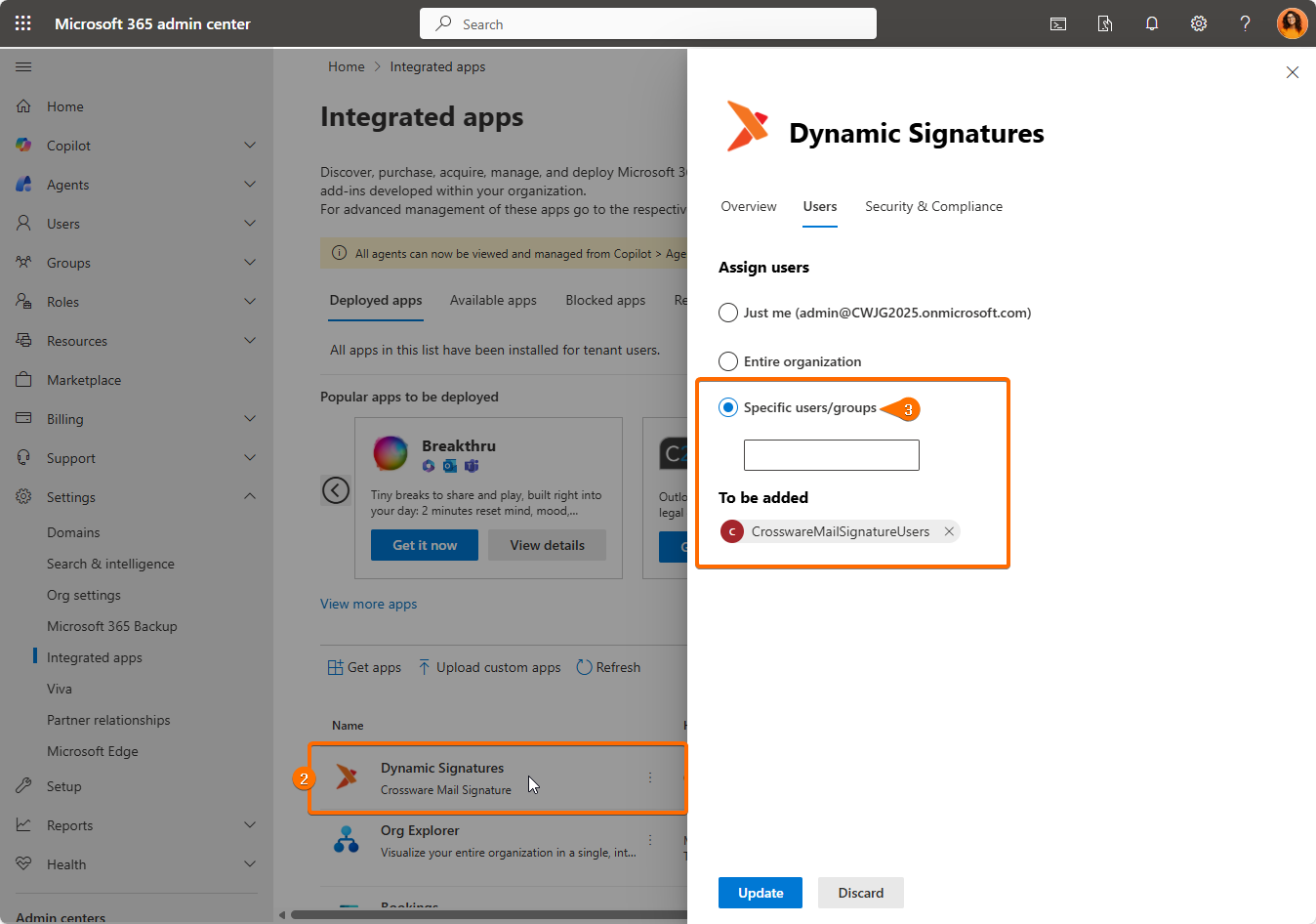
Update who your add-in is deployed to in the Microsoft 365 Admin Center. This can be deployed to the whole organization OR select users/groups. You cannot exclude users when deployed to the whole organization.
-
Go to the Microsoft 365 Admin Center
-
Navigate to Settings > Integrated Apps > Open Dynamic Signatures Add-in.
-
Select the Users tab and ensure that it is only deployed to users/groups that require Crossware Dynamic Signatures
Out of Office mail flow rule does not check Crossware group membership
This occurs when an existing Out of Office mail flow rule is configured without a condition to verify whether the sending user is a member of the Crossware group. As a result, the rule may apply to users who are not licensed or intended to use Crossware.
Go to step 5 in this KB article and ensure it is completed correctly.