
You can easily purchase your Crossware Email Signature subscription directly through AppSource. Follow the steps below to complete your purchase and get started.
Purchase the Subscription
-
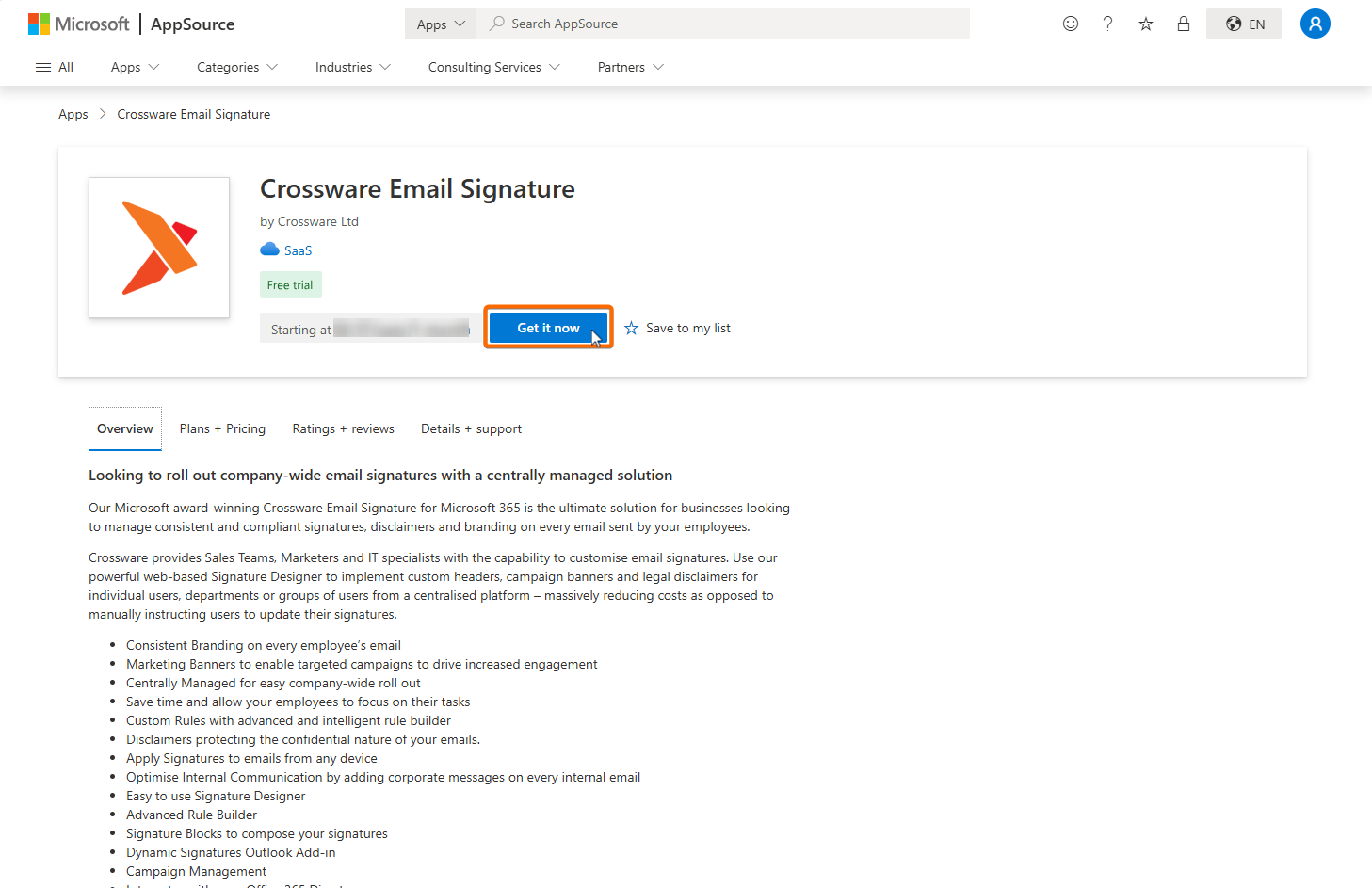
Go to Crossware Email Signature listing in AppSource.
-
Click Get it now.
-
When prompted, click Next.
-
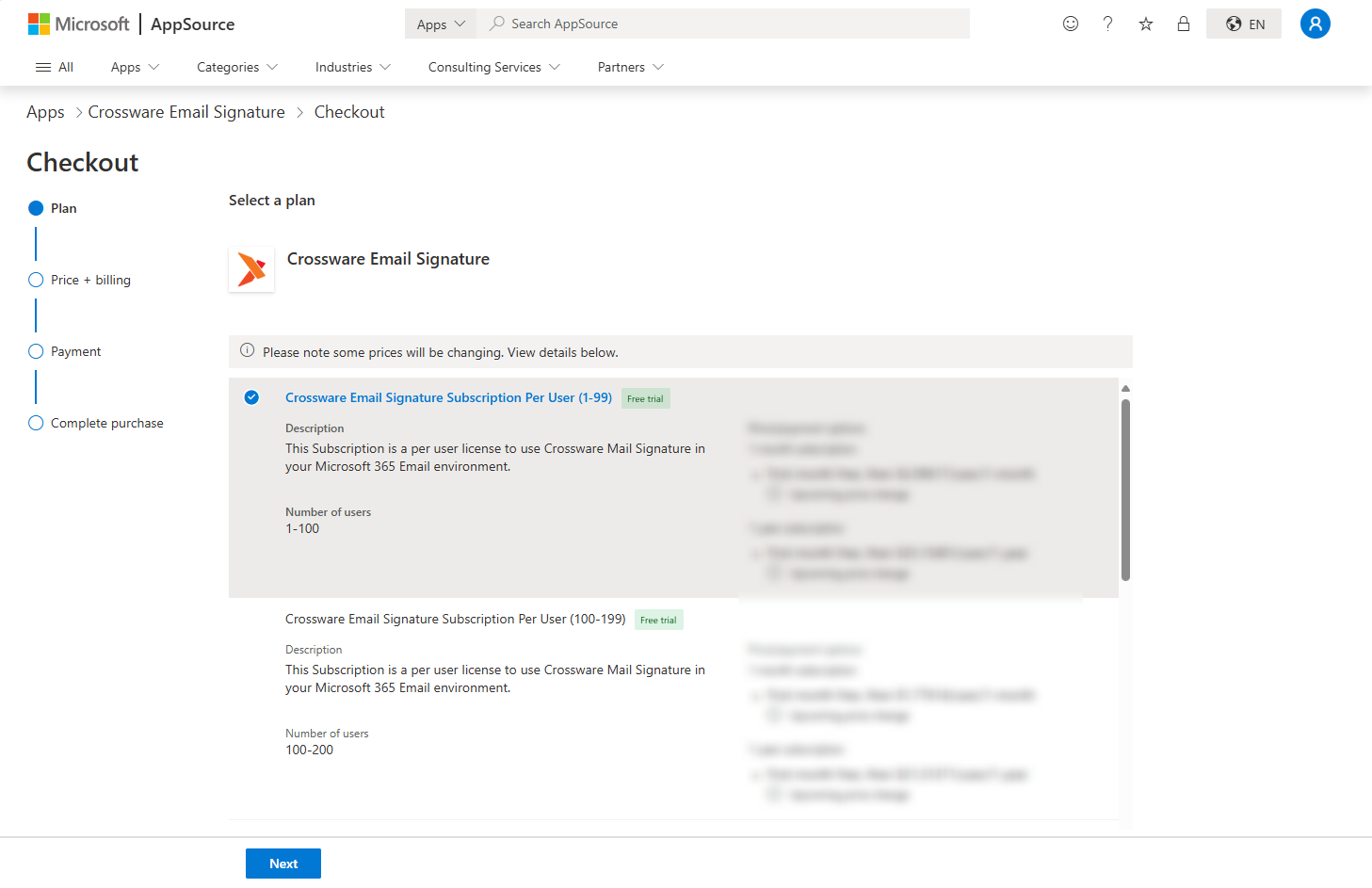
Select your preferred licensing plan and click Next.
-
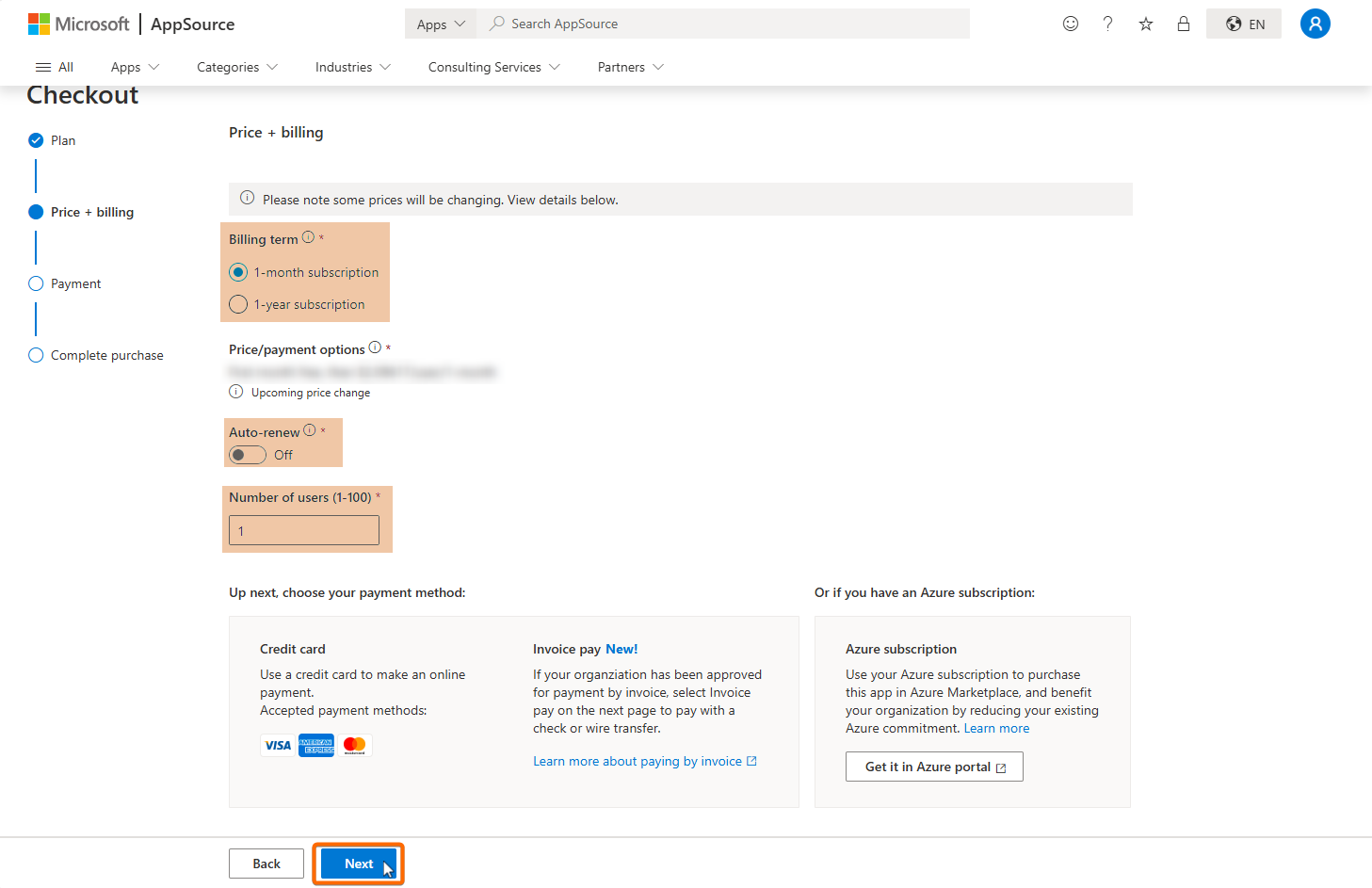
Select your billing term, set your auto-renewal preference, and enter the number of users and click Next.
-
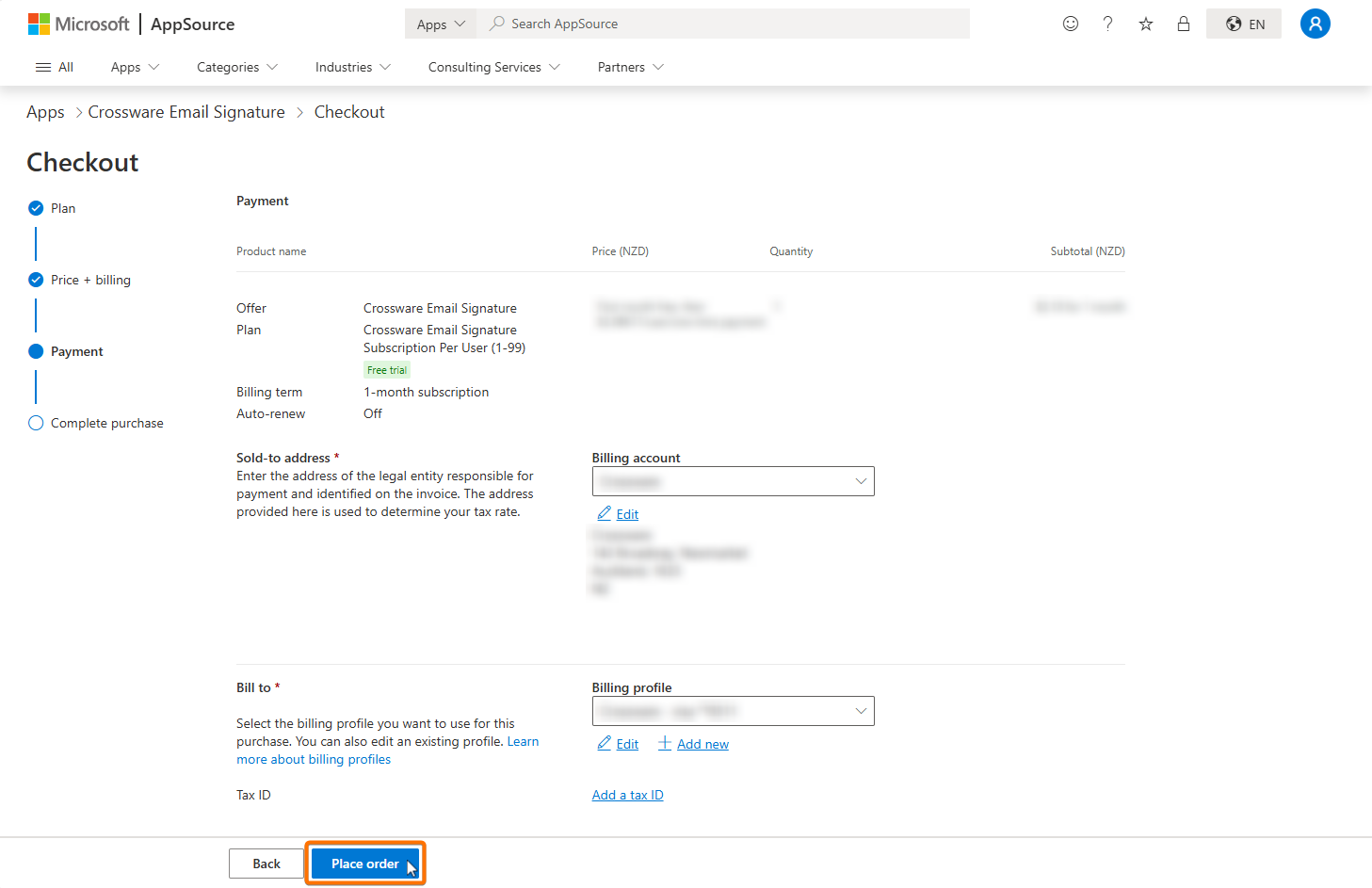
Review your order, then click Place order to confirm your purchase.
Access and Set Up Crossware
-
On the order confirmation screen, click Configure SaaS account.
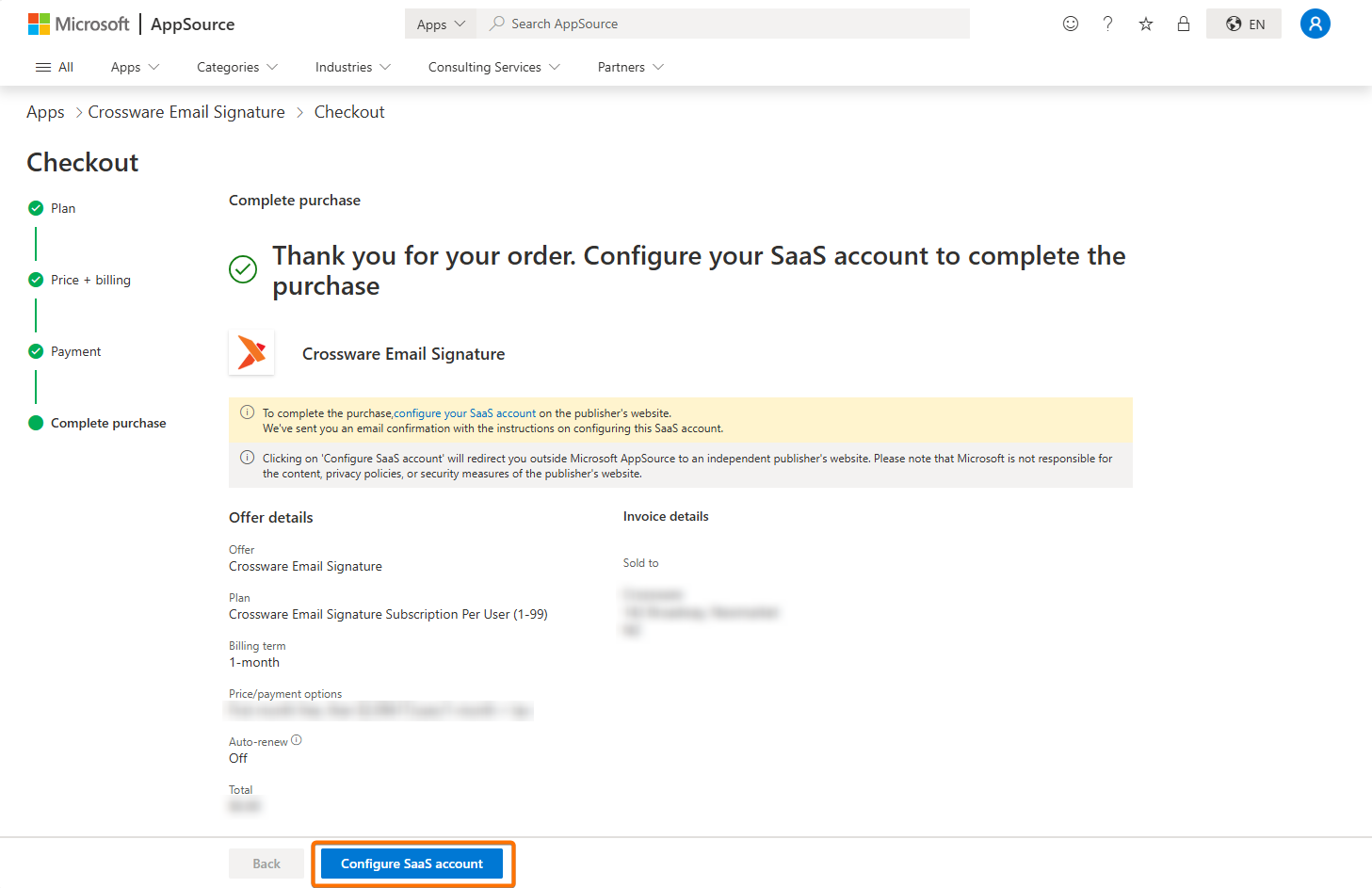
-
Follow the prompts to begin your setup.
If you need to return to setup later
-
Go to Microsoft 365 Admin Center and click Billing.
-
Select Your products.
-
Select Crossware Email Signature.
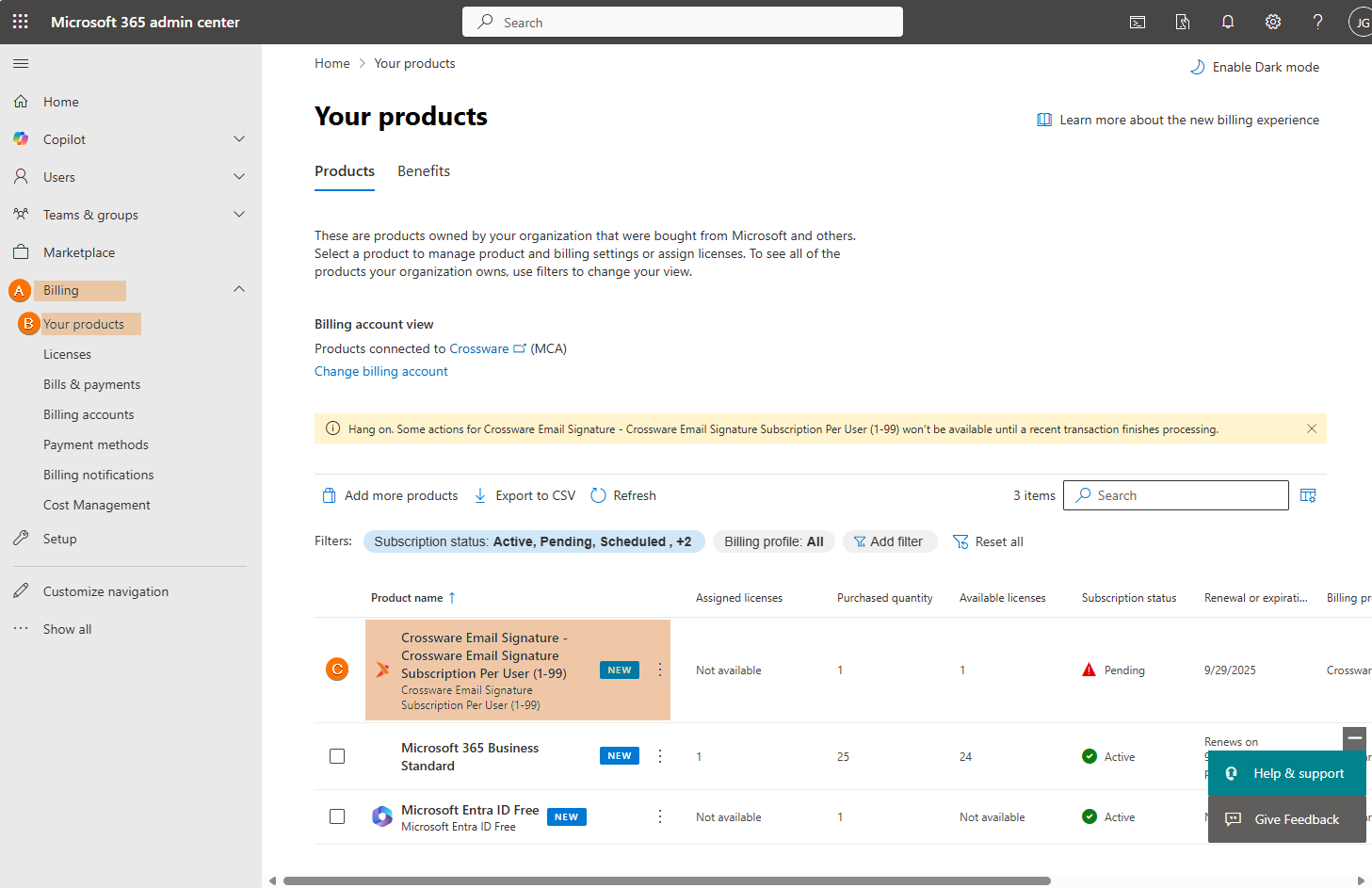
-
Click Set up account.
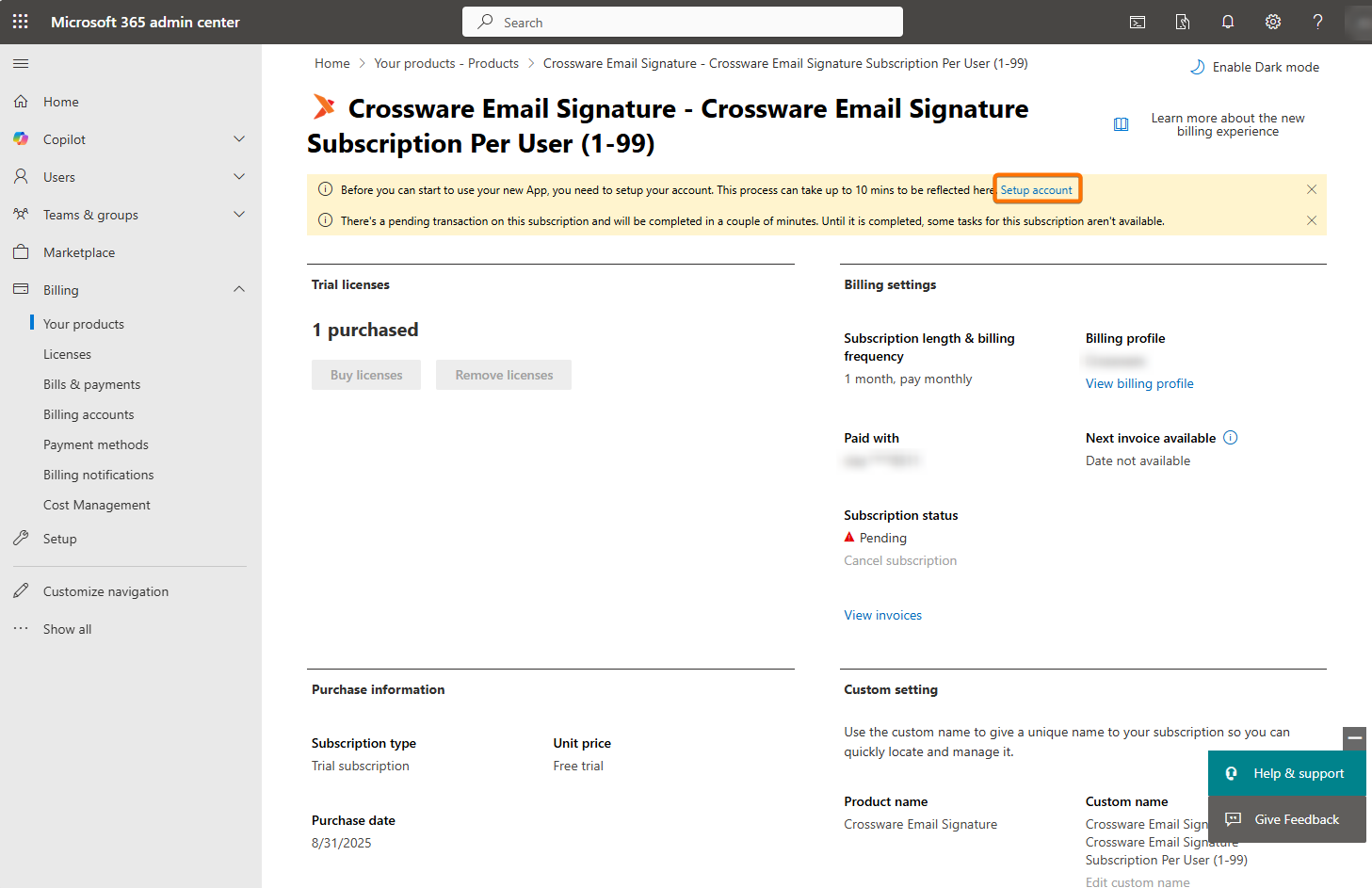
Once purchased and configured, you can begin designing and managing your company’s professional email signatures centrally. If you encounter any issues or need assistance with configuration, feel free to contact Crossware Support for help.