
A new feature from Version 4 onwards are rules. Rules are simple TRUE/FALSE decisions based around a Notes Formula. It also includes an editor to help simplify the creation of Rules.
Creating a Rule
To create a new Rule, open the view Rule and click on the action New Rule
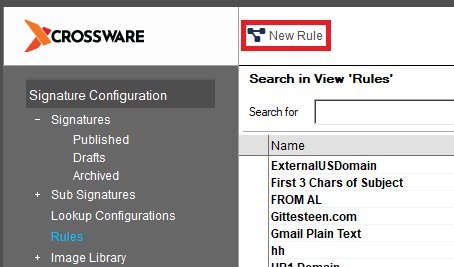
A new Rule document will be created
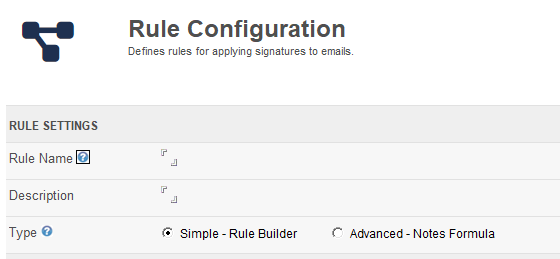
Form Field
Rule Name
This is the name of the rule, this will be used to reference the rule in signature selection, sub signatures and filter formulas.
Description
A field for describing the purpose of the rule.
Type
The type of rule, either a rule built with the Rule Builder or a Notes Formula.
Advanced Rule
In the advanced mode you can write a Notes Formula directly into the formula field. The formula must return @True or @False
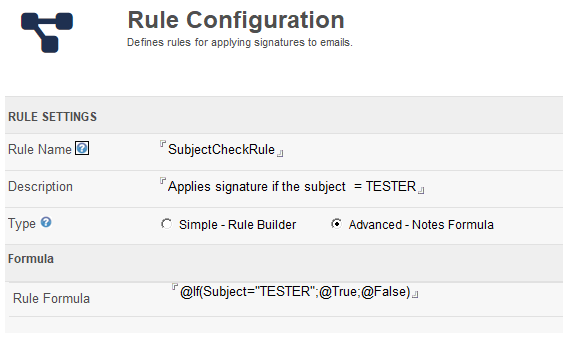
Simple Rule
A simple rule is built using the rule builder screen. These are a series of conditions joined by the AND/OR operators.
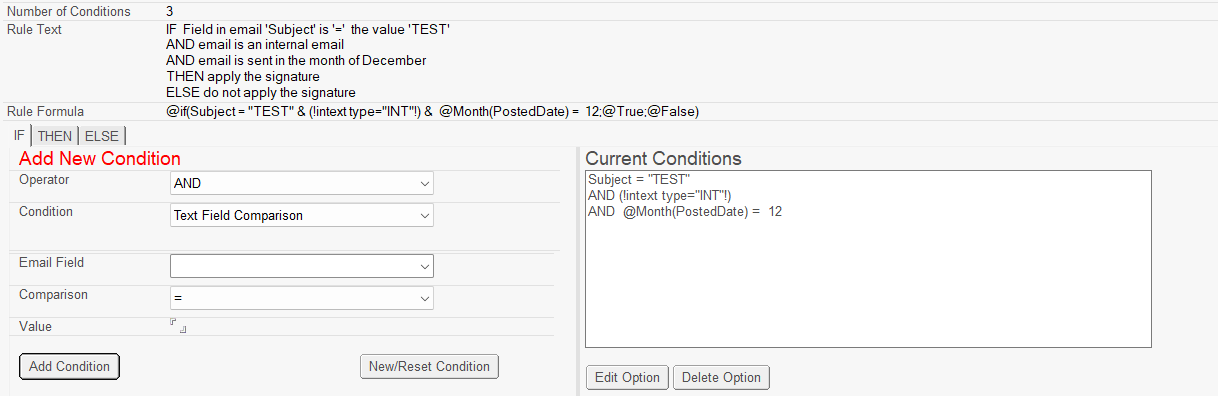
The example below will return @true if all the following conditions are met:
-
Subject = TEST
-
Email is internal
-
Month is December
-
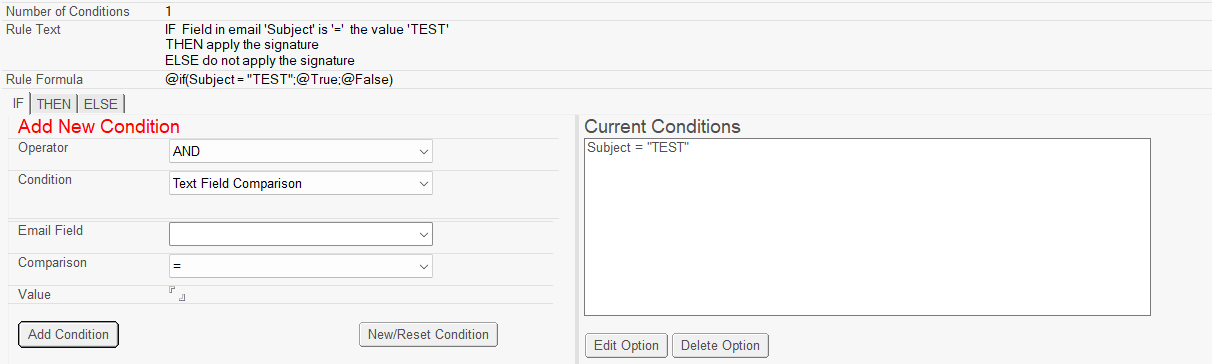
Set the Subject = TEST
-
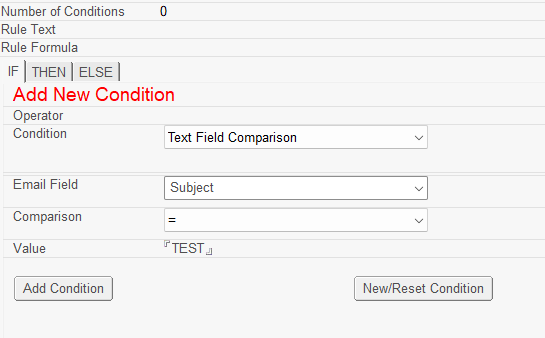
Then click on the Add Condition Button. This will add the condition to the list.
b. Add more conditions to the Rule.
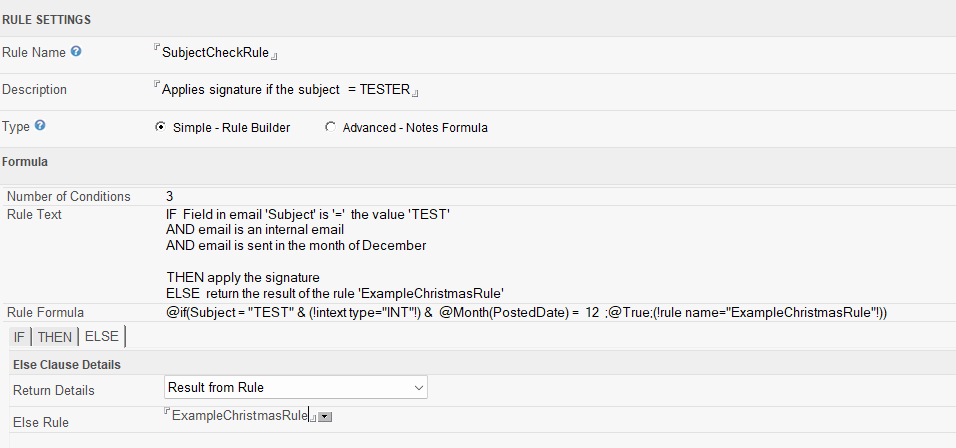
c. Set the THEN and ELSE clause.
On these tabs, you can set what is returned when the condition is met or not met.
You can return @TRUE/@FALSE or the result of another Rule. This allows you to chain rules together
Testing Rules
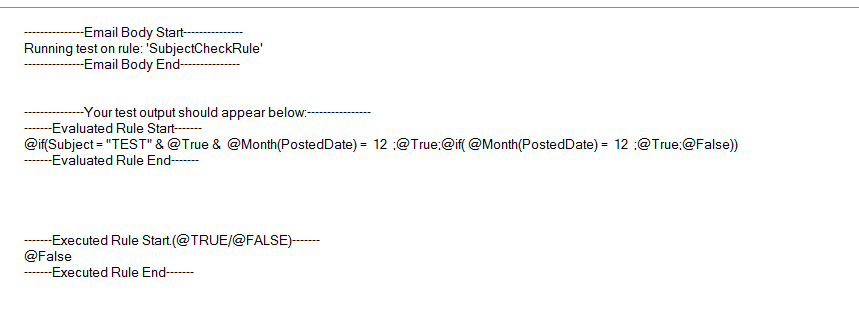
To test a rule, you can click on the SEND TEST EMAIL action.
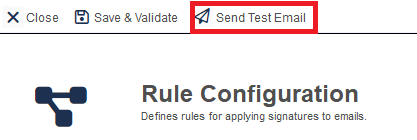
This will evaluate all the lookups in the rule and display the formula before execution. it will also return the result of the execution.
Where can I use a rule?
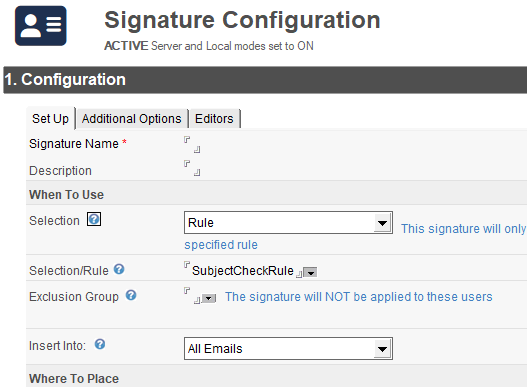
Signature Selection
You can use rules to apply a signature.
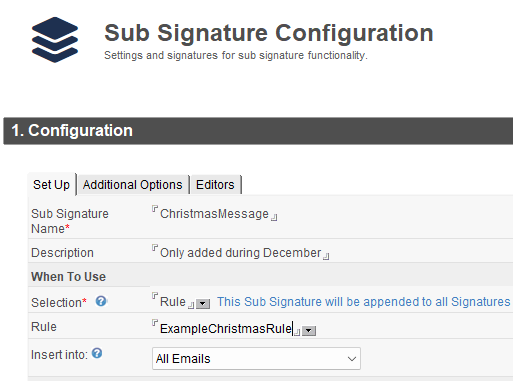
Sub Signatures
Rules can be used in the selection of sub signatures
Filter Formula
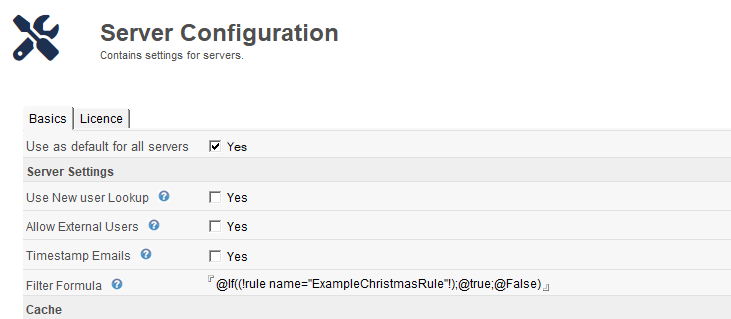
@If((!rule name="ExampleChristmasRule"!);@true;@False)
The lookup (!rule!) returns the text @true or @false which can used in the filter formulas
Other Lookups
As above rules can be used in formula lookups to create conditional lookups.