
If you want to include Carriage Returns in your Notes Formula, the appropriate carriage return will need to be inserted as a string into the formula.
The way to do this is to create a lookup that will return the required text value based on the type of formatting required.
This look-up returns a text string which can be inserted into other formula lookups:
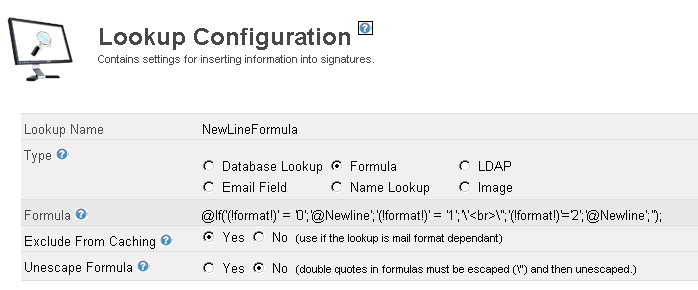
@If('(!format!)' = '0';'@Newline';'(!format!)' = '1';'\'<br>\'';'(!format!)'='2';'@Newline';'');
-
For Rich Text emails it returns the text @Newline
-
For HTML emails it returns the BR Tag this text is returned as a quoted string
-
For Plain Text emails it returns the text @Newline
You must select "Exclude from Caching", otherwise it will not be dynamically evaluated per email.
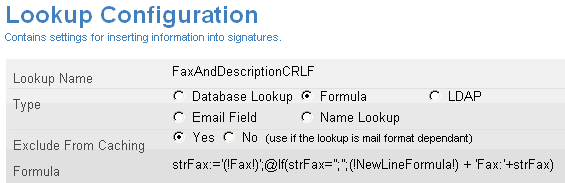
Once this look-up has been created, it can be referenced in other lookups.
For example in this signature, we want to add a new line only if the fax number exists:
In V3.08 a fix was applied which resulted in the (!NewLineFormula!) lookup not working. This error has been resolved in V3.09 but as a temporary work-around the (!NewLineFormula!) look-up must be changed to work in this release, upon upgrading from V3.08 to V3.09 this changed must be reversed.
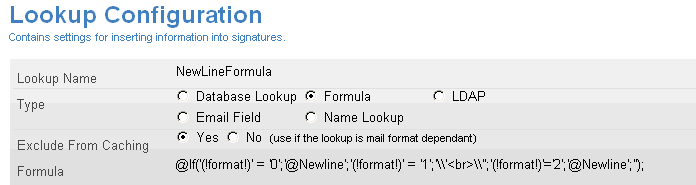
@If('(!format!)' = '0';'@Newline';'(!format!)' = '1';'\\'<br>\\'';'(!format!)'='2';'@Newline';'');
the double backslashes in the modified formula.
You can add Carriage Returns into signature configurations using the Built-in Look-ups (!crlf!). but this will not work in a formula as it will put the Carriage Return directly into the formula.