
Version 4 onwards includes a new feature to allow improved editing of custom HTML signatures.
This included support for inline images in the signature configuration.
Any signatures edited in the new editor are compatible with V3 servers.
Enabling the new editor
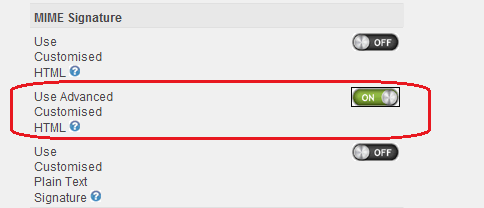
The new editor is enabled by selecting Use Advanced Customised HTML ins the signature setting.
Editing the HTML Signature
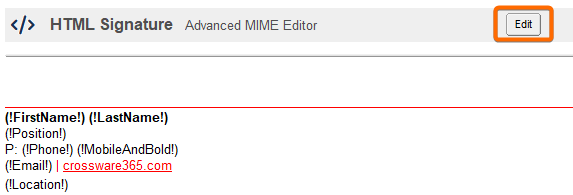
If you already have a Rich Text signature saved in the signature configuration which has been converted to HTML, this will be loaded in the editor by default.
The Editor
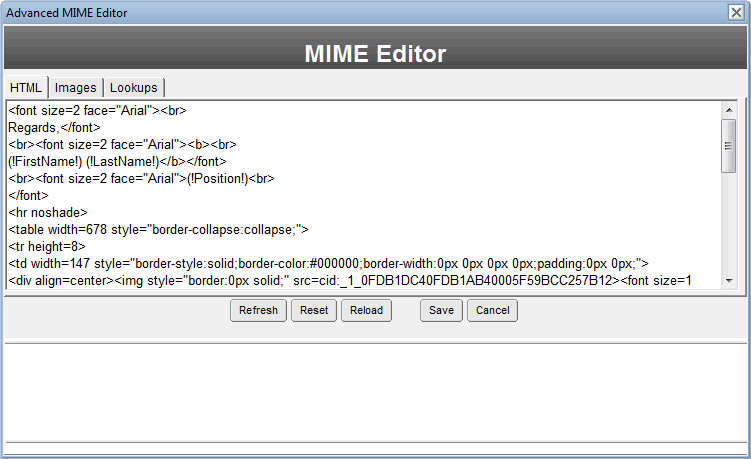
Tabs
HTML Tab
The HTML tab shows the Raw HTML that can be edited.
Images Tab
This tab contains a list of all the images embedded within the signature
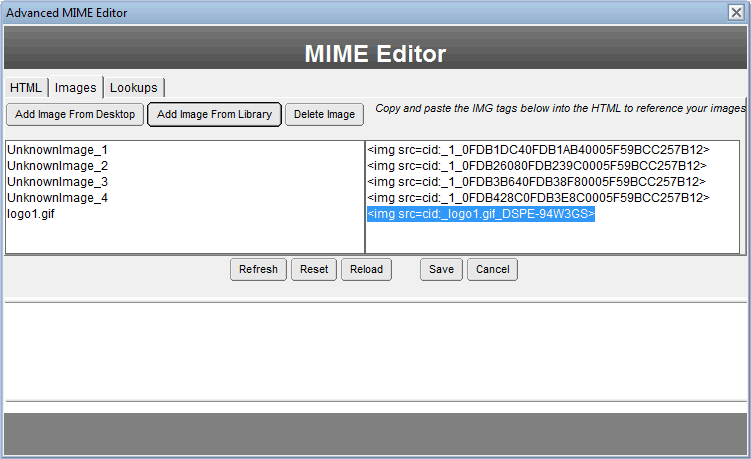
The images UnknownImage_x are images that were part of the original conversion from Rich Text to HTML.
logo1.gif is an image that was added using the editor.
To add an inline images into the signature, highlight the link and copy the text using ctrl-c, then paste the html into your signature.
Lookups Tab
This tab contains a list of all the available lookups. These can be copied and pasted into the signature.
Previewing the Signature
After editing the images and signature, you can preview the signature before saving writing the changes to it to the signature configuration. (This signature configuration still needs to be saved for the changes to take effect)
Refresh Button
This button will display a preview of the signature in the area below the button. In the screen shot below the aaajc2.dat is an unreferenced inline image.
You must use all the image links on the Image Tab in your HTML.
%20W.%20crossware365.com-20251107-014941.png?cb=292c4c9518cdaff8a1daf01441c4f8ca)
Reset
This button will remove all the images and HTML in the editor. You must click on Save to write the changes back to the signature configuration document.
Reload
This button will reload the original HTML and images from the last saved signature configuration. Any changes made or written to the currently edited signature configuration will be lost.
Save
This button will write the changes to the signature configuration document. You will still need to save the signature configuration document for the changes to take affect.
Cancel
Closes the editor without writing any changes to the signature configuration document.