
When an email is processed by Crossware Email Signature, system fields are added to the message. These fields confirm whether the email has been processed and provide useful diagnostic information.
How to View System Fields
In Outlook, you can view these fields by opening the email headers.
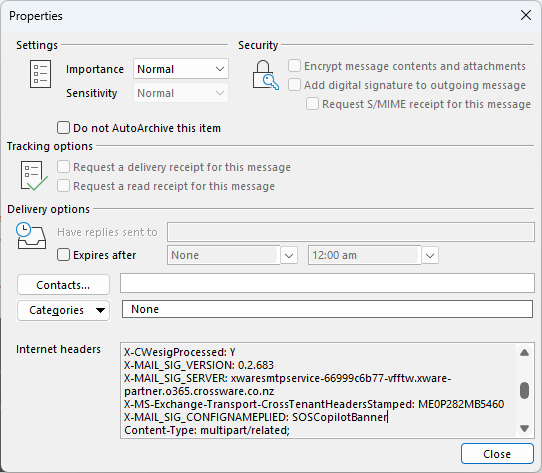
System Fields
-
X-CWEsigProcessed
-
Value: Y when processed
-
Purpose: Confirms the email has been processed and prevents duplicate processing.
-
-
X-MAIL_SIG_SERVER
-
Identifies the server that processed the email.
-
-
MAIL_SIG_VERSION
-
Displays the software version used to process the email.
-
-
MAIL_SIG_CONFIGNAME
-
The name of the mail signature configuration document applied.
-
-
MAIL_SIG_CONFIGNAME_APPLIED
-
Lists the configuration document(s) applied.
-
For Main and Signature Block configurations, both will appear.
-
For Linked-only signatures, only the linked signature block is listed.
-
Note: Even if a configuration is set to Reply Only or New Emails Only, it will still appear here.
-
Troubleshooting with System Fields
System fields can be useful when signatures do not appear as expected.
-
Check if the email was processed
-
Look for X-CWEsigProcessed = Y.
-
If this header is missing, the email was not processed by Crossware.
-
-
Verify which configuration applied
-
Review MAIL_SIG_CONFIGNAME_APPLIED to confirm the correct signature configuration was used.
-