
You have enabled Crossware Mail Signature for Exchange on-premises, but users can still add and apply personal signatures to their emails by using the native tool in Microsoft Outlook Web Access. This can result in some users with two different signatures - one from Outlook and one from Crossware Mail Signature.
This article describes how you disable signatures configured within Microsoft Outlook Web Application.
Disabling Local Signatures for Microsoft OWA Users
Open up Exchange Admin Center > navigate to Permissions > Outlook Web App Policies > 'click the policy which is assigned to the user' > feature > More options > untick Email signature.
It may take more than 24 hours for the changes to take effect
To check which OWA policy has been assigned to the user or if the assigned permission is correct:
https://technet.microsoft.com/en-NZ/library/dd876884%28v=exchg.150%29.aspx
To create an Outlook Web App mailbox policy:
https://technet.microsoft.com/en-NZ/library/dd335191%28v=exchg.150%29.aspx
If the operation doesn’t take effect, please make sure the policy that you modified is the one you assigned to the user.
Disabling Local Signatures Created in OWA for Exchange Users
To disable local signatures created in OWA for Exchange users, you can use the Segmentation tool
https://technet.microsoft.com/en-nz/library/bb123962%28v=exchg.141%29.aspx
-
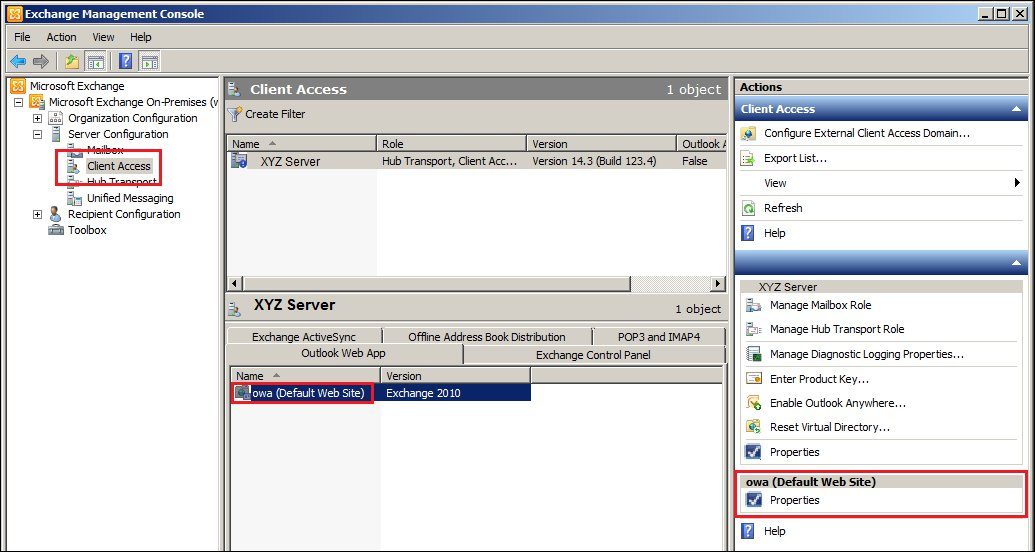
Open the Exchange Management Console, select Server Configuration, and then Client Access
-
Select the appropriate server, and then right click on OWA (Default Web Site)
-
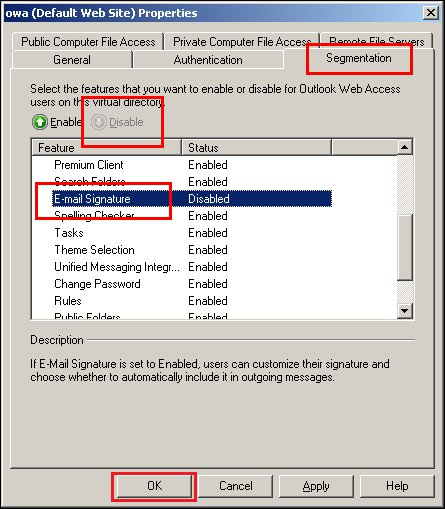
Now go to the Segmentation Tab.
-
Select the option of Email Signature from the list and click on Disable button. Now click on OK to save your changes.
Please restart the Internet Information Services (IIS) service to enable the changes.