
You can control who can add, edit and delete signatures through the Crossware Email Signature Designer, and from your own Exchange Admin Center
Grant access through Crossware Email Signature Designer if you want to give a user(s) access to edit signatures(s) they have been assigned.
For full access rights to Crossware Email Signature Designer grant user(s) access through your Exchange Admin Center.
Granting access to edit individual signatures
There are two types of access you can grant in Crossware Mail Signature Designer:
-
Edit (can edit signature assigned to )
-
Admin (ability to edit and delete the signature assigned).
To give a user or group of users Editor or Admin access:
-
Go to Signature Designer and select the Signature or Signature Block you would like to grant access to.
-
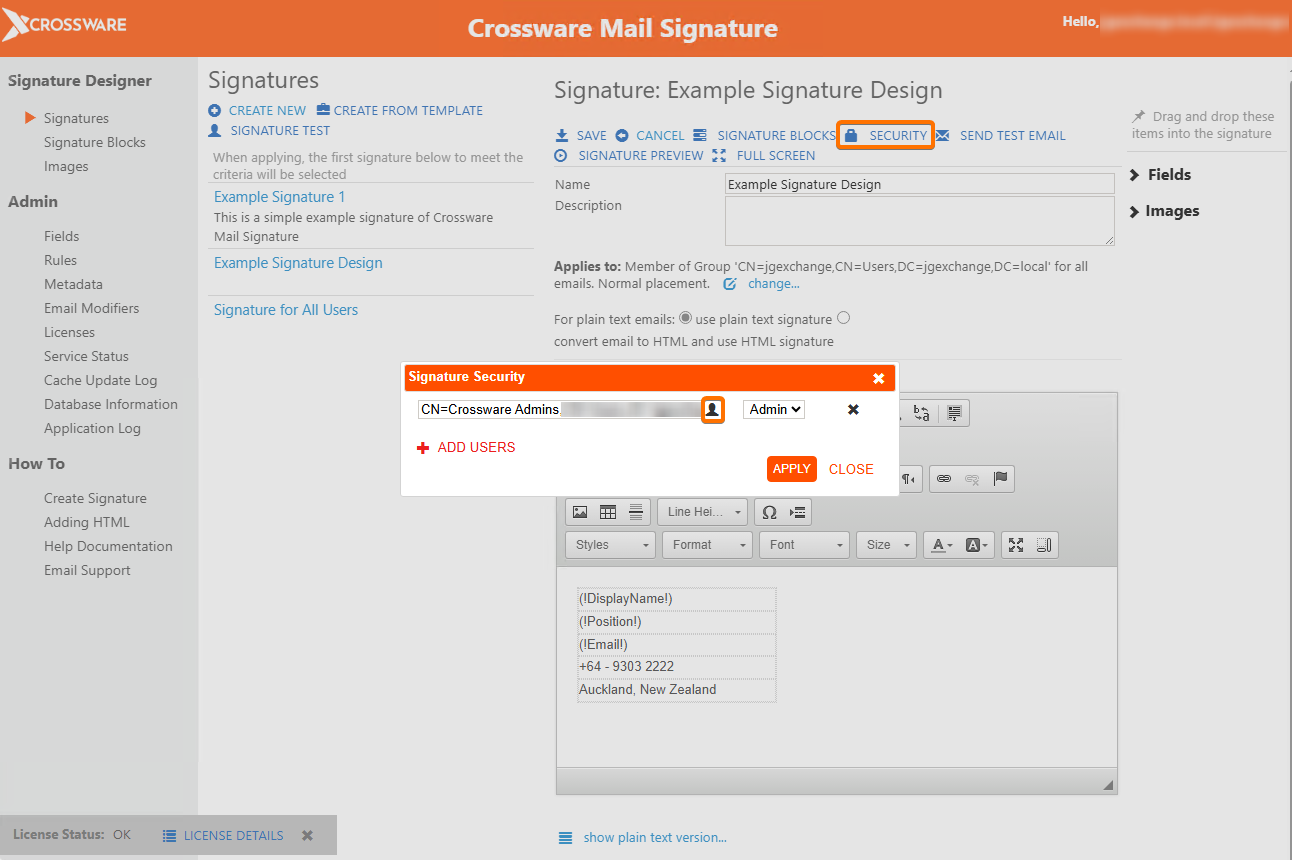
Click EDIT, then SECURITY in the top menu bar.
-
Enter in the email address of the user you would like to grant access to.
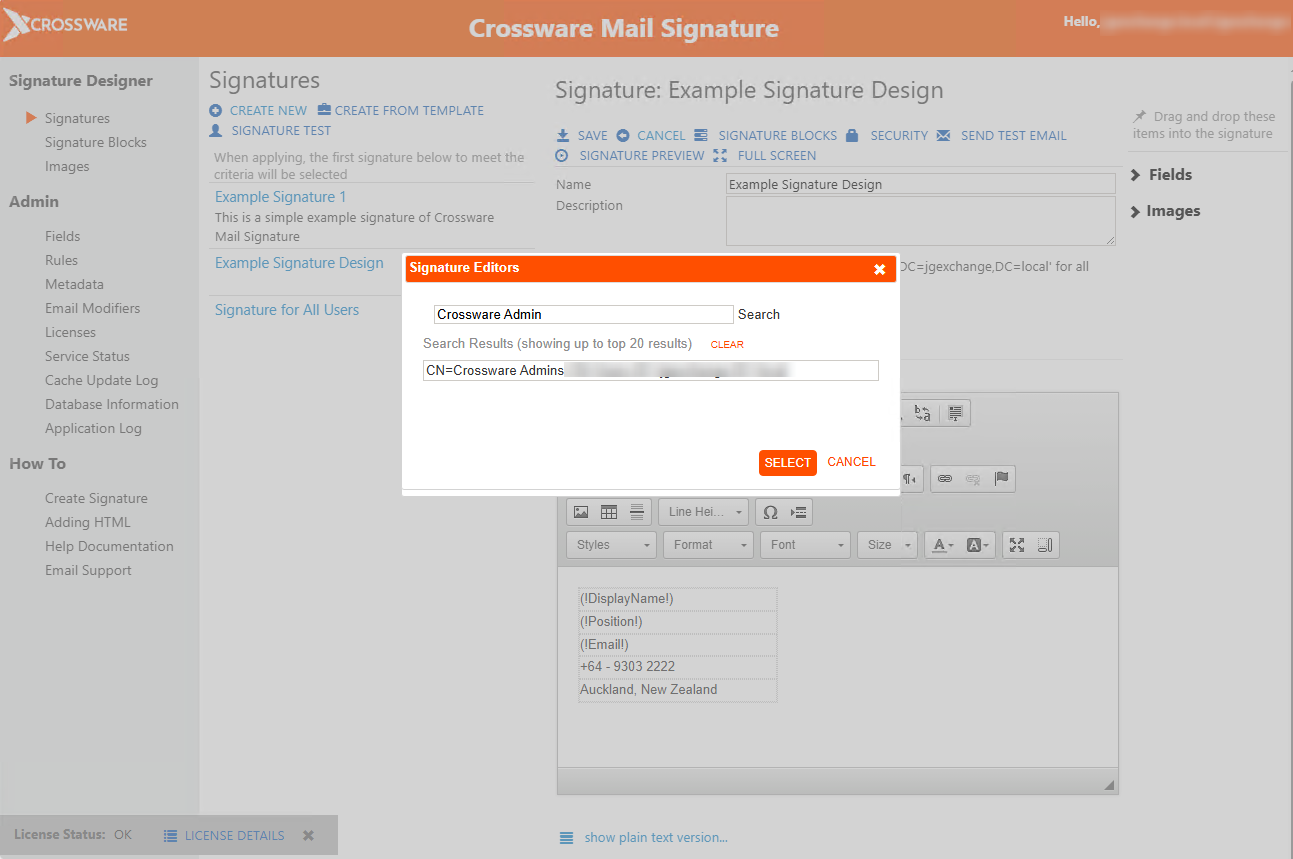
You can search your users /groups by clicking on the icon and then typing in a name, group name or email.
-
Choose their name and click the SELECT button.
Use the drop-down menu next to each name to select from the two access levels:
-
Edit - Can edit an assigned signature
-
Admin - Can edit and delete and assigned signature
You can add more users / groups as needed by clicking the ADD USERS button.
Once you have added all users and groups, click APPLY.
-
Save your signature or signature block.
If this user requires access to make changes to add, edit or delete images, fields, rules and email modifiers you will need to grant this user admin access via your Microsoft Exchange Admin Center.