
You can download the installer from https://www.crossware365.com/download-msev5
The Crossware Email Signature installer is a Windows executable package containing three main components:
-
SQL Express (optional)
-
IIS configuration / Web portal
-
Transport Agent (for Exchange server)
These parts work together to allow signature configuration, storage, and application on outgoing mail.
System Requirements
SQL Server
-
SQL Server Express 2008 R2 and above (including SQL Express 2019)
-
Supported on Windows Server 2008 and later
IIS Configuration
-
IIS7 or later with 4.0 enabled
Exchange Transport Agent
-
Supported on Exchange Server 2010, 2013, 2016 and above
Supported Clients
Crossware Email Signature is client independent. Tested and supported with:
-
Outlook 2010, 2013, 2016 and above
-
Outlook Web Access (OWA)
-
iPhone (iOS 6 and above)
-
Android Native email client (version 4.0 and above)
Installation Steps
Launch the Installer
-
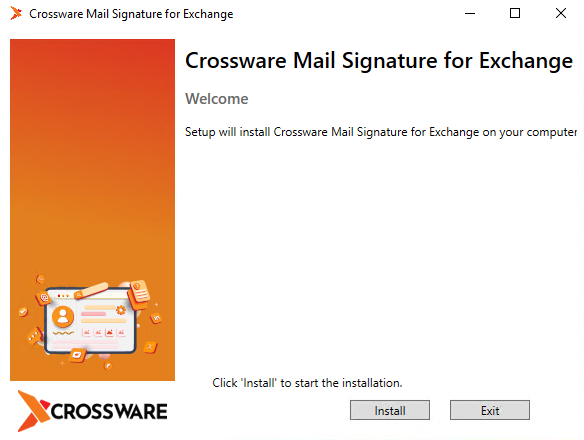
Run the executable and click Next to proceed.
-
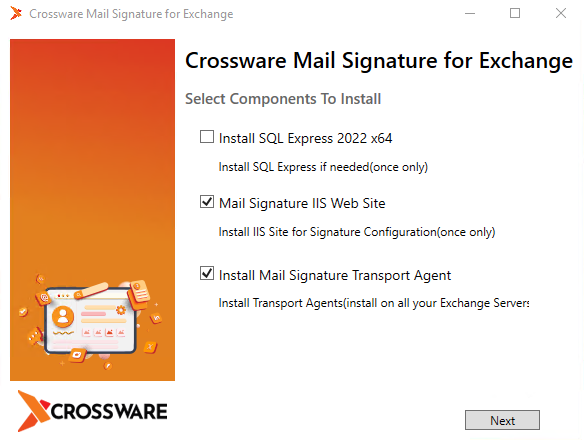
You'll see a list of components to install:
-
Select all three unless:
-
You already have SQL Express 2017 installed, or
-
You plan to use an existing SQL Server instance
-
-
SQL Server Setup
If you choose the SQL Express option:
-
The installer will deploy a named instance called Crossware.
-
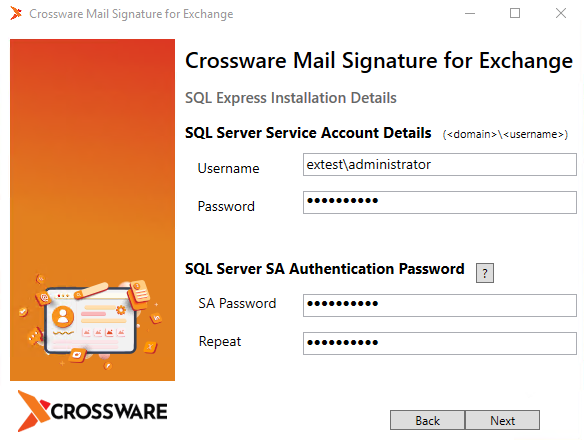
You must supply a username & password for the SQL service account.
-
This account must have the Log on as a service user right.
-
If this privilege is missing, the installer will warn you. update local security policy and retry.
-
-
If SQL Express is not being installed (or you’re doing an upgrade), you’ll instead need to supply existing SQL Server connection details.
-
During upgrades, many settings are preserved, but your SQL Express password must be entered again.
-
After you fill in the required details, click Next.
-
The installer verifies the SQL connection, checks for an existing signature database, and if none is found, prompts to create a fresh one.
-
It will also validate your Crossware license. installation cannot proceed without a valid license.
Configure IIS Web Portal
-
The default web application is named MailSignature, accessible at:
http(s)://<WebServer>/MailSignature/ -
Access control:
-
View access is granted to all authenticated users.
-
Edit/configuration access is restricted to members of:
-
BUILTIN\Administrators
-
Domain Admins
-
CrosswareMailSignatureAdmins
-
-
Transport Agent
The Transport Agent is installed in the C:\Program Files directory on the Exchange Server.